

Running classic arcade, console, and retro computer titles on modern PC hardware often brings unexpected configuration challenges. Modern PC gamers frequently wonder which is the best emulator for gaming when trying to balance graphical accuracy, low input latency, and a streamlined interface. A capable setup requires more than just downloading software; it depends on matching your processor architecture, graphics settings, and storage speed to the emulation platform. Whether you game on a high-performance desktop or a compact portable rig, understanding how emulation platforms interact with Windows OS is essential for smooth gameplay.
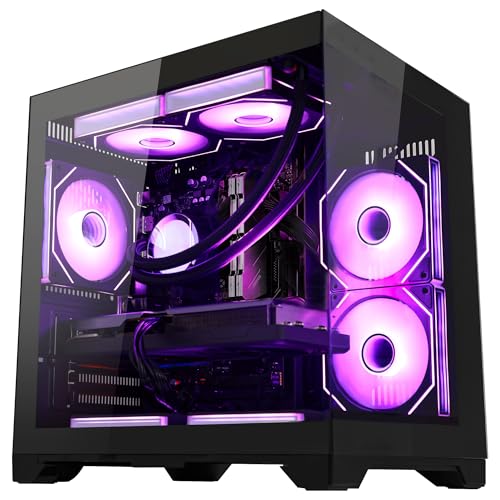
Selecting the proper platform also means deciding between unified frontend software and dedicated standalone emulators. If you are configuring a custom rig or exploring a standard desktop gaming PC tower, your hardware headroom gives you flexibility to run advanced shaders and upscaled resolutions. However, handheld gaming PCs and compact systems require careful memory management and efficient background software. Evaluating how different emulation engines handle system resources ensures your hardware delivers stable frame rates across every gaming era.
Pros
- Huge game library out of the box – no need to hunt for ROMs individually
- Simple plug-and-play installation on compatible Windows handhelds
- Works with major handhelds like ROG Ally, Legion Go, and MSI Claw
- Supports custom ROM additions for a personalized collection
- Saves significant setup time compared to building a retro emulator from scratch
Cons
- Requires a Windows handheld or PC – not a standalone console
- Some users may find the RetroBat interface less polished than standalone emulators
- Game card dimensions are very small, so it's easy to misplace without proper storage
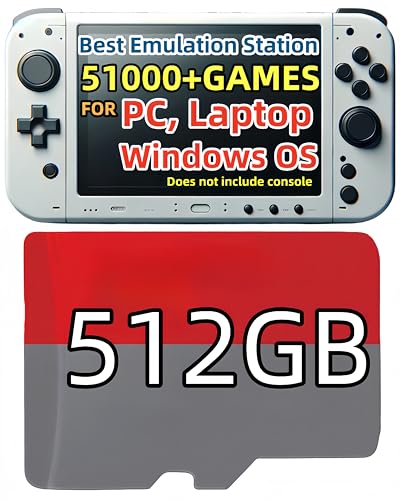
The POWERNEWS 512GB RetroBat Game System is a preloaded game card designed for Windows-based handheld consoles like the MSI Claw, Legion Go, and ROG Ally. It's not a standalone device but rather an accessory that transforms these portable PCs into retro gaming powerhouses. With over 51,000 classic games spanning multiple generations, this card is a massive time-saver for anyone who loves retro titles but hates the tedious process of sourcing ROMs and configuring emulators.
This product is best suited for retro gaming enthusiasts, handheld PC gamers, and even casual players who want a huge library at their fingertips. It's also a solid choice for gaming setup builders who already own a Windows handheld and want to expand its library without cluttering storage. The plug-and-play nature means you can focus on gaming rather than technical setup.
Performance-wise, the RetroBat 5.3.0 system handles emulation smoothly, with good responsiveness and load times when used on capable hardware like the ROG Ally or Legion Go. The UI is simple and includes useful features like save states, rewind, and fast-forward. However, the actual gaming experience depends on your handheld's specs – more demanding emulators may struggle on lower-end devices.
Build quality is straightforward – it's a microSD-sized card (0.43 x 0.59 x 0.04 inches) with a red and gray design. It's lightweight and portable, but its tiny size means you should store it carefully to avoid losing it. Setup is as easy as inserting the card into your handheld's microSD slot and following the included instructions to install RetroBat. No drivers or external cables are needed.
One realistic limitation is that this card only works with Windows devices – it won't work with Android handhelds or consoles without Windows OS. Also, while the library is huge, some users might prefer curating their own ROMs for quality control. The RetroBat interface, while functional, may feel less polished than standalone emulators like RetroArch.
Overall, the POWERNEWS RetroBat Game Card is a practical purchase for anyone who owns a compatible Windows handheld and wants instant access to thousands of retro games. It's especially useful for college gamers, casual players, or streamers looking to add retro content to their library without heavy lifting. Just keep in mind you'll need a handheld or PC to use it – it's not a console in itself.
Navigating Emulation Architecture for Desktop and Handheld Gaming PCs
Determining the ideal emulation solution requires understanding how software layers interact with modern computer hardware. An emulation environment translates legacy hardware instructions into commands that modern processors and graphics cards can execute. Because different console generations utilize vastly different system architectures, no single program handles every platform with identical precision. Enthusiasts must weigh launcher frontends against the specialized accuracy of standalone software. Finding the right balance ensures your gaming PC runs classic titles smoothly without unnecessary setup friction.
Frontend Environments Versus Standalone Emulators
Standalone emulators focus entirely on replicating a single hardware platform with high precision. Developers optimize these dedicated programs for specific console generations, providing granular access to internal settings and graphical enhancements. However, managing dozens of individual executables quickly becomes disorganized on a primary gaming PC. Players must configure display options, audio drivers, and directory paths separately for each program. This manual maintenance can consume valuable time and create clutter across your storage drives.
Frontend platforms address this organizational hurdle by uniting your software library behind a cohesive interface. A frontend does not execute games itself; instead, it acts as a centralized dashboard that launches the appropriate background engine when you select a title. Programs like EmulationStation catalog cover art, organize game metadata, and apply uniform controller configurations across multiple systems. This unified presentation makes your desktop feel more like a dedicated home console. It also streamlines navigation when switching between different gaming eras.
The primary trade-off with frontend software involves an additional layer of configuration and minor background system overhead. While a well-optimized frontend uses modest system resources, improper setups can lead to input latency or launcher crashes. Players who prefer plug-and-play simplicity often benefit from pre-configured frontend packages that eliminate manual file linking. Advanced users frequently prefer launching standalone emulators directly to preserve complete control over visual filters. Your choice depends on whether you value seamless navigation or deep mechanical customization.
RetroBat, Batocera, and RetroArch Integration
The emulation ecosystem features distinct tools that frequently work together within a modern Windows operating system. RetroArch serves as a universal backend framework, using modular plugins known as cores to emulate dozens of vintage systems under a standardized configuration menu. RetroBat builds directly upon this foundation by combining EmulationStation with RetroArch and select standalone emulators into an automated Windows interface. This allows users to experience a console-style interface without abandoning the flexibility of Windows. You can launch modern PC games and classic titles from the same desktop environment without rebooting your computer.
In contrast, operating systems like Batocera run as standalone Linux distributions that take complete control of hardware at boot. While Batocera provides exceptional performance on dedicated machines, it requires users to partition drives or enter the BIOS to switch environments. Solutions like the POWERNEWS 512GB RetroBat Game System for Handheld utilize RetroBat 5.3.0 to bridge this gap directly inside Windows. The product description highlights that this 512GB game card functions without requiring users to reboot into a secondary operating system. It configures EmulationStation alongside RetroArch and standalone emulators to read game libraries straight from the card.
Operating within Windows provides clear practical advantages for users who maintain a versatile gaming setup. You retain full access to background chat programs, custom display profiles, and third-party controller mapping utilities while playing your favorite retro games. Running software like RetroBat inside Windows also simplifies the process of backing up save files to local storage or cloud services. You do not need specialized Linux file-system drivers to manage your game directories or update emulator binaries. This convenience makes Windows-based frontend packages particularly appealing for players seeking immediate access.
Hardware Bottlenecks: Processor and Graphics Card Demands
Emulation performance depends heavily on the architectural design of your computer components rather than raw core counts. Most vintage console emulators rely predominantly on single-core processor performance to maintain accurate cycle synchronization with the original hardware. A processor with rapid per-core clock speeds will generally outperform a high-core-count chip with slower individual cores. If your central processing unit cannot keep pace with the timing requirements of the simulated platform, you will encounter noticeable audio crackling and video slowdowns. Adequate cooling allows your processor to sustain boost clocks without thermal throttling.
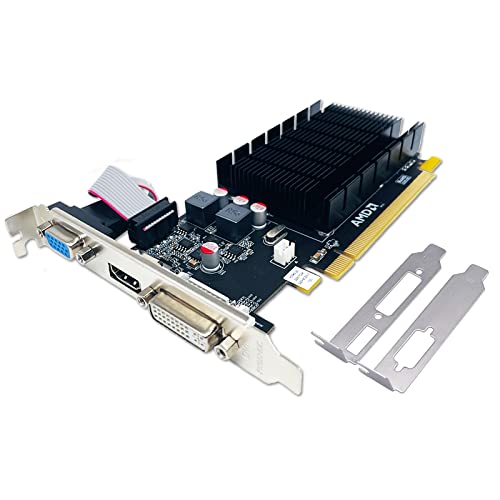
Graphics processing units play a secondary yet vital role as you emulate demanding 3D console generations. While early systems require minimal graphics horsepower, newer platforms place substantial demands on modern visual rendering pipelines. An entry-level graphics card in a budget-tier gaming desktop can comfortably upscale native 3D resolutions to crisp 1080p presentations. Dedicated graphics cards also provide video memory for complex shader passes that simulate authentic cathode-ray tube displays. Without an adequate GPU, running advanced visual shaders can cause unexpected frame drops on high-resolution monitors.
System memory capacity and internal memory bandwidth also influence overall emulation stability, particularly when loading large game images. Modern emulators cache frequently accessed graphical assets and sound tables in system RAM to minimize access latency during active gameplay. A system equipped with 16GB of fast dual-channel memory provides ample headroom to prevent background paging while Windows runs in the background. Handheld gaming devices that share memory dynamically between the processor and integrated graphics must balance these allocations carefully. Insufficient system memory can force the operating system to swap data to slower storage drives, interrupting gameplay flow.
Storage Formats, MicroSD Cards, and Drive Bandwidth
Storage performance directly impacts loading speeds, asset streaming, and frontend responsiveness across your retro gaming collection. High-speed solid-state drives offer the fastest possible transfer rates, virtually eliminating boot pauses when launching disc-based console images. However, storing extensive collections containing thousands of vintage titles can quickly consume valuable solid-state drive space needed for modern PC games. Many retro gaming enthusiasts turn to removable MicroSD cards or external drives as dedicated storage repositories. Evaluating read speeds ensures that large disc images load without introducing hitching during real-time asset decompression.
Removable cards engineered for high read bandwidth allow seamless plug-and-play operation across compatible portable and desktop platforms. Solutions such as the POWERNEWS 512GB RetroBat Game System for Handheld rely on high-capacity MicroSD media to store game collections without monopolizing internal system storage. The manufacturer notes that this card connects without requiring additional power cables or proprietary drivers on Windows systems. Because classic ROMs have modest throughput demands compared to modern textures, quality flash storage easily supplies the required data stream. Users simply insert the card into an integrated reader or USB adapter to begin playing.
Maintaining file integrity on removable flash media requires adhering to safe operating practices. Always allow your frontend software to exit cleanly before disconnecting any external drive or card reader to prevent directory corruption. File writes happen frequently when emulators update configuration profiles, save game progress, or record state snapshots. Creating periodic backups of your configuration files and save directories on a secondary drive safeguards your progress against accidental card errors. Treating your storage with care ensures consistent read performance and long-term data retention across many years of retro gaming.
Handheld Windows Consoles Versus Dedicated Desktop Rigs
Handheld Windows gaming devices have transformed portable emulation, but they operate under strict power and thermal envelopes. Devices like the ROG Ally, Lenovo Legion Go, and MSI Claw utilize mobile processors with integrated graphics to drive high-refresh-rate displays. Because these portable systems operate on battery power, users must balance processor wattage targets against desired play times. Emulating lightweight 2D systems allows you to lower the power limit to extend battery life considerably. Conversely, heavier 3D emulation demands higher operating wattage that depletes the battery faster and causes the internal cooling fan to spin up.
Desktop systems eliminate battery limitations and thermal bottlenecks, providing an expansive environment for maximum emulation fidelity. In a prebuilt gaming desktop bundle, robust power supplies and large chassis fans keep your processor running at peak boost clocks indefinitely. This sustained desktop performance allows enthusiasts to apply demanding visual enhancements, including multi-pass CRT shaders and high internal rendering scales. Desktop configurations also accommodate multiple dedicated storage drives and diverse video output options for home theater setups. You can connect full-size arcade controllers or original console gamepads via USB hubs with ease.
Choosing between these formats depends on whether your lifestyle prioritizes mobile flexibility or absolute visual horsepower. Handheld systems excel at casual, on-the-go sessions where convenience outweighs the need for extreme graphic upscaling. Desktop rigs provide an uncompromising platform for demanding multi-emulator setups, higher display resolutions, and extensive local media libraries. Fortunately, frontend configurations can often be shared between systems if you format your storage drives identically. This cross-compatibility lets you enjoy portable gaming sessions outside the house while retaining a powerhouse setup at your home desk.
Software Configuration, Controller Mapping, and Video Shaders
Configuring graphical APIs correctly within your emulation software is crucial for achieving smooth frame delivery and low input lag. Modern emulators typically support multiple graphics backends, such as Vulkan, DirectX 11, DirectX 12, and OpenGL. On modern Windows hardware, Vulkan frequently provides superior multi-threaded rendering efficiency and reduced frame stutter compared to legacy OpenGL pipelines. Selecting the Vulkan backend allows the emulator to communicate directly with your graphics card driver with minimal driver overhead. However, certain retro systems with unique visual quirks may still render more accurately using OpenGL depending on the underlying core development.
Controller configuration represents another vital step in creating an authentic and responsive gaming environment. Frontends like RetroBat simplify this process by automatically mapping standardized XInput controllers, which match the layout of modern handheld consoles and PC gamepads. When you plug in a compatible controller, the frontend distributes button bindings across RetroArch and supported standalone emulators automatically. For complex arcade titles or systems with specialized controllers, you can override these global mappings on a per-game basis. Taking the time to calibrate your thumbstick deadzones ensures precise control during competitive vintage arcade sessions.
Visual post-processing shaders enhance the appearance of low-resolution titles on crisp modern display panels. Vintage games were designed to be viewed on cathode-ray tube monitors that naturally blended pixels and softened hard scanlines. Applying authentic CRT shaders through RetroArch introduces simulated phosphor glow, scanlines, and subtle bloom that recreate the intended artistic presentation. More advanced shaders require significant graphics computation, which can lower frame rates if your graphics card lacks sufficient power. Experimenting with lightweight shader presets allows you to achieve convincing retro visuals without causing frame pacing disruptions on portable hardware.
Troubleshooting Performance Drops and Audio Stutter
Audio crackling and sudden frame pacing drops usually indicate that an emulator is struggling to maintain real-time hardware synchronization. Because emulation engines synchronize their internal clock cycles to audio delivery, any processor bottleneck will manifest immediately as audible distortion. To identify the root cause, check whether your computer’s power profile is set to high performance rather than a power-saving mode. Background applications, such as anti-virus scans or software updates, can also interrupt processor cycles and induce momentary stutter. Closing non-essential background tasks frees up processing threads and prevents unexpected scheduling delays.
Display refresh rate mismatches frequently cause video tearing or jittery camera panning in retro titles. Many classic consoles operated at precise refresh rates, such as 59.94Hz, which do not align perfectly with standard 60Hz or 120Hz PC monitors. Enabling variable refresh rate technologies like G-Sync or FreeSync allows your monitor to match the exact output cadence of the emulated system. If your display lacks adaptive sync support, enabling V-Sync within the emulator eliminates screen tearing at the cost of slight input latency. Alternatively, advanced emulators offer dynamic rate control to adjust audio resampling on the fly, maintaining smooth scrolling.
Verifying software updates and driver versions provides an effective safeguard against ongoing performance instability. Graphics driver updates frequently resolve API incompatibilities and improve Vulkan pipeline compilation times across popular emulation cores. Similarly, updating your frontend platform ensures that you benefit from bug fixes, updated emulator cores, and expanded controller compatibility. Always test one setting change at a time when troubleshooting, so you can easily isolate which adjustment resolved the performance problem. Systematic testing ensures your gaming rig maintains stable frame rates without degrading graphical quality.
Ultimately, identifying the ideal emulation approach comes down to aligning your gaming preferences with your computer’s hardware profile. Comprehensive frontends like RetroBat streamline retro gaming by integrating diverse emulators into a unified, user-friendly Windows interface. Dedicated desktop towers provide the processing headroom needed for aggressive resolution upscaling, while handheld consoles deliver unmatched portable convenience for classic titles. Selecting reliable storage, matching your display settings carefully, and maintaining clean software configurations ensures your gaming PC delivers an exceptional retro experience across every generation.






Write Your Review
No reviews yet. Be the first to share your experience!