
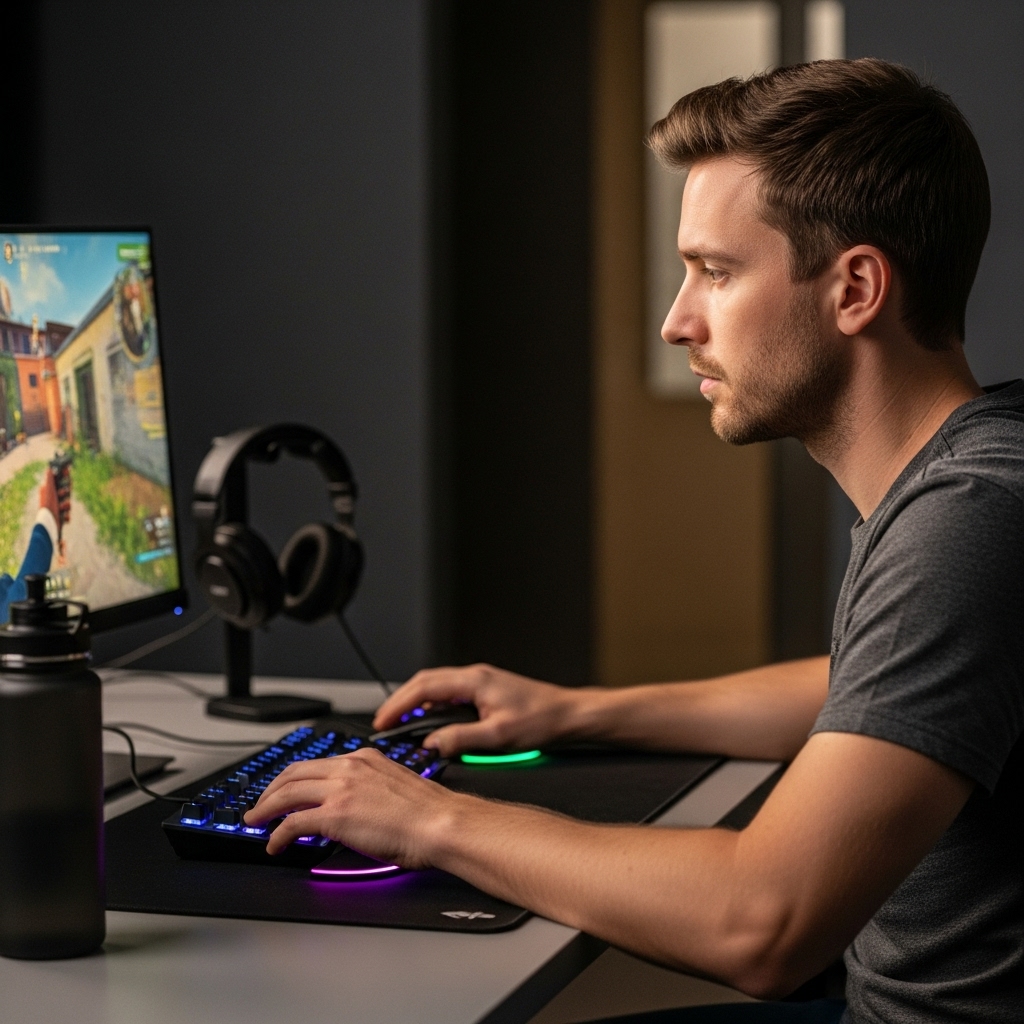

High latency and packet loss can disrupt competitive multiplayer matches, turning a decisive firefight into an exercise in frustration. Knowing how to optimize gaming console for online gaming involves fine-tuning your local home network, managing connection priority, and selecting responsive display settings to minimize input lag. While dedicated PC platforms often benefit from hardware upgrades detailed in our dedicated graphics card guide, consoles and plug-and-play gaming sticks rely primarily on firmware settings, router adjustments, and direct display configuration to maintain consistent performance.
Players often struggle to identify whether gameplay stutter stems from network delay, server congestion, or local hardware processing limits. Differentiating between connected multiplayer consoles and offline retro systems, such as the plug-and-play LIUWEI New Retro Gaming Console & Game Stick Pro, helps set realistic expectations for network capabilities and hardware demands. Exploring stable wired Ethernet connections, optimized Domain Name System configurations, and Quality of Service routing provides immediate responsiveness for competitive play. Reviewing foundational hardware setups, including balance tips from our overview on custom gaming desktop builds, highlights how system resources and bandwidth management work hand in hand.

Optimizing Console and Gaming Systems for Online Multiplayer
Achieving a smooth multiplayer experience requires addressing both network transport delays and local hardware responsiveness. Online gaming demands consistent packet delivery rather than sheer download capacity, meaning small network hiccups can cause noticeable rubber-banding or missed inputs. By methodically auditing router settings, physical connections, and display configurations, players can eliminate common sources of lag. Understanding how local gaming hardware handles data processing helps isolate genuine network issues from display delays or system limitations.
Understanding Network Bottlenecks and Input Latency
Network latency represents the total time required for a packet of game data to travel from your console to the host server and return. In competitive online gaming, the volume of data transmitted each second is small, typically measuring only a few kilobytes. The critical performance metrics are ping stability, jitter, and packet loss, which determine whether actions register without stutter or delay.
Jitter measures ping variance over time, causing unpredictable pauses when data packets arrive out of sequence. Packet loss occurs when network equipment drops information entirely, forcing the game client to extrapolate player positions. Input lag represents an entirely separate bottleneck occurring between your controller and the rendered image on screen. Isolating network delay from display latency ensures you apply adjustments where they produce measurable improvements.
Wired Ethernet Versus Wireless Connections for Gaming Systems
Connecting your gaming system via a physical Ethernet cable remains the single most effective hardware change for online stability. Wireless networks operate in half-duplex mode, meaning devices cannot send and receive data simultaneously on the same channel. Physical cables provide full-duplex communication with dedicated transmission lanes that remain unaffected by walls, household appliances, or neighboring radio signals. Even a standard Cat5e or Cat6 Ethernet cable provides a consistent transmission floor that wireless connections struggle to match.
When running a direct Ethernet cable is physically impossible, optimizing your wireless environment becomes essential. Connecting your console to a clear 5GHz channel provides wider channel bandwidth and reduced radio interference compared to congested 2.4GHz bands. Alternative wired options such as Multimedia over Coax (MoCA) adapters or powerline networking can also bridge long distances without running raw network cables across living areas. Evaluating these physical link options establishes the foundational reliability required for seamless online gaming sessions.
Router Configuration, Quality of Service, and Port Forwarding
Consumer home routers manage traffic for multiple smartphones, streaming devices, and computers simultaneously. When another household device starts streaming high-definition video or downloading large files, your router’s packet buffer can fill up, introducing bufferbloat. Quality of Service, commonly known as QoS, allows you to classify gaming packets as high-priority network traffic. Enabling QoS ensures your console’s small, time-sensitive UDP packets jump ahead of bulk file downloads in the processing queue.
Network Address Translation, or NAT, dictates how easily external game servers and peer-to-peer hosts can communicate with your console. A strict or moderate NAT type frequently causes matchmaking failures, disabled voice chat, or persistent connection timeouts in multiplayer lobbies. Setting up an open NAT configuration involves assigning your gaming hardware a static local IP address through DHCP reservation in the router dashboard. Once assigned, you can configure port forwarding for the specific network ports required by your console platform or multiplayer title.
Domain Name System Optimization and Local MTU Settings
Domain Name System servers translate human-readable server addresses into numerical IP addresses that your console uses to connect to game networks. By default, most home consoles receive DNS server assignments automatically from your local Internet Service Provider. Many ISP-provided DNS servers suffer from sluggish lookup response times or frequent routing slowdowns. Manually configuring dependable public DNS resolvers, such as Cloudflare or Google Public DNS, can accelerate matchmaking lookups and digital store navigation.
Changing your DNS configuration does not directly lower in-game ping once a match has commenced. In-game multiplayer communication relies on direct IP-to-IP transmission that bypasses ongoing name resolution entirely. A responsive DNS configuration primarily reduces the time it takes to connect to matchmaking lobbies, download patch manifests, and load friends lists. Understanding this technical distinction prevents false expectations about what DNS adjustments can achieve for active gameplay latency.
Display Configuration and Reducing Hardware Input Lag
Even with an impeccably tuned home network, improper display settings can introduce severe input latency that ruins the gaming experience. Modern television sets incorporate sophisticated image processing engines for motion smoothing, noise reduction, and dynamic color enhancement. These post-processing features store incoming video frames in memory buffers for analysis, adding significant milliseconds of delay. Enabling your display’s dedicated Game Mode disables superfluous image processing, allowing controller inputs to register on screen with minimal delay.
Selecting the proper HDMI port on your television or monitor also influences responsiveness and available video bandwidth. Many displays limit modern features like high refresh rates, Auto Low Latency Mode, or variable refresh rate to specific high-bandwidth HDMI ports. Using high-speed certified HDMI cables ensures your console can transmit uncompressed video data without handshake drops or signal degradation. Verifying that video output settings match your display’s native resolution and refresh capability avoids extra upscaling latency at the hardware level.
Distinguishing Online Consoles from Standalone Retro Sticks
Understanding your system’s hardware architecture is vital before attempting online network adjustments. Modern gaming consoles feature active operating systems, wireless network cards, and network stacks designed specifically for multiplayer communication and digital store integration. In contrast, plug-and-play emulation devices prioritize local, self-contained gaming libraries without requiring network infrastructure. Evaluating products in this space highlights significant differences in functionality, connectivity, and intended gameplay design.
The LIUWEI New Retro Gaming Console & Game Stick Pro represents this standalone, offline design philosophy. Equipped with an internal 64GB storage drive, twenty-three built-in emulators, and over twenty thousand preloaded classic games, the stick connects directly to a television, monitor, or projector via HDMI. Its hardware relies on dual 2.4GHz wireless controllers for local two-player gaming, operating entirely without internet access or downloads. Attempting to apply online network optimization to an offline stick is unnecessary because its games run completely locally from solid-state storage.
For standalone retro sticks, optimization focuses entirely on local input responsiveness, direct HDMI seating, and wireless controller signal clarity. Keeping the 2.4GHz controller receiver unobstructed prevents button press drops during cooperative or competitive local sessions. Meanwhile, networked home consoles require continuous router configuration and bandwidth management to support their connected multiplayer ecosystems. Recognizing whether your gaming machine is designed for connected multiplayer or self-contained offline emulation establishes clear operational goals.
Managing Power Delivery, Storage Speeds, and Thermal Throttling
Physical hardware health plays a surprising role in sustaining smooth online performance during marathon gaming sessions. Processors and internal graphics components generate considerable heat while handling intensive 3D rendering and multiplayer physics calculations. If dust accumulates inside intake vents or cooling fans, internal temperatures rise rapidly, forcing the hardware into thermal throttling. Throttling reduces processor clock frequencies to prevent overheating, producing noticeable frame rate drops and stutter that players often mistake for network lag.
Placing your gaming console in an open, well-ventilated area prevents hot exhaust air from recirculating into intake vents. Ensuring adequate clear space around the chassis allows internal cooling fans to move air efficiently. Maintaining consistent electrical power delivery is equally crucial for protecting internal sensitive hardware and networking gear from voltage irregularities. Investing in dependable uninterruptible power supply options safeguards your system from sudden brownouts, power spikes, and data corruption during storm events.
Storage drive performance also impacts asset streaming and multiplayer load times across connected gaming environments. Modern solid-state drives read game files significantly faster than mechanical hard drives, eliminating visual asset pop-in during fast gameplay. Ensuring your console storage retains adequate free drive space allows the operating system to perform cache operations and background updates without performance degradation. A clean, well-cooled system with ample drive headroom sustains peak hardware throughput across all gaming scenarios.
Console Architecture Versus Dedicated Gaming PCs
Comparing console optimization to desktop computer management illustrates two fundamentally different design approaches. Consoles operate on closed, standardized software environments where developers tailor game engines to fixed hardware specifications. Players have limited direct access to operating system services, driver updates, or internal clock adjustments, relying instead on high-level system toggles. While this fixed environment minimizes driver conflicts, it limits the degree to which players can tune individual background processes.
Dedicated computer platforms offer comprehensive granular control over background applications, network adapters, and graphical parameters. As discussed in our overview of budget gaming desktop configurations, PC gamers can fine-tune memory allocations, manage custom graphics drivers, and monitor hardware thermals in real time. Personal computers also permit extensive background network management, enabling users to terminate bandwidth-consuming background tasks before initiating online multiplayer matches. Consoles handle these tasks automatically through background system schedules, which can occasionally initiate large game updates during active sessions if left unmonitored.
Managing automatic downloads in your console settings ensures bandwidth remains entirely dedicated to active gameplay. Disabling automatic updates during peak gaming hours prevents sudden latency spikes caused by silent background patch installations. Closing dormant games suspended in memory frees up system resources, ensuring your active game enjoys unhindered memory bandwidth. Balancing these internal console habits with network adjustments provides a consistent competitive foundation comparable to finely tuned desktop setups.
Step-by-Step Verification Routine for Online Performance
Executing a consistent verification routine confirms whether your optimization steps have yielded measurable improvements. Begin by navigating to your console’s network settings menu and running the integrated connection test. This built-in diagnostic evaluates local connection speed, detects NAT classification, and checks communication with platform servers. If the test reports an open NAT type and low packet loss, your router port configurations and firewall settings are functioning as intended.
Next, launch a multiplayer title that provides real-time in-game network telemetry, such as latency graphs and packet loss counters. Monitor these values across multiple matches during different times of day to establish a reliable performance baseline. If latency remains stable during off-peak hours but spikes during evenings, the congestion likely stems from your ISP rather than internal home hardware. Documenting these patterns helps you distinguish between local setup limitations and broader regional network infrastructure bottlenecks.
Finally, inspect controller pairing and physical cable connections to verify hardware responsiveness. For wireless gamepads, ensuring an unobstructed line of sight to the console or USB receiver prevents wireless transmission drops and missed inputs. Regularly checking HDMI cable seating ensures video signal integrity remains uncompromised over extended gaming sessions. Following this verification sequence guarantees that your entire gaming setup operates reliably, giving you a smooth, lag-free competitive experience every time you log in.
Optimizing your console for online gaming is a methodical process of eliminating points of resistance between your controller, your display, and the remote game server. Prioritizing physical Ethernet over wireless connections, configuring QoS to protect gaming data packets, and locking your display into low-latency Game Mode yield the most noticeable performance gains. Meanwhile, recognizing the technical boundaries of offline retro sticks helps avoid unnecessary troubleshooting on devices built strictly for local nostalgia. Taking time to establish open NAT routing and proper ventilation ensures your hardware remains responsive, cool, and fully prepared for high-stakes multiplayer competition.




Write Your Review
No reviews yet. Be the first to share your experience!