


A sudden spike in ping during an intense competitive match can ruin your entire session, turning precise aiming into frustrating rubberbanding. Knowing how to improve wifi speed for gaming is essential when running an Ethernet cable directly to your gaming PC is not an option. Desktop gaming rigs often sit tucked beneath desks or behind heavy furniture, which can choke wireless signals and create severe packet loss. Evaluating your current setup allows you to identify whether your wireless card, router placement, or background network congestion is holding your connection back.
Even a capable budget gaming desktop build can struggle with online play if your local wireless environment is poorly configured. Many players assume high download numbers guarantee smooth gameplay, but competitive gaming actually prioritizes low latency and consistent packet delivery over raw bandwidth. Simple adjustments to frequency bands, adapter settings, and antenna positioning can stabilize your ping significantly. Taking control of your wireless network environment ensures your hardware delivers the responsive multiplayer experience you expect.

Comprehensive Strategies to Boost Wireless Connection Speed and Latency
Wireless networking can deliver an exceptionally smooth multiplayer experience when you configure your local environment correctly. Most players mistakenly focus solely on high download speeds when researching how to improve wifi speed for gaming. In practice, modern online games require relatively little raw bandwidth, often consuming less than one megabyte per second during active matches. The true culprit behind frustrating hit registration failures and rubberbanding is unstable packet delivery, commonly known as high latency and jitter.
Addressing these connection problems requires a systematic look at your gaming desktop, your local network hardware, and the physical space between them. Radio frequency interference, suboptimal Windows adapter settings, and crowded broadcast channels can easily degrade your connection quality. You can transform an erratic wireless link into a stable gaming connection by making targeted adjustments to your frequencies, software properties, and physical antenna layout. Systematic troubleshooting eliminates the guesswork and helps you achieve a responsive, low-latency setup.
Understanding Why Wi-Fi Latency Matters More Than Bandwidth
Competitive multiplayer titles transmit rapid, lightweight status updates between your gaming PC and the remote game server. These packets convey critical player inputs, projectile trajectories, and positional data dozens of times every second. A standard residential broadband connection easily supplies enough total bandwidth to handle this modest data stream. Connection quality falls apart when individual data packets experience transmission delays, leading to high ping readings in your favorite games.
Inconsistent delivery timing creates jitter, which feels far worse during gameplay than a consistently high ping. When one packet arrives in twenty milliseconds and the next takes one hundred milliseconds, the game engine struggles to reconcile player positions. This discrepancy causes enemy models to stutter across your display and invalidates your input timing. Bufferbloat occurs when network queues fill up with background traffic, delaying gaming packets behind large file downloads or high-resolution video streams.
Packet loss represents the most destructive network issue in fast-paced online shooters and fighting games. When radio interference or network buffer overruns cause data packets to disappear completely, the server must either guess the lost action or request a retransmission. Retransmissions cause noticeable visual rubberbanding, where your in-game character suddenly snaps back to an earlier position. Minimizing packet loss through a clean wireless environment ensures your inputs register accurately and prevents game-breaking visual glitches.
Selecting the Best Frequency Band on Your Router
Modern wireless routers broadcast across distinct radio spectrum slices, primarily the legacy 2.4 GHz band and the faster 5 GHz band. Newer routers supporting Wi-Fi 6E or Wi-Fi 7 introduce the expansive 6 GHz band to avoid congestion entirely. The 2.4 GHz band travels well through drywall and solid barriers, but it offers limited speed and suffers from extreme signal crowding. Household devices like microwave ovens, Bluetooth peripherals, and smart plugs frequently flood the 2.4 GHz frequency, resulting in frequent packet drops.
Connecting your desktop gaming rig to the 5 GHz or 6 GHz band provides significantly wider channel widths and faster transmission intervals. Shorter wavelengths struggle more with solid concrete or brick walls, but the dramatic reduction in airwave interference makes the trade-off worthwhile. You should separate your router’s wireless network names instead of using a unified SSID with automated band steering. Automated band steering often forces your desktop onto the slower 2.4 GHz band when signal strength fluctuates slightly, introducing unwanted spikes in latency.
Channel selection within your chosen band also directly influences connection stability. Neighbors living in close proximity frequently use default router channels, creating co-channel interference that degrades performance for everyone nearby. Using a mobile network analyzer app allows you to inspect local spectrum usage and assign your 5 GHz network to an uncrowded channel. Configuring your router to use standard 40 MHz or 80 MHz channel widths often yields better latency consistency than pushing for maximum 160 MHz widths in congested residential areas.
Positioning Your Desktop Rig and External Antennas for Maximum Signal
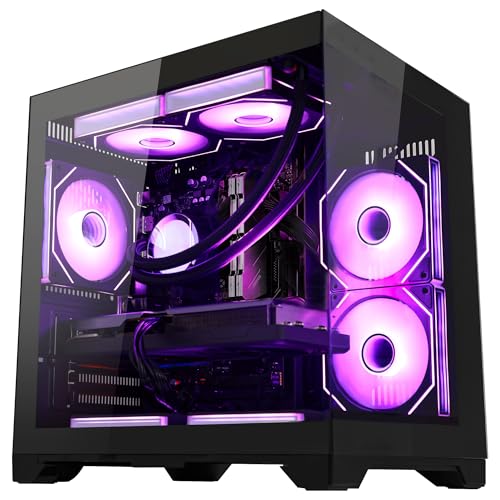
Physical obstruction remains one of the most overlooked causes of poor wireless performance in custom gaming desktops. Standard desktop computer cases are built from thick steel, aluminum, and tempered glass, all of which reflect and block radio frequency energy. Tucking your computer tower deep inside a wooden desk cubbyhole or directly beneath a metal desk frame severely dampens signal reception. Moving your tower out into an open space with clear airflow paths immediately improves signal strength for rear-mounted wireless cards.
Most motherboard Wi-Fi solutions feature two rear antenna ports that screw directly into the back panel. Installing basic rubber ducky antennas directly against the chassis rear leaves them trapped between metal cables, power supplies, and walls. Upgrading to a magnetic desk-stand antenna with an extended cable allows you to position the antenna array high atop your desk. Elevating the antennas provides a clearer line of sight toward your router, bypassing dense floorboards and metallic desk supports.
Unlike a traditional tower with external antenna flexibility, an all-in-one gaming desktop setup often relies on internal wireless antennas integrated directly into the chassis housing. These integrated configurations require extra care regarding physical desk placement because you cannot easily reposition the antennas independently of the display. Positioning any computer system closer to an open doorway or away from large metallic appliances helps preserve radio signal integrity. Small physical shifts of just a few inches can pull your receiver out of a local signal dead zone.
Fine-Tuning Windows Network Adapter Properties
The default operating system configuration for wireless network adapters prioritizes energy conservation and broad compatibility over competitive performance. Opening Device Manager and accessing the advanced properties of your wireless card reveals several performance-critical toggles. Setting the Roaming Aggressiveness parameter to Lowest prevents Windows from scanning for alternative access points while you are actively gaming. Background network scans cause notorious periodic ping spikes that interrupt gameplay every few minutes.
Adjusting the Transmit Power setting to its highest available value ensures your adapter pushes strong transmission signals back to your home router. You should also verify that Throughput Booster is disabled if your local connection experiences erratic jitter, as this feature favors burst transfers over uniform packet pacing. Locating the Power Management tab for your network adapter and unchecking the box that allows Windows to turn off the device saves you from sudden disconnects. Aggressive power-saving states can introduce micro-delays when the operating system throttles wireless card power during brief pauses in network activity.
Windows update mechanisms can also quietly consume bandwidth and saturate local network queues without displaying obvious notifications. Delivery Optimization operates as a peer-to-peer distribution system that shares downloaded update files with other computers across your local network and the internet. Disabling Delivery Optimization in Windows settings prevents background uploads from hijacking your outgoing connection during competitive matches. Metered connection toggles can also stop non-essential operating system updates from starting unexpectedly in the background while you play.
Upgrading Desktop Hardware: PCIe Cards vs USB Adapters
Hardware quality directly dictates how effectively your computer processes wireless signals and manages thermal loads. Miniature USB wireless adapters are popular due to their compact size and convenient installation, but they represent a major compromise for serious gaming. Tiny USB dongles lack adequate surface area for heat dissipation, leading to thermal throttling during sustained data transfers. Their minuscule internal antennas struggle to capture faint signals, making them prone to sudden packet loss and disconnects.
Installing a dedicated PCIe wireless expansion card provides substantial performance benefits over compact external dongles. A PCIe card connects directly to your motherboard’s high-speed expansion lanes, minimizing driver overhead and eliminating USB controller bus contention. These expansion boards feature dedicated aluminum heatsinks to cool high-performance wireless chipsets from reputable manufacturers like Intel and Realtek. High-gain external antennas screw directly into the card bracket, providing vastly superior reception and beamforming support.
Modern gaming motherboards often include an M.2 Key E slot dedicated to wireless modules, allowing you to swap out outdated wireless cards for modern Wi-Fi 6E or Wi-Fi 7 chips. Resources like Your Guide to WiFi Troubleshooting: Boost Signal offer useful conceptual guidance for diagnosing persistent home network issues and identifying whether hardware limitations or configuration faults are responsible. Upgrading your internal module ensures compatibility with the latest wireless standards, including Orthogonal Frequency-Division Multiple Access (OFDMA), which streamlines simultaneous device communication. Better hardware architecture ensures your desktop maintains rock-solid connection stability even under heavy network load.
Router Quality of Service and Local Traffic Prioritization
Shared household networks inevitably face competition for available airtime from smartphones, smart televisions, and family members streaming video. Quality of Service, commonly abbreviated as QoS, is a router management feature designed to prioritize time-sensitive network packets. Without QoS enabled, a large file download or cloud backup on another device can easily congest your router’s transmission queue. When the queue fills completely, gaming packets must wait in line, leading to severe latency spikes and lost inputs.
Configuring router-level QoS allows you to assign the highest packet priority to your desktop PC’s local IP address or specific gaming ports. You should assign your gaming computer a static IP address or configure a DHCP reservation inside your router’s administrative dashboard. This static assignment ensures your prioritized traffic rules remain consistently applied whenever your computer powers on. Modern routers equipped with adaptive QoS or Smart Queue Management (SQM) intelligently mitigate bufferbloat without requiring complex manual port forwarding rules.
Maintaining clean electrical power to your network infrastructure is just as important as configuring proper routing rules. Integrating an uninterruptible power supply for gaming protects both your desktop computer and your central routing equipment from transient voltage sags and momentary power interruptions. Router micro-reboots caused by unstable electrical delivery can sever your wireless link during matches and reset internal packet queues. Reliable, conditioned power prevents unexpected network crashes and keeps your gaming connection active during brief power fluctuations.
Diagnosing Packet Loss, High Jitter, and Connection Drops
Isolating the root cause of connection instability requires simple diagnostic testing before you begin swapping hardware. You can run basic network tests directly through the Windows command line without installing third-party utilities. Executing a sustained ping test to your local router gateway reveals whether latency spikes originate inside your house or out on your internet provider’s network. Consistent local ping times under two milliseconds confirm that your wireless link between your desktop and router is working properly.
If your local gateway ping fluctuates wildly, your wireless link is encountering physical interference, channel congestion, or hardware throttling. Performing a traceroute to a public game server helps identify upstream bottlenecks along your internet service provider’s routing hops. Upstream congestion requires a call to your internet service provider or an adjustment to your external DNS settings. Switching from default provider DNS servers to fast public resolvers from Cloudflare or Google can reduce domain lookup times and improve matchmaking connection speeds.
Outdated router firmware often harbors unresolved memory leaks and wireless driver bugs that slowly degrade network throughput over time. Accessing your router manufacturer’s support portal allows you to verify whether a stable firmware update is available for your exact hardware revision. Applying official updates and scheduling periodic router reboots purges temporary cache files and refreshes wireless frequency assignments. Routine maintenance prevents unexplained connection drops and keeps your wireless gaming performance consistent over months of heavy use.
Practical Next Steps for a Lag-Free Gaming Experience
Improving wireless performance for desktop gaming rarely requires purchasing an entirely new computer setup. Most latency issues stem from unoptimized frequency bands, poor antenna orientation, or aggressive operating system power management settings. Implementing changes one step at a time allows you to observe the exact impact of each adjustment on your in-game ping and packet loss metrics. Rushing to change multiple settings simultaneously can make it difficult to isolate what actually resolved your connection instability.
Begin by moving your desktop onto an uncrowded 5 GHz or 6 GHz network band and elevating your antennas away from metallic chassis panels. Adjust your Windows adapter settings to prevent power throttling and disable background roaming scans that interrupt active matches. If physical distance or thick structural walls continue to degrade your signal, investing in a high-quality PCIe wireless card provides a meaningful stability upgrade. Taking control of your wireless configuration ensures you can enjoy responsive, competitive multiplayer matches without needing to route physical cables across your home.






Write Your Review
No reviews yet. Be the first to share your experience!