
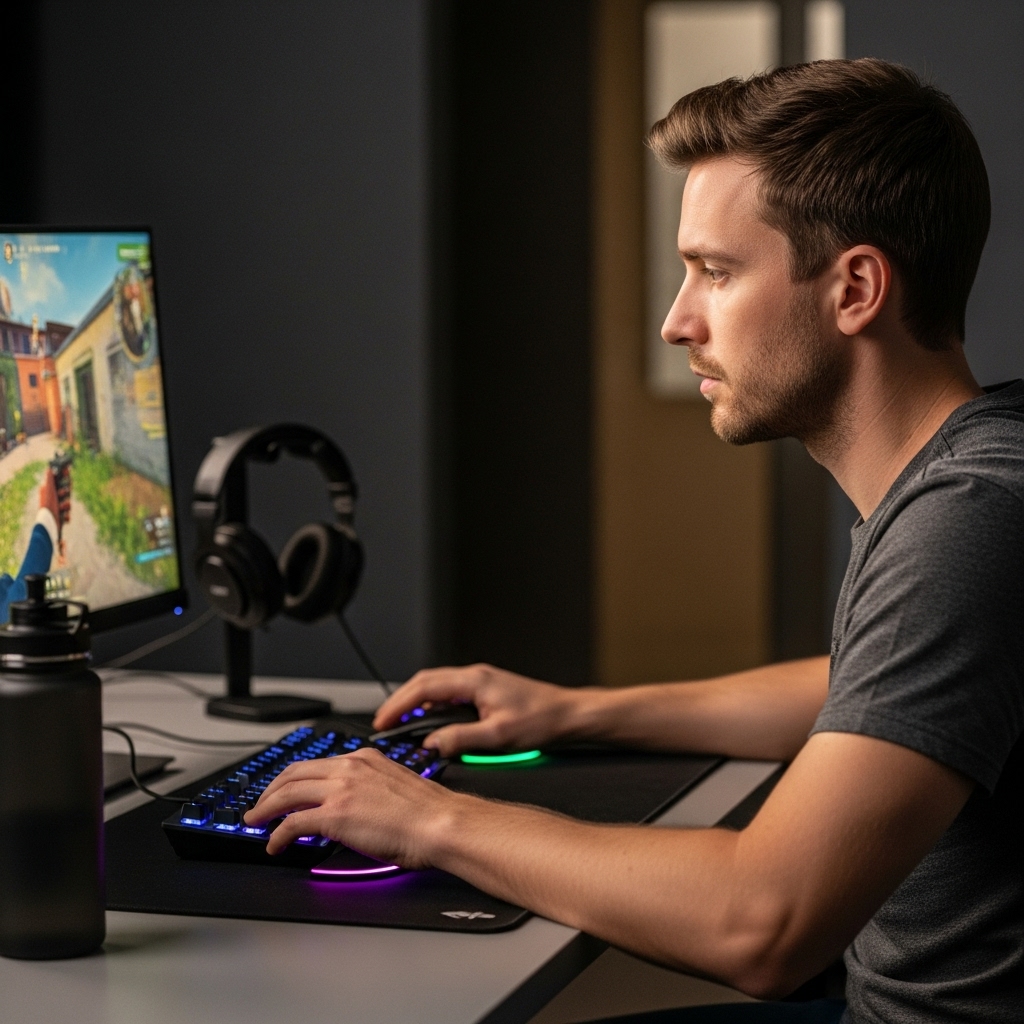

Building an audience around video games requires more than just launching your favorite title and pressing record. Anyone researching how to start a gaming youtube channel quickly discovers that system stability, simultaneous recording demands, and smooth rendering depend heavily on balanced computer hardware. A typical gaming computer might run modern titles smoothly at high frame rates, but recording high-resolution gameplay at the same time introduces intensive processor and encoder demands. Understanding how your desktop handles video capture alongside active gameplay helps prevent dropped frames, choppy audio, and corrupted recording sessions before you publish your first video.
Your desktop components dictate the visual quality and consistency of your uploads. Consulting a dedicated desktop graphics card guide helps clarify how dedicated video encoders take processing strain away from the central processor during recording. Balancing system memory, fast solid-state storage, and efficient cooling ensures your machine maintains consistent performance during long play sessions. Approaching your channel launch with a clear understanding of hardware capability saves time, prevents frustrating technical snags, and allows you to focus on creating entertaining content for your new audience.


Building and Configuring a PC Setup for Gaming Content Creation
Launching a gaming content platform requires balancing computing resources so your system can render complex 3D environments while encoding high-bitrate video in real time. Many aspiring creators encounter choppy recordings because they overlook how video capture software interacts with desktop hardware. Starting with a realistic assessment of your hardware, capture resolution, and storage bandwidth prevents frustrating performance bottlenecks. This technical roadmap outlines the essential hardware choices, configuration steps, and operational workflows needed to produce reliable gaming content.
Evaluating Hardware Needs for Simultaneous Gaming and Recording
A desktop gaming computer handles demanding workloads during a normal gaming session, but recording introduces an entirely separate computing layer. The graphics processor renders game frames, while capture software simultaneously captures those frames, compresses them, and writes the stream to a disk drive. If your system lacks sufficient headroom, the operating system prioritizes foreground gaming tasks, which often leads to dropped frames in the recorded file. Reviewing budget desktop gaming builds can help you understand the hardware tiers required for handling multitasking without sacrificing in-game smoothness.
Target resolution and frame rates directly govern your system demands. Recording at standard 1080p resolution at sixty frames per second requires far less computational overhead than capturing at 1440p or 4K. New creators often assume they must record at the maximum resolution their monitor supports, but native high-resolution capture can overwhelm mid-tier desktop setups. Establishing a stable 1080p output provides crisp visuals for online viewers while preserving sufficient system resources to keep gameplay responsive.
Different game genres also impose varying hardware pressures on your recording environment. Fast-paced competitive titles like first-person shooters rely heavily on high frame rates and quick processor response times. In contrast, complex simulation titles and open-world role-playing games demand massive system memory and intensive graphics rendering. Identifying the primary types of games you intend to feature helps you allocate your hardware budget toward the specific components that matter most.
Central Processing and Dedicated Hardware Encoders
The central processing unit manages game logic, operating system tasks, and background capture processes. Modern multi-core processors with eight or more cores allow creators to run background capture applications without starving the game engine of execution threads. Software encoding relies directly on the processor to compress video frames, which can result in thermal throttling or frame drops if the processor runs near maximum utilization. Selecting a multi-threaded desktop processor provides the necessary overhead for smooth simultaneous operation.
Dedicated hardware encoders integrated into modern graphics cards provide an efficient alternative to software-based processing. These specialized hardware blocks compress video data independently from the primary graphics rendering cores, keeping game performance remarkably stable during capture. Dedicated silicon blocks like NVENC on Nvidia cards or AMF on AMD hardware offload the encoding workload almost entirely. Utilizing these integrated hardware encoders allows creators to capture pristine gameplay footage without introducing noticeable input lag.
Educational resources like Introduction to Start Streaming and Game On: The Ultimate Guide to Streaming Success emphasize the importance of choosing appropriate encoder presets early in your workflow. Selecting a balanced preset reduces recording strain while maintaining clear visual detail during high-motion scenes. Pushing encoder settings too aggressively can saturate system busses and cause dropped frames even on capable hardware. Testing your encoder settings across several short test recordings ensures your system remains responsive under sustained gaming loads.
System Memory and High-Speed Storage Allocation
System memory serves as the active staging area for game assets, recording software buffers, and operating system utilities. A setup equipped with sixteen gigabytes of system memory represents the practical minimum for gaming and recording simultaneously. Upgrading to thirty-two gigabytes provides substantial headroom, preventing background capture software from swapping memory to disk when running memory-heavy modern games. Dual-channel memory configurations also improve data transfer rates, reducing potential micro-stutters during intense gaming sequences.
Storage performance is equally critical when writing continuous high-bitrate video streams to disk. Solid-state drives utilizing the NVMe protocol offer rapid read and write speeds that easily accommodate high-bitrate video capture. Using a single mechanical hard drive for both running the active game and writing video capture files frequently creates a disk queue bottleneck. Dividing your storage so the operating system and games live on one drive while recordings write to a separate dedicated drive prevents read-write contention.
High-resolution video files consume vast amounts of storage space over weeks of consistent content production. A two-hour recording session captured at high bitrates can easily generate dozens of gigabytes of raw data. Maintaining a disciplined file management strategy helps keep active solid-state drives from filling to capacity, which can degrade overall drive performance. Archiving completed projects to larger external mechanical drives keeps your primary capture drives operating at optimal write speeds.
Configuring Recording Software and Audio Routing
Open Broadcaster Software, commonly known as OBS Studio, serves as the standard capture platform for digital content creators. Configuring the software properly requires matching canvas and output resolutions to prevent unnecessary video scaling. Running the capture software in administrator mode grants it higher GPU scheduling priority within Windows, ensuring smooth frame capture even during peak graphical scenes. Guides such as YouTube Gaming Success Blueprint highlight that fine-tuning software settings early prevents countless hours of troubleshooting later.
Audio configuration represents one of the most common failure points for emerging gaming channels. Viewers will often tolerate minor visual imperfections, but harsh clipping, quiet commentary, or unbalanced game volume causes immediate audience drop-off. Separating your microphone audio, game audio, and voice chat onto distinct audio tracks within your recording software gives you complete control during the editing stage. Multi-track recording ensures you can adjust dialogue levels independently without affecting the underlying in-game sound effects.
Applying basic audio filters within your recording software can noticeably clean up your vocal presentation. A noise gate eliminates background keyboard clicks and computer fan hum during quiet pauses in commentary. Adding a light compressor balances out enthusiastic shouting and quiet whispers, creating a consistent vocal volume that sits comfortably above game sounds. Taking time to establish proper microphone gain stages before recording avoids permanent digital clipping distortion in your master files.
Desktop Cooling, Power Stability, and Session Longevity
Simultaneous gaming and video encoding generate sustained thermal loads that challenge your desktop cooling system. When processors and graphics cards reach their thermal limits, internal sensors automatically reduce clock frequencies to prevent hardware damage. This thermal throttling causes sudden frame drops in both your game and your recorded video file. Ensuring your desktop case has adequate airflow with balanced intake and exhaust fans prevents heat buildup during extended recording sessions.
Power delivery also plays a critical role in system reliability when hardware components operate under heavy simultaneous loads. A high-quality power supply with sufficient wattage headroom ensures voltage rails remain stable during sharp graphics card power spikes. Integrating uninterruptible power supply options into your setup protects ongoing recording sessions from sudden brownouts, power flickers, or electrical dropouts. Battery backup gives creators the necessary time to safely stop a recording session and save critical video files before shutting down.
Dust accumulation inside desktop heat sinks and fan grilles reduces cooling efficiency over time. Establishing a regular maintenance schedule to clear out dust helps preserve low operating temperatures and quiet acoustics. Cooler internal components also allow case fans to spin at lower speeds, reducing the background noise your microphone might capture during commentary. Maintaining a cool, stable system protects hardware longevity while ensuring consistent capture quality across months of channel growth.
Establishing a Channel Strategy and Consistent Upload Workflow
Technical hardware provides the foundation, but a clear content strategy determines whether viewers discover and subscribe to your channel. Handbooks such as YOU can be a YouTube Star! How to Start, Run and Start a Gaming Channel discuss how niche specialization helps new creators gain traction in a crowded video landscape. Focusing on a specific game, genre, or style of content like tutorials helps the platform algorithm understand who to recommend your videos to. Broad variety channels often struggle early on because scattered topics make audience retention difficult to maintain.
Consistency in your production pipeline prevents creator burnout while building steady viewer expectations. Establishing a weekly schedule that accommodates recording, editing, thumbnail creation, and metadata optimization keeps your channel active without overwhelming your personal schedule. Many successful creators batch-record multiple gameplay sessions during a single afternoon to build an inventory of upcoming content. This backlog provides a buffer that keeps your upload schedule steady even when personal commitments or technical hurdles interrupt your routine.
Strategic resources like helpful tips on how to start a youtube gaming channel emphasize that video titles and packaging carry as much weight as in-game commentary. Crafting descriptive titles that address specific viewer questions helps your videos appear in organic search results. Complementing search-friendly titles with bright, uncluttered custom thumbnails creates clear visual interest that encourages clicks from browsing viewers. Consistent branding elements across your banner, thumbnails, and intros reinforce channel identity over time.
Managing File Archives and Export Pipelines
Editing video files requires significant system resources, particularly when scrubbing through timelines containing multi-track audio and high-bitrate video. Video editing software utilizes both the processor and graphics card to render real-time timeline previews and apply video effects. Allocating a dedicated scratch disk or utilizing proxy files allows smooth timeline scrubbing even on modest hardware configurations. Proxies generate lightweight video duplicates during the editing phase, switching back to full-resolution master files only during final rendering.
Exporting completed projects requires matching codec and bitrate parameters to platform ingestion recommendations. Rendering at standard H.264 or newer HEVC profiles with balanced bitrates produces clear video files without excessive upload times. Pushing export bitrates far beyond platform recommendations rarely improves visual quality, as video platforms automatically recompress uploaded media into standardized delivery formats. Understanding platform compression parameters ensures your final uploads retain the sharpness and color balance you established during editing.
Developing an organized file structure prevents accidental deletion of project files and keeps your workspace tidy. Creating dedicated folders for raw gameplay footage, voiceover recordings, royalty-free audio tracks, and finished exports streamlines your workflow. Once a video is published and verified online, deleting intermediate render files frees up valuable solid-state storage. Keeping only finished master files and key project assets on archival drives protects your digital portfolio without overwhelming system capacity.
Verification and Safe Pre-Launch Testing
Conducting dry-run recording tests before launching your channel saves you from discovering major technical flaws after an entire playthrough. Record a five-minute test segment that includes high-action gameplay alongside active microphone commentary. Play back the resulting file in a standard media player to verify video frame pacing, audio synchronization, and visual clarity. Checking these elements before committing to long recording sessions ensures your configuration delivers reliable results under real production conditions.
Reviewing hardware monitoring utilities during test captures helps identify hidden system bottlenecks. Monitoring tools display real-time temperatures, clock speeds, and hardware utilization percentages for both your processor and graphics card. If your graphics card operates near maximum utilization, the video encoder may struggle to allocate the necessary bandwidth for smooth capture. Capping your in-game frame rate to match your monitor refresh rate can free up vital graphics headroom without reducing visual smoothness.
Audio balance also requires verification across multiple listening devices before publishing your first project. Listening to your test export on studio headphones, phone speakers, and desktop speakers helps identify issues that might only appear on specific audio hardware. A mix that sounds balanced on high-end headphones might bury your voice under loud explosions on mobile speakers. Fine-tuning your audio levels to sound clear across common consumer devices ensures your audience enjoys an engaging listening experience.
Launching a channel successfully requires patience, technical preparation, and a willingness to refine your workflow as your audience grows. Prioritizing hardware stability, proper encoder configuration, and clean audio routing creates a reliable production environment that supports consistent uploads. As you gain experience behind the microphone and inside editing software, technical adjustments become second nature, allowing your creative personality to take center stage. Verifying your system setup early ensures your content looks and sounds professional from your very first upload.






Write Your Review
No reviews yet. Be the first to share your experience!