


Frame rate stutters, erratic frame pacing, and sudden thermal drops can quickly disrupt an intense competitive mobile gaming session. Learning how to boost android gaming performance requires an objective look at background resource drains, operating system power profiles, and hardware thermal throttling behaviors. Players frequently encounter frustrating slowdowns when demanding 3D titles push mobile processors beyond their sustained thermal boundaries. Addressing these physical limitations through proper software toggles, refresh rate controls, and background process management provides an immediate step toward smoother gameplay across modern mobile titles.
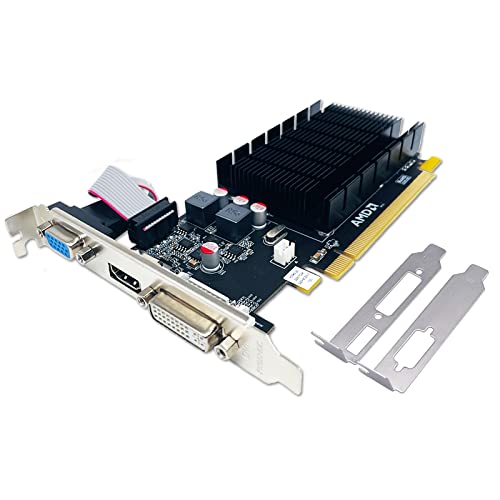
When handheld hardware reaches its thermal limits, shifting demanding mobile workloads to an emulation environment powered by a dedicated desktop rig offers an appealing solution. Consulting our desktop graphics card guide helps explain how dedicated graphics processing handles high-resolution rendering without the thermal penalties inherent to a compact mobile chassis. Dedicated desktop components maintain consistent clock speeds under sustained load, eliminating the aggressive throttling cycles common on battery-powered platforms. Whether fine-tuning on-device software or leveraging full desktop hardware power, optimizing your setup ensures reliable frame delivery during lengthy sessions.


Complete Strategy for Maximizing Android Gaming Stability and Frame Rates
Mobile gaming performance hinges on balancing processor clock speeds, thermal output, and operating system overhead. Modern mobile chips can reach impressive burst speeds, but compact chassis designs struggle to dissipate heat during extended gaming sessions. Understanding how these hardware constraints interact with background services allows players to prevent severe frame drops. Taking control of software power profiles and background limitations stabilizes gameplay far more effectively than relying on automated system defaults.
Frame drops rarely stem from a single hardware deficit. Instead, stutter occurs when background notifications interrupt processor scheduling or when rising temperatures trigger emergency clock throttles. Evaluating device settings systematically helps isolate whether a performance drop originates from thermal saturation, memory exhaustion, or network latency. A methodical approach ensures your hardware runs at peak sustained capability rather than oscillating between high burst speeds and severe throttling valleys.
Managing Thermal Throttling and Sustained Clock Speeds
Thermal throttling is the primary obstacle to sustained frame rates on mobile hardware. When an integrated processor reaches predetermined temperature thresholds, internal sensors automatically lower clock frequencies to protect internal silicon components. This sudden drop in operating frequency results in noticeable stutter, audio desynchronization, and sluggish touch input. Preventing these thermal spikes requires careful management of ambient conditions, chassis heat dissipation, and internal processor workloads.
Passive cooling solutions built into slim smartphone bodies have limited thermal capacity. Once the internal vapor chamber or graphite heat spreader becomes heat-soaked, temperatures rise rapidly unless heat is moved away from the exterior. Removing thick protective phone cases during demanding gaming sessions significantly improves radiant heat transfer to the surrounding air. Maintaining a cool ambient environment or utilizing external clip-on thermoelectric coolers can also extend the duration a processor maintains its target clock speeds.
Core Operating System Toggles and Background Process Control
Background applications consume valuable memory bandwidth and processor cycles that active games require for consistent rendering. Social media feeds, cloud synchronizations, and messaging platforms continuously poll remote servers and trigger wake locks. Disabling background data access and restricting battery activity for non-essential applications frees critical system memory. Taking these steps prevents background tasks from stealing processor priority while you are engaged in competitive gameplay.
Dedicated gaming modes streamline system resources when a 3D title launches. These software utilities suppress incoming notifications, allocate higher priority to game processes, and optimize touch digitizer sampling rates. Enabling these performance suites ensures the operating system dedicates maximum available processing resources to the active application. Verifying that your game is registered in your device’s built-in gaming hub guarantees these background protections engage automatically.
Developer Options and Graphical Rendering Tweaks
Accessing hidden developer options unlocks configuration settings that directly influence graphical pipeline behavior. By tapping the build number in the system information menu seven times, users expose a suite of low-level diagnostic controls. While these settings should be adjusted with caution, certain toggles provide meaningful improvements to resource allocation. Selecting the appropriate graphics driver for individual games within this menu can also improve rendering efficiency on compatible chipsets.
Adjusting window, transition, and animator animation scales within developer options can make system navigation feel snappier. Setting these values from the standard one-times scale down to point-five-times reduces the rendering duration of system overlay animations. However, features like forced four-times MSAA should generally remain disabled on mid-range hardware. While multisample anti-aliasing smooths polygon edges, it drastically increases GPU fill-rate demands and accelerates thermal buildup without providing a proportional visual benefit.
Optimizing In-Game Settings for Frame Pacing Consistency
In-game visual settings have an immediate impact on sustained frame rates and hardware temperatures. Setting every graphical slider to its maximum level often overwhelms mobile graphics chips within minutes of launching a match. Shadow quality, volumetric lighting, and particle effects represent some of the most computationally expensive settings in modern mobile titles. Lowering these specific parameters preserves high geometric detail while substantially easing the rendering burden on the graphics processor.
Prioritizing frame rate over display resolution is a fundamental rule for competitive gaming. Selecting a smooth or low graphics preset combined with an extreme or ultra frame rate setting yields superior responsiveness compared to high-resolution modes capped at lower refresh rates. Higher frame rates reduce input latency from the touchscreen, allowing player actions to register with minimal delay. Consistent sixty or ninety frames per second provides a distinct tactical advantage over erratic visual output.
Capping frame rates to match your screen’s stable capabilities prevents unnecessary thermal strain. If a device struggles to maintain ninety frames per second consistently, capping the game at a steady sixty frames per second often produces a noticeably smoother experience. Fluctuation between ninety and fifty frames creates erratic frame pacing that disrupts aim and timing. A locked, predictable frame rate eliminates visual hitching and keeps hardware temperatures significantly lower over extended sessions.
Managing Power Delivery and Bypass Charging
Battery heat constitutes a major component of total thermal generation inside a mobile chassis. Charging a lithium-ion battery while simultaneously discharging it under heavy 3D gaming loads produces extreme internal temperatures. This concentrated thermal energy radiates directly into the adjacent processor, accelerating the onset of thermal throttling. Gamers should avoid playing demanding titles while connected to standard fast chargers whenever possible.
Specialized gaming hardware often incorporates a feature known as charge separation or bypass charging. This technology routes electrical power directly to the motherboard and processor while completely bypassing the battery cells. Because the battery neither charges nor discharges during gameplay, internal heat production drops dramatically. Utilizing bypass charging keeps the device substantially cooler, allowing the processor to maintain higher clock speeds indefinitely without triggering thermal throttling safeguards.
Device-Specific Performance Architectures and Dedicated Optimization Handbooks
Distinct mobile devices utilize proprietary hardware architectures and custom software overlays that require tailored optimization strategies. Dedicated gaming smartphones often feature built-in active cooling fans, specialized touch sampling chips, and physical capacitive shoulder triggers. Devices like the RedMagic line offer granular control over fan speeds, CPU governor profiles, and display touch polling rates. Consulting structured documentation such as the REDMAGIC 11 PRO USER GUIDE: Gaming Optimization helps owners navigate these advanced hardware menus without destabilizing their operating system.
Gaming tablets present a different set of optimization trade-offs due to their larger surface area and display dimensions. The increased chassis size provides superior passive heat dissipation compared to compact smartphones, but driving higher-resolution screens demands careful GPU management. Resources like the Lenovo Legion Tab Gen 3 User Guide outline specific configuration paths for balancing battery duration against high-refresh-rate rendering on larger display panels. Following device-specific guidance ensures users leverage unique manufacturer features like dual-port charging configurations and specialized display scaling modes.
Transitioning Demanding Mobile Titles to a Desktop Gaming Rig
When mobile silicon simply cannot deliver the visual fidelity or frame rates you desire, moving the workload to a desktop computer represents a powerful alternative. Android virtualization software and official PC clients allow gamers to run popular mobile titles using full desktop hardware. A dedicated desktop environment eliminates the thermal constraints, battery degradation, and touch-screen ergonomic compromises inherent to mobile devices. High-performance desktop processors easily sustain demanding computational loads without experiencing thermal degradation over hours of continuous play.
Running Android emulators effectively requires proper hardware virtualization settings enabled within your computer’s motherboard BIOS. Allocating multiple dedicated CPU cores and adequate system memory within emulator settings ensures the virtualized environment operates without stutter. Selecting the DirectX or Vulkan rendering backend based on your system configuration further enhances graphical throughput. Players planning a dedicated setup can consult our value desktop build guide to understand how component selection affects emulation multitasking and overall system stability.
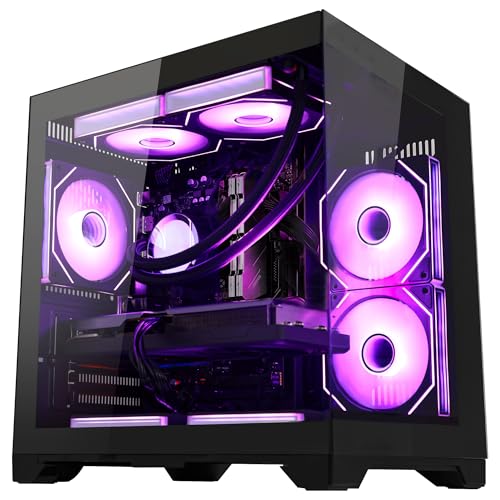
A capable desktop graphics card provides massive fill-rate headroom, enabling emulated mobile titles to run at rendered resolutions far exceeding native mobile screens. Upscaling mobile games to high resolutions on desktop displays reveals crisp textures and distant geometry that mobile hardware cannot process smoothly. Exploring a budget gaming desktop demonstrates that entering PC-based mobile gaming does not require an exorbitant financial investment. Desktop architectures provide robust power delivery, active fan arrays, and massive heatsinks that keep temperatures low and frame rates rock solid.
Desktop environments also introduce the precision of mechanical keyboards and tailored mouse input into mobile gaming titles. Keymapping software allows players to assign on-screen virtual buttons and swipe gestures to precise physical keys and mouse sweeps. This input translation eliminates the visual obstruction of fingers covering the screen while offering superior aim tracking in competitive shooters. Bridging mobile games with desktop hardware unlocks the highest possible visual clarity and responsiveness available for the Android gaming library.
Network Latency, Refresh Rates, and Peripheral Responsiveness
Network instability frequently masquerades as hardware stutter during online multiplayer sessions. Packet loss, network jitter, and signal interference cause rubber-banding and delayed hit registration that disrupt smooth gameplay. Connecting to a five-gigahertz or six-gigahertz Wi-Fi frequency significantly reduces wireless interference compared to congested two-point-four-gigahertz channels. If your gaming router supports quality of service prioritization, assigning highest priority to your gaming device prevents household bandwidth contention from causing latency spikes.
Display refresh rates and touch sampling rates determine how quickly the device responds to physical player inputs. Setting your display refresh rate to ninety or one hundred twenty hertz provides fluid motion clarity, provided the internal hardware can sustain matching frame outputs. High touch sampling rates measure finger positions hundreds of times per second, drastically minimizing the delay between a physical touch and an on-screen reaction. Enabling maximum touch responsiveness within your device’s gaming suite sharpens control precision during high-speed competitive encounters.
Bluetooth audio latency represents another common frustration for mobile gamers relying on wireless earbuds. Standard audio codecs introduce noticeable audio lag that can put players at a disadvantage when reacting to footsteps or weapon fire. Utilizing low-latency gaming modes on wireless peripherals or switching to a direct wired audio connection eliminates perceptible audio delay. Synchronized sound cues combined with rapid touch responsiveness create an immersive, responsive gaming environment that lets your skills shine.
Practical Verification and Long-Term Performance Maintenance
Verifying the impact of your adjustments requires consistent, objective monitoring rather than guesswork. Enabling an on-screen performance overlay via developer settings or your device’s gaming utility displays real-time frame rates, processor utilization, and thermal trends. Testing your primary game across several consecutive matches allows you to observe whether frame pacing remains steady or begins degrading as heat accumulates. A stable frame-time graph confirms that your thermal management and software optimizations are successfully preventing clock throttles.
Long-term performance maintenance requires periodic system hygiene to prevent software bloat from accumulating over time. Clearing cached data from storage-intensive games removes orphaned asset files that can slow down storage access speeds. Uninstalling unused background applications ensures that unneeded system services do not slowly erode available system memory. Keeping your device’s operating system updated ensures you benefit from the latest kernel-level performance patches and security optimizations released by the manufacturer.
Deciding between optimizing a handheld device and migrating to a dedicated desktop emulation setup ultimately depends on your lifestyle and performance goals. Handheld tuning offers portability and rapid setup for gaming on the move, while desktop configurations provide unmatched visual scale, persistent cooling, and precise physical controls. Testing these software adjustments step-by-step establishes the maximum capability of your mobile hardware before considering more extensive setup upgrades.






Write Your Review
No reviews yet. Be the first to share your experience!