


Achieving a smooth, high-quality broadcast while running demanding PC titles is one of the most resource-intensive tasks a computer can handle. Many players struggle with dropped frames, choppy video output, or sluggish in-game response when learning how to stream gaming on youtube. Broadcasting requires your computer to render gameplay frames while simultaneously compressing and uploading that video feed to YouTube servers in real time. A properly configured system balances processor capability, graphics performance, and system memory to prevent encoder overload and maintain consistent frame pacing.
Selecting the appropriate hardware configuration helps ensure your desktop computer maintains stable gameplay without choking the live broadcast feed. Understanding your component capabilities, particularly when consulting a detailed desktop graphics card guide, makes it easier to allocate system resources effectively. Dedicated hardware encoders on modern graphics cards allow creators to offload video encoding tasks from the central processor. Balancing operating-system background tasks, streaming software settings, and visual fidelity in your games creates a reliable foundation for an audience-ready broadcast.


Technical Principles and Desktop Configuration for YouTube Game Streaming
Broadcasting live gameplay to YouTube demands a clear understanding of how system resources are split between game rendering and video compression. A desktop computer must process user input, calculate physics, render 3D scenes, and encode thousands of video frames every minute without interrupting either workflow. Balancing these tasks requires matching your gaming resolution and target broadcast fidelity with the physical limits of your processor and graphics hardware. Setting up your computer properly prevents encoding lag, network buffering, and inconsistent frame rates that can spoil the viewing experience.
Central Processor Demands and Multi-Threaded Resource Allocation
The central processing unit manages game logic, operating system background processes, and stream management utilities during a live session. Demanding modern titles frequently utilize six to eight processor cores simply to keep frame timing consistent during intensive action sequences. When you introduce live broadcasting software, the processor must also coordinate audio capture, webcam feeds, and chat overlays. Selecting a processor with high multi-threaded capability ensures that critical gaming instructions are not delayed while your broadcast client packages the outgoing stream.
Processors with higher core counts allow users to assign specific affinities or reserve threads for streaming applications. When running titles that heavily load single cores, extra computational headroom prevents software-level bottlenecking across your operating system. Streamers working with budget gaming desktop builds often need to prioritize background application management to keep CPU utilization within safe operating margins. Keeping total CPU usage below eighty percent during simultaneous gaming and streaming leaves adequate reserve capacity for sudden spikes in rendering complexity.
Graphics Card Roles and Dedicated Hardware Encoders
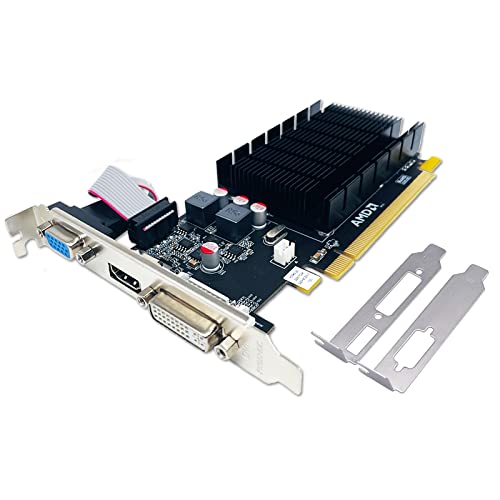
Modern graphics cards handle far more than just rasterizing pixels and rendering game textures on your monitor. Dedicated hardware video encoders built directly into modern silicon architectures allow graphics processors to compress video streams with virtually no impact on primary gaming performance. Hardware encoders such as Nvidia NVENC, AMD AMF, and Intel QuickSync operate on isolated silicon blocks rather than consuming standard compute units. Utilizing these dedicated media blocks ensures that your in-game frame rates remain stable even when outputting high-definition video to YouTube.
Offloading encoding tasks to the GPU represents the standard approach for single-PC streaming configurations. When selecting graphics hardware, verifying the generation of the media engine provides insight into supported compression formats like AV1 and HEVC. While older hardware relied heavily on software compression, modern dedicated encoders deliver superior image clarity at equivalent or lower bitrates. Checking your graphics driver documentation ensures your system software fully supports the specific encoding capabilities of your installed card.
Selecting Optimal Video Codecs for YouTube: AV1, HEVC, and H.264
YouTube differs significantly from many competing streaming platforms by supporting advanced modern video codecs for live ingestion. While older platforms frequently restrict creators to the legacy H.264 protocol, YouTube actively ingests HEVC and AV1 broadcast streams via the Enhanced RTMP standard. The AV1 codec provides noticeably improved compression efficiency, retaining sharp textures and high-speed motion details at much lower data rates. Utilizing newer compression formats prevents high-motion titles like first-person shooters and racing games from turning into pixelated, blurry feeds.
Enabling AV1 or HEVC requires compatible graphics hardware and up-to-date broadcasting software such as OBS Studio. Reference publications like OBS Studio Made Easy for Gamers and Streamers document the exact protocol switches needed to establish Enhanced RTMP handshakes with YouTube servers. When using hardware that lacks native AV1 encoding blocks, falling back to HEVC or refined H.264 profiles remains an effective option. Matching your codec choice to your hardware capabilities avoids overloading the media processor during extended gaming sessions.
Bitrate Calculations and Resolution Scaling Guidelines
Determining your stream bitrate involves finding an equilibrium between upload bandwidth, platform ingestion limits, and system stability. YouTube transcodes incoming streams into multiple resolutions for viewers, but providing a clean source signal directly dictates final quality. For a standard 1080p stream at sixty frames per second, setting a constant bitrate between eight thousand and ten thousand kilobits per second typically produces a clean image. Higher resolutions such as 1440p require substantially more data throughput, often demanding between fifteen thousand and twenty thousand kilobits per second.
Setting your output resolution requires evaluating your display settings against the rendering capacity of your desktop rig. Many creators game at 1440p or 4K while downscaling the canvas output to 1080p inside the broadcast software to reduce system stress. Downscaling via GPU bicubic filters provides crisp downsampled imagery without taxing the processor cores responsible for running game mechanics. Testing network upload consistency with your internet service provider confirms that your outgoing connection can sustain your chosen bitrate without dropping packets.
Memory Capacity and High-Speed Storage Requirements
System memory capacity plays a critical role when running modern games alongside broadcasting suites and web browser tabs. While sixteen gigabytes of system RAM suffices for standard gaming, streaming environments benefit noticeably from thirty-two gigabytes of high-speed memory. Running broadcast overlays, scene collections, and chat bots simultaneously consumes several gigabytes of operational memory before a game even launches. Insufficient memory forces the operating system to swap data onto virtual storage page files, causing sudden stutter and dropped stream frames.
Solid-state storage configuration also impacts overall streaming stability and asset loading times. Storing your operating system, active games, and broadcast software on fast NVMe solid-state drives prevents disk bottlenecks when streaming media assets. If you choose to record your live gameplay simultaneously for offline editing, writing that high-bitrate video file to a separate physical drive avoids input-output congestion. Ensuring adequate free space on all drives prevents write-speed throttling during several hours of continuous high-definition recording and broadcasting.
Power Stability, Thermal Dissipation, and Cooling Management
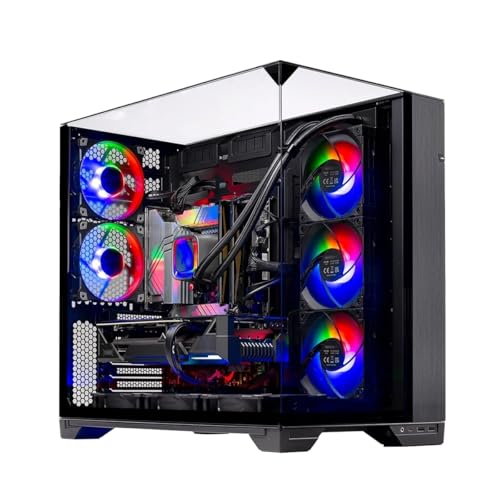
Running an intensive gaming title while encoding high-bitrate video pushes both your CPU and GPU toward sustained maximum power limits. High thermal output can trigger hardware throttling if your desktop chassis lacks adequate ventilation or sufficient liquid cooling capacity. Thermal throttling automatically reduces clock speeds to protect components, which introduces severe micro-stutter to both gameplay and broadcast encoding pipelines. Maintaining balanced case airflow with clean intake filters and well-positioned exhaust fans keeps core temperatures safely beneath critical thermal thresholds.
Power draw consistency is equally vital when your system operates under continuous dual-load conditions for multiple hours. Power supply units must supply stable voltage rails to prevent system reboots or transient spike shutdowns during intense gaming moments. Utilizing uninterruptible power supplies for gaming setups protects your streaming rig from local line fluctuations and sudden power dropouts. Clean power delivery ensures your stream remains uninterrupted during neighborhood grid anomalies while safeguarding sensitive PC components over years of heavy use.
Single-PC vs Dual-PC Streaming Configurations
Broadcasters frequently debate whether to handle gaming and streaming on a single desktop or deploy a dedicated two-computer setup. A single modern desktop equipped with an advanced hardware encoder is more than capable of managing both tasks seamlessly for most content creators. Single-system configurations minimize cable clutter, reduce power consumption, and avoid the complex audio routing issues inherent in multi-machine environments. Modern operating systems and updated software schedulers have made single-PC broadcasting far more reliable and straightforward than it was in earlier hardware generations.
Dual-PC streaming setups utilize a primary gaming rig paired with a secondary computer equipped with a capture card to process the outgoing broadcast. This separation isolates all streaming overhead on the secondary machine, leaving the gaming desktop with one hundred percent of its resources dedicated to frame production. However, setting up a secondary machine introduces significant hardware expenses, requiring extra monitors, capture cards, and ground-loop isolators for clean audio transmission. For the vast majority of YouTube creators, investing in a robust single desktop with a capable graphics encoder offers superior practicality and simplicity.
Software Configuration and YouTube Ingestion Protocol Setup
Configuring Open Broadcaster Software correctly ensures that your desktop communicates efficiently with YouTube servers via your creator dashboard. Creating a live stream event inside YouTube Studio generates a unique stream key and RTMP ingestion URL that connects directly to your broadcast client. Selecting Constant Bitrate encoding inside your software output options guarantees that data flows smoothly without large dips that trigger buffering for viewers. Setting your keyframe interval strictly to two seconds matches the standard ingestion requirement established by YouTube for smooth live playback.
Audio bitrate settings must also be configured deliberately to maintain clear voice commentary and dynamic game audio. Setting audio tracks to three hundred twenty kilobits per second using the AAC codec provides studio-quality sound without adding meaningful overhead to your overall bitrate. Reference books like Stream dream: Your guide to success emphasize the value of balancing game volume against microphone levels before launching any live broadcast. Proper gain staging and noise suppression filters inside your software prevent ambient fan noise from entering your stream audio mix.
Diagnosing and Eliminating Stream Lag and Dropped Frames
Encountering dropped frames during a live session indicates a bottleneck within your hardware pipeline or internet connection. Streaming clients typically report three distinct types of frame drops: rendering lag, encoding lag, and network dropouts. Rendering lag occurs when the GPU cannot composite scenes fast enough, which you can resolve by running your streaming client as administrator to ensure priority scheduling. Encoding lag signifies that the chosen encoder cannot keep pace with incoming video frames, requiring you to lower your preset quality or switch to a faster hardware encoder.
Network frame drops stem from unstable bandwidth, upload throttling, or local network congestion rather than hardware performance limitations. Connecting your desktop gaming PC via a physical Ethernet cable rather than Wi-Fi eliminates packet loss caused by wireless interference or wall penetration. If your internet connection experiences periodic speed dips, enabling dynamic bitrate options inside your software allows the stream to lower throughput temporarily rather than dropping frames entirely. Performing private test streams to an unlisted YouTube link allows you to confirm stability before broadcasting to a public audience.
Long-Term System Optimization and Pre-Broadcast Checklist
Maintaining consistent streaming performance requires routine maintenance of your operating system and hardware drivers. Keeping your graphics card drivers updated ensures your encoding engine benefits from the latest performance patches and codec optimizations. Disabling unnecessary startup programs and background telemetry prevents unneeded applications from consuming processing threads while you stream. Monitoring hardware temperatures and clock speeds using hardware monitoring software during your first few test broadcasts establishes a reliable performance baseline for your specific hardware combination.
Executing a structured pre-broadcast routine guarantees that hardware settings remain intact before you go live to your community. Verify that your primary display resolution matches your software canvas, and confirm that all capture sources are active and properly scaled. Check that your audio input devices are functioning and that your operating system has not redirected your microphone to a default virtual channel. Taking five minutes to review these basic system parameters ensures that your YouTube gaming broadcast runs smoothly from your opening scene to your closing screen.






Write Your Review
No reviews yet. Be the first to share your experience!