

Many desktop computer owners eventually reach a moment where their built-in display hardware struggles to keep up with modern software or multimedia tasks. A common question that arises during this transition is can i upgrade/add graphics card on any pc without running into major technical barriers. The simple reality is that while many standard desktop systems welcome a dedicated card, not every computer chassis, motherboard, or power setup can accommodate one. Pairing a graphics card with an appropriate system requires checking your existing hardware balance, much like matching components when consulting a desktop gaming processor guide.
Upgrading an older machine or a compact office computer often brings immediate benefits for display flexibility, video playback, and basic visual tasks. However, physical clearance inside the chassis, the electrical capacity of your power supply, and the presence of a suitable motherboard expansion slot will dictate your options. Understanding these core hardware boundaries helps you avoid costly purchasing mistakes and ensures your desktop upgrade runs safely and reliably.


Evaluating Hardware Compatibility Before Upgrading Your Desktop Graphics Card
Adding dedicated display hardware can revitalize an older desktop, but success depends on whether your computer meets several non-negotiable physical and electrical requirements. Asking whether can i upgrade/add graphics card on any pc requires examining individual hardware components rather than assuming uniform desktop standards. The sections below break down every physical, electrical, and firmware checkpoint you must verify before choosing an upgrade.
Direct Assessment: Why Hardware Upgrades Depend on System Architecture
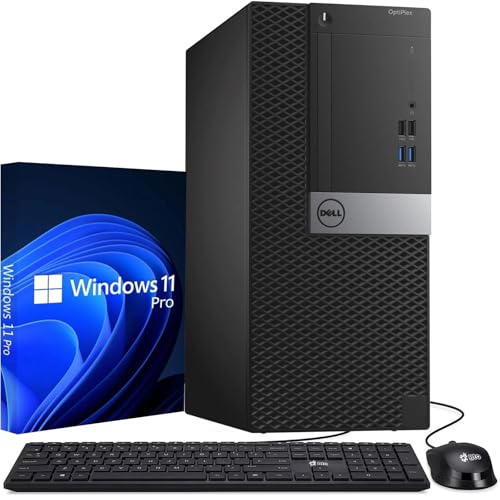
The short answer to whether you can add a graphics card to any personal computer is no. Traditional laptop computers, all-in-one desktops where the system board integrates into the display panel, and ultra-compact mini PCs generally solder their processing and graphical chips directly to the board. In those sealed form factors, you cannot drop in an internal graphics card because no expansion slot exists. Only traditional desktop towers and small-form-factor desktop workstations offer the modular design required for dedicated expansion cards.
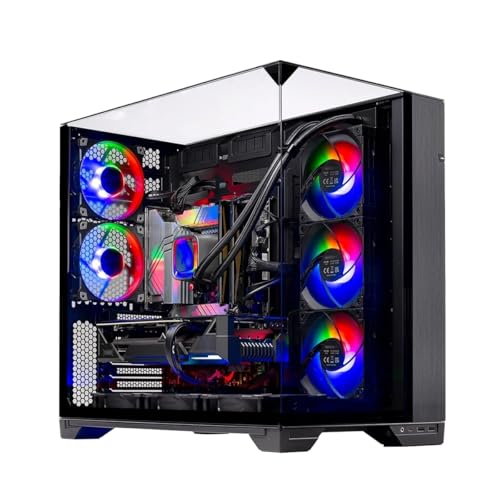
Even among desktop towers, proprietary designs from major office PC manufacturers can create unexpected obstacles. Certain prebuilt systems utilize custom motherboard layouts that omit standard expansion slots entirely or position other components in front of the expansion area. Many buyers who inspect prebuilt desktop gaming options realize that purpose-built gaming towers feature modular motherboards designed specifically for card replacements, whereas barebones office workstations often prioritize minimal manufacturing footprint over future upgradeability.
Before planning any hardware purchase, you must confirm that your computer is an upgradeable desktop tower rather than a closed-loop system. Taking off the side panel to inspect the internal layout provides immediate clarity on whether the core framework allows physical expansion.
Motherboard PCIe Expansion Slots and Electrical Lane Requirements
A dedicated graphics card requires a Peripheral Component Interconnect Express slot, commonly abbreviated as PCIe, on the motherboard. Modern desktop expansion cards typically use a PCIe x16 physical slot, which features a long connector with a retention latch at the back edge. If your motherboard only possesses smaller PCIe x1 slots intended for sound cards or wireless networking cards, a standard full-length graphics card will not physically fit into the connector.
Some compact cards, including budget-friendly options, operate using an electrical x8 or x16 interface designed to fit inside standard mechanical x16 slots. For example, entry-level upgrade cards such as the QTHREE GeForce GT 730 specify an x8 lane requirement on an available slot, allowing them to function smoothly in motherboards equipped with standard expansion lanes. Older generations of the PCIe standard, such as PCIe 2.0 found on cards like the QTHREE GeForce GT 210, remain backward and forward compatible with newer PCIe 3.0 or 4.0 motherboard sockets, provided the physical slot matches.
You must also ensure that neighboring components, such as memory latches, front-panel USB headers, or bulky storage drive bays, do not physically obstruct the slot. A clear line of insertion across the entire length of the slot is mandatory to seat the card securely into the motherboard.
Power Supply Constraints: Wattage Ratings and Auxiliary Connectors
Power availability is the single most frequent reason a graphics card upgrade fails in an existing desktop PC. Standard retail graphics cards designed for intensive gaming demand substantial electrical current and require dedicated 6-pin or 8-pin auxiliary power cables routed directly from the power supply unit. Many standard office PCs ship with basic power supplies rated between 180 watts and 250 watts that completely lack these dedicated auxiliary power cables.
When working within a restricted power envelope, slot-powered graphics cards provide an effective solution. Standard PCIe slots supply up to 75 watts of electrical power directly through the motherboard connector, removing the need for auxiliary power leads. A low-draw card like the QTHREE Radeon HD 5450 lists an approximate full-load power consumption of only 19 watts, drawing all necessary current directly through the slot without external cables. Similarly, cards like the ARDIYES GT 730 draw their operational power strictly from the PCIe interface, making them viable for factory power supplies.
Attempting to install an auxiliary-dependent card into a system with an undersized power supply can cause sudden shutdowns, boot failure, or component damage. Always check the printed label on your power supply unit to verify its total wattage rating and look for manufacturer recommendations, such as the 300-watt baseline suggested for certain GT 730 models.
Physical Case Clearance: Full-Height Towers Versus Small Form Factor Enclosures
Computer cases come in distinct physical shapes that determine how much interior volume is available for add-in cards. Full-tower and mid-tower cases utilize standard-profile expansion brackets, allowing the installation of full-height graphics cards. In contrast, slim desktop cases and small-form-factor, or SFF, enterprise chassis feature narrow rear expansion bays that cannot accept a standard full-height metal mounting bracket.
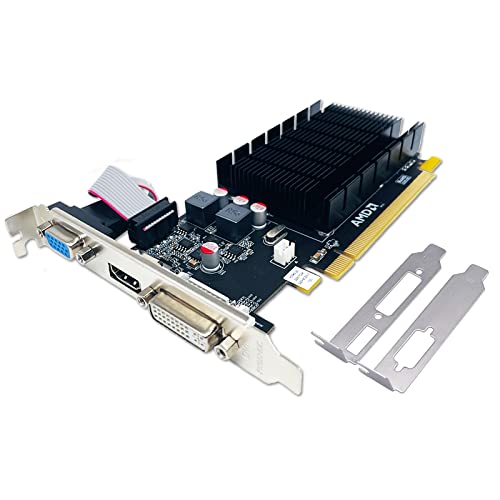
If you own an SFF system, you must select a low-profile graphics card that includes a half-height bracket. Hardware options like the low-profile QTHREE GeForce GT 730 and the QTHREE GeForce GT 210 specifically include half-height mounting brackets suited for slim enclosures and compact workstation chassis. Conversely, standard-profile hardware like the ARDIYES GT 730 features a taller bracket and is explicitly not intended for slim SFF enclosures.
Slot width is another critical dimension to measure. While some basic cards take up only a single expansion slot opening, cards with thicker heatsinks or attached fans occupy two full rear bracket spaces. You must confirm that your chassis has an unoccupied opening directly adjacent to the motherboard slot if you plan to install a dual-slot solution.
Thermal Dissipation: Balancing Passive Heatsinks and Active Cooling
Adding a dedicated graphics processor introduces an additional heat source into your desktop environment. How a card sheds this heat depends directly on its cooling design, which generally divides into fanless passive heatsinks and active fan-cooled shrouds. Passive designs use aluminum fins to radiate thermal energy away from the processor without generating mechanical noise, while active designs rely on small rotating fans to force air across the cooling fins.
A passive card like the QTHREE Radeon HD 5450 uses a silent fanless heatsink that generates zero operating noise, making it suitable for quiet office environments and basic media playback. However, passive cooling depends entirely on the ambient airflow circulating inside the computer case. If an enclosed chassis has poor ventilation, heat can accumulate around the card and lead to thermal throttling or elevated internal temperatures.
Active cooling designs, such as the fan-equipped ARDIYES GT 730, actively blow air across the heatsink to keep operating temperatures in check even inside tightly packed enclosures. When planning your upgrade, assess whether your computer case possesses an intake or exhaust fan to support the card cooling approach you intend to use.
Display Connectivity and Multi-Monitor Workstation Requirements
Upgrading a graphics card often stems from a practical need to connect modern monitors rather than pure visual processing speed. Many older business desktops feature only legacy analog outputs, such as VGA, or a single digital display port that limits productivity. A dedicated card dramatically expands your connectivity options by providing modern digital interfaces like HDMI and DisplayPort alongside legacy ports.
Depending on your workflow, display output configurations vary significantly across entry-level hardware. The ARDIYES GT 730 stands out for multi-screen productivity by providing four independent HDMI ports, enabling users to run four separate displays from a single card without relying on external splitters. Meanwhile, models like the low-profile QTHREE GT 730 combine two HDMI ports with DisplayPort and VGA, offering versatility for mixed monitor setups ranging from modern panels to legacy office screens.
Card choices like the QTHREE GT 210 provide a straightforward upgrade path for dual-monitor setups using VGA and HDMI. Verifying the specific display inputs on your existing monitors ensures that the card you select connects directly without requiring extra adapters.
Motherboard Firmware and Operating System Compatibility Nuances
Physical and electrical fit are only part of the equation; software and firmware compatibility represent the final hurdle. Modern graphics cards and motherboards communicate through Unified Extensible Firmware Interface, or UEFI, while older motherboards manufactured prior to the mid-2010s often utilize legacy Basic Input/Output System, known as legacy BIOS. Some newer graphics cards refuse to output video on older legacy BIOS motherboards, and certain legacy cards may struggle to initialize on modern motherboards that have legacy Compatibility Support Module, or CSM, disabled.
Operating system support is equally critical when evaluating entry-level and legacy graphics cards. Certain older budget models, including the QTHREE Radeon HD 5450 and the QTHREE GeForce GT 210, support legacy platforms like Windows 7, 8, and Windows 10, but the manufacturer documentation states they are not compatible with Windows 11. In contrast, the Kepler-based QTHREE GeForce GT 730 provides driver support for Windows 11 and DirectX 12, making it a viable display upgrade for modern software environments.
Those upgrading systems for intensive creative or compute workloads often explore high performance desktop systems that incorporate modern operating system support from the ground up. Before buying any card, confirm that official display drivers exist for your exact operating system version to avoid unresolved display resolution errors.
Practical Pre-Upgrade Inspection: A Systematic Verification Workflow
Performing a structured physical check takes only a few minutes and eliminates almost all upgrade uncertainty. Begin by shutting down your computer, disconnecting the main power cord from the wall, and pressing the power button once to drain any residual electrical charge stored in the capacitors. Ground yourself by touching an unpainted metal surface on the chassis before reaching inside to prevent electrostatic discharge.
First, locate the top PCIe x16 slot on your motherboard and measure the clearance distance from the rear metal bracket to any front-facing obstructions. Second, inspect the power supply unit sticker to record the continuous wattage rating and verify whether any 6-pin or 8-pin auxiliary cables remain unused in the wiring harness. Third, check whether your case requires a standard-height bracket or a low-profile half-height bracket by comparing the rear expansion slots to standard desktop dimensions.
Once you record your available slot type, power capacity, bracket profile, and target operating system, matching those figures to a compatible graphics card becomes straightforward. Checking these hardware constraints in advance ensures that adding a graphics card to your desktop computer proceeds smoothly and delivers the display capabilities you need.






Write Your Review
No reviews yet. Be the first to share your experience!