
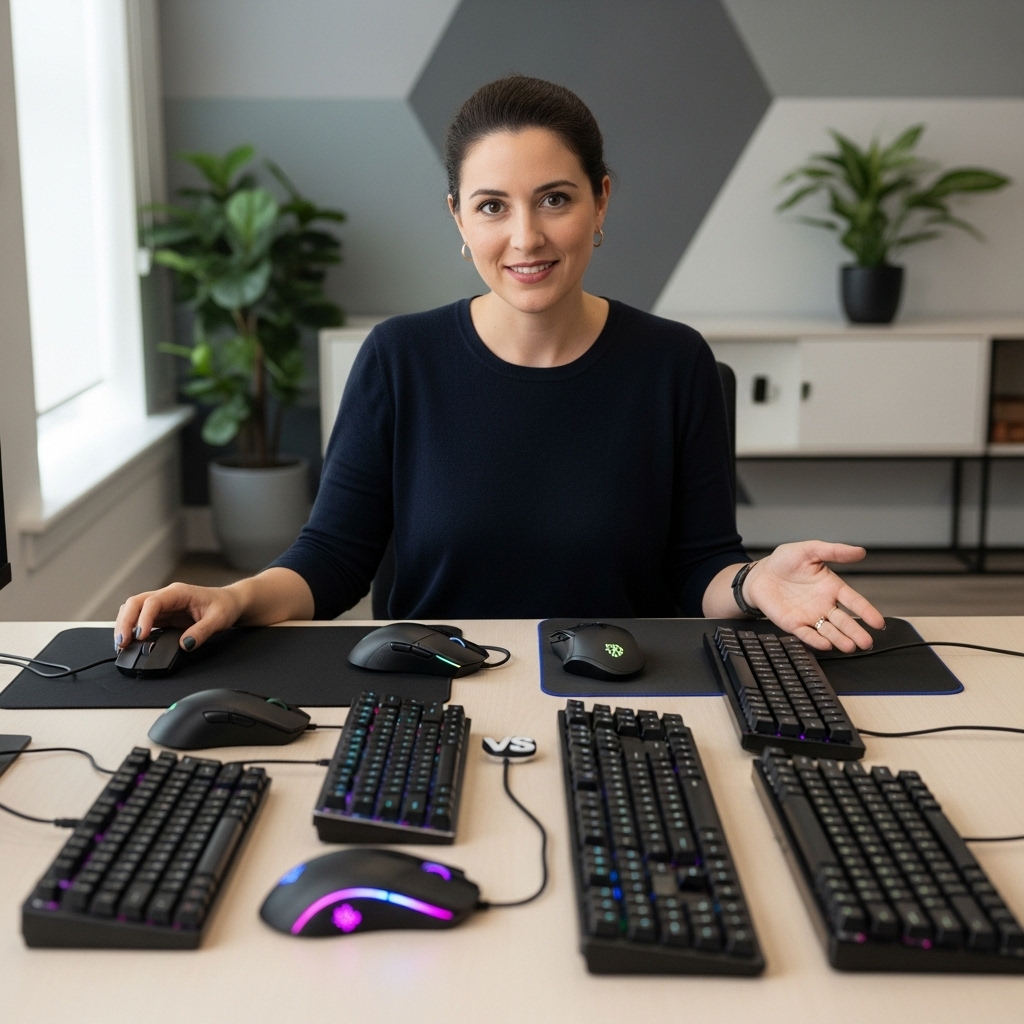

A desktop gaming rig requires more than fast processors and graphics cards to deliver an immersive visual experience. While the computer tower processes textures and physics, understanding what are the monitor options and display technologies determines exactly how those rendered frames appear on your desk. Connecting a capable graphics card to an unsuitable screen can limit visual fluidness, especially when matching panel refresh rates with system output. Selecting appropriate visual equipment allows players to translate raw compute power into responsive gameplay across both competitive titles and immersive adventures.
Players building or buying entry level gaming PC setups often weigh screen size, panel technology, and physical mounting against their hardware capabilities. A display functions as an adjacent peripheral rather than an internal component, but its resolution, connection standards, and ergonomic positioning dictate how you interact with your desktop machine every day. Considering factors like refresh rate, adaptive synchronization, and adjustable arm supports helps you build a clean, functional battlestation tailored to your gaming space.


Pros
- High 100Hz refresh rate delivers smooth motion for casual and competitive gaming.
- VA panel offers excellent contrast ratio for richer colors and deeper blacks compared to typical IPS monitors.
- Adaptive Sync support reduces screen tearing without requiring a high-end GPU.
- LowBlue Mode and flicker-free technology reduce eye fatigue during long sessions.
- Affordable price point makes it accessible for budget-conscious gamers and students.
Cons
- Limited to 22-inch size, which may feel small for immersive gaming or multi-window productivity.
- Only one HDMI port and one VGA port, lacking DisplayPort or USB-C connectivity for modern setups.
- No built-in speakers, requiring external speakers or headphones for audio.
The Philips 221V8LB is a 22-inch Full HD monitor that targets budget-minded PC gamers, casual gamers, and home office users who want a reliable display without spending a lot. With a 100Hz refresh rate and Adaptive Sync, it offers smoother motion than standard 60Hz monitors, which can make a noticeable difference in fast-paced games like shooters or racing titles. The VA panel provides deeper blacks and better contrast than many entry-level IPS monitors, giving you more vibrant visuals for gaming and media.
This monitor is best suited for casual gamers, college gamers, and work-from-home users who need a secondary display or a compact primary monitor for a small desk. Its 22-inch size fits easily into tight spaces, and the VESA mount compatibility allows for flexible desk setups or wall mounting to improve cable management. The 100Hz refresh rate and Adaptive Sync help reduce screen tearing and stuttering, making gameplay feel more fluid without needing a high-end graphics card.
In terms of performance, the 100Hz refresh rate provides a noticeable upgrade over standard 60Hz displays, especially in games where quick reactions matter. The Adaptive Sync technology works with compatible GPUs to keep frames smooth, which is a nice bonus at this price point. The VA panel also offers 178-degree viewing angles, so colors stay consistent even when you're not sitting directly in front of the screen. This can be useful for co-op gaming or when sharing your screen with others.
Build quality is solid for a budget monitor, with a simple black design that won't distract from your gaming setup. The stand is basic but functional, and the VESA mount option gives you the freedom to use an aftermarket arm or mount for a cleaner desk. The inclusion of both HDMI and VGA ports ensures compatibility with older PCs or laptops, though you won't find DisplayPort or USB-C here. This might limit connectivity for some modern devices, but for most casual setups, it's sufficient.
Setting up the Philips 221V8LB is straightforward. It comes with an HDMI cable and a power cord, so you can plug it in and start using it right away. The on-screen menu is easy to navigate, and the LowBlue Mode is a nice touch for reducing eye strain during long gaming sessions or late-night work. However, there are no built-in speakers, so you'll need to rely on external speakers or a gaming headset for audio. This is common for budget monitors, but it's worth noting if you prefer an all-in-one solution.
One realistic limitation is the 22-inch screen size, which may feel cramped for immersive gaming or for users who multitask with multiple windows open. Also, the lack of a DisplayPort or higher refresh rate (like 144Hz) means it's not ideal for competitive esports players who demand the fastest response times. But for its price, the Philips 221V8LB delivers good value for casual gamers, students, or anyone needing a reliable secondary monitor. If you're building a budget gaming PC or setting up a dorm room gaming station, this monitor is a practical choice that won't disappoint.

Understanding Computer Displays and Screen Hardware in Gaming PC Setups
A computer monitor serves as the visual interface between a gaming desktop and the player, converting digital signals generated by the graphics card into visible frames. While the tower contains the essential processing components that determine computational speed, the screen determines how accurately and fluidly that graphical work appears. Exploring what makes up a modern display helps gamers understand how panel specifications, refresh capabilities, and physical mounts shape their overall experience. Choosing the right display configuration ensures that your investment in computing hardware translates into an enjoyable and responsive gaming environment.
Defining the Role of a Display Peripheral in Desktop Gaming
In any desktop computing setup, a monitor operates as a dedicated visual peripheral rather than an internal processing component. The central processing unit and graphics card work together inside the chassis to simulate game mechanics, calculate physics, and render complex textures. Those calculations are output through high-speed display cables directly to the monitor, which refreshes thousands of pixels dozens or hundreds of times per second. Without a properly matched screen, high frame rates generated by your computer tower cannot be seen as intended.
Understanding this division between computing hardware and external displays is essential when planning a complete desk configuration. While handheld gaming devices integrate the display and internal electronics into a single shell, a desktop PC separates these functions to provide greater modularity. This separation allows users to upgrade their tower components over time while keeping their preferred display arrangement. It also lets players customize screen size, panel technology, and positioning according to their available desk space and viewing preferences.
How Graphics Cards and Display Resolutions Interact
Resolution represents the total number of distinct pixels a screen can display, typically expressed through horizontal and vertical pixel counts. Standard Full High Definition (FHD) screens, such as the Philips 27-inch and 22-inch models, deliver a resolution of 1920 by 1080 pixels. This format remains an accessible target for many gaming builds because it presents a manageable computational load for mainstream graphics hardware. Higher resolutions demand substantially more video memory and graphics horsepower, which can lower frame rates if the internal components are not sufficiently robust.
When evaluating resolution, screen dimensions play a significant role in visual clarity and pixel density. A 22-inch class panel offering 1080p resolution packs pixels relatively close together, resulting in crisp text and sharp in-game edges. In contrast, a 27-inch 1080p panel provides a larger visual field that can enhance immersion during media consumption and casual gaming, though individual pixels are slightly larger. Gamers pairing their screens with dedicated graphics card capabilities often select their display resolution based on whether they prioritize maximum frame rates or expansive screen area.
Refresh Rates and Adaptive Sync for Smooth Visuals
Refresh rate measures how many times per second a monitor redraws the image on screen, expressed in Hertz (Hz). Traditional office displays frequently operate at 60Hz, but models such as the Philips 271V8LB and 221V8LB step up to a 100Hz refresh rate. This faster refresh rate provides smoother motion during fast-paced games, reducing visual motion blur when panning the camera across virtual environments. Even during routine desktop navigation and document scrolling, a 100Hz panel delivers a noticeably cleaner visual response than standard displays.
Screen tearing occurs when a graphics processor outputs frames at a pace that does not align with the monitor’s refresh cycle. Adaptive-Sync technology addresses this mismatch by dynamically synchronizing the display’s refresh rate to the frame output of compatible graphics cards. This synchronization helps prevent distracting horizontal tears and minimizes the stutter that can happen when frame rates fluctuate. For desktop gamers who enjoy varied titles, having adaptive synchronization support provides a much smoother visual experience across changing in-game scenes.
Evaluating Panel Technologies and Visual Contrast
The underlying panel technology fundamentally dictates color presentation, viewing angles, and contrast performance. Vertical Alignment (VA) panels, utilized in the Philips V-line monitors, are widely recognized for producing deep black levels and impressive static contrast. Because liquid crystals in VA panels block backlight bleed effectively, dark scenes in games and films appear rich and defined rather than washed out into dark gray. This makes VA displays particularly appealing for players who frequently enjoy story-driven titles with atmospheric lighting.
Viewing angles and color reproduction represent another crucial consideration for desktop setups. Modern VA panels provide wide 178-degree horizontal and vertical viewing angles, preventing severe color shifting when looking at the display from an off-center position. Furthermore, support for 16.7 million colors ensures smooth tonal transitions and subtle color gradients across diverse media. Specialized modes, such as LowBlue mode and EasyRead software settings, also help lessen visual fatigue during extended work sessions or lengthy gaming marathons.
Essential Video Connections and Port Compatibility
Connecting a monitor to a desktop computer requires compatible physical ports and cables on both ends of the connection. Many entry-level and general-purpose displays feature an HDMI port alongside a legacy VGA connector to maintain broad hardware compatibility. Modern graphics cards predominantly utilize digital connections such as HDMI and DisplayPort, rendering analog VGA connections largely relevant for older systems or secondary diagnostic screens. Checking that your graphics card has an available digital output that matches your display port ensures simple plug-and-play setup.
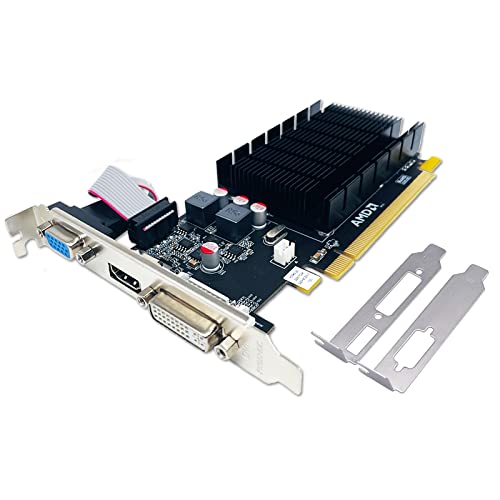
A common setup oversight among new PC builders involves plugging the monitor cable into the motherboard video output instead of the discrete graphics card. When a dedicated graphics processor is installed inside the chassis, video cables must connect directly to that add-in card to utilize its rendering power. Connecting to the motherboard port may route display signals through an integrated graphics chip, resulting in poor gaming performance. Verifying your cable connections before powering on the desktop helps prevent unexpected display issues and ensures full hardware utilization.
Freeing Desktop Space with Ergonomic VESA Mounts
Standard monitor stands often occupy substantial desk area, leaving little room for large mouse pads, external audio interfaces, or peripheral accessories. Utilizing an adjustable mounting arm, such as the ARES WING Wall Mount Monitor Arm, moves the display support off the desk surface entirely. These mounting systems conform to the Video Electronics Standards Association (VESA) pattern, typically featuring 75x75mm or 100x100mm hole spacings on the rear panel. If a screen lacks native mounting holes, an external VESA bracket adapter is required before attaching the display.
Articulated monitor arms incorporate internal gas spring mechanisms that counterbalance the weight of the display for effortless repositioning. Premium wall-mounted units offer extensive motion ranges, including upward tilt, downward tilt, 180-degree swivel, and full 360-degree rotation. Extending the display outward during gameplay and retracting it close to the wall when not in use helps maintain an uncluttered gaming room. Proper height and distance adjustments also relieve physical strain on your neck and shoulders, supporting healthy posture during long computing sessions.
Multi-Screen Configurations and Stacked Dual Mounts
Expanding your setup to multiple displays can significantly boost productivity and multitasking capabilities while running desktop applications. A secondary screen allows players to view chat applications, broadcast software, or system monitoring tools without minimizing their primary full-screen game. While side-by-side configurations are common, vertical stacking arms like the ARES WING Stacked Dual Vertical Monitor Arm offer an efficient alternative for narrower desks. Stacking monitors vertically preserves horizontal workspace while keeping secondary information within comfortable peripheral vision.
Heavy ultrawide monitors and expansive curved screens introduce unique physical challenges that require specialized mounting solutions. Heavy-duty dual mounts engineered from high-grade steel and aluminum can support massive ultrawide panels ranging up to 49 or 57 inches. Advanced bearing head structures and reinforced gas springs prevent heavy screens from sagging downward over time, especially when holding curved 1000R displays. Enthusiasts investing in high performance desktop gaming rigs frequently select heavy-duty arms to ensure their visual command center remains stable during intense gaming sessions.
Integrated Desktop Convenience and Cable Management
Modern monitor arms frequently provide integrated features that streamline peripheral connectivity and maintain a tidy workspace. Some dual vertical desk mounts incorporate powered USB-A and USB-C charging ports directly into the base of the stand. These integrated ports allow gamers to recharge wireless mice, mobile phones, or headsets without running extra cords across their desks. Having readily accessible charging connections at the base of your display mount eliminates the need to reach behind the PC tower for basic power.
Unmanaged video and power cables can create an unsightly tangle behind desktop monitors, impeding airflow and complicating component swaps. Well-designed mounting arms include internal cable management channels that conceal wiring along the articulated arm sections. Routing your HDMI, DisplayPort, and power cables through these channels preserves a minimalist aesthetic across your battlestation. Clean cable paths also protect cords from accidental pinching or tension when rotating or tilting the screens into different viewing positions.
Practical Steps for Assembling and Configuring Your Display Station
Installing heavy-duty wall mounts requires careful attention to wall construction and structural anchoring methods. Heavy displays mounted on articulated arms exert substantial leverage, making it essential to secure mounting plates directly into solid wood wall studs, solid concrete, or brick walls. Manufacturers strongly advise against securing heavy monitor wall mounts into hollow drywall or plaster using standard expansion anchors alone. Verifying wall composition and using proper structural fasteners ensures your expensive screens remain safely anchored under full arm extension.
Desk-mounted arms typically offer versatile installation choices, accommodating both edge C-clamp fixtures and through-desk grommet mounts. When securing a C-clamp, check your desktop thickness against the clamp specifications to verify a snug, stable grip. Solid wood or dense composite desks handle clamping forces reliably, whereas hollow honeycomb desks may require reinforcement plates to distribute pressure evenly. Taking time to adjust the gas spring tension screw after mounting ensures the arm holds your monitor firmly without drifting upward or sinking downward.
Display Settings and Performance Verification in Windows
After physically connecting your display to the graphics card, configuring the operating system display settings is necessary to unlock its full performance. Windows frequently defaults new monitors to a conservative 60Hz refresh rate, even when connected to a 100Hz or higher capable panel. Navigating to advanced display settings allows users to manually select the maximum supported refresh rate supported by their hardware. Confirming this setting ensures you receive the full visual fluidity that your monitor hardware was engineered to deliver.
Enabling adaptive synchronization within your graphics card control panel completes the visual configuration process. Both major graphics utility suites feature dedicated toggles to activate variable refresh rate support for compatible connected displays. You should also verify that the native resolution matches the screen’s physical pixel grid to avoid blurry scaling artifacts. Running a quick in-game test session confirms that frame delivery remains smooth, tearing is suppressed, and text rendering remains sharp across all desktop applications.
Final Considerations for a Balanced Desktop Battlestation
Building a harmonious gaming setup involves balancing internal computing performance with external visual clarity and physical comfort. Matching your graphics card output to appropriate screen resolutions and refresh rates ensures your desktop hardware operates efficiently without unnecessary bottlenecks. Adding sturdy, flexible mounting arms frees up valuable desk space, promotes proper spinal ergonomics, and protects your display investment. Taking a thoughtful, unified approach to your screen selection and physical mounting creates an organized, responsive gaming environment ready for daily play.







Write Your Review
No reviews yet. Be the first to share your experience!