
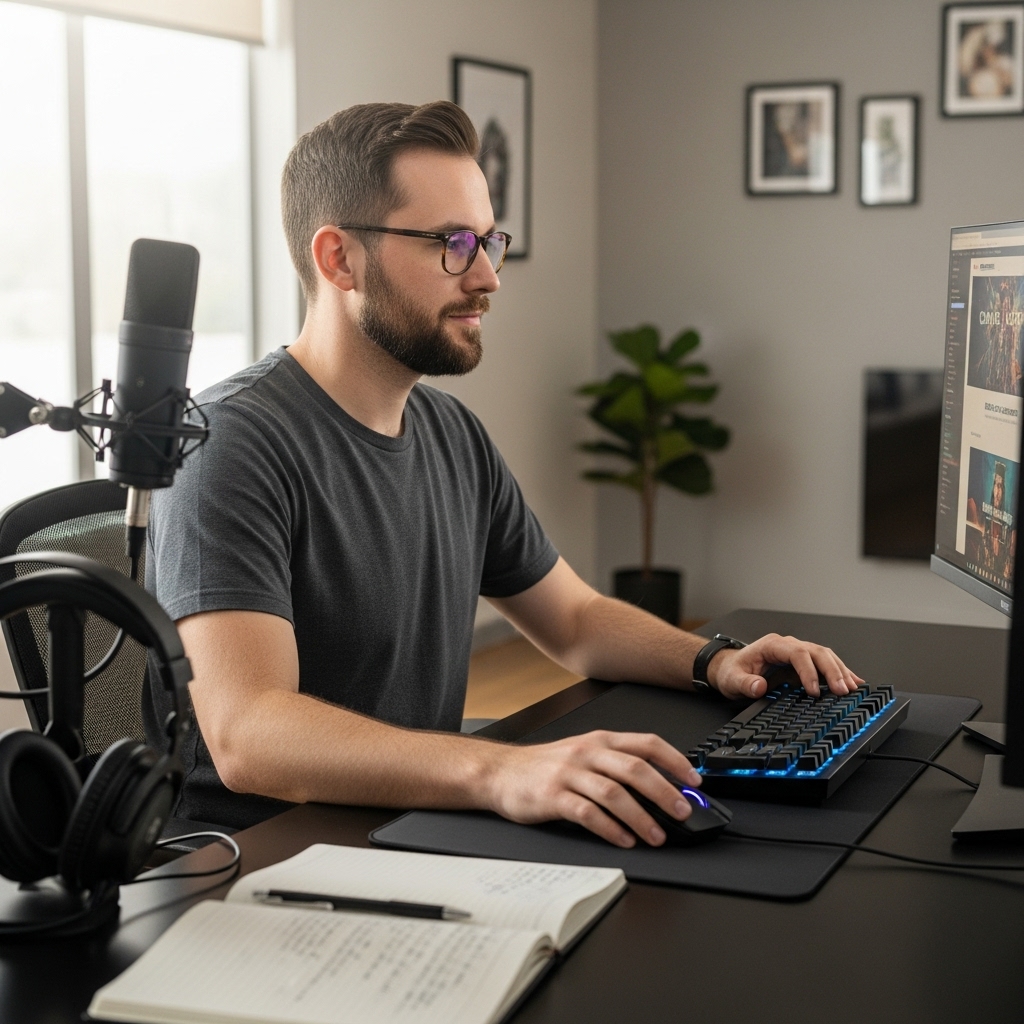

Playing modern battle royale titles no longer strictly demands a high-end desktop chassis filled with expensive dedicated components. Learning how to play fortnite on cloud gaming enables enthusiasts to stream the complete title directly to modest laptops, smart displays, or mobile devices using remote server infrastructure. Rather than purchasing a dedicated budget gaming PC right away, gamers can utilize cloud streaming to avoid massive storage demands and lengthy patch installations. This approach changes how players approach modern gaming setups by shifting the heaviest hardware workloads entirely off your local desk.
Remote data centers run the game on enterprise hardware, encoding real-time video and streaming it directly to your display while processing controller or keyboard inputs. Because the local system only manages video decoding and control signals, thermal throttling and loud fan noise become issues of the past. Success with this setup requires a reliable internet connection, low network jitter, and properly configured control peripherals. Knowing which streaming services host the game and how to optimize your network makes jumping onto the island straightforward and enjoyable.


A Complete Walkthrough for Cloud-Streaming Fortnite
Accessing cloud streaming for battle royale gaming transforms how players engage with hardware requirements and game installations. Instead of downloading dozens of gigabytes of game files and shader caches, users interact with a live video feed hosted on remote enterprise servers. Setting up this workflow requires understanding how streaming platforms operate, what your home network must handle, and which input accessories provide the most responsive feedback.
How Cloud Gaming Delivers Fortnite Without Dedicated PC Hardware
Traditional PC gaming relies on a local processor, graphics card, and system memory to compute game logic and render 3D scenes. Cloud gaming removes these physical demands from your desk by shifting computational workloads to remote server farms equipped with high-performance hardware. When you boot the game through a streaming portal, the remote server renders every frame, encodes the video signal into a stream, and transmits it over your internet connection. Your local desktop, laptop, or tablet acts simply as a display terminal that decodes the incoming video feed and transmits your control commands back to the server.
This architectural shift allows lightweight office computers and compact devices to display complex visual effects without heating up or spinning noisy cooling fans. Because the heavy processing happens miles away, system storage demands disappear completely, leaving your local drive free for work documents and everyday programs. System updates also occur automatically on the cloud provider side, eliminating the frustration of waiting for massive weekly patches before dropping into a match. The trade-off centers on network dependency, as rendering quality and responsiveness become tied directly to connection quality rather than local graphics silicon.
Major Cloud Services That Support Fortnite Streaming
Several established cloud ecosystems currently host the title, offering distinct access methods and performance configurations. Xbox Cloud Gaming stands out as one of the most accessible options because it does not require a paid Xbox Game Pass subscription to play free-to-play titles. Players only need a free Microsoft account, a compatible web browser, and an internet connection to launch the game directly from their browser window. This platform runs on custom server blade hardware based on console architecture, providing a familiar console-like experience with reliable visual consistency.
GeForce NOW represents an alternative pathway that emphasizes PC-centric rendering features and variable performance tiers. The service links directly to your Epic Games account, launching the native PC version of the game across remote server rigs powered by high-performance graphics hardware. Free tiers offer standard access with limited session lengths, while premium tiers provide higher frame rates, lower streaming latency, and advanced visual settings like hardware ray tracing. Players who prefer high refresh rate monitors often favor this platform because it supports native keyboard and mouse inputs alongside flexible controller options.
Amazon Luna also provides streaming access through integrations with web browsers and smart device ecosystems. Luna relies on dedicated cloud infrastructure to deliver consistent streams across multiple operating systems, including Windows, macOS, ChromeOS, and mobile platforms. Like its competitors, Luna connects directly to your Epic Games credentials so that your cosmetic items, battle pass progression, and statistical tracking stay synchronized. Exploring each available service helps you determine which server infrastructure sits geographically closest to your home network, which directly impacts overall latency.
Network Requirements and Latency Optimization
A reliable network connection serves as the foundational requirement for any enjoyable cloud gaming session. While simple video streaming services like movie platforms buffer several seconds of footage in advance, interactive gaming requires real-time two-way communication with zero buffering. Most cloud platforms recommend a sustained download speed of at least fifteen to twenty-five megabits per second for standard high-definition streaming. Beyond pure download speed, physical latency and packet stability dictate whether your character moves instantaneously when you press a direction.
Network jitter and packet loss disrupt cloud gaming far more severely than raw bandwidth limitations. When data packets drop during transmission, the video feed stutters, visual artifacts appear, and input commands can fail to register entirely. Utilizing a physical Ethernet cable directly connected to your router provides the most dependable link, eliminating wireless interference from household walls and competing electronics. If a wired Ethernet run is impossible, connecting over a five-gigahertz Wi-Fi frequency rather than a crowded two-point-four-gigahertz band will drastically reduce input hesitation.
Configuring your home router can yield noticeable improvements in stream stability during peak household usage hours. Many modern routers feature Quality of Service settings, often abbreviated as QoS, which let you prioritize traffic directed toward your gaming device. Prioritizing streaming packets prevents background file downloads, video streaming on other televisions, or large system updates from saturating your bandwidth. Testing your connection through bufferbloat assessment tools online helps identify whether your network hardware struggles under simultaneous heavy uploads and downloads.
Step-by-Step Setup Process Across Different Platforms
Getting started on a Windows desktop or laptop takes only a few minutes through a modern web browser. First, open a supported browser such as Microsoft Edge or Google Chrome, navigate to the Xbox Cloud Gaming or GeForce NOW portal, and sign in with your platform account. Next, locate the search bar, look up the battle royale title, and verify that your Epic Games account is linked to your streaming profile. Once linked, clicking the play button launches the remote session directly within your browser window, initiating the handshake between your screen and the server.
Setting up on mobile devices involves a slightly different procedure due to operating system app store policies. On Apple iOS devices, streaming platforms generally require creating a progressive web app by navigating to the service website in Safari and choosing the add to home screen option. Android users can either stream directly through mobile browsers or download dedicated service applications from the respective provider. Once the home screen icon is established, opening the portal provides a streamlined, full-screen interface that behaves like a native application without taking up gigabytes of mobile storage.
Smart televisions and streaming media sticks follow a similar setup routine using downloadable cloud applications from their internal stores. After installing the appropriate streaming app, follow the on-screen prompts to pair your account using a secondary phone or computer via a quick login code. Connecting a compatible gamepad directly to the television via Bluetooth completes the living room cloud console experience. Verifying audio output and video scaling in the television settings ensures that the stream renders crisply without unwanted post-processing delays.
Controller and Input Configuration for Responsive Play
Input hardware directly influences your precision during high-pressure building and shooting engagements. Using a dedicated controller like the PowerA OPS v1 Wireless Controller for Cloud gives players a distinct advantage across cloud environments. This controller features Hall Effect thumbsticks and triggers, which use magnetic sensors rather than physical friction components to maintain precision and resist stick drift over time. The controller also includes four mappable Advanced Gaming Buttons, an integrated five-hundred-fifty milliamp-hour rechargeable battery offering up to twenty hours of play time, three-way trigger locks, and a turbo function.
Connecting your control peripheral through the lowest-latency method available is vital when streaming. The PowerA OPS v1 gamepad provides three distinct connection options, including low-latency two-point-four-gigahertz wireless via a USB dongle, Bluetooth for broad mobile and smart television compatibility, and direct wired USB. For competitive cloud play, utilizing either the direct wired USB connection or the two-point-four-gigahertz wireless dongle minimizes local input lag before the signal even leaves your computer. Bluetooth remains convenient for mobile devices, but a wired link eliminates one layer of local latency from the total input pipeline.
Organizing your play area with functional accessories keeps mobile devices and tablets stable during intense sessions. The Cableguys Fortnite Polar Peely XL Gaming Device acts as an extra-large themed tablet and phone stand designed with a stable circular base to hold larger tech like iPads and portable consoles securely on your desk. While manufacturer notes clarify that this specific XL stand is designed for larger devices rather than gamepads, it keeps your streaming screen elevated at an ergonomic eye level during gameplay. Pairing a sturdy display mount with a responsive controller creates an efficient, clutter-free mobile streaming workstation.
Cloud Streaming Versus Building a Physical Gaming Desktop
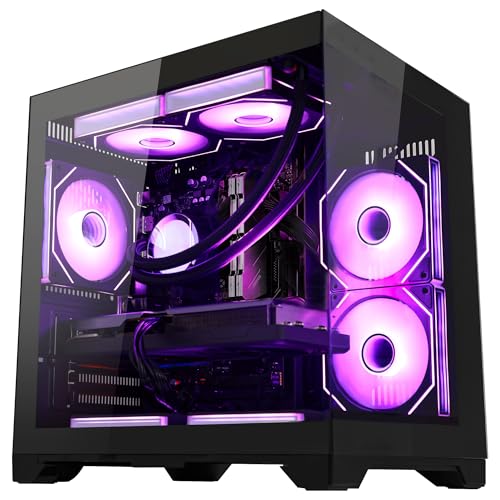
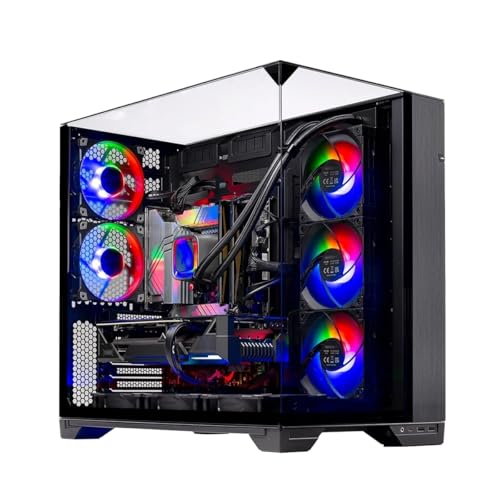
Evaluating cloud gaming against physical hardware requires weighing ongoing flexibility against total latency control. Cloud gaming requires virtually zero initial hardware investment, allowing gamers to jump into matches using modest hardware they already own. However, players who demand sub-millisecond input response, ultra-high refresh rates, and offline versatility may eventually consider a custom gaming PC build to gain complete control over their hardware components. A dedicated rig eliminates internet streaming compression and ensures that performance remains stable regardless of ISP congestion.
Portability is another major consideration when deciding between cloud setups, standard desktops, and mobile hardware. Cloud streaming allows you to switch seamlessly from a desktop browser at home to a tablet while traveling without carrying heavy computer cases. Meanwhile, gamers interested in standalone mobile gaming often compare cloud solutions against dedicated handheld gaming devices that render games locally on internal processors. Handheld consoles running local software avoid network compression artifacts entirely, while cloud gaming on mobile devices preserves internal storage and extends battery longevity.
Maintenance expectations also diverge substantially between cloud streaming and physical PC ownership. Building or buying a physical gaming computer requires managing graphics driver installations, operating system background updates, and hardware cleaning to prevent thermal throttling. Cloud gaming offloads every element of physical maintenance, component troubleshooting, and driver updates to server engineers managing the remote data center. For casual to mid-tier players who simply want to drop into matches without troubleshooting hardware compatibility, the simplicity of cloud streaming provides compelling everyday value.
Troubleshooting Input Lag, Stutter, and Visual Artifacts
Encountering sluggish controls or muddy visuals during a match usually points to a disruption along the local network pipeline. If your character feels delayed or non-responsive, the first diagnostic step involves verifying whether your browser hardware acceleration is enabled. Hardware acceleration instructs your local processor or integrated graphics to decode incoming video streams rapidly rather than relying on software emulation. Disabling unnecessary browser extensions and closing background tabs running video playback or heavy web scripts will also free up vital decoding resources.
Visual artifacts such as pixelation, banding, or sudden frame drops indicate that your available bandwidth dropped below the service threshold. Check whether other devices on your home network are conducting high-bandwidth tasks like cloud file backups or downloading large media files. Switching your computer from Wi-Fi to a direct wired Ethernet connection frequently resolves intermittent packet drops immediately. Also verify that your display settings match the native resolution and refresh rate supported by your chosen cloud streaming subscription tier.
Location relative to the streaming data center plays an inescapable role in overall latency. Most cloud gaming platforms automatically connect you to the geographically nearest server, but manual server selection options sometimes allow adjustments within the platform settings menu. If your automated ping is high, testing alternate server locations can occasionally connect you to a less congested routing hub. Power cycling your modem and router every few weeks clears routing table caches and helps maintain peak connection efficiency.
Long-Term Considerations for Competitive Cloud Play
Committing to cloud gaming as your primary way to play requires paying attention to residential internet data caps. Because high-definition video streaming transfers several gigabytes of data per hour of gameplay, frequent long sessions can quickly consume monthly data allocations on capped plans. Checking your internet service provider portal helps you track bandwidth consumption patterns and avoid unexpected throttling or overage charges. Players with uncapped fiber or high-speed cable connections are ideally situated to utilize cloud platforms as their daily gaming solution.
While cloud streaming may not replace high-refresh-rate physical desktop rigs for tournament professionals who depend on razor-thin millisecond margins, it offers exceptional convenience for everyday matches. Mastering the basic setup across services, optimizing your home network, and utilizing ergonomic input peripherals ensures an engaging battle royale experience. Taking the time to configure your network priority and controller settings delivers smooth, reliable action without the expense or maintenance of dedicated computer hardware.





Write Your Review
No reviews yet. Be the first to share your experience!