

For the vast majority of standard desktop and laptop setups, a keyboard plugs directly into the computer, not the monitor. The does keyboard plug into monitor or pc question usually arises when users see USB ports on the back of a display and assume they are universal input ports.
In reality, those monitor ports are primarily designed to power peripherals like webcams or to pass through specific signals, not to act as the primary host for input devices. Your keyboard sends data to the operating system, which resides on the computer, so the physical connection must bridge that gap.
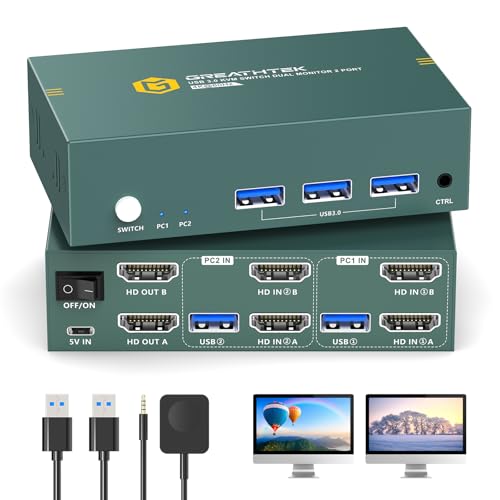
There is, however, a significant exception: KVM switches. If you are running multiple computers with a single set of peripherals, a KVM switch acts as a bridge, allowing you to plug the keyboard into the switch, which then routes the signal to the active computer. Understanding this distinction prevents common setup errors where a keyboard appears dead because it is connected to the wrong device. The correct connection point depends entirely on your hardware configuration and whether you are using a single machine or a multi-system environment.




The standard architecture of a personal computer dictates that input devices must communicate with the host system to function. A keyboard generates electrical signals when keys are pressed, and these signals must be interpreted by the computer’s operating system.
The monitor, by contrast, is an output device designed to receive video signals from the computer and display them on the screen. While many modern monitors include USB ports, these are typically “USB upstream” or “hub” ports that require a connection to the computer to function. Without that upstream connection, the monitor’s USB ports are effectively dead ends for data transfer.
| Connection Point | Primary Function | Keyboard Compatibility |
|---|---|---|
| Computer (PC/Laptop) | Host System | Direct Data Input |
| Monitor USB Hub | Peripheral Hub | Only if connected to PC |
| KVM Switch | Signal Router | Routes to Active PC |
Most users encounter the confusion because of the physical layout of modern desks. Monitors are often placed in the center of the workspace, while the computer tower is tucked to the side or underneath the desk. This makes the monitor ports appear more accessible.
However, the data path is strictly one-way for video: from PC to monitor. For input, the path is from Keyboard to PC. If you plug a keyboard into a monitor that is not connected to a PC via a USB upstream cable, the keyboard will not register any input. This is a common troubleshooting point for new setups.
It is also worth noting that some monitors have specific proprietary ports or USB-C connectivity that can provide power and data. In these cases, a USB-C connected keyboard might work if the monitor is acting as a dock, but this is not the universal standard. For the vast majority of USB-A wired keyboards, the direct connection to the computer is the only reliable method. Wireless keyboards, on the other hand, use a USB receiver that must also be plugged into the computer, not the monitor, to function correctly.
Understanding the Role of Monitor USB Ports
Monitor USB ports are designed to extend the computer’s connectivity options to the front or side of the display. This is convenient for plugging in flash drives, charging phones, or connecting a webcam that needs to be positioned near the screen. To make these ports work for data transfer, the monitor must be connected to the computer using a specific cable, often labeled “Upstream” or “USB-B to USB-A”. This cable carries the data signal from the computer to the monitor’s internal hub.
Without this upstream connection, the monitor’s USB ports may only provide power, which is sufficient for charging a phone but not enough for a keyboard to communicate. A keyboard requires a data channel to send keypresses to the operating system. Therefore, even if a monitor has USB ports, they do not replace the need for a computer connection for input devices. This is a critical distinction that clarifies why the keyboard must ultimately connect to the PC, either directly or through a hub that is connected to the PC.
Some higher-end monitors come with built-in KVM functionality, which allows them to switch between multiple computers. In these specific cases, the monitor acts as a hub that can route keyboard and mouse inputs to different PCs. However, this is a specialized feature found in professional-grade displays. For standard office or gaming monitors, the USB ports are simple hubs. If you are unsure about your monitor’s capabilities, checking the user manual for “KVM” or “USB Hub” specifications is the best way to confirm how the ports are intended to be used.
When a KVM Switch Changes the Connection Point
A KVM (Keyboard, Video, Mouse) switch is a hardware device that allows a user to control multiple computers with a single keyboard, mouse, and monitor. In this setup, the keyboard does not plug directly into the computer. Instead, it plugs into the KVM switch. The KVM switch then routes the input signals to the currently selected computer. This is the primary scenario where the answer to the connection question shifts from the PC to an intermediate device.
KVM switches come in various forms, from simple 2-port models to complex 4-port or 8-port units. They are particularly useful in IT environments, home offices with dual PCs, or setups where minimizing cable clutter is a priority. The keyboard connects to the KVM’s USB port, and the KVM connects to the computers via USB and video cables. This setup ensures that the keyboard remains connected to the active system without the need to physically unplug and replug cables when switching between machines.
It is important to note that not all KVM switches support all types of keyboards. Some older VGA-based KVM switches may have limitations with certain USB devices, such as mechanical keyboards with high power draw. When selecting a KVM switch, it is essential to verify compatibility with your specific keyboard and mouse. The product descriptions for KVM switches often list supported resolutions and USB standards, which help ensure that your peripherals will function correctly within the switched environment.
Common Setup Errors and Troubleshooting Steps
One of the most frequent issues users face is plugging a keyboard into a monitor and wondering why it is not working. This happens when the monitor’s USB ports are not connected to the computer via an upstream cable. To resolve this, check the back of the monitor for a USB-B port (often square-shaped) and ensure it is connected to a USB-A port on the computer. Once this connection is established, the monitor’s USB hub becomes active, and the keyboard should function.
If you are using a KVM switch, ensure that the switch is powered on and that the correct computer is selected. Many KVM switches have LED indicators that show which computer is currently active. If the keyboard is plugged into the KVM but the wrong computer is selected, the input will not register. Additionally, check that the USB cables connecting the KVM to the computers are securely attached. Loose connections can cause intermittent input issues or complete failure to recognize the keyboard.
Another common error is using a USB extension cable that is too long or of poor quality. USB signals can degrade over long distances, leading to connectivity issues. If you are using an extension cable to reach the monitor or KVM, try shortening the run or using a higher-quality cable. For wireless keyboards, ensure that the USB receiver is plugged into the computer, not the monitor, and that there is no significant interference between the receiver and the keyboard.
Here are the key points to check when troubleshooting keyboard connectivity:
- Verify the keyboard is plugged into the computer or a connected hub.
- Check that the monitor’s upstream USB cable is connected to the PC.
- Ensure the KVM switch is powered on and the correct PC is selected.
- Test the keyboard on a different USB port to rule out port failure.
- Confirm that the USB driver for the keyboard is installed on the computer.
Choosing the Right Connection for Your Workspace
The best connection method depends on your specific workspace configuration. For a single-computer setup, the direct connection to the PC is the most reliable and straightforward option. It eliminates any potential points of failure associated with hubs or switches. If you have limited space on the computer case, using a monitor’s USB hub (connected via upstream cable) can help organize your cables and provide easier access to ports.
For dual-computer setups, a KVM switch is the ideal solution. It allows you to maintain a single set of peripherals while controlling both machines. This setup is particularly useful for developers, IT professionals, and power users who need to switch between different operating systems or tasks. When selecting a KVM switch, consider the number of ports, supported resolutions, and USB standards to ensure compatibility with your hardware.
Some users may prefer a monitor with built-in KVM functionality to reduce the number of external devices on their desk. These monitors typically have multiple USB ports and video inputs, allowing them to switch between computers using the monitor’s on-screen display (OSD) menu or physical buttons. This integrated approach can simplify the setup and reduce cable clutter, but it may come at a higher cost compared to a standard monitor and a separate KVM switch.
When evaluating your options, consider the following factors to determine the best connection point for your keyboard:
- Number of computers you need to control with a single keyboard.
- Available USB ports on your computer and monitor.
- Desired level of cable organization and workspace aesthetics.
- Compatibility of your keyboard and mouse with any KVM switch.
- Budget constraints for additional hardware like KVM switches or hubs.
Ultimately, the keyboard should plug into the computer, either directly or through a device that is connected to the computer. The monitor’s role is primarily to display video, and its USB ports are auxiliary features that require a connection to the PC to function for data transfer.
By understanding this fundamental architecture, you can avoid common setup errors and ensure a smooth and reliable computing experience. Whether you are using a simple direct connection or a complex KVM setup, the goal is to establish a clear and stable data path between your input device and your host system.
If you are looking to expand your setup or improve your workspace organization, exploring additional peripherals can be beneficial. For example, a high-quality monitor for office work can enhance your productivity with features like adjustable stands and eye-care technologies. Similarly, if you are interested in gaming, a gaming monitor suitable for your graphics card can provide a smoother and more immersive experience. These choices complement your keyboard connection setup by ensuring that your display and input devices work together seamlessly.
In summary, the keyboard plugs into the PC. The monitor’s USB ports are for convenience and require a connection to the computer to function. KVM switches offer a flexible solution for multi-computer environments, allowing the keyboard to connect to the switch instead of the PC. By understanding these distinctions, you can configure your workspace effectively and troubleshoot any connectivity issues that may arise. Always refer to your device manuals for specific instructions and compatibility information to ensure optimal performance.


Write Your Review
No reviews yet. Be the first to share your experience!