


Connecting a computer or console to a television is a common way to enjoy large-screen entertainment from the comfort of a couch or bedroom desk. Many players ask, Are Roku Tvs Good For Gaming when pairing them with modern graphics hardware or consoles. These displays offer attractive visual technology such as QLED panels, automatic Game Mode switching, and clean operating systems at accessible price points. If you are browsing prebuilt desktop gaming options or upgrading an entertainment center, understanding how these screens handle responsive gameplay is essential.
A television designed around smart streaming performs differently than a dedicated computer display built specifically for competitive esports. Key attributes such as input latency, panel refresh rates, and HDMI signal compatibility directly determine how smooth and reactive your games feel. By evaluating display capabilities alongside your hardware goals, you can easily determine whether a Roku-powered screen fits your playstyle or if a dedicated desktop monitor remains the better path forward.
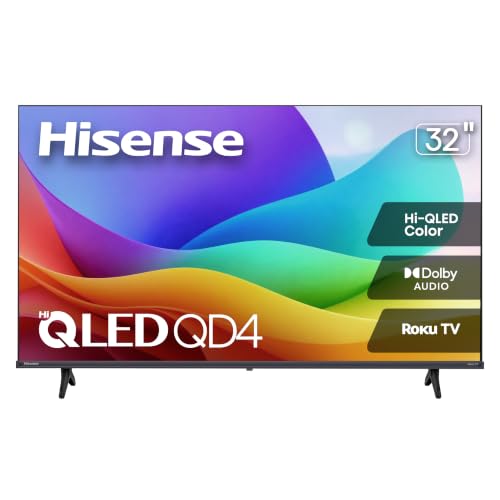


Evaluating Roku Televisions for Desktop and Console Gaming
Deciding whether a smart television can serve as an effective gaming screen requires looking closely at how display hardware interacts with real-time software. The straightforward answer is that Roku televisions can be genuinely good for relaxed living room play, narrative adventures, and casual console sessions. They deliver vibrant colors, straightforward navigation, and dedicated picture adjustments that reduce input lag. However, demanding PC gamers focused on competitive multiplayer titles may encounter hardware boundaries that make dedicated monitors a more suitable choice.
Input Latency and the Role of Roku Auto Game Mode
Input latency represents the brief delay between pressing a button on your controller or keyboard and seeing that action reflected on screen. Standard television image processing routines apply complex filters, frame smoothing, and noise reduction techniques to improve movie playback. While these visual enhancements make video content look smooth, they buffer video frames in memory and introduce perceptible delay to interactive gameplay. This lag makes aiming a weapon or timing a jump feel sluggish and disconnected from your physical inputs.
Roku smart televisions address this issue by incorporating a specialized Game Mode within their picture settings. When this mode is engaged, the internal display processor disables non-essential post-processing filters, motion interpolation, and noise reduction pipelines. By passing the video signal directly from the HDMI input to the panel, the television significantly reduces input latency. Many Roku models support automatic Game Mode detection over HDMI, allowing the screen to switch into this low-latency state whenever a connected console or PC launches a game.
While enabling Game Mode makes gameplay feel immediate and responsive for most titles, television latency behaves differently than dedicated computer monitors. Specialized gaming monitors are engineered with ultra-fast display controllers that prioritize minimal response times above all else. For action role-playing games, racing simulators, and casual platformers, a Roku TV in Game Mode provides a satisfying and responsive experience. Highly competitive players who depend on split-second reaction times will still notice subtle differences compared to high-end desktop monitors.
Refresh Rates and Motion Clarity in Fast-Paced Titles
The refresh rate of a display dictates how many times per second the screen draws a new image, which directly influences visual fluidity. Most entry-level and mid-range Roku televisions operate at a native refresh rate of 60 Hz. This hardware limitation means the display can show a maximum of 60 unique frames each second, regardless of how fast your computer renders. In fast-paced games with rapid camera pans, a 60 Hz panel displays motion with more noticeable blur than high-refresh alternatives.
Desktop PC gamers frequently target frame rates above 100 frames per second to gain smoother tracking and lower system latency. When connecting a powerful gaming rig to a 60 Hz television, any excess frame rendering provides lower input delay but cannot be physically displayed by the panel. Fast-moving multiplayer shooters and rhythm games highlight this limitation through slight motion smearing during rapid camera movements. Slower, cinematic titles such as open-world adventures and strategy games, on the other hand, look perfectly natural at a stable 60 Hz.
Another important factor in motion clarity is whether the display supports Variable Refresh Rate technology to eliminate screen tearing. Screen tearing occurs when a graphics card outputs frames at an uneven cadence that clashes with the fixed refresh cycle of the screen. Standard budget televisions lack advanced synchronization protocols, meaning players must rely on software V-Sync or frame limiters to maintain clean frame delivery. Setting a steady frame rate target within your graphics settings helps prevent jarring horizontal tears across the image.
Resolution, Pixel Density, and Desktop Text Clarity
Selecting the proper display size and resolution depends heavily on the distance between your seat and the screen. A 32-inch or 40-inch television running at 1080p full high definition looks crisp when viewed across a standard bedroom or living room. If you place that same display directly on a computer desk, the lower pixel density becomes immediately apparent to your eyes. Individual pixels and jagged edges along curved lines show up clearly when sitting just two feet away from a larger screen.
Desktop operating systems also handle typography and fine window borders using subpixel rendering algorithms that expect specific panel layouts. When connected over HDMI, some televisions apply color compression known as 4:2:0 chroma subsampling to save transmission bandwidth. This compression can cause colored text and small user interface elements to appear slightly fringed or blurry on a Windows desktop. Adjusting the TV input label to computer or PC mode signals the television to maintain uncompressed 4:4:4 chroma for clean desktop readability.
Stepping up to a 50-inch 4K model provides a massive jump in pixel count, packing over eight million pixels across the display surface. This high pixel density creates razor-sharp textures, clean foliage, and legible text even when sitting relatively close to the screen. The higher resolution allows you to enjoy modern game worlds with rich visual depth and crisp detail. You must ensure your computer hardware possesses sufficient rendering power before committing to native 4K gaming output.
Color Performance and HDR Implementation Across Panel Types
Visual fidelity in modern gaming relies heavily on how effectively a display reproduces vibrant colors and deep contrast. Many newer Roku models, including Select Series 4K televisions and Hisense QD4SR units, incorporate quantum dot technology known as QLED. Quantum dots are microscopic nanocrystals that emit precise color wavelengths when illuminated by the backlight. This design produces brighter highlights, richer reds, and deeper greens than conventional LED backlights, making dynamic game environments appear lively and saturated.
High Dynamic Range, commonly referred to as HDR10, allows games to present expanded brightness ranges between deep shadows and bright sunlit skies. Budget-friendly televisions can decode and process HDR10 signals from modern consoles and gaming PCs without difficulty. However, the physical peak brightness of entry-level screens is modest compared to premium television displays. As a result, HDR highlights will look pleasant and balanced, but they will not provide the blinding intensity found on high-end local dimming panels.
Contrast and black-level management also play a substantial role when playing atmospheric games set in dark environments. Full-array LED backlighting helps distribute light evenly across the panel, reducing unsightly clouding or blotchy bright spots during nighttime scenes. While these displays do not achieve the absolute ink-like blacks of expensive organic light-emitting displays, their contrast remains solid for most gaming genres. Subtle blooming can occasionally appear around bright user interface elements like crosshairs or health bars against dark backgrounds.
Matching Your PC Hardware and Graphics Card to a Roku Display
Connecting a custom gaming desktop to a television requires understanding physical ports and signal bandwidth limits. Unlike computer monitors that rely primarily on DisplayPort connections, smart televisions feature HDMI inputs for receiving video and audio. Modern graphics cards supply both DisplayPort and HDMI ports, making physical connection as simple as running a certified high-speed HDMI cable. You should always plug the cable directly into your dedicated graphics card rather than the video port on the motherboard.
Evaluating your hardware specifications helps set realistic performance goals for gaming on a television display. When examining our graphics card selection guide, you can see how rendering at native 4K demands substantial processing power and dedicated video memory. Entry-level and older graphics cards may struggle to maintain smooth frame rates at 4K resolution in demanding modern releases. For more modest graphics hardware, targeting a 1080p display or running games at 1440p using scaling techniques ensures consistent performance.
Modern gaming PCs also take advantage of intelligent upscaling technologies such as AMD FidelityFX Super Resolution and Nvidia Deep Learning Super Sampling. These software tools allow your graphics processor to render games at a lower internal resolution before reconstructing a clean image for your 4K television. This approach maintains high visual clarity while preserving stable 60 Hz frame rates on modest hardware. Configuring your Windows display properties to output full RGB color ensures that shadows and highlight details remain accurate during play.
Ergonomics, Viewing Distance, and Setup Layouts
Physical comfort plays an enormous role in determining whether a television works well as your primary gaming screen. Positioning a 40-inch or 50-inch display directly on a compact computer desk forces you to sit far too close to the screen. Sitting two feet away from a massive panel requires constant neck movement to track health bars, mini-maps, and approaching enemies. This awkward posture quickly causes eye fatigue and neck strain during longer gaming marathons.
Televisions excel when placed in room layouts that allow for a natural viewing distance of four to eight feet. Using a wireless controller from a couch or recliner transforms a 50-inch 4K screen into an immersive, comfortable window into your favorite virtual world. PC gamers who prefer a mouse and keyboard can utilize wireless lapboards or dedicated media center tables to enjoy PC precision from a distance. This separation lets your eyes take in the entire display surface without physical strain or visual distortion.
Mounting options also provide flexibility when integrating a Roku television into a dedicated gaming room or bedroom setup. Most models feature standard VESA mounting patterns on the rear chassis, allowing installation on wall brackets or articulated monitor arms. Raising the screen to eye level prevents downward hunching and keeps desk space clear for other components and peripherals. Ensuring adequate clearance around the television also maintains proper airflow and prevents heat buildup in compact spaces.
Sound Capabilities, Audio Passthrough, and Latency
Sound quality is a fundamental component of gaming immersion that often gets overlooked when selecting a screen. Roku televisions include integrated stereo speakers enhanced with Dolby Audio processing designed to deliver clear dialogue and balanced environmental sound. For casual gaming sessions, these built-in speakers provide plenty of volume without needing extra wires or external audio gear. However, compact internal speakers cannot reproduce the deep sub-bass frequencies and spatial precision required for competitive sound tracking.
Players seeking cinematic audio frequently connect soundbars or multi-channel surround sound receivers using the television’s HDMI eARC or optical ports. While audio passthrough works reliably for streaming media, routing real-time game audio through multiple processing steps can occasionally introduce minor audio lag. If footsteps or explosions seem slightly delayed relative to on-screen action, switching the TV audio format to PCM stereo can eliminate buffering delays. This adjustment delivers immediate audio feedback that matches your fast visual cues.
Competitive multiplayer games generally call for dedicated headsets rather than room-filling speakers to pinpoint directional footsteps. Connecting a wireless USB headset or wired audio cable directly to your computer bypasses television audio processing entirely. This setup guarantees zero audio latency and enables clear voice communication through Discord or in-game party chat. Using direct computer audio allows you to enjoy the best of both worlds: big-screen visuals and pinpoint acoustic precision.
Budget Systems and Hybrid Entertainment Builds
One major advantage of choosing a Roku television is the complete smart streaming ecosystem built directly into the display firmware. Players who build compact gaming rigs for bedrooms or college dorms often want a single screen that handles all their entertainment needs. With Roku OS, you can switch from playing a computer game to watching streaming channels or movies without ever turning on the PC. This versatility saves desk space, eliminates auxiliary streaming dongles, and keeps your entertainment hub simple to control.
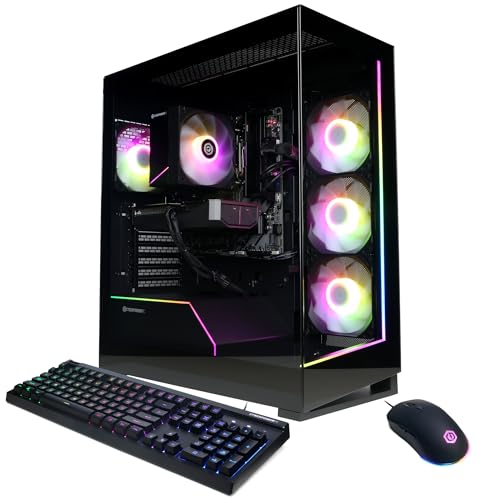
Pairing an affordable television with entry-level gaming PC configurations creates a cost-effective entertainment station that fits practical budget limits. Because the display handles streaming apps natively, your PC can remain powered down when you simply want to catch up on shows or sports. When you do sit down to play, the television provides a colorful, immersive canvas for cooperative games, local multiplayer titles, and story-driven adventures. This setup maximizes utility without demanding specialized, expensive display technology.
Evaluating your specific game library helps clarify whether a budget television or a dedicated high-refresh monitor makes more sense. If your gaming routine revolves around fast-twitch competitive shooters, flight combat simulators, or precision rhythm games, a gaming monitor remains the superior choice. If your habits center on role-playing adventures, sports titles, indie platformers, and casual party games, a Roku TV offers fantastic value and versatility. Matching your display choice to your actual gaming habits ensures you get the most enjoyment out of your setup.
Practical Setup Steps to Maximize Gaming Performance
Getting the best visual and responsive performance from a television requires taking a few minutes to adjust your settings properly. When you first plug your gaming computer or console into the HDMI port, open the Roku picture settings menu. Locate the Game Mode toggle and ensure it is turned on, or configure the auto-detection feature so it activates whenever a 3D application runs. This single setting provides the most substantial reduction in input lag by bypassing superfluous image processing buffers.
Next, inspect the picture size and aspect ratio settings on the television to ensure the incoming image displays correctly. Set the picture size to direct or point-to-point rather than auto or stretch to prevent the screen from cutting off desktop borders. In your computer’s graphics control panel, confirm that the resolution matches the native panel specification and verify the refresh rate is set to 60 Hz. Ensuring your color format is configured to full dynamic RGB range guarantees accurate black levels and vibrant color gradients.
Taking the time to verify these display adjustments ensures your Roku television delivers an enjoyable, responsive gaming experience from the very first session. While budget televisions do not replace specialized high-refresh monitors for competitive esports, they excel at delivering expansive, colorful, and accessible gameplay for everyday entertainment. By understanding the balance between panel refresh rates, input lag, and viewing ergonomics, you can confidently configure a satisfying gaming station that fits your space and playstyle.




Write Your Review
No reviews yet. Be the first to share your experience!