
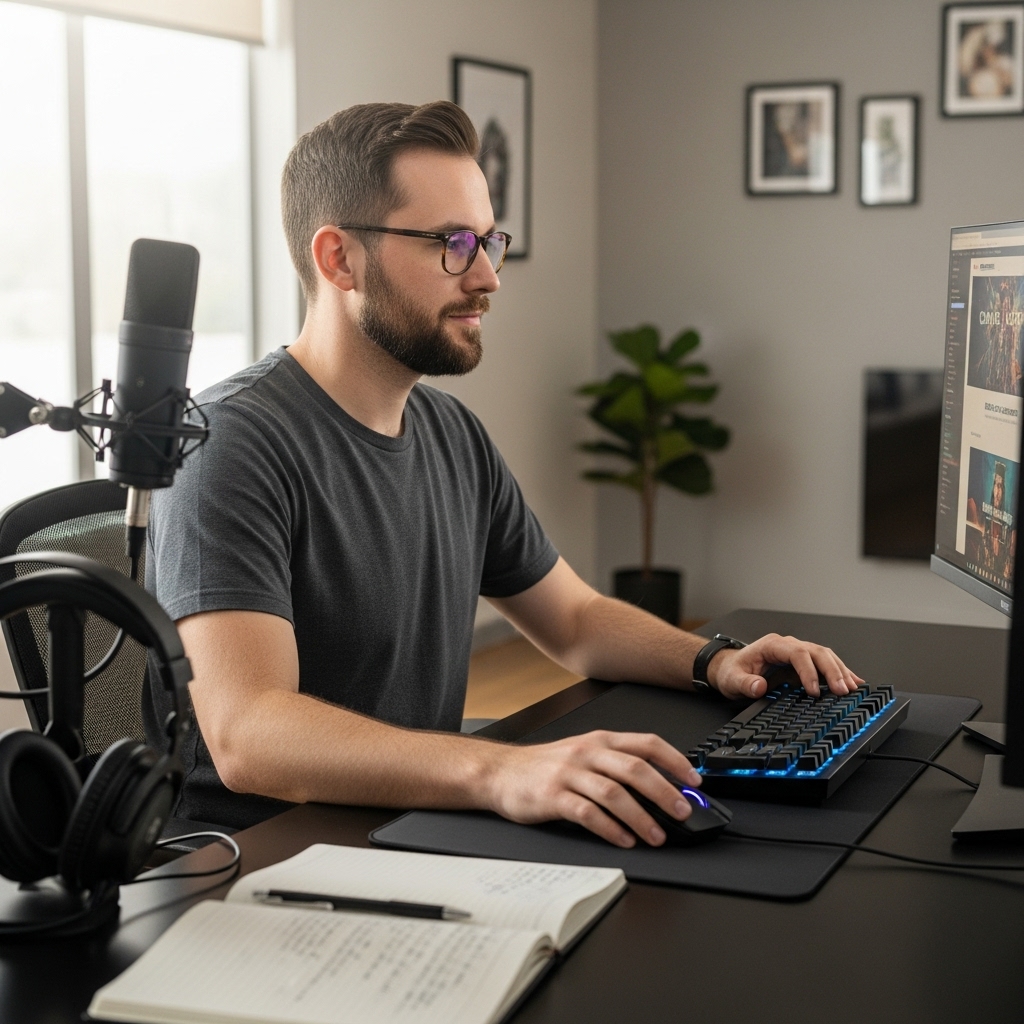

Setting up a racing simulation rig on a desktop computer provides access to higher visual fidelity and broader peripheral tuning than standard consoles allow. Modern racing titles demand steady frame rates and responsive hardware communication, making a properly configured desktop gaming PC the centerpiece of any driving simulation. Knowing how to connect xbox steering wheel to pc ensures that force-feedback signals, pedal inputs, and steering rotations register with zero latency during high-speed corners. Pairing a responsive wheel with solid hardware, like the choices covered in our dedicated graphics card selection guide, helps deliver the smooth visual feedback necessary to match precise physical steering inputs.
Hardware designed for Xbox consoles, such as the Logitech G920 Driving Force setup, communicates through standard USB protocols and manufacturer-specific driver layers on Windows operating systems. The transition from console plug-and-play to desktop use requires verified cable connections, proper power delivery, and specialized peripheral management utilities. Taking a few moments to understand the correct cabling sequence and driver configuration will prevent communication drops and force-feedback calibration issues mid-race. This setup walkthrough covers everything needed to establish a stable connection between an Xbox steering wheel and a desktop gaming PC.


Pros
- Immersive force feedback and wheel rotation closely mimic real car steering
- Responsive and adjustable pedals for accurate braking and acceleration
- Leather cover and helical gearing enhance comfort and durability
- Easy plug-and-play setup with Xbox and PC via USB connection
- Solid build quality with recycled materials and carbon neutral certification
Cons
- Not compatible with PlayStation consoles - designed only for Xbox and PC platforms
- Pedals may slide on smooth floors without a mounting rig or carpet gripper
- Separate shifter and mounting accessories sold separately for full setup
The Logitech G920 Driving Force Racing Wheel is a dedicated sim racing accessory aimed at Xbox and PC gamers who want a more realistic driving experience. It combines force feedback, 900-degree rotation, and a set of pressure-sensitive pedals to bring the feel of real driving into your living room or gaming den.
This wheel kit is ideal for competitive racers, casual players who enjoy titles like Forza Motorsport or F1, and streamers looking to add an authentic racing element to their broadcasts. The force feedback system uses helical gearing to deliver smooth, quiet steering with precise road feel, while the leather-wrapped wheel provides a comfortable grip during long sessions.
Performance-wise, the G920 excels at translating in-game physics into tactile sensations. The 900-degree lock-to-lock rotation allows for hand-over-hand turning on sharp corners, and the nonlinear brake pedal offers realistic pressure sensitivity. Many users appreciate the adjustable pedal faces, which help accommodate different driving positions and shoe types.
Build quality is solid: the wheel and pedals use a combination of durable plastics and a stitched leather cover. Logitech also incorporates 52% post-consumer recycled plastic, and the product is carbon neutral certified. Setup is straightforward on Xbox and PC – just plug in via USB and install the Logitech G HUB software if you want to fine-tune settings like rotation angle and force feedback strength.
One realistic limitation is platform exclusivity – this wheel does not work with PlayStation consoles, so PS4/PS5 racers need to look elsewhere. Also, the pedals can slide on hardwood or tile without a mounting solution, and the optional shifter is sold separately. That said, for Xbox and PC sim enthusiasts who prioritize a responsive, immersive driving feel, the G920 is a reliable choice.
For gaming setup builders, this wheel fits neatly on a desk or dedicated rig, and its cable management is straightforward. It hits a strong balance of performance, comfort, and value for anyone looking to step up from a standard controller in racing games.
The G920’s force feedback engine uses dual-motor vibration to simulate road textures, tire slip, and curb impacts. The 900-degree rotation captures full lock-to-lock steering in racing sims, making it great for drifting and rally driving. The pressure-sensitive pedals allow nuanced throttle and brake control, which is crucial for lap times in competitive online races. Input latency is low over USB, and the wheel works with most major Xbox and PC racing titles.
Logitech uses a hand-stitched leather wheel cover that feels premium and resists wear. The internal helical gearing is quieter than straight-cut gears, so you get smooth steering without excessive noise. The pedal assembly is sturdy, with a metal frame and adjustable pedal faces. The base of the pedals has a rubber grip, but on slick floors you may need a mat or mounting bracket. Overall, the build feels robust for the price point.
The leather wheel is padded and comfortable for extended sessions. The pedal faces are adjustable – you can tilt them forward or backward to find your ideal foot angle. The wheel itself is 10.94 inches in diameter, which feels close to a real car wheel. For long gaming marathons, the G920’s ergonomics are well thought out.
Connecting and Configuring an Xbox Steering Wheel on PC
Connecting an Xbox-designed steering wheel to a desktop computer bridges console simplicity with the extensive configurability of modern PC gaming. Hardware built for the Xbox ecosystem operates through standard USB communication protocols, but desktop systems require specific driver handshakes and software management to unlock dual-motor force feedback and full 900-degree rotation. The process involves physical cable routing, Windows peripheral recognition, vendor software configuration, and game-specific input mapping. Following a structured setup sequence ensures that every pedal stroke and steering adjustment registers accurately without frustrating mid-race dropouts.
Hardware Connections and Dedicated Power Requirements
A racing wheel setup requires multiple physical connections before your computer can communicate with the hardware. The primary wheel base houses internal circuitry and dual force-feedback motors that demand more electrical energy than a standard USB port provides. You must plug the included external power supply into a wall outlet and seat the DC barrel connector into the underside of the wheel housing. Omitting this power connection allows Windows to detect basic button presses, but the wheel will fail to calibrate, auto-center, or deliver motor resistance.
Pedal units and optional manual shifters connect directly into designated ports on the bottom of the wheel base. The Logitech G920 utilizes color-coded DB9-style serial connectors routed through molded cable channels to prevent pinching during intense gaming sessions. Ensure the pedal cable clicks firmly into its matching receptacle before clamping the base to your desk or simulator cockpit. Once all peripheral cables are locked into the base, route the primary USB data cable toward your desktop computer.
Always connect the primary USB cable to a native motherboard USB port on the back of your desktop case rather than an unpowered front-panel port. Motherboard rear ports deliver clean bus power and direct chipset communication, preventing signal drops during intense telemetry output. Unpowered USB splitters frequently struggle when force-feedback motors draw peak signal currents, resulting in abrupt input lag or disconnects. A direct connection establishes the physical baseline necessary for stable simulation performance.
Windows Operating System Detection and Controller Status
Windows operating systems possess built-in driver frameworks designed to recognize Xbox-compatible hardware immediately upon insertion. When you plug the USB cable into an active gaming PC, the wheel should initiate an automatic self-calibration sequence. The base will spin rapidly lock-to-lock across its full 900-degree steering range before resting dead center while internal status LEDs illuminate. Keep your hands clear of the wheel rim during this phase to allow internal optical encoders to map their boundaries without mechanical interference.
To confirm that Windows recognizes the peripheral, press the Windows key, type joy.cpl, and press Enter to launch the native Game Controllers configuration utility. The installed hardware should appear under its official device name, such as the Logitech G920 Driving Force Racing Wheel. Selecting the device and clicking Properties opens the diagnostic test screen where physical inputs generate real-time responses. Turning the wheel should smoothly track the on-screen crosshair, while pressing each pedal fills its corresponding graphical gauge.
If the hardware appears under a generic label or shows an alert symbol in Device Manager, the operating system may be using an outdated fallback driver. Expanding the Sound, video and game controllers category in Device Manager confirms whether device registration completed cleanly. A yellow warning icon indicates that Windows requires supplemental software to install the manufacturer-specific communication layer. Resolving this driver layer represents the next crucial step in the configuration process.
Manufacturer Software Installation and Firmware Management
Native Windows drivers allow basic steering and button presses, but proprietary manufacturer software is necessary to unlock advanced force feedback and physical tuning. For Logitech hardware, downloading and installing Logitech G HUB provides complete control over operating parameters. Once installed, the application automatically detects the connected G920 base and downloads any necessary peripheral firmware updates. Firmware updates often correct known communication bugs, improve USB endpoint stability, and refine motor dampening algorithms across PC titles.
The companion software allows sim racers to configure operating ranges that match specific motorsport disciplines. The default 900-degree rotation mimics road cars, allowing two and a half full turns from lock to lock. Modern open-wheel race cars and GT3 prototypes operate with narrower steering racks ranging between 360 and 540 degrees. Adjusting the operating angle slider inside the software restricts the virtual lock-to-lock range, preventing unnecessary hand-over-hand turning in tight corners.
Logitech G HUB also provides individual pedal sensitivity curves and custom profile management linked to specific game executables. You can configure linear throttle progression for open-wheel cars or create an aggressive initial bite point for rally titles. Creating individual profiles ensures that your preferred rotation limits and centering spring forces load automatically whenever a specific simulation launches. Keep the utility running in the background during gameplay to maintain active profile management and telemetry communication.
Physical Calibration and Pedal Threshold Adjustments
Pedal performance directly dictates lap time consistency, particularly when managing braking thresholds without wheel lockup. The Logitech G920 floor pedal assembly features a specialized nonlinear brake pedal designed with an internal rubber bump stop that simulates hydraulic automotive braking. This mechanical resistance means the pedal requires significantly greater foot pressure as it approaches full travel. Drivers unfamiliar with this design often assume the pedal is physically obstructed when it reaches the rubber bumper.
Calibrating this nonlinear resistance inside software ensures you can reach full braking input without straining your leg or shifting your desk chair. In your peripheral management software or Windows controller settings, test the physical force required to register maximum travel. If achieving full brake pressure proves too difficult during competitive driving, adjust the brake saturation slider or reduce the upper sensitivity limit. Modifying these thresholds allows the game to interpret seventy percent physical travel as maximum braking input.
Throttle and clutch pedals utilize progressive springs that offer smooth, linear input across their entire stroke. Check for any signal jitter or sticking values while viewing the raw input meters in the calibration screen. Dust inside potentiometer housings can occasionally create flickering signals at rest, which registers as unintended dragging throttle or micro-braking on straightaways. Setting a small two-percent deadzone at the bottom and top of each pedal travel eliminates ghost inputs and ensures clean disengagement.
In-Game Force Feedback and Input Mapping Options
Modern racing simulators communicate physics data directly through the wheel base using specialized physics engines. Titles such as Assetto Corsa, iRacing, Forza Motorsport, and F1 require individual in-game controller configuration to distinguish an Xbox steering wheel from a standard handheld gamepad. When launching a title for the first time, navigate to the controls menu and choose the dedicated steering wheel preset rather than a custom gamepad layout. Gamepad layouts apply synthetic steering filtering and artificial dampening that dull the responsiveness of a physical wheel.
Force feedback settings within the game menu control the strength of tire friction, road surface bumps, kerb strikes, and chassis weight transfer. Dual-motor force-feedback systems translate telemetry signals into physical resistance through internal helical transmission gears. Setting overall gain or master force feedback too high causes signal clipping, where the motors compress subtle surface nuances into a muddy, constant rumble. Lowering the master gain to approximately seventy or eighty percent preserves dynamic range, allowing you to feel understeer slip and curb impacts clearly.
Verify that in-game steering rotation matches the physical operating range configured in your desktop software. If the software specifies 540 degrees while the game engine assumes a 900-degree rack, the on-screen cockpit hands will not match your physical hand movements, causing severe visual disorientation. Most contemporary simulation titles feature a steering linearity setting that should remain at 1.0 or 100 percent for true one-to-one physical tracking. Spend several practice laps adjusting damper and minimum force sliders until the wheel feels planted without feeling artificially heavy at low speeds.
Power Reliability and System Hardware Considerations
Because dual-motor force-feedback racing wheels draw dedicated current from wall outlets while passing continuous data over USB, clean electricity prevents unexpected controller dropouts during aggressive maneuvers. Integrating protection like the options detailed in our guide to uninterruptible power supply systems safeguards the desktop PC and high-draw peripherals from sudden voltage fluctuations during extended racing sessions. High-draw electrical loads in a home office can cause momentary voltage dips that trigger USB reset cycles, disconnecting the wheel at crucial racing moments.
Sim racers often share desk space between a clamped steering wheel base, primary input devices, and gear shifters. Managing desk real estate alongside gaming desktop keyboard setups requires organizing cables cleanly so nothing interferes with the rotating wheel rim or foot pedals. USB cables routed haphazardly across desks risk snagging on clothing or pulling loose from motherboard receptacles during rapid steering countersteer. Fastening loose wiring along desk legs or cockpit chassis tubing maintains structural integrity and preserves physical ports from lateral mechanical stress.
System memory and background processing overhead also influence peripheral polling rates and force-feedback calculation frequencies. While racing wheels place minimal computational load on a modern multi-core processor, background applications competing for USB bus bandwidth can occasionally cause telemetry stutter. Closing unneeded utilities, screen capture suites, and redundant peripheral controllers ensures uninterrupted communication between your simulation software and the wheel base. Running a streamlined operating environment keeps physical feedback synced with on-screen visual frame rates.
Troubleshooting Communication Drops and Calibration Errors
If your steering wheel fails to calibrate or repeatedly disconnects during gameplay, systematic troubleshooting will isolate the underlying cause. Begin by checking the physical power adapter brick, as the small indicator light on the power supply should remain solid green. A dark or flickering indicator light points to a loose wall socket connection, a faulty extension strip, or an unseated barrel plug in the bottom of the base. If the power supply disconnects while the USB remains plugged in, the steering wheel loses all motor resistance and button inputs may freeze.
Windows USB selective suspend settings represent another frequent culprit behind unexpected mid-session controller freezes. By default, Windows power plans may temporarily disable idle or fluctuating USB root hubs to conserve electrical energy. To disable this feature, navigate to advanced power settings in the Windows Control Panel, expand the USB settings branch, and set USB selective suspend to Disabled. Additionally, open Device Manager, locate your USB Root Hubs under Universal Serial Bus controllers, right-click their properties, and uncheck the power-saving option in the Power Management tab.
Software conflicts can also disrupt communication when multiple controller utilities attempt to manage the same hardware simultaneously. If you have legacy gaming software, third-party controller mappers, or generic virtual joystick drivers installed, they may intercept G920 telemetry packets before the game engine receives them. Uninstalling obsolete driver suites and performing a clean reinstallation of Logitech G HUB resolves corrupted profile registers. Testing the hardware across different physical USB ports on your motherboard will quickly verify whether an individual port controller is experiencing hardware failure.
Ergonomic Mounting, Cable Organization, and Desk Stability
Force-feedback motors generate significant rotational torque that will rock an unstable desk or loosen poorly secured clamps during quick countersteering movements. The Logitech G920 features durable built-in dual mounting clamps with removable extenders designed to secure the base to table tops up to two inches thick. Turn the clamp knobs clockwise until the base sits flush against the desk edge without tilting under heavy pulling forces. For dedicated cockpits or wheel stands, the base and pedal assembly include integrated M6 threaded bolt holes for hard-mounting.
Preventing pedal movement on carpet or hard flooring is equally critical for repeatable braking performance. The G920 pedal unit includes a patented retractable carpet gripper strip lined with small teeth that bite into carpet pile to arrest forward sliding. On polished wood, tile, or laminate flooring, retract the carpet grip completely and utilize the broad rubber feet located on the underside of the pedal base. Placing a heavy rubber mat under the pedal assembly or bracing the rear against a solid wall prevents the entire unit from scooting forward during heavy emergency braking.
Position the wheel rim at a height that allows your elbows to maintain a comfortable bend between ninety and one hundred degrees without forcing your shoulders upward. Correct ergonomic alignment reduces muscle fatigue during endurance races and allows for rapid, controlled wheel manipulation without hitting adjacent desk components. Once the hardware is physically secured, calibrated in software, and mapped in your preferred racing titles, you can enjoy a fully responsive simulation experience on your desktop gaming computer.






Write Your Review
No reviews yet. Be the first to share your experience!