

Experiencing sudden frame drops or unresponsive controls during an intense match interrupts play and ruins competitive focus. Understanding how to fix gaming lag requires looking closely at how your hardware, operating system, and home network interact during intensive rendering tasks. Many players assume their entire desktop setup is outdated when a single misconfigured background service or thermal bottleneck is creating the delay. Taking a structured diagnostic approach helps isolate whether the delay comes from system hardware, software conflicts, or local network communication.
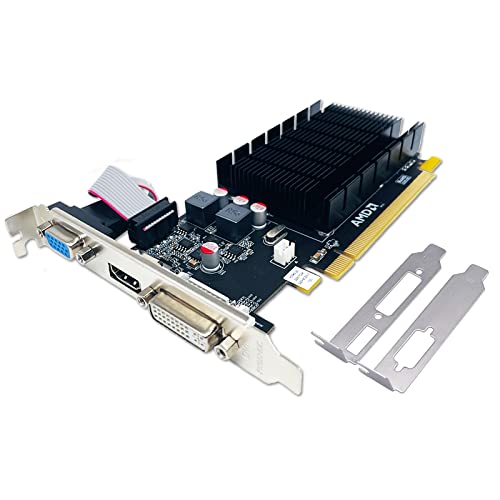
A powerful processor and a capable graphics card can still produce visible stutter if settings push memory limits or background tasks consume shared resources. Reviewing a detailed desktop graphics card guide helps clarify how visual presets and rendering loads interact with specific hardware tiers. Optimization manuals like the Alienware 16X Mastery and competitive PC tuning resources offer focused routines for eliminating unnecessary operating system overhead. Following verified diagnostic steps allows you to identify performance bottlenecks without making reckless system modifications. By addressing each potential delay systematically, you can stabilize your frame rates and achieve responsive gameplay across your favorite titles.

Pros
- Comprehensive coverage of performance tweaks for Alienware 16X laptops
- Easy-to-follow instructions suitable for both beginners and advanced users
- Focuses on real-world gaming scenarios like FPS, MOBA, and open-world titles
- Helps extend laptop lifespan through better thermal management and maintenance
- Affordable price for the value of actionable information
Cons
- Specific to Alienware 16X models only, not a general gaming laptop guide
- Some advanced settings may require technical comfort and careful following
- Paperback format only; no digital code or interactive content included
The Alienware 16X Mastery: Performance Optimization Guide is a practical paperback focused entirely on helping gamers get the most out of their Alienware 16X laptop. It's not a hardware accessory but a knowledge resource that addresses common pain points like lag, low FPS, and high temperatures. If you own an Alienware 16X and want to improve your gaming experience without buying new components, this guide is worth a look.
This guide is best suited for PC gamers who use Alienware 16X laptops for competitive gaming, casual play, streaming, or content creation. Whether you're an esports player needing consistent frame rates in Valorant or a streamer dealing with thermal throttling during long broadcasts, the tips here are tailored to your hardware. It also helps college gamers and work-from-home users who rely on their laptop for both productivity and gaming.
Performance optimization is the core focus. The guide covers methods to boost FPS in popular titles like Call of Duty, Fortnite, and Cyberpunk 2077. It explains how to identify and fix lag caused by background processes, thermal limits, or power settings. Lowering CPU and GPU temperatures is a major section, with advice on cleaning fans, adjusting fan curves, and undervolting. These steps can lead to more consistent performance and less noise during intense sessions.
The build quality of the guide itself is standard paperback with dimensions 8.5 x 0.25 x 11 inches, making it easy to keep next to your setup. The binding is sturdy enough for frequent use. While it's not a physical gaming device, the content is practical and based on real user feedback. The instructions are written in clear, non-technical language, so you don't need to be a PC expert to follow along. Setup is as simple as opening the book and reading.
One limitation is that this guide is exclusively for Alienware 16X models. If you have a different laptop, the advice won't apply directly. Also, some advanced tweaks like overclocking require careful attention to avoid instability. The paperback format means you can't easily search for specific topics like a digital PDF, but the table of contents helps. Overall, for the price, it's a targeted resource that can save you hours of trial and error.
If you're an Alienware 16X owner looking to improve gaming performance, reduce heat, and extend your laptop's lifespan, this guide is a practical investment. It's especially useful for competitive gamers who need every FPS advantage and for streamers who run demanding software alongside games. While not a replacement for hardware upgrades, it helps you optimize what you already have. For the price, it's a solid addition to any Alienware 16X owner's toolkit.

Pros
- Comprehensive optimization guide tailored for Fortnite and general PC gaming
- Actionable tips that can be applied without deep technical knowledge
- Covers both software settings and hardware upgrade recommendations
- Digital format is convenient and portable
Cons
- Focuses mainly on Fortnite, may not cover all games equally
- Requires some basic understanding of PC components and settings
- No physical copy available for those preferring print
This Kindle eBook, 'Optimize Your PC & Fortnite - Guida Competitiva 2025,' is a specialized guide designed to help PC gamers and esports enthusiasts get the most out of their systems. It focuses on optimizing both hardware and software for better performance in Fortnite and general PC gaming. Whether you're a competitive player aiming for higher frame rates or a casual gamer looking for smoother visuals, this guide provides practical advice that can be applied to a variety of PC builds.
The guide is best suited for PC gamers, competitive gamers, esports players, streamers, and gaming setup builders who want to fine-tune their systems for optimal responsiveness and visual clarity. It covers key areas like reducing input lag, adjusting graphics settings, and managing background processes to free up system resources. For streamers and content creators, the guide also includes tips on maintaining performance while running streaming software.
In terms of real-world performance, the guide emphasizes practical tweaks that can lead to noticeable improvements in gaming responsiveness and frame rate stability. It addresses common issues like stuttering and screen tearing, offering solutions that work with a range of hardware configurations. The focus on low-latency performance and visual clarity makes it a valuable resource for anyone serious about their gaming experience.
The build quality of the guide itself is solid as a digital product. The content is well-organized and easy to navigate, with clear sections and step-by-step instructions. While it's not a physical product, the Kindle format allows for convenient access on multiple devices, making it easy to refer to during setup or troubleshooting. The guide also includes recommendations for hardware upgrades, helping users make informed decisions about their gaming PC builds.
One realistic limitation is that the guide is heavily focused on Fortnite, which means some of the specific tweaks may not apply to other games. However, the general optimization principles can be adapted for a wide range of titles. Additionally, users with very basic PC knowledge might find some sections a bit technical, but the guide does a good job of explaining concepts in an accessible way.
Overall, this guide is a practical buying recommendation for PC gamers who want to squeeze extra performance out of their systems without spending a lot of money. It's especially useful for those who play Fortnite competitively or stream the game regularly. For the price, it offers a wealth of actionable advice that can improve your gaming experience and help you get the most out of your current setup.
A Methodical Guide to Identifying and Resolving PC Gaming Lag
Resolving persistent delays during gameplay begins with diagnosing the exact root cause rather than applying random adjustments. Many players assume that low frame rates and high network ping are the same issue, yet they stem from completely different parts of your computer ecosystem. A methodical troubleshooting approach saves time, avoids unnecessary software changes, and prevents unwarranted hardware expenditures. By systematically examining your system components, operating system tasks, and connection path, you can pinpoint the bottleneck and restore smooth responsiveness.
Identifying the Three Distinct Forms of Gaming Delay
Gaming delay generally falls into three separate technical categories: network latency, hardware rendering stutter, and peripheral input delay. Network latency represents the time required for data packets to travel between your gaming desktop and the remote multiplayer server. Hardware stutter occurs when your processor or graphics card fails to generate frames at a consistent pace, resulting in visible hitching or dropped frames. Differentiating between these issues is essential because adjusting your router will never fix a saturated graphics card, nor will lowering graphics settings resolve high multiplayer ping.
Input delay involves the physical lag between pressing a key or clicking a mouse button and seeing that action reflected on your monitor. This delay often results from high display response times, aggressive visual buffer queues, or improper vertical synchronization settings. In competitive games, players often describe all three phenomena under the broad label of lag, which leads to confusion during troubleshooting. Isolating whether your issue shows up as rubber-banding characters, choppy visual frames, or sluggish mouse tracking provides the baseline for effective fixes.
Diagnosing Hardware Bottlenecks and Thermal Throttling
Hardware stutter frequently happens when one core component reaches maximum utilization while waiting on another component to finish its tasks. Opening an on-screen hardware monitor while running your favorite title reveals whether your graphics processing unit or central processor is hitting continuous saturation levels. If your processor sustains maximum utilization across all cores while the graphics card runs at low capacity, your system is encountering a processing bottleneck. Balancing visual quality settings can shift rendering weight back onto the graphics card and stabilize your overall frame delivery.
Thermal throttling is another common culprit behind sudden, intermittent frame rate collapse during extended gaming sessions. When internal processor or graphics card temperatures exceed safe factory operating limits, modern hardware automatically reduces clock speeds to protect delicate silicon from damage. This sudden drop in operating frequency instantly slashes rendering output, producing severe micro-stutter during intense action sequences. Checking case airflow, cleaning dust from heatsink fins, and verifying that cooling fans spin freely can prevent hardware components from throttling under heavy loads.
Insufficient system memory also produces severe performance hiccups when games demand more memory than your physical modules can supply. When random-access memory fills up completely, Windows begins swapping active assets onto your primary storage drive through virtual memory pagefiles. Even high-speed solid-state drives operate at speeds far slower than dedicated system memory, leading to noticeable pauses whenever new textures load. Ensuring your gaming desktop retains sufficient memory headroom prevents Windows from relying on slow disk caching during gameplay.
Operating System Configuration and Background Process Management
Modern operating systems run dozens of background tasks that silently consume processing threads and disk bandwidth during game execution. Windows Game Mode is designed to prioritize active gaming processes by limiting background activity, but certain third-party software suites can still interrupt active threads. Antivirus scans, cloud file synchronizers, and automated software updaters frequently trigger periodic background disk indexing that robs games of immediate computing resources. Disabling automatic updates and setting resource-intensive utilities to passive modes before launching a session preserves computing power for your game.
Power delivery profiles inside Windows settings also influence how rapidly your processor ramps up its clock frequencies in response to rendering spikes. Balanced power plans sometimes park CPU cores or delay clock frequency transitions to reduce power consumption during brief lulls in activity. Selecting a high-performance or ultimate-performance power plan ensures CPU cores remain awake and ready to handle sudden visual asset requests without latency hesitation. Verifying that operating-system graphics preferences designate your dedicated graphics card for high-performance execution avoids accidental integrated graphics switching.
Startup application bloat is another silent source of persistent system unresponsiveness that accumulates over time. Communication clients, recording utilities, and game store launchers all launch automatically unless you intentionally restrict their startup behavior inside Task Manager. These idle programs consume valuable memory allocations and generate background network polling that can introduce jitter into your connection. Reviewing your startup list and disabling non-essential launch items frees up significant operating headroom for dedicated gaming sessions.
Graphics Driver Management and Visual Setting Calibration
Graphics drivers act as the essential bridge between your physical graphics card and the rendering instructions issued by game engines. Corrupted, outdated, or poorly installed display drivers can cause rendering pipeline stalls, visual artifacts, and erratic frame delivery. Performing a clean driver installation periodically clears out cached shader configurations and legacy registry entries that might conflict with modern game updates. Manufacturer software suites allow you to reset driver profiles to baseline defaults if custom tweaks have degraded rendering stability.
In-game graphics settings hold substantial influence over frame consistency, especially when settings exceed your hardware capabilities. Volumetric fog, dynamic shadow maps, and ultra-high ambient occlusion consume disproportionate rendering resources for minimal perceptual gain. Lowering these demanding secondary settings while keeping essential textures sharp often eliminates abrupt frame rate dips without spoiling visual fidelity. Capping your maximum frame rate just below your monitor refresh ceiling can smooth out frame delivery times and prevent GPU overheating.
Display synchronization settings also demand careful configuration to prevent screen tearing without introducing massive controller input lag. Traditional V-Sync eliminates visual tearing by forcing the GPU to wait for the monitor refresh cycle, but this buffer delay often makes control inputs feel sluggish and disconnected. Variable refresh rate technologies like G-Sync and FreeSync provide smooth visual transitions without adding the input latency associated with double or triple buffering. If your monitor lacks variable refresh support, balancing frame rate caps with in-game latency reduction settings offers a middle ground.
Network Optimization for Online Multiplayer Responsiveness
Online multiplayer lag usually manifests as rubber-banding, delayed hit registration, or high packet loss during matches. Connecting your gaming desktop directly to your router with a physical Ethernet cable provides a massive stability advantage over wireless connections. Wireless signals are inherently prone to interference from household walls, competing devices, and radio frequency congestion, leading to erratic packet transit times. Even a high-speed wireless connection can suffer from severe packet jitter that disrupts competitive gameplay while maintaining high overall download speeds.
Local network congestion frequently causes packet queues to back up inside your home router, an effect known technically as bufferbloat. When other devices on your home network stream high-definition video or download large system files, gaming packets get stuck waiting in the router transmission queue. Configuring Quality of Service rules inside your router firmware allows you to prioritize gaming traffic over bulk background downloads. This priority ensures that time-sensitive multiplayer telemetry packets pass through your network interface without waiting behind bulk file transfers.
DNS resolution and game server matchmaking choices can also influence your overall network route stability. While DNS settings primarily affect the initial lookup speed of servers rather than active gameplay ping, using dependable public resolvers can prevent intermittent lookup dropouts. Manually choosing regional matchmaking servers closest to your physical location prevents games from routing your traffic across continental distances. Avoiding third-party connection accelerators that reroute traffic through unverified proxy networks is equally vital for maintaining a clean, direct connection path.
Peripheral Synchronization and Input Latency Reduction
Input responsiveness relies heavily on how quickly your computer registers commands from your mouse, keyboard, and display. Connecting high-polling peripherals directly to native motherboard USB ports rather than unpowered external hubs ensures stable data delivery without bus contention. Fine-tuning tracking characteristics through our mouse DPI settings guide helps harmonize sensor tracking with in-game sensitivity for precise cursor movement. Eliminating desktop composition delays by running games in exclusive fullscreen mode further prevents Windows from buffering frames before presentation.
Monitor configuration errors represent another surprisingly common source of perceived lag for desktop gamers. Operating systems sometimes default high-refresh displays to standard sixty-hertz operation following driver updates or display cable swaps. Playing a game at high internal frame rates on a display locked to basic refresh rates creates severe visual judder and sluggishness. Checking your advanced display properties inside Windows to confirm your monitor operates at its maximum supported refresh rate immediately restores fluid motion.
Targeted Software Guides and Manufacturer Optimization Resources
Gamers operating specific desktop configurations or competing in titles like Fortnite can benefit from targeted performance literature. Resources like the Alienware 16X Mastery performance guide from Majosta offer hardware-specific advice on managing thermal profiles, tuning chassis fan curves, and unlocking manufacturer-specific power modes. Competitive optimization manuals like Optimize Your PC and Fortnite detail custom configuration file edits, registry adjustments, and low-latency rendering pipeline settings tailored for competitive battle royale engines. These specialized guides walk readers through advanced configuration steps that go beyond general operating system maintenance.
Applying third-party tweaks requires caution and discernment when following independent guides. Downloading unverified registry cleaning scripts or automated utility tools from unknown internet sources can destabilize your operating system or compromise account security. Trustworthy performance manuals focus on documented Windows features, validated driver configuration panels, and safe command-line adjustments rather than risky automated modifications. Establishing a manual Windows system restore point before adjusting advanced configuration settings ensures you can safely revert any unexpected behavior.
Evaluating Hardware Upgrades When Optimization Reaches Its Limits
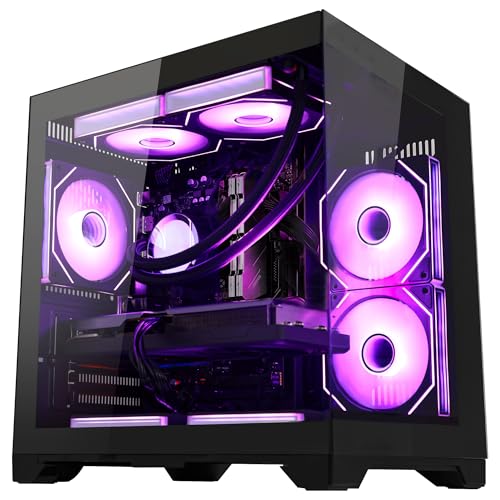
Software optimization and system cleanups can stabilize frame delivery, but they cannot overcome hard physical processing limitations. When modern titles demand rendering power beyond your system capabilities, reviewing budget gaming desktop configurations helps illustrate realistic performance expectations across different hardware tiers. Upgrading an aging multi-core processor or stepping up to a graphics card with dedicated hardware acceleration may become necessary when minimum system requirements expand. Recognizing whether your stutter stems from architectural limits or software misconfiguration prevents wasting hours on fruitless operating system tweaks.
Storage media transitions also represent one of the most effective hardware adjustments for eliminating asset-loading hitches. Installing modern open-world games on mechanical hard drives frequently results in micro-stutter as the drive heads struggle to stream high-resolution textures on the fly. Moving your game library to a fast solid-state drive allows game engines to stream environmental assets seamlessly into system memory without stalling the rendering thread. Verifying that your drive retains at least fifteen percent free capacity also ensures steady write performance for shader caches and temporary game files.
Eliminating gaming lag is an ongoing process of isolating bottlenecks, refining settings, and maintaining a clean operating environment. By distinguishing network ping from hardware frame drops, you can focus your troubleshooting efforts on the specific issue degrading your match performance. Keeping graphics drivers updated, managing background software loads, and securing a reliable wired network connection resolves the vast majority of gaming delays. Regular maintenance and measured configuration adjustments ensure your gaming desktop delivers responsive, consistent performance across every gaming session.






Write Your Review
No reviews yet. Be the first to share your experience!