


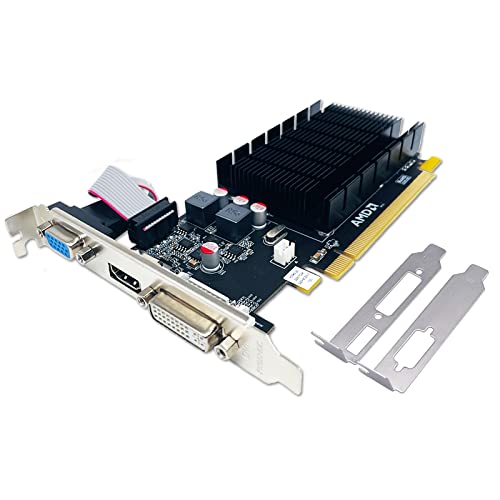
Online multiplayer matches often come down to split-second reactions where every millisecond of delay matters. When players ask how to improve latency for gaming, they usually encounter a mix of network troubleshooting advice and hardware suggestions without a clear starting point. High latency can manifest as unresponsive keystrokes, rubber-banding across game maps, or delayed frame delivery that disrupts competitive aim. Evaluating your complete system configuration alongside your local network setup is the most reliable way to identify where delays originate. Reviewing choices in gaming GPU performance helps clarify how hardware capability influences overall responsiveness during intense gameplay.
Input lag, system rendering delays, and internet transmission speeds each contribute to the total delay experienced on screen. Upgrading internal components such as network adapters, optimizing operating system settings, and using direct wired input devices can systematically reduce lag. Many players assume their internet connection is the sole culprit, yet system bottlenecks inside the desktop often play an equally significant role. Addressing each segment of the latency chain creates a more stable, predictable platform for demanding titles. With targeted hardware adjustments and software configurations, players can achieve a distinctly more responsive gaming experience.


Reducing System and Network Latency on Gaming Desktops
Addressing gaming latency requires looking at every stop a signal makes between your hands, your processor, and the game server. Latency is not a single measurement, but rather the cumulative time required for an input to register, be rendered by your graphics processor, and travel across the internet. Reducing this round-trip time creates a noticeable competitive advantage by making on-screen movement feel immediate and fluid. By systematically breaking down each stage of this journey, gamers can eliminate unnecessary delays without guessing which adjustment made the difference.
The Three Pillars of Gaming PC Latency: Input, System, and Network
Input latency represents the initial duration between pressing a switch or moving a mouse and the computer receiving that physical command. Factors such as interface type, switch mechanics, microcontroller firmware, and USB polling frequency directly determine this value. If a peripheral takes extra milliseconds to send its packet to the motherboard, the rest of the PC must wait before processing the action. Keeping physical connections direct and avoiding wireless interference forms the foundation of low input lag.
System latency, often called render lag or engine latency, involves the operating system, processor, and graphics card working together to produce the next frame. The central processing unit calculates physics, player positions, and game logic before handing frame data over to the graphics subsystem. If the graphics processor is running under maximum load without adequate frame pacing, a queue of pre-rendered frames can accumulate. This queue delays the visual appearance of your newest actions, making camera tracking feel sluggish even when frame rates appear high.
Network latency, commonly monitored as ping, measures the duration required for data packets to travel from your network card to the remote game server and back. Fluctuations in packet delivery, known as jitter, can cause unexpected micro-stutters and misaligned hit registration during online firefights. While external internet routing depends partly on your internet service provider, your local network connection hardware determines how cleanly packets leave your desktop. Modern wireless modules and wired interfaces are designed to minimize buffering, packet drops, and local interference before signals enter the broader network.
Upgrading Desktop Network Hardware with Modern Wi-Fi Standards
Gamers using wireless setups frequently experience erratic ping spikes caused by crowded frequency bands in homes and apartment complexes. Installing an internal M.2 wireless card provides a direct PCIe bus interface, bypassing the USB controller overhead common to external dongles. Many desktop motherboards feature dedicated M.2 2230 Key E or Key A slots designed specifically for modern network cards. Upgrading an outdated wireless card allows your gaming rig to access cleaner radio spectrum, which stabilizes packet delivery during peak network hours.
The transition to Wi-Fi 6E introduces access to the dedicated 6GHz frequency band alongside standard 2.4GHz and 5GHz channels. Network cards such as the POCREATION Wi-Fi 6E Wireless Card and the Pissente Wi-Fi 6E Module support this expanded spectrum to avoid common household signal congestion. These cards leverage technologies such as Orthogonal Frequency Division Multiple Access and Multi-User Multiple-Input Multiple-Output to manage simultaneous data streams. When communicating with a compatible router, the 6GHz spectrum helps maintain minimal signal queuing, directly preventing sudden spikes in online ping.
Advancing to Wi-Fi 7 hardware, as seen in the VELATEMOR Wi-Fi 7 Wireless Adapter Module, introduces features such as Multi-Link Operation. Multi-Link Operation enables the wireless adapter to transmit and receive data across multiple frequency bands at the same time. This capability means a dropped packet on one frequency band does not stall communication, as alternate channels instantly deliver necessary game state updates. Combined with advanced 4K QAM modulation, Wi-Fi 7 modules provide a transmission bridge that closely mirrors the stability of direct physical connections.
Physical Slot Compatibility and Installation for M.2 Network Adapters
Before purchasing an internal wireless module for a desktop or compact system, verifying physical connector compatibility is essential. Most standard M.2 Wi-Fi cards use the 2230 physical form factor, measuring twenty-two millimeters wide by thirty millimeters long. These cards require an M.2 socket with Key A, Key E, or a combined Key A and E mechanical layout. Attempting to install a Wi-Fi card into an M.2 Key M slot intended for solid-state storage will not work due to differing pin configurations and electrical pathways.
Proper antenna routing also plays a critical role in realizing the latency benefits of an upgraded wireless module. Internal cards require dual external antenna leads connected to micro coaxial terminals located on the printed circuit board. If these tiny leads are loose or improperly seated, signal attenuation can cause frequent packet drops and high latency despite high-end card specifications. Ensuring the external antenna base has a clear line of sight away from large metal desktop cases prevents chassis shielding from degrading performance.
Operating system compatibility must also be checked prior to installing new network hardware inside your desktop. Many newer modules, including specific Wi-Fi 7 designs, list requirements for 64-bit Windows 11 to activate full Multi-Link Operation features. Earlier operating systems may lack the native driver stack required to utilize advanced frequency channel bonding. Verifying driver availability on the manufacturer’s official support page ensures you can install necessary drivers immediately following physical hardware installation.
Minimizing Peripheral Delay with Dedicated Wired Hardware
Input delays from keyboards and secondary macro pads can add several milliseconds of unresponsiveness before signals even reach your motherboard. Wireless peripherals operate via battery-saving sleep states and radio transmissions that can introduce intermittent packet polling delays. Using wired connections, such as the Type-C interface found on devices like the Fabater 5 Keys Mini Keypad, eliminates battery throttling and packet interference. Direct wired signals ensure that every key stroke is transmitted across the USB bus without waiting for wireless wake-up cycles.
The mechanical construction of individual key switches also dictates the physical latency of your commands. Linear mechanical red switches, utilized in both black and white configurations of the Fabater mini keypad, actuate smoothly without the tactile resistance bump found in tactile or clicky alternatives. This linear motion allows rapid bottoming out and quick resets, which benefits competitive players executing frequent macro sequences. Programmable hardware onboard memory further reduces system latency by storing key assignments locally rather than relying on heavy background software suites.
USB port configuration on your motherboard can also influence peripheral input responsiveness. Connecting critical input devices directly to primary rear I/O ports connected to the CPU root hub reduces bus routing latency. Front-panel USB headers and unpowered desktop hubs introduce additional cable runs and shared controller bandwidth that can delay signal delivery. Dedicated inputs running on clean, unshared USB lanes provide the most consistent polling rates for fast-paced titles.
Windows Operating System Tweaks for Consistent Frame Pacing
Software configuration within Windows plays a major role in preventing background tasks from interfering with gaming responsiveness. Enabling Windows Game Mode helps prioritize CPU and GPU thread allocation to the active game process while suppressing background system updates. Selecting an optimized power plan ensures that the processor operates at responsive clock speeds rather than dropping into energy-saving states between frames. These energy state transitions can cause momentary micro-stutter that interrupts smooth visual tracking.
Managing background applications is another critical step in eliminating processing delays during intense sessions. Voice communication software, web browsers with multiple open tabs, and peripheral configuration utilities constantly consume memory bandwidth and CPU cycles. Disabling non-essential startup services and hardware acceleration in background apps frees up processor resources for frame calculations. Players exploring budget custom gaming PC builds often find that aggressive software cleaning yields substantial latency improvements on systems with modest core counts.
Monitoring Deferred Procedure Call latency provides valuable insight into whether installed device drivers are causing system hiccups. Outdated audio drivers, network card drivers, or chipset software can delay real-time audio and visual processing by monopolizing CPU cores. Diagnostic utilities like LatencyMon can scan your system to pinpoint specific system files causing elevated processing times. Updating hardware drivers directly from component manufacturer websites usually resolves driver-induced latency bottlenecks.
Optimizing Graphics Settings and Render Pipelines
Graphics card settings fundamentally govern the duration between frame generation and on-screen rendering. When a graphics processor reaches one hundred percent utilization, it often builds up an internal frame queue that creates noticeable input lag. Enabling low latency technologies like NVIDIA Reflex or AMD Radeon Anti-Lag dynamically aligns CPU work with GPU render cycles to keep the render buffer empty. This synchronization ensures that each newly rendered frame incorporates the absolute latest user input available.
Display synchronization settings also require careful configuration to balance visual clarity against response times. Traditional V-Sync eliminates screen tearing by forcing the GPU to wait for the monitor’s next refresh cycle, which adds significant frame delay. Using variable refresh rate technologies such as G-Sync or FreeSync alongside a manual frame rate cap just below your monitor’s maximum refresh rate offers a smooth experience without buffering penalties. This configuration keeps the display in variable refresh range while preventing the GPU from creating an excessive frame backlog.
Lowering computationally heavy visual settings can dramatically improve system responsiveness without destroying visual immersion. Settings such as volumetric fog, complex ambient occlusion, and ultra-high shadow resolutions place severe burdens on GPU compute units. Reducing these specific settings frees up GPU capacity and increases baseline frame rates, which naturally shrinks the render time of every single frame. Higher overall frame rates mean new visual information reaches your eyes much sooner after you take action.
Memory Architecture and System Storage Influences on Response Time
System memory configuration directly impacts how quickly the central processing unit feeds visual data to the graphics card. Running RAM in dual-channel mode doubles the memory bandwidth available to the memory controller compared to single-stick configurations. This bandwidth increase prevents memory bus saturation during chaotic multiplayer moments with dozens of active player models. Enabling the correct memory profile in the motherboard BIOS ensures RAM operates at its rated transfer speeds and tight sub-timings.
Solid-state drive performance also influences in-game asset loading and hitching during competitive gameplay. High-speed NVMe PCIe drives allow modern game engines to stream textures and geometry seamlessly as you navigate maps. Older rotational mechanical hard drives or overflowing SATA drives can introduce stutter when accessing assets on the fly. Maintaining at least twenty percent free space on your primary game drive ensures that the storage controller manages background garbage collection efficiently without freezing gameplay.
Thermal management inside the PC chassis directly preserves low-latency performance during extended gaming sessions. When processors or graphics cards exceed safe operating temperatures, internal thermal sensors automatically trigger frequency throttling to prevent hardware damage. This frequency drop causes sudden dips in frame rate and sharp increases in frametimes that destroy competitive consistency. Proper fan curves, clean dust filters, and adequate case airflow ensure components maintain stable boost frequencies indefinitely.
Diagnosing Network and Frame Bottlenecks
Differentiating between local hardware lag and remote network delay is essential for making effective adjustments. In-game telemetry overlays provide real-time metrics for frame time, render latency, network ping, and packet loss. If your ping remains low and steady while frame time graphs spike erratically, the issue stems from local PC hardware or software bottlenecks. Conversely, steady frame pacing paired with fluctuating ping numbers indicates local Wi-Fi interference or external routing problems.
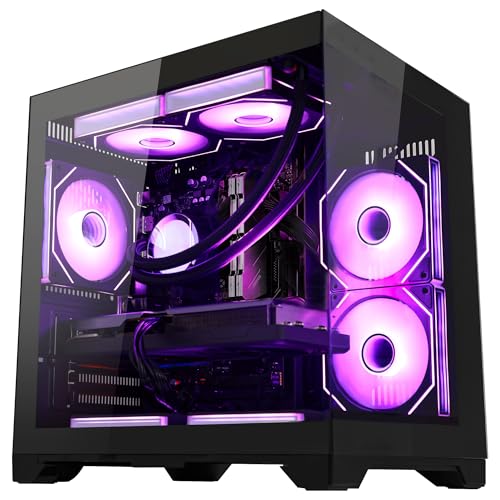
Evaluating whether your desktop format impacts thermal stability and latency is especially valuable for owners of compact desktop systems where space is limited. Smaller enclosures concentrate heat around the CPU, GPU, and M.2 slots, which can lead to rapid throttling under sustained loads. Checking component temperatures while monitoring latency metrics helps identify whether hardware cooling needs adjustment. Verifying that all internal cables and wireless antenna leads are firmly routed away from heat sinks helps maintain stable operation.
Testing your local connection for bufferbloat can reveal hidden causes of in-game ping spikes during periods of high household network use. Bufferbloat occurs when home routers store too many packets in memory queues rather than transmitting them immediately. Configuring Quality of Service settings on your router ensures that gaming traffic takes priority over video streaming and file downloads. Pairing router QoS with an upgraded internal Wi-Fi 6E or Wi-Fi 7 card delivers a resilient network path that withstands heavy household activity.
Final Steps for a Consistently Responsive System
Achieving minimal latency in gaming is a continuous process of fine-tuning both your physical equipment and your software environment. Systematically addressing peripheral connections, internal network cards, operating system overhead, and graphics settings strips away unnecessary milliseconds of delay. Each component upgrade or configuration change works collectively to narrow the gap between your physical reactions and the on-screen outcome. Verifying your setup through built-in diagnostic tools ensures that every change delivers measurable improvements in competitive responsiveness.






Write Your Review
No reviews yet. Be the first to share your experience!