

Playing demanding computer games on a handheld smartphone sounds impossible until remote servers handle the rendering workload. Learning how to play cloud gaming on mobile allows players to access high-end titles on iOS or Android devices without needing immediate physical access to high-end hardware. Instead of relying on mobile processors to compute complex 3D scenes, cloud platforms run games on remote data centers or host desktops and stream video frames directly to your screen. A stable internet connection and an appropriate control scheme make high-fidelity gaming remarkably accessible on everyday devices.
While streaming shifts computational demands away from your phone, it introduces specific network, control, and latency considerations that desktop systems rarely face. Gamers who are used to reviewing a desktop gaming graphics card guide to evaluate local rendering performance must instead prioritize network bandwidth, packet consistency, and controller latency. Hardware choices such as direct physical gamepad connections or low-latency wireless peripherals fundamentally shape your responsiveness. Understanding these technical requirements ensures your mobile session remains responsive, clear, and enjoyable across different streaming services.


Mastering Mobile Cloud Gaming and Stream Setup
Streaming high-end games to a mobile device requires understanding how remote hardware, mobile operating systems, and network infrastructure interact. The basic workflow replaces local rendering with real-time video decoding, which transfers the heavy lifting to external servers. This operational shift provides immense flexibility, but it also creates distinct technical hurdles that players must manage. Setting up a reliable session involves dialing in network routes, choosing responsive input gear, and configuring platform applications properly.
The Operational Mechanics of Cloud Gaming on Mobile Platforms
Traditional gaming relies on a local processor and graphics card to calculate game physics, render textures, and display frames on a monitor. Cloud streaming alters this structure by running the game software on a distant server rack or a home desktop PC. Your smartphone acts primarily as a thin client, sending directional inputs upward while receiving an encoded video and audio feed downward. This means mobile hardware specifications matter far less for visual fidelity than the speed and stability of your data connection.
Modern video codecs like H.264 and HEVC compress frames rapidly at the host location before transmitting them over the web. Your phone hardware then uncompresses these packets and presents them on your screen with minimal processing overhead. Because decoding video requires significantly less battery and processing power than native 3D rendering, mobile devices tend to stay cooler during cloud sessions. However, any interruption in data transmission immediately impacts video resolution or produces noticeable visual compression artifacts.
Network Optimization: Minimizing Input Lag and Packet Loss
Network performance serves as the primary bottleneck for any cloud gaming setup. While a standard video stream can buffer ahead by several seconds to smooth out network dips, interactive game streams must operate in real time. A reliable experience typically requires at least fifteen to twenty-five megabits per second of consistent download bandwidth. Raw download speed is only one piece of the puzzle, as latency, jitter, and packet loss dictate how responsive your button presses feel.
Connecting your mobile device to a five-gigahertz Wi-Fi frequency or a Wi-Fi 6 router provides a much cleaner signal than older two-point-four gigahertz bands. Older wireless bands suffer from crowded radio channels and common household interference from microwaves and neighboring routers. If you plan to play over cellular networks, fifth-generation data connections can deliver acceptable latency, but variable reception can cause sudden bitrate drops. Positioning yourself close to your router or disabling background phone downloads can substantially stabilize your ping times.
High ping creates a noticeable delay between pressing a button and watching your character react on screen. Competitive multiplayer titles suffer the most from this latency, whereas turn-based strategy or narrative adventure titles tolerate slight delays much better. Routing your home traffic through routers with quality of service settings can prioritize gaming packets over other home downloads. Taking time to test your local connection before starting a major session prevents frustrating disconnections during crucial gameplay moments.
Input Hardware: Comparing Direct Wired and Bluetooth Mobile Controllers
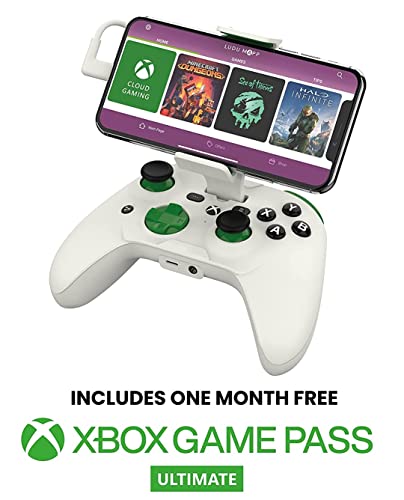
On-screen touch controls cover basic navigation, but complex action games demand physical tactile buttons and analog thumbsticks. Players generally choose between direct-connection controllers and wireless Bluetooth gamepads. Direct gamepads, such as the RiotPWR Mobile Cloud Gaming Controller, attach physically to a phone port like Lightning to minimize input latency. Eliminating the wireless bridge between the gamepad and the phone removes an extra layer of latency, which helps button inputs register as quickly as possible.
Direct-connected controllers also frequently incorporate pass-through charging ports and integrated audio jacks. Pass-through charging allows users to power their phone through the controller while playing, preventing battery depletion during longer sessions. A built-in headphone socket bypasses the need for wireless earbuds, which would otherwise introduce additional audio lag to the stream. Gamers looking for the lowest possible input delay often find direct-plug controllers provide the closest approximation to a traditional console layout.
Wireless gamepads offer greater flexibility across multiple screen sizes and hardware ecosystems. Dual-sided clamp designs, such as the Turtle Beach Atom Mobile Game Controller, connect via low-latency Bluetooth while splitting into two modules that grip the phone securely. Full-sized options like the Xbox Wireless Controller work seamlessly across mobile devices, smart displays, and desktop rigs. While Bluetooth introduces a tiny amount of wireless overhead, modern low-latency protocols keep the delay subtle enough for most casual and cooperative genres.
Distinguishing Dedicated Cloud Services from Local PC Streaming
Players can stream games from commercial cloud data centers or from their own local desktop computers. Commercial cloud platforms like Xbox Cloud Gaming, GeForce NOW, and Amazon Luna run game instances on massive enterprise server farms. These platforms eliminate the need to own expensive personal hardware, making them ideal for gamers who travel frequently or lack a desktop setup. The platform vendor manages software updates, hardware maintenance, and cloud game saves across all supported titles.
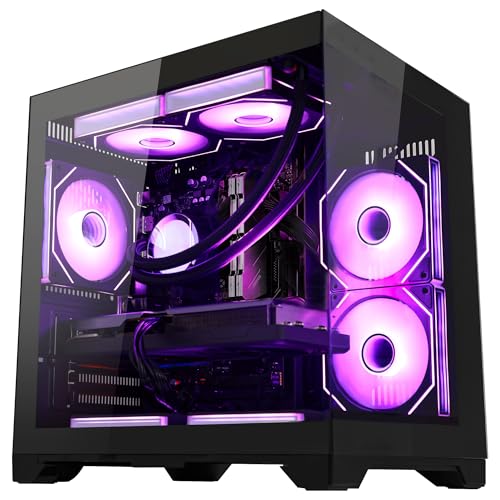
In-home streaming tools like Steam Link, Moonlight, or local remote play let you stream games directly from your own home computer to your phone. If you already maintain a capable budget desktop gaming PC build, local streaming avoids monthly subscription fees while letting you access your personal game library. Because local streaming transmits data across your internal home network rather than the public internet, latency is often much lower. This local setup provides crisp visual fidelity and high frame rates as long as the host desktop has sufficient rendering headroom.
Choosing between public cloud servers and local hosting depends heavily on your budget and existing hardware assets. Public cloud platforms require a recurring subscription and depend entirely on the vendor’s available game catalog. Local desktop hosting gives you total control over graphical settings, custom game mods, and non-catalog titles. Evaluating whether you want to own your host hardware or lease server time guides which streaming applications you should install on your phone.
Operating System Setup and Streaming Application Configuration
Setting up cloud gaming varies slightly depending on whether you use an Apple iOS device or an Android smartphone. Apple’s App Store policies historically required cloud services like Xbox Cloud Gaming and GeForce NOW to operate via mobile Safari web applications. Users create a home screen shortcut that launches a progressive web app, granting full-screen access without standard browser address bars. Android users, on the other hand, can typically download native streaming apps directly from the Google Play Store or sideload compatible clients.
Once your chosen app or browser portal is installed, navigating into the client settings allows you to calibrate stream performance. Most streaming clients provide options to adjust target resolutions, frame rates, and maximum bandwidth limits. Lowering your target resolution from ten-eighty-p to seven-twenty-p can dramatically improve stream smoothness if your connection fluctuates. Enabling hardware decoding in client advanced settings ensures your phone’s graphics chip handles video decompression efficiently without overheating the CPU.
Audio settings and virtual control overlays also require consideration during initial app configuration. If you play without a physical controller, customizing the on-screen button layout ensures essential actions remain within comfortable thumb reach. Disabling background audio enhancements or spatial sound processing can shave off extra milliseconds of audio delay. Taking a few minutes to configure these client parameters before launching a title prevents visual hitching and improves overall battery life.
Managing Aspect Ratios, Display Scaling, and Touch Latency
Smartphones feature varied aspect ratios, often stretching wider than standard sixteen-by-nine computer monitors or televisions. When streaming standard PC games to a mobile display, black letterboxing bars frequently appear on the left and right edges. Some cloud services offer custom aspect ratio modes or zoom features to fill modern smartphone screens more completely. However, aggressive zooming can crop critical user interface elements like health bars, mini-maps, and inventory menus.
Display refresh rates also influence how fluid cloud gaming feels on newer flagship phones. Many mobile screens support ninety or one-hundred-twenty hertz refresh rates, but most cloud gaming streams transmit at sixty frames per second. Running a sixty-frame stream on a high-refresh display can occasionally introduce subtle frame pacing unevenness if the phone does not adjust its panel speed. Setting your phone screen to standard sixty hertz mode during streaming sessions can conserve battery and produce more consistent visual cadence.
Thermal Management and Mobile Battery Preservation
Continuous video decoding and screen illumination place steady demands on mobile battery cells. Although cloud gaming draws less power than local rendering, extended play sessions can still warm up the phone chassis. Excessive heat buildup causes mobile operating systems to throttle processor clocks, which can lead to dropped video frames. Keeping your device out of thick, heat-trapping cases during prolonged sessions allows heat to radiate away naturally.
Using controllers equipped with pass-through charging helps preserve your internal battery life while maintaining optimal device performance. Connecting your phone to a wall charger while playing ensures maximum screen brightness without worrying about sudden shutdowns. If your device supports battery protection modes that bypass the battery when plugged in, enabling this feature keeps operating temperatures notably lower. Managing thermal levels ensures your stream maintains consistent decoding performance from start to finish.
Troubleshooting Stream Stutter, Lag, and Visual Artifacts
Visual stutter and compression artifacts usually stem from packet loss or momentary bandwidth dips on your local network. When packets fail to arrive in sequence, the video decoder displays gray blocky patches or pauses the image entirely. If you experience regular hitching, checking whether other devices on your network are streaming high-bitrate video can pinpoint the issue. Even a value gaming desktop setup used as an in-home streaming host can stumble if its local Ethernet connection is congested or unstable.
Input lag that feels floaty or delayed often indicates a poor Wi-Fi channel or Bluetooth interference. Switching your phone Wi-Fi connection from a two-point-four gigahertz network to a five gigahertz network resolves input delay in many home environments. Disconnecting unused Bluetooth accessories like smartwatches or fitness trackers can also reduce radio traffic around your mobile antenna. Restarting your network gateway and clearing your streaming app cache eliminates temporary software glitches that degrade stream stability.
Practical Verification and Setup Best Practices
Verifying your mobile cloud gaming setup requires a short structured test run before tackling demanding competitive matches. Launch a slower-paced title first to evaluate button responsiveness, visual clarity, and audio synchronization under real conditions. Pay close attention to how quickly the camera rotates when panning thumbsticks to assess total end-to-end latency. If the visual stream appears crisp but control inputs feel sluggish, prioritize controller connection methods over graphical tweaks.
Mobile cloud gaming successfully expands access to complex titles without requiring heavy local hardware investments. Balancing network consistency, ergonomic physical controls, and application settings creates a remarkably capable portable gaming environment. As wireless infrastructure continues to evolve, streaming games to mobile devices provides a practical and flexible alternative to traditional sitting-at-a-desk gaming. Following these foundational steps ensures your portable gaming sessions remain fluid, responsive, and thoroughly enjoyable.






Write Your Review
No reviews yet. Be the first to share your experience!