
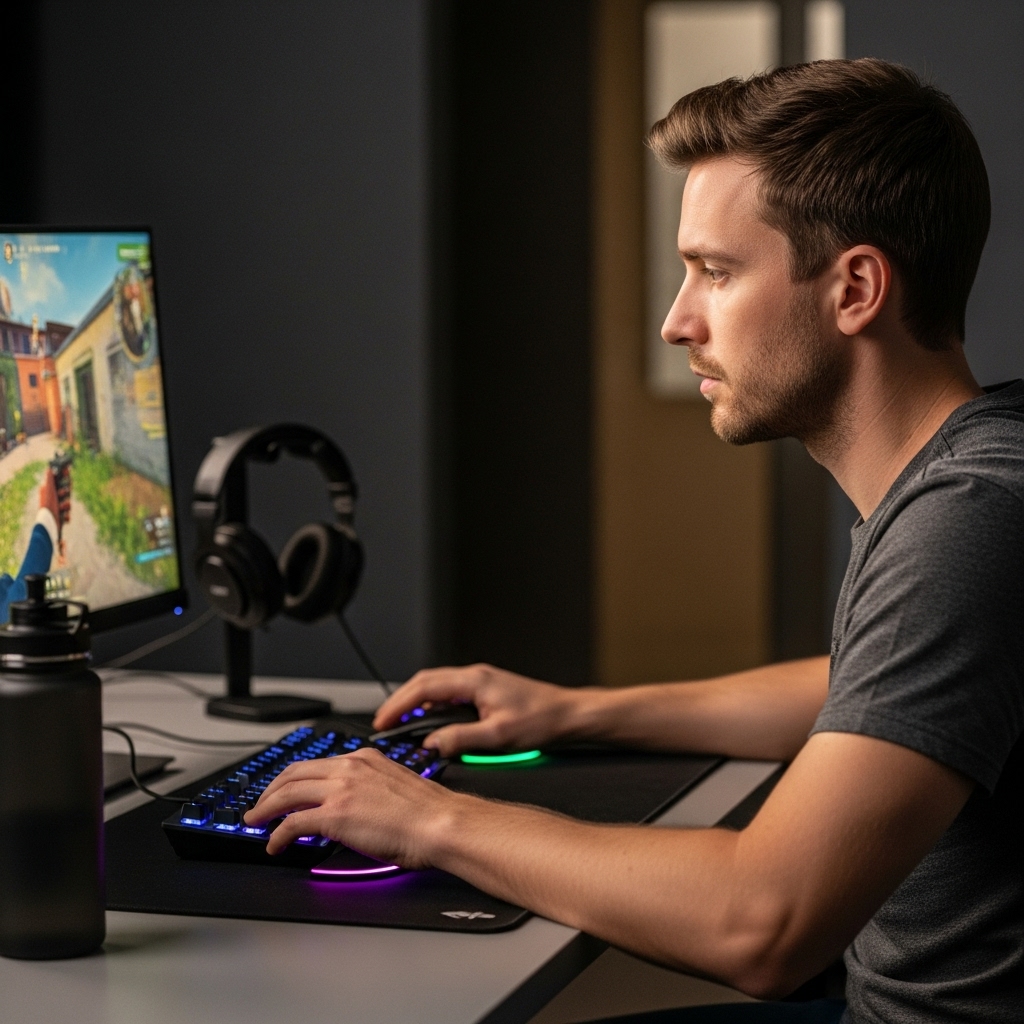

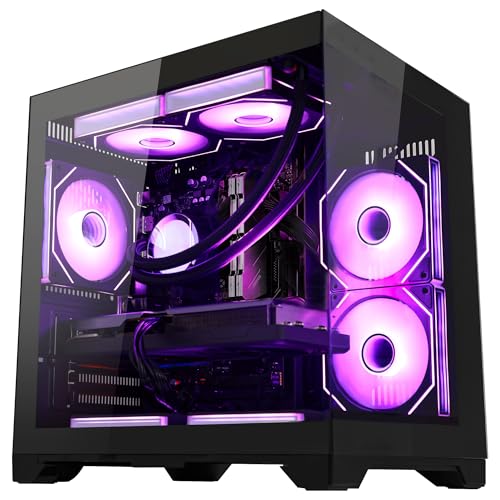
Setting up a modern desktop rig opens several distinct paths to access console-style gaming libraries directly on Windows. Learning how to play xbox games on pc requires understanding the difference between native local hardware rendering through the Xbox app and streaming titles over a stable internet connection. Many players transition to desktop systems because higher frame rates, broader peripheral support, and flexible visual settings create a superior overall experience. Choosing capable desktop graphics card configurations ensures that modern cross-platform releases run smoothly without sacrificing graphical detail or responsive input timing.
Native installations demand careful hardware balancing across your processor, system memory, and storage drives to prevent stuttering in demanding titles. Cloud streaming bypasses heavy local rendering, making it accessible on more modest setups, but it introduces strict network stability demands. Connecting reliable controllers, whether through standard cables or dedicated low-latency wireless adapters, bridges the gap between console convenience and desktop performance. Understanding these complementary options allows you to configure your system properly for every type of Xbox title available on PC.

Pros
- Extremely low latency (2.95ms) enhances competitive gaming performance.
- Broad controller compatibility covers major consoles and PC platforms.
- True plug-and-play with no drivers or software needed.
- Motion control and vibration work on Switch with PS4/PS5 controllers.
- Works with handhelds like Steam Deck, ROG Ally, and AYANEO via OTG.
Cons
- Only one controller can be connected at a time.
- Not compatible with older Xbox One controllers (2013-2015) or Xbox 360 controllers.
- Xbox headset audio is not supported through the adapter.
The GuliKit Hyperlink 2 Fast Wireless Adapter is a small but powerful accessory designed for gamers who want to use their favorite console controllers wirelessly on PC, Switch, Android, and SteamOS devices. It's a plug-and-play converter that eliminates the need for Bluetooth dongles or complex pairing processes, making it a convenient choice for anyone with multiple controllers.
This adapter is best suited for PC gamers, competitive players, esports enthusiasts, streamers, content creators, and gaming setup builders who value low input lag and broad compatibility. The standout feature is its HyperLink 2 technology, which claims a 2.95ms latency - a significant reduction that can make a real difference in fast-paced games like FPS, MOBA, or racing titles. For casual gamers or those using controllers on handhelds like Steam Deck or ROG Ally, the ease of use is a major plus.
Performance-wise, the adapter delivers on its promise of faster response times. The 2.95ms latency is among the lowest you'll find in a wireless adapter, helping to minimize the gap between button press and on-screen action. This can be especially noticeable in competitive scenarios where every millisecond counts. The adapter also supports motion control and vibration on Switch when using PS4 or PS5 controllers, adding a layer of immersion that native Bluetooth often lacks.
Build quality is solid for a device of this size. The white plastic housing is lightweight and durable, and the USB-A connector fits snugly into PC ports or handheld docks. Setup is as simple as plugging it in and pairing your controller - no drivers, software, or configuration needed. This makes it a great option for gamers who want a hassle-free experience, whether they're building a new gaming PC, setting up a streaming station, or just playing on the couch with a Steam Deck.
That said, there are a few limitations to keep in mind. The adapter only supports one controller at a time, so it's not ideal for local multiplayer. It also won't work with older Xbox One controllers (2013-2015), Xbox 360 controllers, or non-Bluetooth Elite models. Additionally, Xbox headset audio isn't supported, so you'll need to use a separate audio solution for chat. For most gamers, these are minor trade-offs given the adapter's low price and high performance.
Overall, the GuliKit Hyperlink 2 is a practical investment for anyone who wants to reduce input lag and use their preferred controller across multiple platforms. It's particularly useful for competitive PC gamers, streamers looking for a reliable connection, and gaming setup builders who value simplicity and versatility. If you're tired of Bluetooth latency or juggling multiple dongles, this adapter is a smart, affordable solution.
Direct Guide: How to Play Xbox Games on PC Systems
Configuring a desktop PC to access console titles requires choosing between native game installations and real-time cloud streaming. Windows provides native integration with the Microsoft gaming ecosystem, allowing players to utilize their existing digital library and subscription services. Your hardware configuration dictates whether local execution or cloud streaming will yield the best visual fidelity and input responsiveness. Taking time to configure the Windows environment, verify hardware components, and connect reliable input hardware ensures a seamless experience across all titles.
The Core Methods for Accessing Xbox Games on Windows
Players can access Xbox titles on personal computers through three distinct pathways supported by Microsoft. The first method involves installing native Windows editions through the Microsoft Store or the Xbox app, utilizing services like PC Game Pass. The second option relies on Xbox Play Anywhere, which grants cross-ownership of select digital titles across console and PC hardware. The third avenue utilizes Xbox Cloud Gaming, streaming the title directly from Microsoft servers to your web browser or dedicated app.
Each delivery channel serves a specific use case based on your current hardware and bandwidth availability. Native installations leverage your desktop graphics processor and system memory to deliver higher resolutions and uncapped refresh rates. In contrast, cloud streaming removes local storage burdens and bypasses steep hardware minimums entirely. Determining the right path depends heavily on whether your rig meets the publisher system requirements for each individual game.
Local Hardware Rendering Versus Xbox Cloud Gaming
Running games locally on your gaming PC requires adequate hardware capable of handling real-time rendering, geometry calculations, and memory management. Native PC editions give you complete control over graphical fidelity, texture resolutions, volumetric lighting, and anti-aliasing settings. Players using balanced gaming PC builds can often achieve sixty frames per second or higher in titles that might be capped at lower rates on home consoles. However, this approach demands regular driver updates, sufficient storage space, and adequate cooling under sustained loads.
Xbox Cloud Gaming alters this dynamic by handling all rendering workloads on remote server blades before transmitting the video feed to your monitor. This setup eliminates lengthy installation times and allows older desktop systems or portable machines to run modern releases smoothly. The primary trade-off shifts from hardware processing power to network quality and perceived input responsiveness. Even with a fast broadband connection, cloud feeds can occasionally introduce compression artifacts and minor input latency during fast-paced competitive sequences.
System Hardware Demands: Graphics Cards and Processors
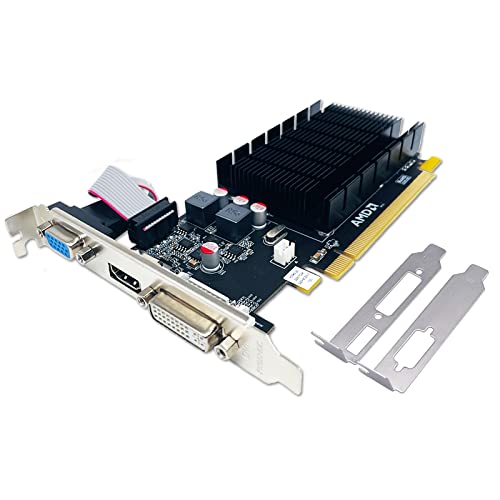
Native execution places distinct demands on the graphics processing unit and the central processor inside your machine. The graphics card handles pixel shading, resolution scaling, and complex visual effects that define modern console ports. Modern titles frequently publish minimum and recommended system requirements that indicate the baseline graphics card family required for baseline play. Failing to meet these published hardware baselines can lead to severe frame drops, thermal throttling, and sudden application crashes.
The central processor manages game logic, artificial intelligence routines, physics simulations, and background operating system services. A processor with adequate core counts and high clock speeds prevents the graphics card from sitting idle while waiting for render instructions. Older quad-core processors may struggle with modern open-world titles that rely heavily on multithreaded processing architectures. Ensuring proper thermal paste application and sufficient case airflow keeps operating temperatures within manufacturer boundaries during extended gaming sessions.
Power delivery also plays a vital role when running demanding titles on dedicated desktop hardware. An undersized power supply unit can trigger unexpected system shutdowns when both the processor and graphics card experience sudden power spikes. Checking manufacturer power specifications before upgrading components protects sensitive system hardware from electrical strain. Maintaining clean intake filters and unobstructed internal cables further promotes steady thermal performance under heavy gaming workloads.
Memory and High-Speed Solid-State Storage Requirements
System memory capacity directly impacts how smoothly your computer handles large game worlds and background processes. Running modern titles alongside the Xbox app, voice chat software, and operating system utilities generally requires at least sixteen gigabytes of dual-channel system memory. Single-channel configurations reduce available memory bandwidth, which can cause micro-stuttering during intense in-game scenes. Verifying that memory modules run in dual-channel mode inside your motherboard BIOS helps sustain stable frame delivery.
Storage drive performance has become equally important as contemporary games feature massive asset libraries and high-resolution textures. Modern console ports often assume the presence of high-speed solid-state storage to stream world assets without hitches. Traditional mechanical hard drives can introduce noticeable texture pop-in, extended loading screens, and audio desynchronization in modern releases. Installing your operating system and game library onto a dedicated solid-state drive significantly improves overall system responsiveness.
Controller Integration and Low-Latency Wireless Adapters
Many players prefer using console gamepads rather than traditional keyboard and mouse setups for third-person action and racing games. While standard wired USB connections provide instantaneous communication, wireless setups grant greater physical freedom around your desk. Standard Bluetooth connections built into motherboards can occasionally suffer from signal interference, dropouts, or noticeable input latency. Dedicated wireless adapters resolve these limitations by establishing a direct, optimized radio frequency communication channel with the controller.
The GuliKit Hyperlink 2 Fast Wireless Adapter for Xbox provides an ultra-low latency solution designed specifically to address input responsiveness on desktop systems. Based on manufacturer specifications, this adapter achieves a rapid 2.95ms response time using HyperLink 2 technology, reducing input delay by up to fifty percent compared to conventional wireless connections. The compact USB dongle operates across multiple platforms, offering compatibility with Windows 7 and newer versions, Nintendo Switch, Android, and SteamOS devices like the Steam Deck. The adapter also supports an extensive selection of gamepads including Xbox Series controllers, Xbox Elite Series 2 controllers, Xbox One Bluetooth controllers, PlayStation 5 DualSense models, and Switch Pro gamepads.
Using a specialized adapter simplifies device switching if you own multiple gaming platforms or alternate between gamepads. The unit enables motion control and vibration functions when pairing PlayStation controllers with Nintendo Switch hardware, although those specific motion features are not supported on PC. Hardware pairing remains straightforward because the device relies on standard driver protocols without requiring third-party management software. This plug-and-play capability allows desktop players to focus on gameplay rather than complicated peripheral configuration.
Step-by-Step Configuration with the GuliKit Hyperlink 2 Adapter
Pairing your gamepad with the GuliKit Hyperlink 2 Fast Wireless Adapter for Xbox requires following a precise sequence to establish the wireless handshake. First, turn on your controller and press the dedicated pairing button until the LED indicator begins flashing rapidly. For PlayStation gamepads, this involves holding both the Share and PlayStation logo buttons simultaneously until rapid blinking begins. Once the gamepad enters discovery mode, insert the adapter directly into an available USB port on your desktop computer.
The adapter indicator light will flash rapidly as it searches for the active controller and will turn solid once the connection succeeds. Manufacturer documentation outlines clear limitations regarding specific controller models and accessory features. The adapter is not compatible with original Xbox One controllers released between 2013 and 2015, non-Bluetooth Elite controllers, or legacy Xbox 360 peripherals. Also, the adapter supports one active controller at a time and does not transmit audio through controller-connected headsets.
Network Optimization for Remote Play and Cloud Gameplay
Playing Xbox titles via cloud streaming or local console remote play requires an uninterrupted network pipeline. While standard web browsing tolerates brief packet delays, real-time gaming demands consistent throughput and minimal jitter. Connecting your gaming desktop directly to your router using a physical Ethernet cable provides far greater stability than standard wireless connections. Wired connections eliminate radio frequency interference from household appliances and ensure that ping times remain predictable during busy network hours.
If your room layout mandates a Wi-Fi connection, connecting to a five-gigahertz frequency band is essential for adequate streaming bandwidth. The five-gigahertz band offers significantly higher data transmission speeds and less congestion than legacy 2.4-gigahertz channels, though it possesses a shorter physical range. Configuring quality of service settings in your home router can also prioritize gaming traffic over file downloads or video streaming on other household devices. Maintaining steady downstream bandwidth ensures clear visual streaming without sudden pixelation or input stalls.
Audio and Chat Configurations on Desktop Platforms
Communication with friends across console and PC ecosystems relies heavily on the built-in Windows Xbox Game Bar. Pressing the Windows key along with the G key opens an integrated overlay providing quick access to party chat, audio output mixing, and performance metrics. Because specialized wireless adapters like the GuliKit adapter do not support controller-connected headsets, desktop players should plug headsets directly into the computer. Using dedicated USB headsets or desktop microphones ensures reliable voice clarity during multiplayer matches.
Pairing your desktop with quality accessories such as responsive gaming PC keyboards lets you navigate overlays and text chat quickly without interrupting gameplay. Within the Windows sound settings, designate your primary headset as both the default playback device and the default communication device. Adjusting party chat volume independently from game audio prevents loud explosions from drowning out team communication. Testing your microphone input levels in the Xbox app audio menu prior to joining matches prevents common communication issues.
Common Setup Pitfalls and Diagnostic Steps
Users occasionally encounter issues where controllers connect successfully to Windows but fail to register inputs inside the Xbox app. This discrepancy often occurs when multiple input devices or virtual controller drivers create conflicting XInput assignments. Disconnecting unused flight sticks, racing wheels, or legacy gamepads allows Windows to prioritize your primary controller. If you are using a GuliKit brand controller with the adapter, ensure the controller is manually switched to PC Xinput mode before initiating the pairing sequence.
Another frequent hurdle involves game download errors or launch failures within the Microsoft Store and Xbox app. These issues frequently trace back to outdated Windows operating system builds or corrupted gaming services background components. Running the built-in Windows Update utility and repairing the Gaming Services package through Windows installed apps settings often resolves launch permissions. Checking that your system clock is synchronized accurately with internet time servers also prevents authentication errors when launching subscription-based titles.
Final Setup Checks for Long-Term Gaming Stability
Establishing a dependable gaming environment on your desktop requires verifying hardware stability across extended play sessions. Monitoring operating temperatures with trusted system utility software ensures your processor and graphics card maintain safe operating ranges under sustained loads. Keeping graphics drivers updated directly from the chip manufacturer guarantees compatibility with newly released console ports and performance patches. Routine internal cleaning prevents dust accumulation from restricting heatsink airflow and inducing premature thermal throttling.
Taking a moment to organize cables, test controller latency, and confirm network stability creates a hassle-free gaming routine on your PC. Whether you run demanding titles locally through high-speed solid-state drives or stream games seamlessly over cloud infrastructure, proper hardware preparation makes all the difference. Investing in reliable connectivity hardware like the GuliKit Hyperlink 2 adapter provides the responsive physical control needed for precision gameplay. With your system properly configured, you can enjoy the full depth of the Xbox gaming catalog with desktop performance advantages.






Write Your Review
No reviews yet. Be the first to share your experience!