


Learning how to stream gaming on twitch involves balancing the computational demands of real-time rendering alongside live video encoding. When you launch a demanding title and broadcast software simultaneously, your gaming desktop must divide its processor cores, graphics pipeline, and system memory between the game engine and the outgoing stream. Overlooking this hardware split can lead to choppy in-game frame rates, dropped video frames on your channel, or unexpected software crashes. Understanding your computer’s capabilities allows you to establish smooth live broadcasts while maintaining responsive gameplay.
A modern streaming setup relies heavily on a robust central processor and a capable dedicated graphics card for gaming that features an integrated hardware video encoder. By configuring your broadcast software to utilize dedicated silicon rather than overloading standard processing threads, you can preserve gaming performance at competitive settings. Selecting the correct resolution, bitrate, and frame rate ensures that your viewers receive a sharp video feed without exhausting your network connection. Approaching your desktop setup with clear performance targets turns live broadcasting into a seamless daily experience.


A Practical Guide to Streaming Gameplay on Twitch from Your PC
Broadcasting live gameplay to Twitch from a desktop PC requires an intentional configuration of hardware resources, encoding software, and network settings. The primary goal is achieving visual clarity and consistent stream delivery without degrading your local gaming performance. By identifying how system components interact under combined workloads, you can establish reliable settings that match your specific PC configuration.
Understanding the Computational Demands of Gaming and Streaming
Running a video game pushes your graphics processing unit and processor to compute physics, process user input, and render three-dimensional geometry. When you introduce broadcasting software such as OBS Studio or Streamlabs Desktop, the system must capture that rendered viewport, composite overlays or webcam feeds, and compress the video in real time. Because both processes draw from the same hardware pool, an unoptimized system can quickly encounter resource contention. This competition often manifests as in-game stutter or dropped frames within the broadcast stream.
Broadcasters often debate whether a single desktop can manage both workloads or if a dedicated dual-PC setup is required. For most content creators, modern multi-core processors and hardware-accelerated encoding engines eliminate the need for a secondary streaming computer. A single-PC configuration simplifies audio management, reduces desk clutter, and avoids the complexity of external capture cards. Understanding how to allocate hardware tasks within a single computer provides a practical and cost-effective path toward consistent live broadcasting.
Graphics Cards and Dedicated Hardware Video Encoding
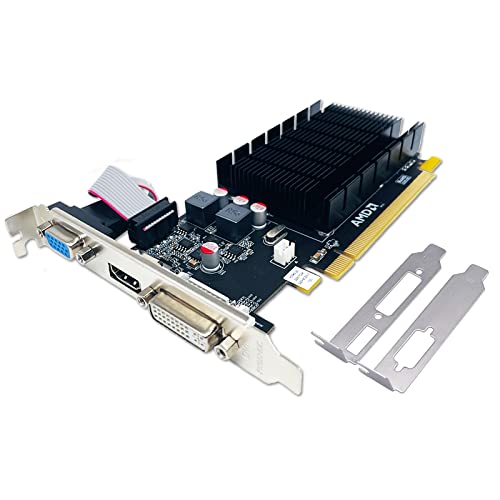
A graphics card serves two primary functions in a live streaming configuration: rendering the game world and executing hardware-based video encoding. Modern graphics architectures from major manufacturers integrate dedicated silicon blocks, such as Nvidia NVENC, AMD AMF, and Intel QuickSync, designed specifically for video compression. Offloading the compression task to these specialized circuits prevents the video stream from consuming the execution units used for in-game graphics rendering. This division of labor keeps in-game frame rates stable while maintaining a clean, artifact-free video stream for your audience.
Video memory, or VRAM, represents another critical consideration when selecting or configuring a graphics card for streaming. Modern games routinely consume significant amounts of video memory at higher texture settings and resolutions. Broadcasting software also requires dedicated VRAM to render scene compositing, webcam filters, and browser-source overlays. If a system exhausts its available video memory, it may experience rendering lag, severe frame drops, or driver crashes during a live broadcast.
Processor Allocation and System Memory Requirements
While dedicated hardware encoders handle the bulk of video compression, the central processing unit remains vital for overall system stability. Your processor manages game logic, input polling, background services, operating system tasks, and broadcast compositing. Processors with at least six to eight physical cores provide sufficient thread headroom to prevent background stream tasks from interrupting real-time gaming execution. Choosing a platform with modern architectural IPC gains ensures smooth multitasking even during frantic competitive matches.
System memory capacity directly impacts how smoothly your PC handles the simultaneous demands of gaming, streaming, and content production. While sixteen gigabytes of RAM is generally considered the baseline for modern gaming desktops, upgrading to thirty-two gigabytes offers noticeable benefits for live broadcasting. A typical streaming session often involves running a memory-heavy game alongside broadcasting software, numerous browser tabs for chat moderation, and voice communication applications. Operating in a dual-channel memory configuration ensures the memory controller delivers adequate bandwidth across all concurrent applications.
Configuring Broadcasting Software for Optimal Quality
Selecting the right broadcast software forms the foundation of your streaming configuration. Open Broadcaster Software, commonly known as OBS Studio, remains the industry standard due to its open-source nature, low resource overhead, and extensive plugin ecosystem. Alternative options like Streamlabs Desktop or Twitch Studio provide simplified onboarding interfaces and integrated alert systems, though they may demand slightly higher background system resources. Regardless of the software you choose, configuring your video canvas, output resolution, and audio routing accurately is essential before going live.
Within your broadcast software settings, output resolution and bitrate must be balanced according to platform standards and viewer accessibility. Twitch establishes an ingest ceiling, typically recommending bitrates between four thousand five hundred and six thousand kilobits per second for non-partnered creators. Outputting a stream at 720p or 900p at sixty frames per second often produces cleaner visuals than 1080p within that bitrate range, as fast-paced motion requires significant bandwidth to prevent blocky compression artifacts. Setting your rate control to Constant Bitrate (CBR) and your keyframe interval to two seconds ensures maximum compatibility with Twitch playback servers.
Network Stability and Bandwidth Management
A smooth broadcast requires a stable and consistent internet upload connection rather than just high download speeds. Video encoding software generates an uninterrupted stream of data packets that must reach ingest servers without delay. If your network experiences packet loss or jitter, the broadcast software will drop frames, resulting in buffering or stuttering for viewers. Content creators should verify that their upload speed provides at least a thirty to fifty percent safety margin above their configured broadcast bitrate.
Connecting your gaming PC directly via a wired Ethernet cable is strongly recommended over relying on wireless Wi-Fi connections. Even high-speed Wi-Fi standards remain susceptible to radio frequency interference, physical obstructions, and local network congestion from other devices. An Ethernet connection provides consistent latency and eliminates intermittent signal drops that could sever your live stream. If multiple users share your local network, enabling Quality of Service (QoS) rules in your router can prioritize outgoing broadcast traffic over background downloads.
Windows Operating System Optimizations for Live Streaming
Optimizing your Windows operating system environment can dramatically reduce background stutter and prioritize streaming software resources. Running OBS Studio as an administrator is one of the most effective system tweaks available, as it instructs the Windows graphics scheduler to reserve dedicated GPU rendering priority for the stream capture engine. Modern iterations of Windows Game Mode also work effectively to allocate processor affinity toward gaming while maintaining stable background execution. Keeping your graphics drivers up to date ensures that you benefit from the latest encoder optimizations and game-specific stability patches.
Managing audio routing within Windows is another critical setup step for aspiring Twitch broadcasters. You should configure dedicated audio tracks for your game, microphone, discord voice chat, and desktop notifications to prevent overlapping sound levels. Modern broadcast tools allow you to capture application-specific audio directly, eliminating the risk of accidental desktop alerts or copyrighted music playing over your broadcast feed. Testing your microphone input levels, noise suppression filters, and compression settings within your software ensures clear vocal delivery without background keyboard clatter.
Balancing In-Game Settings to Prevent Dropped Frames
Running games with an unlocked frame rate is a frequent mistake that can inadvertently cripple your Twitch stream. When a game runs with uncapped frame rates, it consumes nearly one hundred percent of your graphics card’s rendering capacity. This complete GPU saturation can starve your broadcasting software of the minor rendering resources it requires to composite scenes before encoding them. Capping your in-game frame rate to match your monitor’s refresh rate, or setting a sensible target like one hundred and twenty frames per second, leaves sufficient GPU headroom for smooth capture.
Adjusting specific graphics settings can also free up vital system resources without drastically impacting visual quality. Post-processing features such as volumetric lighting, ultra-quality shadows, motion blur, and ambient occlusion place heavy demands on graphics execution units. Lowering these particular settings from ultra to high or medium provides an immediate reduction in rendering load while maintaining sharp textures and clear gameplay visibility. This balance prevents thermal throttling, reduces cooling fan noise, and ensures your desktop maintains sustained performance over multi-hour broadcasting sessions.
Hardware Sizing, Power Delivery, and Custom Desktop Planning
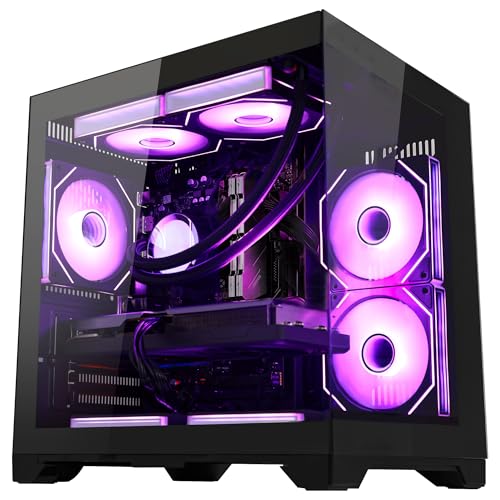
Planning a desktop configuration capable of gaming and broadcasting simultaneously requires thoughtful component pairing. Selecting a balanced system prevents bottlenecks where a high-end graphics card is held back by an older quad-core processor or insufficient memory speed. For budget-conscious creators, exploring a budget gaming desktop build can provide a solid baseline of multi-threaded computing power and dedicated hardware encoding capabilities without unnecessary financial expenditure. Careful component selection ensures that your system remains upgradeable as your content creation ambitions expand.
Sustained simultaneous workloads also draw considerable electrical power and generate noticeable heat inside your PC case. Ensuring that your power supply unit provides ample wattage headroom and clean power delivery protects sensitive silicon during long gaming streams. Integrating an uninterruptible power supply for gaming shields your entire setup against unexpected brownouts, voltage sags, or momentary power flickers that could instantly terminate a live broadcast. Adequate case airflow with well-placed intake and exhaust fans further guarantees that internal components maintain safe operating temperatures under continuous load.
Tracking Broadcast Progress and Developing Creator Workflows
Technical configuration is only one half of establishing a sustainable presence on Twitch; organizational habits and continuous improvement represent the other. Dedicated broadcasters frequently maintain physical journals or structured broadcast logs to record their daily stream settings, viewer engagement metrics, and technical issues. Utilizing a dedicated tracking notebook or log book allows you to note which game configurations ran smoothly and monitor how specific technical adjustments correlate with stream stability. Documenting your broadcast schedule, content ideas, and technical changes helps you troubleshoot past errors methodically rather than relying on guesswork.
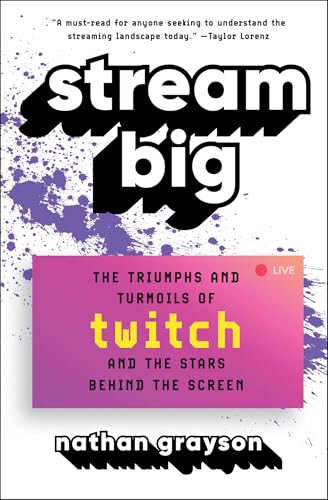
Aspiring creators can also benefit from educational guides and published streaming strategies to navigate community building and platform milestones. Understanding how to earn Twitch Affiliate status, configure channel point rewards, and set up interactive community tools turns a basic video broadcast into an engaging channel. While technical software handles the audio and video delivery, your consistency, interaction with chat, and structured planning determine long-term audience retention. Setting achievable goals and reviewing your broadcast statistics after each session keeps you focused on gradual improvement.
Pre-Broadcast Verification and Stream Health Monitoring
Before launching your first public broadcast, performing a private technical rehearsal is essential for verifying system stability. Twitch provides an ingest testing mode that allows you to stream video data directly to their servers without alerting followers or publishing a public feed. During this test run, monitor the statistics dock in OBS Studio to check for rendering lag, encoding lag, or dropped frames resulting from network congestion. If any category shows frame losses above zero percent, you can isolate the bottleneck and adjust your in-game graphics, encoder preset, or bitrate accordingly.
Inspecting the Twitch Video Producer dashboard and stream health monitor during your broadcast provides real-time diagnostics on bitrate stability and audio sync. Regular checks ensure that your stream maintains an unbroken green status indicator, confirming that ingest servers receive a clean signal. Taking a few moments to verify audio levels through monitor headphones prevents broadcasting with muted microphone channels or overpowering game sound. By combining robust desktop hardware, disciplined software settings, and methodical pre-stream checks, you can stream gaming content reliably and focus fully on entertaining your audience.
Final Practical Takeaways for Twitch Broadcasters
Successfully streaming games to Twitch from a PC is a matter of resource allocation rather than brute-force hardware expense. By relying on modern hardware video encoders, maintaining sufficient system memory, and capping frame rates to prevent graphics card saturation, even mid-range desktops can produce professional-quality broadcasts. Take the time to test your settings incrementally, record baseline performance in different titles, and keep your software environment organized. With a stable foundation in place, your gaming PC will deliver consistent performance and an enjoyable viewing experience across every live session.






Write Your Review
No reviews yet. Be the first to share your experience!