

Mobile devices provide convenient access to modern gaming libraries without requiring high-end local hardware at your desk. Understanding how to use xbox cloud gaming on mobile allows players to stream demanding console and PC titles directly to a smartphone or tablet over a high-speed internet connection. This service shifts the intensive rendering workload to remote data centers, streaming video back to your screen while transmitting your controller inputs with minimal delay. Gamers who primarily play on budget-friendly desktop gaming PC builds often rely on cloud streaming when traveling or relaxing away from their primary workstation.
Getting started requires an active subscription, a stable network connection, and a compatible mobile browser or native application. While touch screen overlays are available for select titles, pairing a dedicated gamepad or mobile controller ensures accurate control across fast-paced action titles. Operating system differences between Apple iOS and Google Android dictate slightly different setup procedures, especially regarding browser shortcuts and app store policies. By reviewing the exact hardware and software requirements beforehand, you can avoid frustrating connection drops and enjoy smooth streaming sessions anywhere.

Everything You Need to Know About Xbox Cloud Gaming on Mobile Devices
Xbox Cloud Gaming transforms portable smartphones and tablets into capable gaming screens by processing game logic and graphics on remote server blades. This architecture eliminates the requirement for local high-power silicon, enabling portable hardware to display visually intensive titles without generating substantial heat. Learning how the setup works across different operating systems helps players configure their devices for optimal responsiveness. The following sections explain account setup, platform-specific installation steps, network optimization, controller hardware, and how cloud streaming compares to local desktop computing.
Understanding Mobile Cloud Streaming Versus Local Hardware
Cloud gaming functions through an active video stream sent from remote server blades directly to your mobile display. When you press a button on your controller, that command travels over the internet to the server, which updates the game world and returns the updated video frame. This workflow differs fundamentally from local rendering, where an internal processor and graphics card calculate geometry, textures, and physics directly on the device. Because the heavy computational lifting occurs offsite, battery drain on your smartphone remains comparable to standard video playback rather than intensive 3D rendering.
The primary trade-off in cloud streaming involves network latency rather than pure graphical fidelity. Local hardware delivers immediate input feedback because signals travel only through internal motherboard traces and display cables. In contrast, cloud gaming introduces network travel time, which can create subtle input delay if your connection fluctuates. Understanding this technical distinction helps set realistic expectations for twitch-reaction titles compared to slower tactical or narrative games.
Visual quality in cloud environments also depends on adaptive video compression algorithms. When network bandwidth dips, the stream dynamically lowers video bitrate or resolution to prevent total video stalling. Local gaming setups avoid this compromise by maintaining consistent texture resolution dictated entirely by your graphics settings. For players on the move, however, the ability to jump into major titles without downloading massive multi-gigabyte files remains a compelling benefit.
Essential Account and Network Requirements
Accessing cloud gaming on mobile devices requires an active Xbox Game Pass Ultimate subscription, which includes cloud access alongside its game catalog. Standard console or basic PC tiers of the service do not support cloud streaming functionality. Users must sign in with the Microsoft account associated with the active subscription to load their game progress and cloud-saved data. Because saved data synchronizes automatically across platforms, players can transition between desktop sessions and mobile play without losing story progress.
Network bandwidth and stability represent the most critical prerequisites for an acceptable streaming experience. Microsoft documentation specifies a minimum download speed of ten megabits per second for mobile devices, though twenty megabits per second or higher provides a significantly more stable stream. High raw bandwidth alone does not prevent lag if the connection suffers from severe packet loss or high network jitter. Connecting to a 5 GHz Wi-Fi frequency band provides superior stability and lower latency compared to congested 2.4 GHz frequencies.
Cellular data networks can also support cloud gaming, provided you have access to a robust 4G LTE or 5G signal. Users must remain mindful of carrier data caps, as cloud video streaming consumes substantial bandwidth over extended gameplay sessions. Many wireless carriers throttle video streaming speeds, which can introduce compression artifacts or stuttering into your stream. Testing your mobile data connection with a network diagnostic tool before starting an extended session helps verify real-world throughput.
Configuring Xbox Cloud Gaming on Apple iOS Devices
Apple iOS devices handle cloud streaming through web browser integration rather than a standalone App Store application. To begin setup, open the native Safari browser on your iPhone or iPad and navigate to the official Xbox play website. Ensure your device runs a recent version of iOS to guarantee full support for modern web standards and audio protocols. Attempting to use third-party iOS browsers may result in limited gamepad recognition or audio synchronization issues.
Creating a dedicated web app shortcut on your iOS home screen produces a full-screen experience without visible browser address bars. Tap the Share button in Safari, scroll through the available actions, and select Add to Home Screen. This action generates a custom launch icon that operates as a Progressive Web App directly on your mobile device. Launching the service from this newly created icon provides a clean interface that mimics a native application layout.
Once launched, tap the profile icon in the upper corner and sign in with your active Microsoft credentials. Safari may prompt you to allow controller input or full-screen permissions during your initial session launch. Granting these permissions ensures your physical gamepad connects directly to the streaming interface. After signing in, you can browse the available cloud library and launch games directly from the custom home screen icon.
Setting Up Cloud Play on Android Smartphones and Tablets
Android users enjoy multiple supported methods to access Xbox Cloud Gaming across phones and tablets. The most straightforward approach involves downloading the official Xbox Game Pass app directly from the Google Play Store or Samsung Galaxy Store. Alternatively, players can access the service via mobile web browsers such as Google Chrome or Microsoft Edge by visiting the cloud portal. Both methods provide access to cloud-enabled titles, though the native app often streamlines controller firmware alerts and account management.
After installing the application, log into your Microsoft account with active Game Pass Ultimate privileges. Within the application interface, navigate to the Cloud tab to filter the catalog specifically for streamable titles. Android devices allow users to adjust basic streaming preferences, such as enabling network notifications that alert you when connection speeds deteriorate. Verifying that your device runs a modern Android version ensures compatibility with current Bluetooth protocols and input drivers.
Permissions management in Android requires brief verification before launching your first title. Ensure the application possesses permission to communicate with nearby devices if you intend to pair a wireless Bluetooth controller. Disabling aggressive battery optimization settings for the Game Pass app prevents the operating system from throttling background processes during play. Once configured, launching a title initiates a connection handshake with the nearest regional data center.
Choosing and Connecting Supported Mobile Controllers
While touch controls work on select titles with custom virtual overlays, physical gamepads offer superior precision and physical tactile feedback. Players using Android devices often opt for wireless clip-on controllers such as the Turtle Beach Atom Mobile Game Controller. The Turtle Beach Atom features an ergonomic two-piece shape that magnetically fuses together for travel, connecting to Android phones via low-latency Bluetooth. It includes adjustable phone clamps that fit most smartphones, console-style inputs, and a rechargeable battery rated for up to twenty hours of play.
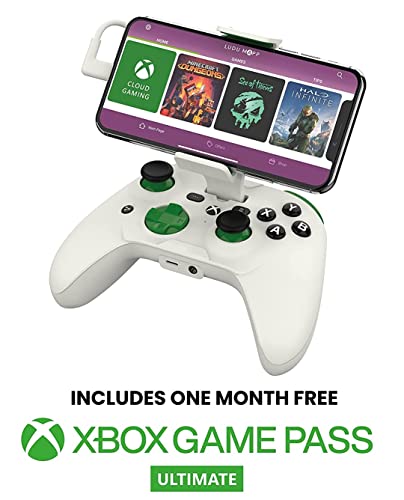
Apple iPhone users who prioritize minimal input delay may prefer wired Lightning accessories like the RiotPWR Mobile Cloud Gaming Controller. The RiotPWR gamepad uses a direct wired Lightning connection to eliminate the wireless latency inherent to Bluetooth pairings. It features a full console design with an integrated mobile support post, an audio DAC with a headphone socket, and pass-through charging technology to keep the device powered. The manufacturer also includes a replaceable cable architecture to maintain compatibility across different device connector revisions.
Standard wireless console controllers from modern Xbox consoles also pair seamlessly with both iOS and Android via Bluetooth. When pairing any wireless gamepad, place the controller in pairing mode and select it within your mobile device settings menu. Mobile controllers that physically wrap around your smartphone turn the device into a unified handheld unit, reducing wrist fatigue during extended gaming sessions. Confirming that your chosen gamepad supports analog triggers and clickable thumbsticks is crucial for complex action titles.
Comparing Cloud Streaming Latency to Desktop PC Gaming
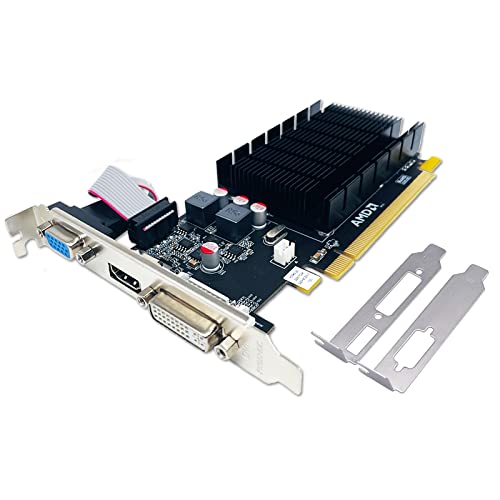
Evaluating gaming responsiveness requires looking at the entire pipeline from physical input to rendered on-screen action. On a dedicated desktop system equipped with a capable dedicated graphics card selection guide, input latency regularly remains below twenty milliseconds. Local hardware renders frames immediately upon receiving controller commands, displaying them at high refresh rates on gaming monitors. Cloud gaming adds network round-trip time onto this pipeline, often resulting in total latency between fifty and one hundred milliseconds depending on your internet connection.
In turn-based strategy games, role-playing titles, and narrative adventures, minor input delay remains virtually unnoticeable during casual play. Competitive multiplayer shooters, however, expose input lag more readily, potentially placing mobile cloud players at a competitive disadvantage against local PC gamers. The physical distance between your mobile device and the host server farm directly influences this baseline network delay. Minimizing the number of intermediate network hops helps keep the overall response window as tight as possible.
Display refresh rates on modern smartphones can reach ninety or one hundred twenty hertz, but cloud streams are typically capped at sixty frames per second. Even when the display hardware refreshes rapidly, the incoming video feed updates at standard broadcast frame rates. Desktop PC gaming allows uncapped or high-refresh frame delivery that provides smoother visual motion and reduced input latency. Recognizing these hardware differences prevents unrealistic expectations when comparing mobile cloud streaming against dedicated desktop performance.
Optimizing Your Home Network and Device Settings
Optimizing your local wireless environment dramatically improves stream consistency and reduces audio stutter. Whenever possible, connect your mobile device to the 5 GHz band of your Wi-Fi router rather than the standard 2.4 GHz band. The 5 GHz frequency offers significantly higher data transmission speeds and avoids interference from household appliances like microwave ovens and Bluetooth devices. Position yourself within reasonable line-of-sight of your wireless access point to prevent signal degradation through dense walls or metal framing.
Router configuration settings can also prioritize real-time gaming packets over general web traffic. Enabling Quality of Service features on your home router ensures that cloud video streams receive bandwidth priority over background downloads and video streaming on other household devices. If other users on the network stream high-definition movies or download large updates, Quality of Service prevents sudden buffer spikes. Restarting your router periodically clears cached connection tables and maintains consistent data routing.
Device-level optimization on your mobile phone or tablet also contributes to a stable streaming session. Close unneeded background applications before launching cloud games to free up memory and prevent operating system background tasks. Disabling low-power battery saver modes ensures the mobile processor maintains full clock speeds to decode incoming video frames smoothly. Increasing screen brightness to a comfortable level and disabling aggressive auto-dimming features prevents distracting display adjustments during gameplay.
Troubleshooting Common Cloud Gaming Performance Issues
Encountering performance hiccups during cloud sessions usually points to network fluctuations rather than application errors. If your game screen suffers from blocky compression artifacts or screen tearing, your available bandwidth has likely dropped below recommended thresholds. Pausing the game briefly or stepping closer to your wireless router often allows the stream buffer to recover its full visual clarity. If problems persist, disconnect and reconnect to your Wi-Fi network to refresh your local IP assignment and signal handshake.
Input lag that feels spongy or delayed frequently stems from Bluetooth interference or controller battery depletion. Controllers running on depleted batteries can experience intermittent polling drops, causing missed inputs or lingering directional commands. Switching to a direct-connected wired gamepad or ensuring your wireless controller has a full charge can quickly isolate this issue. On mobile devices with heavy protective cases, physical phone clamps should not obstruct the device antenna bands located along the perimeter chassis.
Audio desynchronization or crackling represents another symptom of packet delivery delays in real-time streaming protocols. When the audio feed falls out of sync with on-screen action, restarting the active cloud session from the in-game menu usually resolves the playback buffer. Checking for mobile operating system updates ensures that recent media playback patches and security improvements remain installed. If a specific title fails to launch entirely, clearing your browser cache or application data resolves corrupted temporary session tokens.
Weighing Mobile Cloud Convenience Against Dedicated Hardware
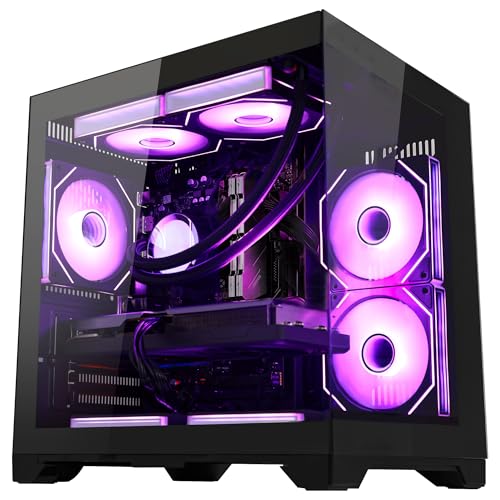
Mobile cloud gaming fills a distinct niche by offering high flexibility without the substantial financial commitment of hardware ownership. Gamers who travel frequently or share household screens appreciate playing large console libraries from a compact pocket device. Setting up a dedicated desktop gaming environment, such as one built around entry-level gaming desktops, requires dedicated space, monitor peripherals, and local component maintenance. Cloud streaming avoids these physical footprint demands entirely by shifting hardware maintenance and storage management to remote data centers.
Despite its immense convenience, cloud gaming cannot fully replace the reliability and offline capability of a personal desktop workstation. When internet connectivity drops, cloud access ceases immediately, preventing offline single-player sessions during flights or rural travel. Dedicated desktop rigs also permit extensive graphical customization, modding support, and uncapped frame rates tailored to individual display panels. Balancing both options allows players to enjoy high-fidelity desktop gaming at home while relying on mobile cloud streaming on the road.
Data usage considerations also influence whether cloud streaming serves as a primary or secondary gaming platform. Regular daily cloud play consumes hundreds of gigabytes of network bandwidth monthly, which can rapidly exceed restrictive home or cellular data caps. Desktop PCs, in contrast, consume data only during initial game downloads and periodic patch updates. Evaluating your monthly data allowances helps determine whether streaming represents an everyday gaming solution or a targeted convenience for travel.
Practical Next Steps for Mobile Cloud Play
Starting your mobile cloud gaming journey requires only a few measured preparation steps to ensure a satisfying experience. Verify that your subscription includes cloud features, install the appropriate web shortcut or application, and test your connection over 5 GHz Wi-Fi. Equipping your phone with a reliable physical gamepad like a direct-connected or low-latency Bluetooth controller substantially improves comfort and precision. Taking time to adjust your router settings and closing background mobile tasks will keep latency low and visual streams sharp.
As cloud streaming infrastructure continues to mature, mobile devices will remain versatile companions to traditional gaming rigs. While a local gaming desktop remains the gold standard for competitive responsiveness, graphical fidelity, and offline play, cloud streaming provides unprecedented portability for casual sessions. Selecting the right setup for your specific smartphone platform ensures you can pick up your favorite games whenever you step away from your desk. Verify your network readiness today to enjoy seamless console-quality gaming directly in the palm of your hand.






Write Your Review
No reviews yet. Be the first to share your experience!