
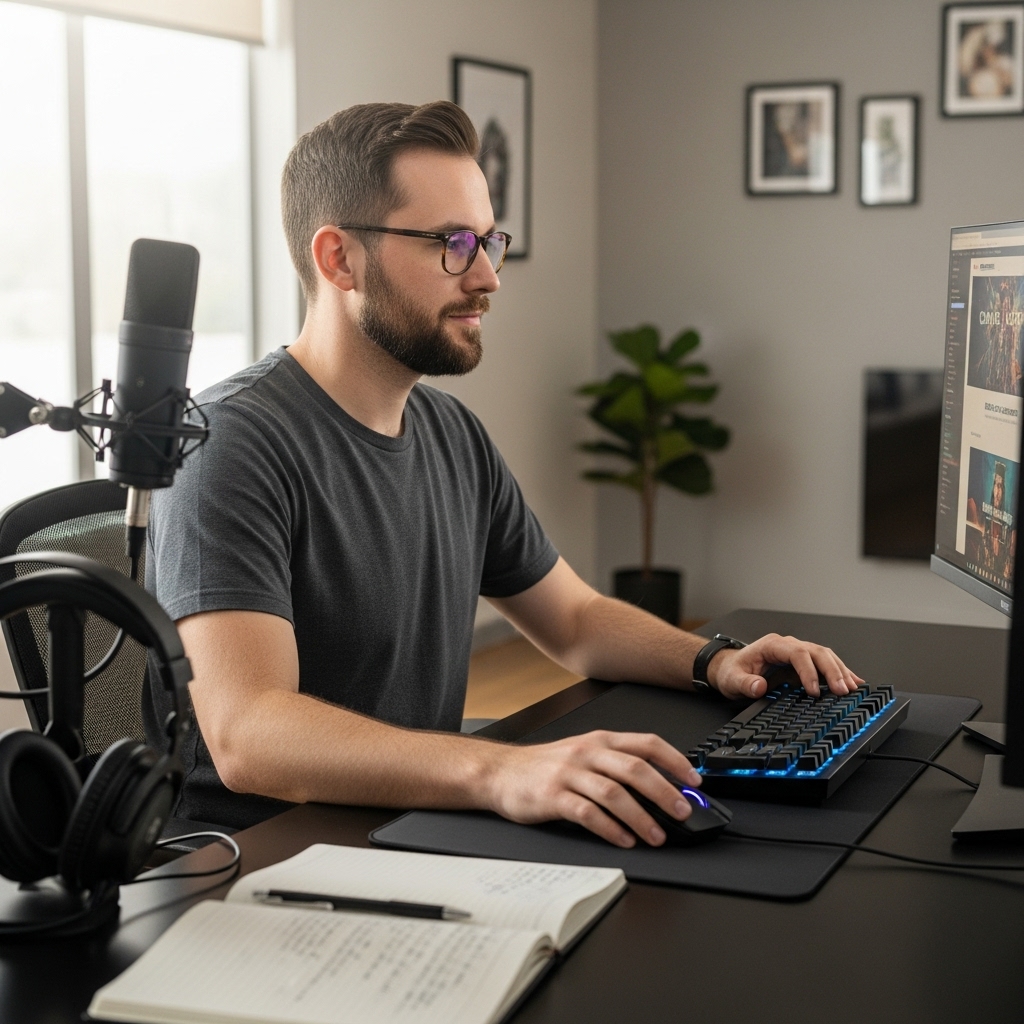

Setting up dual displays for gaming requires configuring your graphics card to treat them as separate screens rather than one stretched image. The key to how to use dual monitors while gaming is ensuring your hardware supports the total resolution and refresh rate of both panels simultaneously.
Many players assume that connecting two monitors automatically creates a seamless wide screen, but this often leads to input lag or lowered frame rates. Understanding the difference between extended and mirrored modes is the first step to optimizing your setup. This guide explains the technical requirements, physical arrangement, and software configurations needed to get the best performance from a dual-screen rig.
Whether you are using a dedicated graphics card or integrated graphics, knowing your limits prevents frustration during critical moments in a match. The following sections detail the specific steps to identify your hardware capabilities and arrange your displays for maximum comfort and visual clarity.


Pros
- Cost-effective dual-monitor solution right out of the box
- 1500R curved design reduces eye strain during long sessions
- Built-in speakers eliminate the need for external desktop speakers
- Custom gaming presets help tailor visuals for FPS and RTS games
Cons
- 75Hz refresh rate limits competitive advantage in fast-paced esports titles
- 1080p resolution may not satisfy users seeking higher pixel density for detailed work
- Built-in speakers likely lack bass and volume compared to dedicated speakers or headsets
The Kado Dual Monitor Setup delivers a practical and affordable entry into multi-monitor gaming and productivity. This bundle includes two 27-inch curved monitors with a 1500R radius, 1920x1080 resolution, and a 75Hz refresh rate. Designed for casual gamers, streamers, content creators, and work-from-home professionals, this setup aims to boost immersion and efficiency without a premium price tag.
For gaming, the 75Hz refresh rate and advertised fast response time help reduce motion blur and ghosting compared to a standard 60Hz panel. While it won't satisfy competitive esports players chasing 144Hz or higher, it works well for slower-paced genres like strategy games, RPGs, and open-world adventures. The built-in custom gaming modes (FPS and RTS) allow quick profile switching to adjust brightness and contrast for different game types. The 100% sRGB color coverage ensures colors look vibrant and accurate, making it suitable for light photo editing or content consumption.
The curved design is a highlight for multi-tasking. The slight curve wraps around your field of view, reducing eye strain and making it easier to glance between screens. The monitors also include built-in speakers, which are convenient for casual use or background audio, though you may still want a dedicated headset or speakers for immersive gaming or critical audio work. VESA 100x100mm mounting holes give you flexibility to use monitor arms to free up desk space.
Set up is straightforward. The package includes dual monitors with stands, and they connect via HDMI (though only one HDMI port per monitor appears typical at this price point). The stands offer tilt adjustment but lack height or swivel, so pairing them with VESA arms is recommended for ergonomic optimization. Cable management is basic, but the thin bezels (likely around 10-15mm) help create a near-seamless look when positioned side by side.
Potential limitations include the 1080p resolution, which may feel a bit soft for detailed productivity work on a 27-inch screen, and the absence of adaptive sync technologies like FreeSync. Also, the built-in speakers are a convenience feature rather than a high-fidelity audio solution. However, for the price of a single mid-range monitor, you get two decent screens that cover many gaming and work needs.
Overall, the Kado Dual Monitor Setup is a strong value for college gamers, casual players, budget-conscious streamers, and anyone setting up a home office or multi-tasking gaming station. If you're building a dual-screen rig without breaking the bank, this bundle simplifies the process and delivers a functional, immersive experience right away.
The Kado dual monitors feature a 27-inch 1080p VA or IPS-type panel (likely VA based on curvature and price) with 100% sRGB coverage. Colors appear vivid and accurate out of the box, though contrast may be decent for the price. The 1500R curve increases immersion, especially when the screens are arranged side by side. Viewing angles are adequate for a dual setup, though color shift may occur at extreme angles. The 75Hz refresh rate and fast response time reduce visible tearing and blur in most titles, but competitive gamers will still notice a lack of smoothness compared to higher refresh rates.
Each monitor ships with a stand that provides tilt adjustment but no height or swivel options. This means achieving an ideal eye level may require stacking or aftermarket monitor arms. Both monitors support VESA 100x100mm mounting, which is a huge plus for customizing your desk layout. The dual setup is simple to install: attach stands, connect power and HDMI cables, and you're ready. Cable management options are limited with the stock stands, but with VESA arms you can route cables more cleanly. The built-in speakers save space but won't replace a good headset for immersive gaming.
Configuring Dual Monitors for Gaming Performance
The primary challenge with dual displays is managing the bandwidth and processing power required to drive two distinct video streams. Your graphics card must handle the combined pixel load, which can significantly reduce your frame rate if the hardware is underpowered.
Before adjusting any software settings, verify that your GPU has enough video memory and output ports to support the desired resolution and refresh rate on both screens. If you are using integrated graphics, the system memory is shared, which often results in lower maximum frame rates compared to dedicated hardware. Checking your manufacturer’s specifications for supported output modes is the safest way to avoid bottlenecks.
| Configuration Mode | Visual Output | Gaming Suitability |
|---|---|---|
| Extended | Separate desktops on each screen | High (Independent refresh rates) |
| Mirrored | Identical image on both screens | Low (Doubled workload, single image) |
| Spanned | One large desktop across screens | Moderate (Requires high GPU power) |
Choosing the correct display mode is the most critical decision in this setup. Extended mode allows each monitor to run independently, which is ideal for gaming on one screen while using the other for chat or strategy maps. Mirrored mode duplicates the image, effectively doubling the workload on your GPU without providing any additional visual information for gameplay.
Spanned mode creates a single ultra-wide canvas, which is popular for simulation games but demands substantial processing power to maintain smooth motion. For most competitive and single-player titles, extended mode offers the best balance of performance and utility. You can switch between these modes in your operating system’s display settings, but the effect is immediate and reversible.
- Check GPU output ports for available connections
- Verify driver support for multi-monitor configurations
- Confirm refresh rate capabilities for each display
- Assess total resolution load on the graphics card
Physical Arrangement and Ergonomics
The physical placement of your monitors directly impacts both comfort and visual focus. A curved arrangement often reduces eye strain by keeping the edges of the screens within a natural field of view. Flat monitors placed side-by-side may require more head movement to scan the full width of the setup.
Ensuring that the top of the primary gaming monitor aligns with your eye level helps prevent neck fatigue during long sessions. The distance between the screens should be minimized to avoid a noticeable gap in the visual field, which can be distracting during fast-paced action. Using a monitor stand or arm can help achieve this precise alignment without cluttering your desk.
Cable management and power access are practical concerns that affect the stability of your setup. Loose cables can lead to accidental disconnections, which may cause the display to flicker or go black during gameplay. Securing cables with clips or ties keeps them out of the way and reduces the risk of physical damage.
Ensure that power outlets are accessible for both monitors and your PC, as power strips can become a tripping hazard if not managed carefully. A stable base for each monitor prevents shifting, which can alter the viewing angle and require constant readjustment. Taking a few minutes to organize the physical setup pays off in long-term reliability and comfort.
Software Settings and Refresh Rates
Configuring the refresh rates for each monitor is essential for a smooth gaming experience. In extended mode, you can set different refresh rates for each display, which is useful if one monitor is a high-refresh gaming panel and the other is a standard office display. The operating system handles the timing signals for each screen independently, allowing you to optimize performance for the primary gaming monitor.
If both monitors run at the same refresh rate, the system may synchronize them, which can introduce slight delays if the hardware is not optimized. Adjusting these settings in the graphics control panel provides more granular control than the default operating system options. Always apply changes and test them in a game before finalizing your configuration.
Input lag is a common concern when using multiple displays, as the system must process input for both screens. Modern graphics cards handle this efficiently, but older hardware may experience increased latency when driving two high-resolution panels. Reducing the resolution or refresh rate on the secondary monitor can help alleviate this issue if you notice input lag during gameplay.
Disabling unnecessary background applications on the secondary screen also frees up system resources for the primary game. Testing your input lag with a simple tool or by observing cursor responsiveness can help you determine if adjustments are needed. The goal is to ensure that the primary gaming experience remains as responsive as possible despite the additional display load.
Troubleshooting Common Display Issues
Black screens or flickering are typical problems that can occur when setting up dual monitors. These issues are often related to driver conflicts or insufficient power delivery to the graphics card. Updating your graphics drivers to the latest version usually resolves most compatibility issues with multi-monitor setups.
If one monitor works but the other does not, try swapping the cables or ports to isolate the problem. Restarting your computer after changing display settings can also clear temporary configuration errors. Keeping a record of which settings work and which do not helps you troubleshoot more efficiently in the future.
Mismatched color profiles can make the two monitors look different, which is distracting during gameplay. Calibrating both displays to similar brightness and contrast levels helps create a more uniform visual experience. Some monitors offer built-in calibration modes that can be used to match the color output of the other screen.
If the difference is significant, consider using a color calibration tool to fine-tune the settings. This step is particularly important if you are using the secondary monitor for creative work alongside gaming. A consistent visual experience reduces eye strain and helps you focus on the game without being distracted by color discrepancies.
- Update graphics drivers to the latest version
- Swap cables and ports to isolate hardware issues
- Adjust brightness and contrast for color matching
- Restart the system after changing display settings
Optimizing for Competitive Gaming
Competitive gamers often prioritize frame rate and input lag over visual fidelity on the secondary monitor. Setting the secondary display to a lower resolution or refresh rate can free up GPU resources for the primary game. This approach ensures that the main monitor runs at its maximum potential, providing the smoothest possible motion.
Some players use the secondary screen for non-essential tasks like chat or stats, which does not require high refresh rates. Balancing these settings allows you to maintain a high frame rate on the primary display while still utilizing the benefits of a dual-monitor setup. Experimenting with different configurations will help you find the optimal balance for your specific hardware and gaming style.
Peripheral positioning is another factor to consider for competitive setups. Keeping your mouse and keyboard centered relative to the primary monitor ensures consistent muscle memory. If the secondary monitor is placed too far to the side, it may force you to shift your body position, which can affect your aim.
Using a large desk mat that covers both monitors can help maintain a consistent surface for your mouse. This setup allows you to move your mouse freely across the entire width of the dual-display arrangement without lifting it off the surface. A stable and consistent peripheral setup is crucial for maintaining precision in competitive games.
Ultimately, the success of a dual-monitor gaming setup depends on your hardware capabilities and how well you configure the software. By understanding the trade-offs between resolution, refresh rate, and input lag, you can create a setup that enhances your gaming experience.
Regularly checking your system performance and adjusting settings as needed ensures that your setup remains optimized. The flexibility of dual monitors allows you to tailor your environment to your specific needs, whether for competitive play or casual gaming. Taking the time to configure each aspect of the setup properly will pay off in a smoother and more enjoyable experience.





Write Your Review
No reviews yet. Be the first to share your experience!