
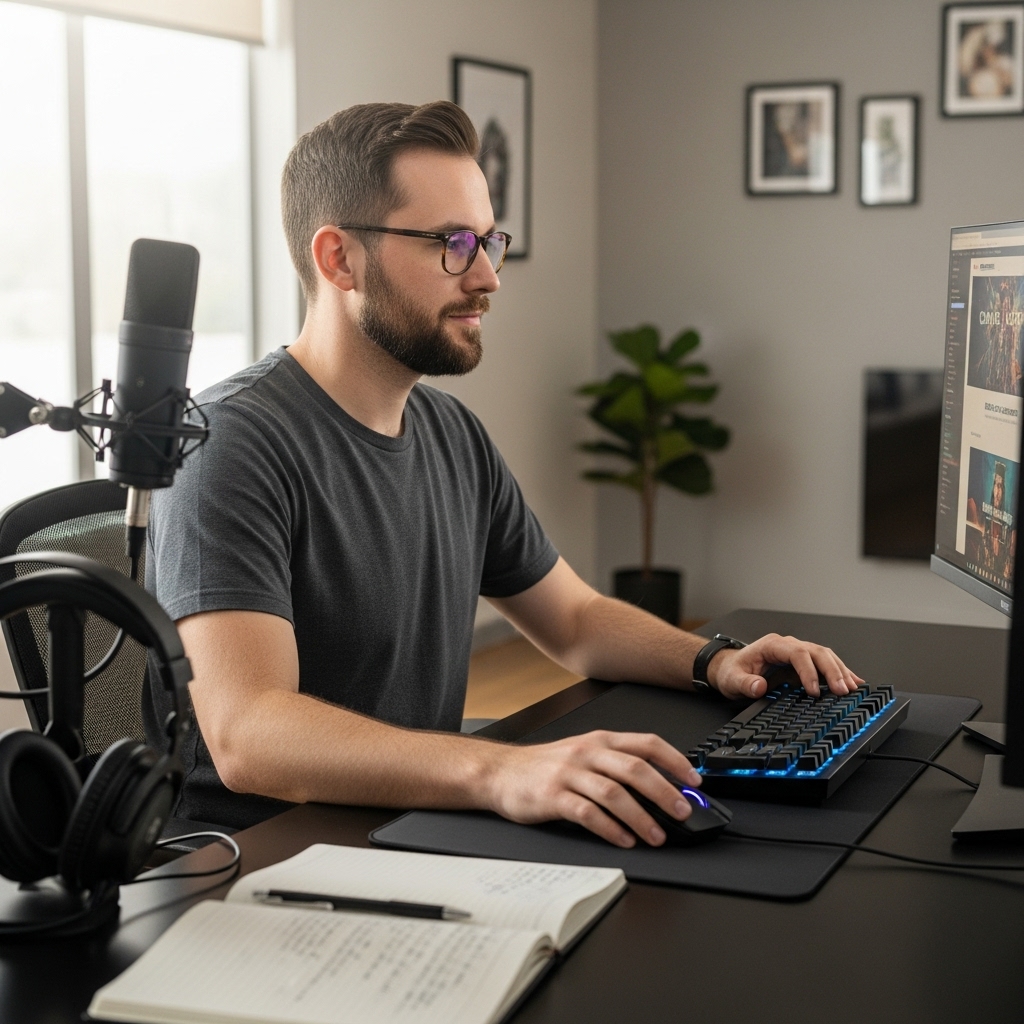

Setting up a compact desk or building an efficient dual-screen workstation often forces difficult space decisions. If you are trying to balance limited surface area against comfortable visual immersion, understanding exactly how big is 21.5 inch monitor will prevent costly spatial surprises. Measured diagonally, this screen class provides approximately 18.7 inches of horizontal display width and roughly 10.5 inches of vertical viewing area. That compact physical profile makes it a popular choice for dorm rooms, point-of-sale setups, and secondary displays, especially when compared against much larger display options for gaming and work.
Because physical screen measurements do not include outer bezels or desk stands, the actual footprint on your workstation will vary slightly depending on the specific chassis design. Most modern thin-bezel units add less than an inch of border width, meaning the monitor easily slips onto shallow desks where deeper stands would crowd your keyboard and mouse. Furthermore, running Full HD 1080p resolution across this diagonal produces a sharp pixel density of about 102 pixels per inch, offering clean text clarity and crisp game visuals. Whether you connect an everyday office machine or pair it with dedicated gaming console setups, this form factor delivers reliable visual utility without demanding extensive desktop real estate.


Physical Dimensions, Desk Fit, and Display Performance of 21.5-Inch Monitors
A 21.5-inch monitor offers a clear, compact middle ground between standard laptop screens and bulky desktop displays. When evaluating this size category, the headline number refers solely to the diagonal distance between opposite corners of the active display glass. To plan your workspace effectively, you must understand how that diagonal translates into actual horizontal width, vertical height, overall chassis bulk, and visual clarity.
Exact Physical Measurements and Viewable Screen Area
The active display area on a standard 16:9 widescreen 21.5-inch monitor measures approximately 18.74 inches horizontally and 10.54 inches vertically. Converting those numbers into metric units yields a viewable width of roughly 47.6 centimeters and a height of about 26.8 centimeters. This calculation accounts strictly for the illuminated pixels where images, text, and videos appear. Multiplying these two dimensions gives an active surface area of roughly 197.5 square inches, or around 1,275 square centimeters.
Because monitor manufacturers measure screens diagonally across the viewable glass, the diagonal equals precisely 54.6 centimeters. Understanding these base dimensions helps you visualize how content arranges itself across the screen before accounting for borders or base stands. Compared to smaller 19-inch panels, this screen provides roughly 28 percent more visual surface area, which noticeably reduces the need for constant window resizing. At the same time, it occupies substantially less space than a 24-inch or 27-inch panel, making it a functional choice when surface area is at a premium.
Bezel Design, Chassis Thickness, and Stand Footprint
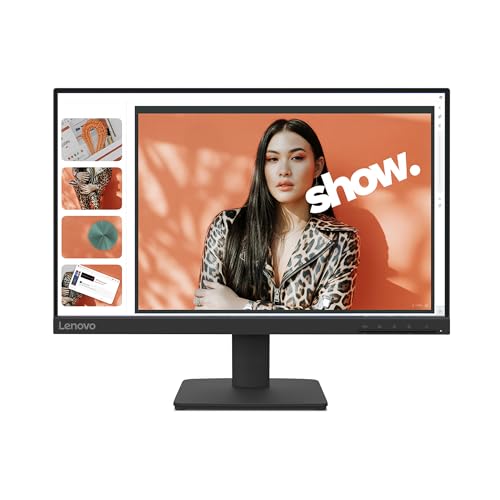
While the viewable display remains consistent across brands, the overall exterior dimensions depend heavily on the chassis and bezel construction. Modern desktop units like the Lenovo L22-4e and the Acer SB223Q incorporate near-borderless designs on three sides, adding only a few millimeters of plastic along the top and sides. With these slim bezels, the total physical width of the display casing typically lands between 19.1 and 19.4 inches. Units featuring thicker outer frames or integrated speakers, such as certain commercial touchscreens, can reach a total width closer to 20 inches.
Vertical height and physical depth are primarily dictated by the included desk stand. With its factory stand attached, a standard 21.5-inch monitor generally stands between 14.5 and 16.5 inches tall from your desk surface to the top bezel. The base footprint usually requires between 6 and 8 inches of depth, depending on whether the manufacturer uses a circular plate, a rectangular block, or angled support legs. If you select an ultra-slim panel, the screen enclosure itself may measure under an inch thick, whereas the base beneath it requires dedicated clearance to prevent tipping during adjustments.
Resolution and Pixel Density: How Full HD Looks at 21.5 Inches
Almost every contemporary 21.5-inch computer monitor features a native resolution of Full HD 1920 by 1080 pixels. Pairing 1080p resolution with a 21.5-inch diagonal creates a pixel density of roughly 102.46 pixels per inch. Pixel density determines how closely packed individual pixels are, which directly influences image sharpness and font rendering. On larger 27-inch 1080p screens, pixel density drops down to approximately 81.5 pixels per inch, which can lead to visible pixel structure and jagged text when viewed up close.
At 102.5 pixels per inch, text characters look well-defined and sharp without requiring artificial software display scaling in Windows or macOS. You can comfortably operate your operating system at the standard 100 percent scaling factor, maximizing your usable desktop real estate for productivity applications and browser windows. For spreadsheet work, document editing, and casual gaming, this level of clarity eliminates blurry anti-aliasing artifacts that often plague larger, low-density monitors. Graphic assets appear crisp and compact, making high-detail interface elements easy to discern during daily computing tasks.
Viewing Distance, Eye Comfort, and Workspace Ergonomics
Determining whether a 21.5-inch monitor fits your environment also depends on your natural viewing distance. Because the screen spans under 19 inches horizontally, your eyes can easily encompass the entire viewable area without requiring neck movement from side to side. The optimal viewing distance for this display size ranges between 20 and 28 inches, which roughly corresponds to an average arm’s length. Placing the monitor within this range allows you to read small text effortlessly while maintaining proper posture against your chair backrest.
Proper physical alignment remains critical for preventing eye strain and upper-body fatigue during extended computer sessions. Many budget and compact displays offer straightforward tilt adjustments, typically ranging from 5 degrees forward to 15 or 20 degrees backward. Displays like the Thinlerian 21.5-inch monitor feature integrated flicker-free backlighting and low blue light options to reduce visual exhaustion across long work hours. Positioning the top edge of the monitor casing directly at or slightly below eye level ensures your neck remains in a neutral, relaxed position throughout your workday.
Panel Technologies in 21.5-Inch Displays: IPS, VA, and QLED
The underlying panel technology shapes how colors, contrast, and brightness behave across the 21.5-inch viewing surface. In-Plane Switching (IPS) panels are the most common choice in this category, featured on models like the Lenovo L22-4e and Kenowa displays. IPS technology delivers wide 178-degree horizontal and vertical viewing angles along with dependable color accuracy, frequently covering 99 percent of the standard sRGB color gamut. This ensures colors do not shift or wash out when viewing the screen slightly off-center or sharing your screen with a colleague.
Other display options explore distinct visual strengths, including quantum dot enhancements and vertical alignment configurations. For example, the UPERFECT 21.5-inch portable display uses QLED technology, where a microscopic quantum dot film enhances LED backlighting to reach an extended 125 percent sRGB color gamut and up to 450 nits of peak brightness. Unlike self-emissive OLED panels where each pixel produces its own light, QLED is an advanced LCD implementation that delivers vibrant colors at higher brightness levels. If your work relies on deep black levels and high static contrast in dimmer rooms, reviewing contrasting vertical alignment panel displays helps clarify how panel chemistry impacts dark scene fidelity.
Gaming Performance: Refresh Rates, Motion Clarity, and Console Compatibility
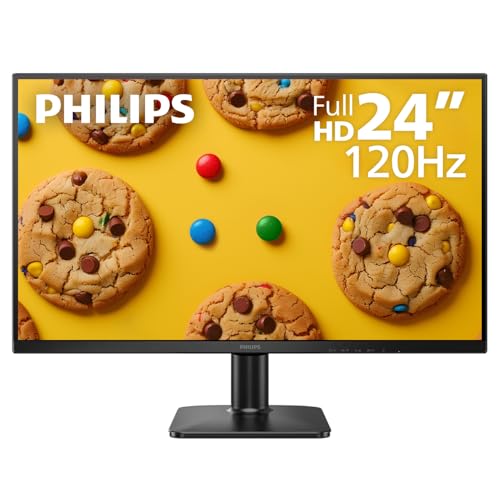
While larger displays often dominate high-end gaming conversations, compact 21.5-inch monitors provide surprisingly capable options for gaming. Modern releases have moved past standard 60Hz limitations, offering refresh rates of 75Hz, 100Hz, and even 120Hz on models like the Acer SB223Q. A 100Hz or 120Hz refresh rate renders more frames per second, creating smoother camera panning and reduced motion blur in fast-paced titles. However, your graphics card and system processor must be powerful enough to output matching frame rates; the monitor itself cannot generate extra performance out of your hardware.
Response time also plays an essential role in preserving motion clarity, with manufacturers advertising figures between 1 millisecond and 5 milliseconds. It is helpful to note that advertised response times often reflect maximum overdrive modes under specific laboratory conditions rather than uniform real-world pixel transitions. When connecting a gaming console like a PS4, Xbox, or Nintendo Switch, standard 1080p signals operate reliably over HDMI, although high refresh rates require console and game software support. Gamers who prioritize maximum tracking speed in competitive titles can review fast competitive gaming monitor setups to see how compact screens compare to tournament-standard 24-inch gear.
Touchscreen and Interactive Capabilities in Compact Formats
A distinct subset of 21.5-inch monitors incorporates multi-touch capacitive glass, transforming the compact screen into an interactive control surface. Displays such as the SKitphrati and Insykktrkig models feature 10-point multi-touch technology, allowing users to pinch, zoom, swipe, and tap directly on the screen without dedicated stylus pens. This form factor is particularly well-suited for point-of-sale registers, customer check-in stations, digital audio workstations, and factory floor monitoring where a separate keyboard and mouse might be impractical.
Operating these touch capabilities requires specific connectivity considerations that go beyond standard video cables. In addition to an HDMI or VGA cable for video signals, you must connect a dedicated USB Type-A to Type-B cable to transmit touch data between the display and your computer. Most modern operating systems recognize these touch inputs natively without requiring manual third-party driver installations. The physical footprint of a touchscreen unit remains compact, but you will want to ensure the desk stand or mounting bracket resists wobbling when your fingers apply pressure to the glass.
Portable 21.5-Inch Screens: Weight, Power, and Mobility
While most 21.5-inch monitors remain anchored to desktop workstations, oversized portable monitors have expanded how this size class gets used. Devices like the Kenowa 21.5-inch portable monitor weigh approximately 4.27 pounds (1.94 kilograms) and feature an ultra-slim 0.35-inch (9 millimeter) profile. These displays cater to traveling professionals, remote software engineers, and mobile technicians who need substantial display space inside hotel rooms, temporary offices, or mobile production carts.
Carrying a 21.5-inch portable display requires careful planning because the device will not fit inside standard laptop backpacks. Unlike smaller 15.6-inch portable displays that draw sufficient power directly over a single USB-C cable from a laptop, large 21.5-inch panels typically require an external DC power adapter. Integrated kickstands allow you to set the display at 90-degree angles on any flat surface, while built-in dual speakers provide standalone media audio. If you intend to transport a monitor of this scale regularly, verifying dedicated travel bag protection and power outlet availability is essential.
Desk Mounting and Multi-Monitor Configurations
Mounting a 21.5-inch monitor on an adjustable arm or wall bracket is one of the most effective ways to reclaim desk space on smaller workstations. Most models in this category feature industry-standard VESA mounting patterns, typically measuring 75 by 75 millimeters or 100 by 100 millimeters on the rear casing. Removing the desktop stand eliminates the base footprint entirely, letting the screen float directly above your desk surface. Because these displays generally weigh between 4 and 7 pounds, almost any standard desktop monitor arm can easily support them.
This compact diagonal also makes 21.5-inch screens exceptionally well-suited for multi-monitor arrays. Placing two 21.5-inch displays side by side spans approximately 38.5 inches of horizontal desk space, providing ample multitasking capability without overwhelming your peripheral vision. Alternatively, rotating one 21.5-inch monitor into a vertical portrait orientation creates a tall, narrow window measuring roughly 11 inches wide and 19.5 inches high. This vertical configuration is widely favored by software developers reading code, writers editing long manuscripts, and professionals monitoring live data feeds.
A 21.5-inch monitor delivers a practical combination of space efficiency, sharp pixel density, and versatile mounting potential for compact workspaces. With an active screen width of 18.7 inches and an overall desk footprint under 20 inches wide, it provides comfortable visual utility without dominating your available desk surface. By measuring your workstation depth, verifying your required ports, and matching the panel specifications to your daily tasks, you can select a compact display that integrates seamlessly into your setup.


Write Your Review
No reviews yet. Be the first to share your experience!