

Cloud gaming has reshaped how players access demanding titles, allowing high-fidelity experiences on hardware that lacks a dedicated discrete graphics processor. When setting up a portable or remote session, mastering how to connect virtual controller to cloud gaming is essential for navigating titles designed around traditional gamepads. Cloud platforms like Xbox Cloud Gaming, GeForce NOW, and Amazon Luna often support on-screen touch interfaces or software-emulated gamepads that translate taps into standard XInput commands. Players who also maintain budget custom gaming PC builds frequently rely on virtual controller mapping to stream games directly from their home desktop to mobile devices without carrying dedicated hardware.
Navigating these software inputs requires balancing input responsiveness, screen visibility, and driver compatibility. While virtual controllers offer immediate convenience for turn-based games or casual sessions, fast-paced action titles expose the physical limitations of touch overlays and network overhead. Understanding the distinction between software-emulated touch overlays and direct-connected hardware controllers helps players configure the right setup for their target games. By examining connection protocols, virtual driver layers, and platform-specific settings, gamers can establish reliable controls across both cloud services and local PC streaming environments.


Complete Guide to Virtual Controllers and Cloud Gaming Setup
Connecting a virtual controller to cloud gaming services enables access to console and PC titles directly through mobile screens, lightweight laptops, or browser clients. Whether using native touch overlays or configuring third-party gamepad emulators, setting up virtual inputs requires understanding how cloud servers register game controller signals. This guide details how to configure virtual controllers, optimize input responsiveness, and determine when dedicated physical hardware provides a necessary upgrade over touch-based interaction.
Understanding How Virtual Controllers Function in Cloud Environments
Virtual controllers operate as software-based interfaces that simulate physical gamepad hardware by translating screen touches or emulated software hooks into standardized input signals. In cloud gaming ecosystems, remote servers generally expect input packaged as Microsoft XInput or standard DirectInput protocols. When a player touches a virtual analog stick on a smartphone display, client software converts those coordinates into gamepad axis data before bundling it into the outgoing network stream. The cloud server receives these packets, registers them as physical button presses, and renders the corresponding in-game action on remote hardware.
Cloud platforms implement these virtual controllers in two distinct ways: built-in custom overlays or generic emulation layers. Services such as Xbox Cloud Gaming provide custom-designed touch layouts for select titles, adapting controls dynamically based on in-game menus, driving mechanics, or combat stances. In contrast, generic virtual controllers render a static representation of a standard controller layout across the display regardless of context. While generic overlays guarantee that every standard button remains accessible, they often obscure crucial visual details and demand precise thumb placement to avoid missed inputs.
Step-by-Step Configuration Across Major Cloud Gaming Platforms
Enabling virtual touch controls on Xbox Cloud Gaming begins by launching the service through a supported mobile browser or the native Xbox Game Pass application. Players should navigate to the cloud catalog and select titles tagged with touch-compatible icons, indicating developer-tuned virtual layouts. Once a supported game starts, the client automatically renders contextual touch buttons on top of the video feed without requiring manual driver pairing. If a non-touch game is loaded, users can toggle the basic virtual controller option within the streaming settings overlay to generate a standard dual-stick layout.
For NVIDIA GeForce NOW, configuring an on-screen controller requires opening the streaming session and accessing the in-game overlay menu. Players can swipe down or tap the top navigation bar to open the options panel, where selecting the gamepad icon activates the virtual controller overlay. GeForce NOW allows users to adjust button transparency, reposition key elements, and enable virtual mouse tracking for PC game launchers. These customization options are particularly valuable for PC titles that feature complex user interfaces or require occasional pointer navigation.
Amazon Luna offers a similar workflow through its mobile web application and dedicated client software. Launching a game without a connected physical controller prompts the platform to display its standard virtual Luna controller overlay. Users can adjust haptic vibration feedback on supported smartphones to receive subtle tactile confirmation when pressing virtual buttons. Verifying that the mobile operating system grants unrestricted touch input permissions ensures that multi-touch gestures, such as aiming while jumping and firing, register without dropped inputs.
Software Gamepad Emulation for Local Desktop Streaming
Gamers who stream titles from their own desktop PC rather than third-party cloud data centers often utilize software-based virtual gamepad drivers. Applications like Moonlight, Steam Link, or Parsec rely on host-side virtual input drivers, such as ViGEmBus, to synthesize virtual Xbox or PlayStation controllers on Windows. When you connect a mobile device running a virtual controller app to your desktop, the client streams touch coordinates over your local network to the host machine. The host driver intercepts these packets and presents them to Windows as an authentic hardware gamepad plugged into the system.
Setting up this environment requires installing the host streaming software and ensuring Windows recognizes the virtual bus architecture. Checking the Windows Device Manager under human interface devices confirms that the virtual game controller driver is installed and operating correctly without resource conflicts. Gamers who maintain high-performance desktop rigs frequently consult our dedicated desktop graphics card guide to evaluate hardware encoding engines like NVENC or AMF, which process remote video streams rapidly while virtual controller drivers handle input packets. Properly configuring both host encoding and virtual input polling prevents micro-stuttering during remote gameplay sessions.
Managing Input Latency and Network Response Times
Input latency represents the primary challenge when using virtual controllers in cloud and remote gaming environments. In a traditional local PC setup, controller polling delay measures between one and five milliseconds over high-speed USB or low-latency wireless. Cloud gaming introduces multiple latency layers: touch sampling on the glass screen, network transmission to the cloud server, game engine processing, remote video encoding, and local video decoding. When virtual controller touch inputs add even minor processing delays, the cumulative latency can make competitive shooters or timing-sensitive platformers feel unresponsive.
Minimizing input lag requires optimizing both local wireless connectivity and display settings. Connecting to a five-gigahertz or six-gigahertz Wi-Fi network rather than crowded two-point-four-gigahertz bands dramatically stabilizes packet delivery times and reduces jitter. Mobile devices should have background app refresh disabled and low-power modes turned off to prevent operating-system throttling of touch sampling rates. Furthermore, positioning the client device closer to the router and selecting cloud servers with low physical ping times ensures that virtual button commands reach the game engine with minimal transit delay.
Screen Real Estate, Touch Ergonomics, and Tactile Limitations
While virtual controllers eliminate the need to carry external hardware, they introduce notable ergonomic and visual compromises. Resting thumbs directly on a smartphone or tablet screen inevitably blocks ten to twenty percent of active display space, hiding health bars, mini-maps, or approaching opponents. Unlike physical buttons with distinct mechanical travel, smooth glass provides zero tactile boundaries to confirm thumb positioning. Over extended gaming sessions, players frequently drift away from the center of virtual analog sticks, resulting in unintended stops or misdirected character movement.
Touch-based interaction also restricts simultaneous multi-finger execution unless users adopt uncomfortable hand postures. Performing actions like sprinting, jumping, rotating the camera, and firing concurrently is straightforward on a physical gamepad using shoulder triggers and face buttons. On a flat touch screen, executing these simultaneous actions requires awkward claw grips that induce hand strain during lengthy sessions. For slow-paced strategy games, deck builders, and turn-based role-playing titles, virtual controllers remain practical, but complex three-dimensional titles quickly expose their functional limits.
When Physical Mobile Hardware Replaces Virtual Controller Overlays
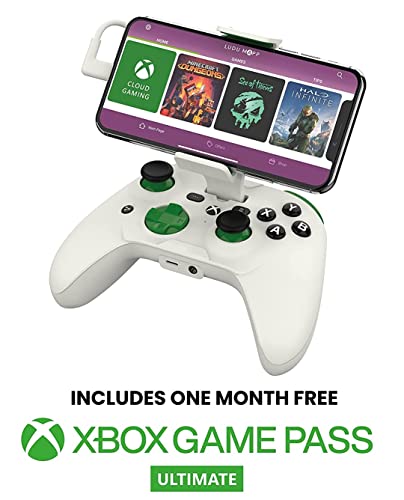
Transitioning from virtual on-screen controls to physical mobile controllers resolves the primary drawbacks of touch-based cloud gaming. Hardware controllers restore full screen visibility by relocating inputs to dedicated grips, analog sticks, and tactile trigger assemblies. Dedicated gamepads deliver mechanical resistance and centering springs, allowing players to execute precise micro-adjustments that glass screens cannot replicate. For gamers who stream demanding titles from cloud servers or remote desktops, investing in physical mobile hardware bridges the gap between mobile convenience and console-style control.
Market options provide distinct approaches to mobile cloud gaming, ranging from direct-connected grips to wireless clamping accessories. Devices such as the RiotPWR Mobile Cloud Gaming Controller and the RiotPWR Cloud Gaming Controller for iOS devices employ physical Lightning or USB-C connections that bypass wireless interference entirely. Meanwhile, split-chassis alternatives like the Turtle Beach Atom Mobile Game Controller clamp securely around smartphones using low-latency Bluetooth while collapsing into a compact footprint for travel. Comparing these physical form factors helps players determine whether wired integrity or wireless flexibility best matches their portable gaming habits.
Comparing Direct-Connected Controllers and Low-Latency Bluetooth
Direct-connected controllers offer distinct advantages for cloud gaming by establishing a wired communication pipeline with the host mobile device. The RiotPWR Mobile Cloud Gaming Controller connects directly through an integrated cable, eliminating the pairing procedures, signal drops, and extra transmission latency associated with wireless radios. Because cloud gaming already introduces network transmission latency, removing local Bluetooth latency ensures that input packets dispatch instantly over the network. Furthermore, wired designs allow pass-through charging, enabling players to power their mobile device during intense sessions without battery depletion.
Cable versatility also provides long-term value across evolving mobile device generations. The RiotPWR Cloud Gaming Controller for iOS devices addresses modern port transitions by including interchangeable Lightning and USB-C cables, allowing compatibility across different iPhone and iPad models. Direct connections also facilitate integrated audio processing, offering dedicated headphone sockets and audio digital-to-analog converters that bypass wireless audio lag. Gamers who prioritize zero-latency input and synchronized audio find wired controllers an effective replacement for finicky virtual touch overlays.
Wireless mobile controllers provide unmatched portability and ergonomic flexibility when designed with dedicated gaming protocols. The Turtle Beach Atom Mobile Game Controller utilizes a two-piece modular design that clamps onto Android smartphones and fuses together magnetically for travel. Its low-latency Bluetooth connection operates alongside an independent wireless link between the left and right control modules, maintaining console-style ergonomics across varied phone sizes. With a manufacturer-rated twenty-hour battery life and companion app customization, wireless clamping controllers offer an excellent balance of comfort and mobility for gamers who dislike physical cables.
Troubleshooting Common Virtual Input and Driver Mapping Issues
When virtual controllers fail to respond or register erratic movements, the root cause typically stems from permission conflicts, browser restrictions, or driver mismatches. On mobile browsers, enabling full-screen mode and granting touch event permissions prevents the browser interface from intercepting game gestures. If analog sticks become stuck or suffer from severe drifting, toggling the virtual overlay off and on resets software coordinate calibration. Closing background applications that use overlay permissions, such as screen recorders or messaging bubbles, eliminates touch interference that can disrupt virtual button detection.
For desktop streaming setups, input conflicts often occur when Windows fails to assign the virtual controller to primary player status. Opening the Windows Game Controllers control panel (joy.cpl) verifies whether the virtual XInput device is detected and responding to input commands. If a local physical controller was previously connected, Windows may prioritize the disconnected hardware over the active virtual stream. Disconnecting unused USB gamepads and updating virtual bus software ensures that incoming cloud and streaming inputs map correctly to player one.
Optimizing Your Gaming PC and Remote Streaming Ecosystem
Achieving seamless remote gaming requires balancing the host computer’s performance with client-side controller configurations. Players who utilize remote desktop streaming alongside cloud subscriptions must ensure that their host machine handles video capture without introducing frame drops. Those operating compact or integrated systems, such as all-in-one gaming desktop setups, should verify thermal headroom and monitor background CPU usage during streaming tasks. Setting stream encoders to prioritize low-latency profiles over ultra-high bitrates preserves input responsiveness across virtual and physical controllers alike.
Ultimately, deciding between virtual on-screen inputs and dedicated physical hardware depends on your preferred gaming genres and session lengths. Casual, turn-based, and narrative titles perform adequately using touch overlays, offering maximum convenience without added accessories. However, action games, first-person shooters, and competitive multiplayer titles benefit substantially from the tactile feedback, precision, and zero-latency response of dedicated controllers. Understanding your platform’s controller mapping options ensures an enjoyable gaming experience whether playing on a custom desktop rig or streaming via the cloud.




Write Your Review
No reviews yet. Be the first to share your experience!