
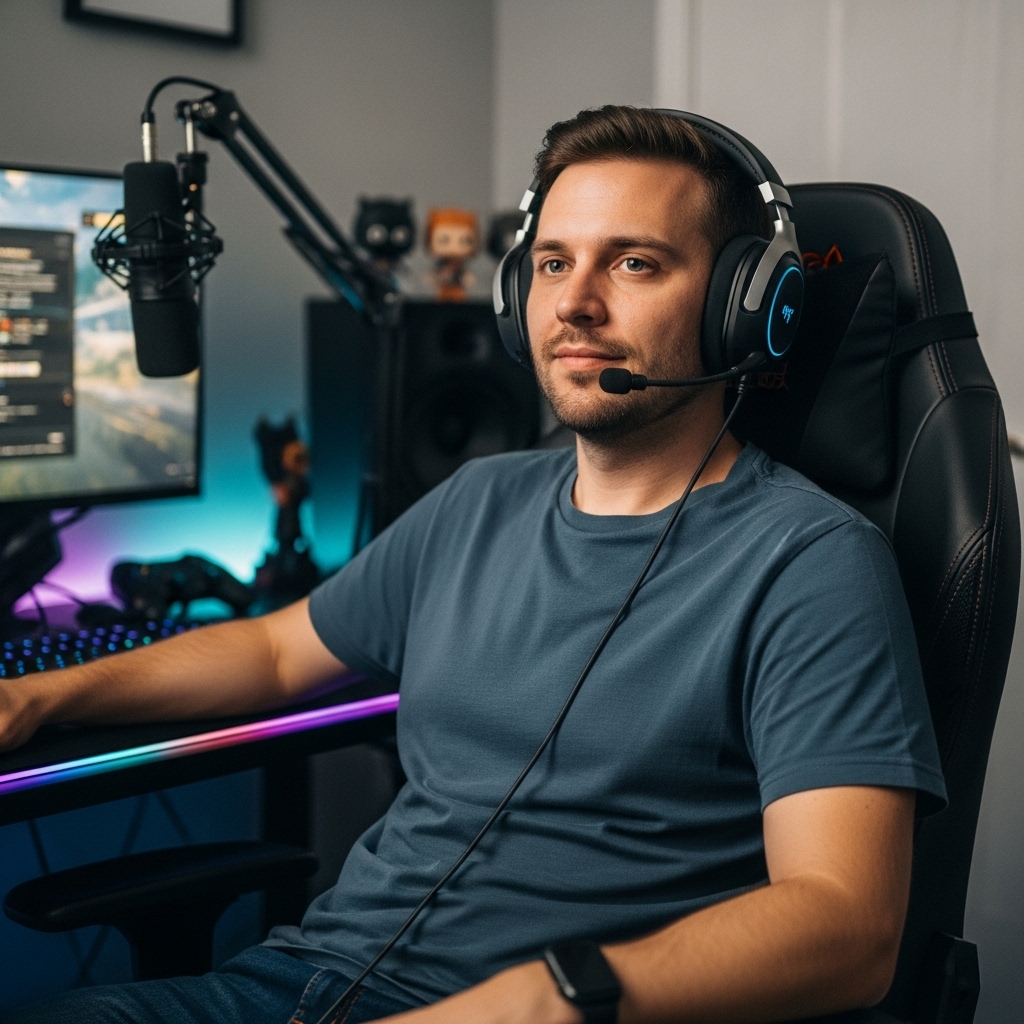

Upgrading a desktop workstation or gaming battle station often forces a difficult choice between adding a second display or sticking with a crowded single panel. Many computer users discover that dual screens introduce thick bezels right down the center of their field of view. When evaluating wider display options, learning what is an ultrawide monitor reveals how extra horizontal screen space can transform daily computing without adding messy extra cables. Unlike traditional 16:9 displays, these stretched panels expand your peripheral vision and streamline modern productivity. Comparing them to conventional widescreen monitors helps show whether wider aspect ratios fit your desk.
Gaming enthusiasts and professionals alike often gravitate toward these displays for increased situational awareness and massive timeline editing space. However, running these expansive screens requires understanding native resolutions, refresh rates, and whether your graphics card can handle the extra pixel count. Pairing wider formats with capable graphics hardware for high resolutions ensures that titles run smoothly rather than dropping frames during demanding action scenes. This practical overview explains how wider aspect ratios function, covers key hardware considerations, and highlights the trade-offs you should evaluate before choosing your next desktop screen.

Pros
- UltraWide 21:9 QHD display with 1800R curve delivers immersive gaming and productivity.
- Built-in webOS provides instant access to streaming apps without a separate device.
- 100Hz refresh rate and HDR10 enhance visual fluidity and color richness.
- Multiple connectivity options including HDMI and USB for versatile device pairing.
- Sleek, frameless white design fits well in modern gaming or office setups.
Cons
- 100Hz refresh rate may not satisfy competitive gamers seeking higher refresh rates like 144Hz or 240Hz.
- Built-in speakers may lack depth for immersive gaming; external speakers or headphones recommended.
- Limited to 99% sRGB color gamut; professional color-critical work may require wider gamut coverage.
The LG 34SR60QC-W is a 34-inch UltraWide QHD curved smart monitor that redefines versatility for PC gamers, streamers, and productivity users. With a 3440x1440 resolution and 21:9 aspect ratio, this monitor offers a 34% wider field of view compared to standard 16:9 displays, making it an excellent choice for immersive gaming, multitasking, and content creation. The 1800R curve wraps around your vision, pulling you into games and movies alike, while the 100Hz refresh rate ensures smoother motion in casual and fast-paced gaming scenarios.
This monitor is best suited for PC gamers who value a balance of work and play, especially those who stream or watch content on platforms like Netflix, Prime Video, or Disney+ via the built-in webOS23. The smart platform eliminates the need for a separate streaming device, letting you switch between gaming and entertainment seamlessly. For competitive esports players, the 100Hz refresh rate may feel less responsive than higher-end gaming monitors, but for casual gamers and those who enjoy open-world RPGs or strategy games, it provides a fluid, enjoyable experience without breaking the bank.
Build quality is solid with a virtually frameless 3-side bezel design that maximizes screen real estate and looks clean on any desk. The white finish adds a modern touch, fitting well in RGB setups or minimalist gaming rooms. Connectivity is robust with two HDMI ports and three USB ports, allowing you to hook up a gaming PC, console, and peripherals simultaneously. Apple AirPlay2 and HomeKit support let you mirror content from iOS or macOS devices wirelessly, adding convenience for content creators or work-from-home gamers who need to share screens quickly.
Setup is straightforward thanks to the included stand and intuitive webOS interface. The monitor supports cloud PC services like Microsoft 365 and Google apps, making it a capable tool for college gamers or remote workers who need a second screen for notes or spreadsheets. The 99% sRGB color gamut and HDR10 support deliver vibrant visuals, though professional editors may desire wider color accuracy. The built-in speakers are adequate for casual viewing but lack bass and volume for immersive gaming, so pairing with a quality headset or external speakers is recommended.
One realistic limitation is the 100Hz refresh rate, which may not satisfy competitive gamers who prioritize high frame rates in titles like Valorant or CS:GO. Additionally, the monitor's 34-inch size and curved design require a desk depth of at least 24 inches for comfortable viewing. Cable management is decent, but the white finish may show dust more easily. Overall, this monitor excels as a multi-purpose display for gaming, streaming, and productivity, offering excellent value for those who want a single screen that does it all.
For PC gamers who enjoy a mix of casual gaming, streaming, and work, the LG 34SR60QC-W is a practical choice that combines UltraWide immersion with smart features. It's also a great fit for streamers who want to monitor chat or browse the web without a second screen, thanks to the built-in webOS. If you're a competitive esports player, you might prefer a higher refresh rate monitor, but for most users, this LG delivers a compelling, all-in-one experience that enhances both gaming and daily computing.
Pros
- UltraWide 21:9 aspect ratio boosts productivity and gaming immersion
- 100Hz refresh rate ensures smooth gameplay and fluid motion
- VESA DisplayHDR 400 and wide color gamut deliver impressive HDR visuals
- USB-C port simplifies connectivity with laptops and reduces cable mess
- Ergonomic stand with full adjustability for comfortable long sessions
Cons
- WFHD resolution (2560x1080) may not be as sharp as higher-resolution UltraWide monitors
- Built-in speakers are adequate but lack depth for critical gaming audio
- Limited to 100Hz, which may not satisfy competitive gamers seeking higher refresh rates
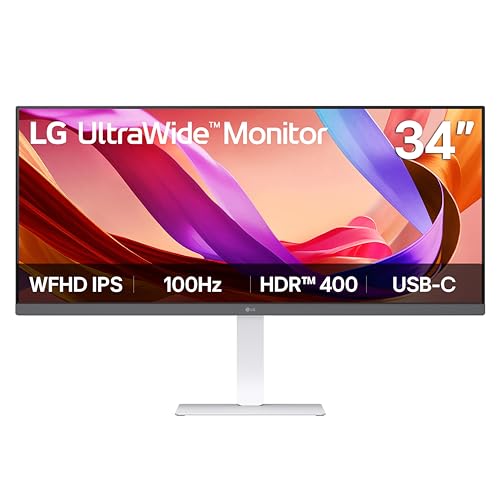
The LG 34U530A-W is a 34-inch UltraWide WFHD IPS monitor designed for PC gamers, streamers, content creators, and anyone who wants to level up their desktop setup. With a 21:9 aspect ratio, this monitor gives you extra horizontal screen real estate, making it easier to keep multiple windows open side by side. Whether you're gaming, streaming on Twitch, or working on a project, the wider view helps you see more at once.
For gamers, the 100Hz refresh rate is a solid step up from standard 60Hz monitors. It provides smoother motion in fast-paced games like FPS and MOBA titles, reducing screen tearing and making quick movements feel more fluid. The IPS panel ensures consistent colors and wide viewing angles, so the image stays clear even if you're not sitting dead center. VESA DisplayHDR 400 support boosts brightness and contrast, giving HDR content more pop, though it's not the highest HDR tier available.
Connectivity is a strong point here. The USB-C port supports both display output and data transfer, letting you hook up a laptop with a single cable. This is a huge convenience for streamers or college gamers who switch between devices. The monitor also includes HDMI and DisplayPort inputs, so you can connect your gaming PC, console, or streaming gear without hassle.
Build quality is practical and thoughtful. The slim L-shaped stand and compact square base free up desk space, which is great for tidy cable management and RGB setups. The stand offers tilt, height, and swivel adjustments, so you can dial in a comfortable viewing angle for long gaming sessions or all-night streaming marathons. The white color option adds a clean, modern look to any gaming desk or dorm room.
One realistic limitation is the WFHD resolution (2560x1080). While it's a good match for the 100Hz refresh rate and keeps GPU demands lower, it's not as sharp as 1440p or 4K UltraWide panels. If you're a competitive gamer who craves the highest pixel density, you might want to look elsewhere. The built-in speakers are decent for casual use, but serious gamers and streamers will likely prefer dedicated headphones or external speakers for better audio clarity.
Overall, the LG 34U530A-W is a strong choice for PC gamers, streamers, and multitaskers who value screen real estate, smooth visuals, and easy connectivity. It works well for casual and competitive gaming, content creation, and home office tasks. The adjustable stand and USB-C convenience make it a practical addition to any gaming setup or work-from-home desk.



Pros
- High 165Hz refresh rate and fast 1ms MPRT for responsive gaming.
- Ultrawide 21:9 ratio enhances immersion in open-world and racing games.
- PIP/PBP feature adds versatility for multitasking or streaming.
- Strong color accuracy with DCI-P3 95% coverage.
- Affordable price point for a 34-inch UWQHD gaming monitor.
Cons
- No built-in speakers; external audio is required.
- Maximum 100Hz over HDMI; full 165Hz requires DisplayPort connection.
- Limited ergonomic adjustments (tilt only) and no height or swivel.
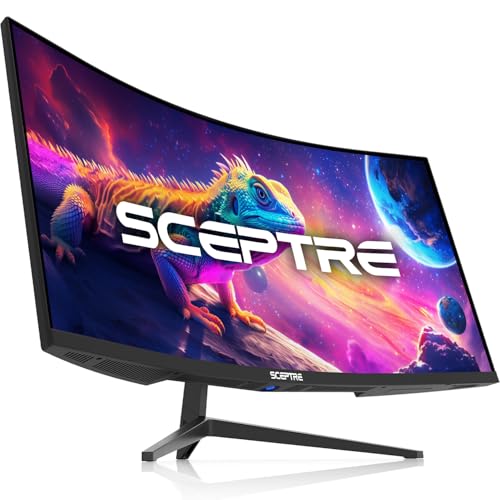
The SANSUI 34-inch curved gaming monitor is a wide-screen ultrawide display designed for PC gamers, esports players, and streamers who want an immersive field of view without breaking the bank. With a 1500R curvature, UWQHD 3440x1440 resolution, and a 165Hz refresh rate, this monitor aims to deliver smooth, detailed visuals for everything from fast-paced shooters to expansive open-world titles.
This monitor is best suited for competitive and casual gamers who prioritize responsiveness and visual clarity. The 1ms MPRT response time and FreeSync support help reduce motion blur and screen tearing, making it a reliable choice for FPS games like Valorant or Call of Duty, as well as racing sims and MOBAs. Streamers and content creators will also appreciate the PIP/PBP mode, which lets you display two inputs at once, handy for monitoring chat or using a second PC.
In terms of performance, the 165Hz refresh rate over DisplayPort ensures smooth, low-latency gameplay, while the VA panel offers good contrast and wide viewing angles. The sRGB 125% and DCI-P3 95% color coverage provides punchy, accurate colors out of the box, beneficial for both gaming and light creative work. The 300 nits brightness is adequate for indoor use, but may struggle in very bright rooms.
Build quality is solid for the price, with a sturdy stand that offers tilt adjustment but lacks height or swivel. The monitor is VESA 75x75mm compatible, so you can easily mount it on an arm or wall. Cable management is basic, but the included DP cable and multiple ports (2x DP 1.4, 2x HDMI) give you flexibility. Note that the HDMI ports are limited to 100Hz, so you'll need DP for the full 165Hz.
Setting up the monitor is straightforward, and the on-screen display is easy to navigate. There are no built-in speakers, so you'll need a headset, external speakers, or a soundbar for audio, which is common for gaming monitors. The lack of speakers may be a consideration for those who prefer a clean all-in-one setup. Maintenance involves occasional screen cleaning with a microfiber cloth.
A realistic limitation is the absence of height adjustment and swivel, which might require a separate monitor arm for optimal ergonomics. Additionally, the 100Hz cap on HDMI means you'll need a compatible DP cable (included) to hit 165Hz. Overall, this monitor is an excellent value for PC gamers and gaming setup builders looking for an ultrawide high-refresh experience without spending a fortune. It works well for dorm room gaming, home office productivity, and streaming rigs where desk space is at a premium.
The SANSUI 34-inch curved monitor delivers a compelling gaming experience thanks to its 165Hz refresh rate and 1ms MPRT response time. In fast-paced FPS games, motion blur is minimal, and the UWQHD resolution provides a wider peripheral view, giving you a competitive edge in shooters. FreeSync compatibility helps eliminate screen tearing when paired with an AMD GPU, ensuring fluid gameplay. The VA panel's deep blacks and good contrast ratio further enhance immersion in darker game environments.
The monitor's construction is sturdy for its price segment, with a matte black plastic bezel and a solid stand that supports tilt adjustment. The VESA 75x75mm mounting pattern allows for easy attachment to monitor arms or wall mounts, freeing up desk space. While the stand lacks height and swivel adjustments, it feels stable on a desk. The port placement at the rear is convenient, and the included DP cable is a nice touch. Overall, build quality is reliable for everyday gaming and work use.
The 34-inch UWQHD (3440x1440) VA panel offers sharp image quality with a 21:9 aspect ratio that's great for immersive gaming and multitasking. Color accuracy is above average with 95% DCI-P3 and 125% sRGB coverage, so games and movies look vibrant. The 300 nits brightness is fine for indoor use, and the 1500R curvature wraps around your field of view without being too aggressive. Viewing angles are good for a VA panel, with minimal color shift when viewed from the sides.
Understanding Ultrawide Displays: Form Factor, Performance, and Practical Trade-offs
At its simplest, an ultrawide display is any computer screen with an aspect ratio wider than the standard 16:9 widescreen format, most commonly utilizing a 21:9 or 32:9 proportion. These displays expand the horizontal plane significantly while keeping vertical height comparable to standard monitors. Before deciding whether to add one to your workspace or gaming setup, you should understand how this hardware impacts software compatibility, visual ergonomics, and processing demands.
The Fundamental Definition: Aspect Ratios and Horizontal Screen Real Estate
Standard widescreen monitors feature a 16:9 aspect ratio, which means the screen measures sixteen units wide for every nine units of vertical height. In contrast, an ultrawide display typically adopts a 21:9 aspect ratio, delivering approximately thirty-three percent more horizontal space than a traditional panel of comparable height. Super ultrawide panels expand this concept further to a 32:9 aspect ratio, essentially placing the screen area of two full 16:9 monitors inside a single unbroken enclosure.
Understanding physical dimensions is equally important when evaluating screen sizes. A thirty-four-inch 21:9 display provides roughly the same vertical height as a conventional twenty-seven-inch 16:9 monitor, but stretches considerably wider across your desk. Similarly, a massive forty-nine-inch 32:9 monitor matches the vertical height of two side-by-side twenty-seven-inch screens. This physical geometry ensures that text and application menus remain at a comfortable viewing scale without shrinking into the vertical margins.
This additional horizontal real estate fundamentally changes how software interfaces occupy your visual field. In desktop environments, users can position two or three browser windows side by side without compressing text or causing horizontal scrollbars to appear. Creative professionals editing video timelines gain substantial linear tracking room, seeing extended clips without constantly zooming in and out. Because there is no plastic frame cutting across the middle of your visual field, workflow organization feels seamless.
Standard Resolutions: From Ultrawide Full HD to Dual Quad HD
Resolution on an ultrawide monitor depends on screen size and panel tier, directly influencing overall pixel density and visual clarity. The entry level standard is Ultrawide Full HD, or WFHD, which runs at 2560 x 1080 pixels. Displays such as the LG 34U530A-W utilize this resolution across a 34-inch diagonal, making it accessible for modest computer systems while remaining relatively easy on budget graphics processors. However, stretching 1080 vertical lines across a large screen reduces pixel density, which can make fine desktop text look softer compared to denser alternatives.
For sharper text and richer game worlds, Ultrawide Quad HD, or UWQHD at 3440 x 1440 pixels, has become the dominant standard for 34-inch displays. Units like the LG 34SR60QC-W, the Sceptre C345B-QU240T, and the SANSUI 34-inch curved display deliver roughly five million pixels. That pixel volume provides crisp legibility and expansive workspaces while demanding fewer graphics resources than a full 4K screen. At normal viewing distances, pixel density on a 34-inch UWQHD panel closely mirrors a standard twenty-seven-inch 1440p monitor, preserving sharp UI scaling.
At the extreme end of the resolution spectrum, super ultrawide panels expand pixel counts into panoramic territory. Displays such as the Samsung Odyssey G9 run Dual Quad HD at 5120 x 1440 pixels across a forty-nine-inch curved canvas. This configuration provides the exact pixel count of two discrete 2560 x 1440 displays placed side by side. Rendering games or complex productivity dashboards across more than seven million pixels requires a capable modern graphics card to maintain smooth operation.
Panel Curvature and Ergonomics: Why Curved Screens Matter at 34 Inches and Beyond
Because ultrawide screens stretch so far across your desk, keeping edge content easily visible becomes an ergonomic challenge on completely flat surfaces. When sitting at a normal desk distance of two to three feet, the outer corners of a flat 34-inch or 49-inch monitor sit noticeably farther from your eyes than the center. This distance disparity can cause subtle visual distortion, contrast shifts on certain panel types, and repetitive neck rotation.
Curved screen geometry solves this problem by angling the outer edges inward toward your eyes, matching the natural focal arc of human vision. Curvature ratings are expressed by radius in millimeters, such as 1800R, 1500R, or an aggressive 1000R curve. A lower number indicates a tighter, more pronounced bend. For example, a gentle 1800R curve on the LG 34SR60QC-W keeps visual lines relatively natural for office tasks while still drawing outer edges slightly inward.
A deeper 1500R curve, found on models from SANSUI and Sceptre, brings edges into comfortable peripheral vision without feeling disorienting. Extreme 1000R designs, such as the Samsung Odyssey G9, wrap around your field of view for total immersion in driving simulators or flight titles. Choosing the right curvature comes down to viewing distance and usage patterns. Tighter curves excel in gaming cockpit configurations, whereas gentler curves or flat panels suit graphic design work where straight lines must remain strictly true.
Gaming on an Ultrawide: Field of View, Immersion, and Graphics Demands
In PC gaming, an ultrawide monitor expands horizontal field of view natively in titles that support 21:9 rendering. Racing titles, open world action games, and role-playing adventures benefit dramatically because your peripheral vision catches landscapes and approaching competitors that remain hidden on standard monitors. High refresh rates further enhance this fluidity. Display models now reach 100Hz on mixed-use models and climb up to 165Hz, 180Hz, or even 240Hz on high-performance gaming options from Sceptre.
However, driving these expansive pixel counts requires realistic graphics hardware planning. A 3440 x 1440 display renders approximately thirty-four percent more pixels than a standard 2560 x 1440 monitor in every single frame. If your computer hardware struggles to maintain target frame rates at standard 1440p, pushing an ultrawide display will reduce frame rates further. A monitor cannot increase your system rendering capability, so matching display refresh rates with suitable graphics hardware remains essential.
Variable refresh rate technologies also play a critical role in preserving motion clarity across demanding titles. Technologies like AMD FreeSync and adaptive synchronization dynamically match the monitor refresh rate to the frame rate output by your graphics card. This synchronization prevents distracting horizontal screen tearing and minimizes input stutter when demanding visual scenes cause momentary frame drops. In competitive titles, verifying that the game developer allows ultrawide aspect ratios without competitive cropping is also wise.
Console Compatibility: How PlayStation and Xbox Interact with 21:9 Screens
Console gamers must understand how modern television-centric platforms interact with non-standard computer monitors. Current gaming consoles such as the PlayStation 5 and Xbox Series X are engineered primarily for 16:9 aspect ratio televisions and monitors. When you plug a modern console into a 21:9 or 32:9 ultrawide monitor through HDMI, the console outputs a standard 16:9 signal at 1080p, 1440p, or 4K.
Because the monitor panel is wider than the incoming video feed, the display must handle the aspect ratio difference. Most quality monitors center the 16:9 image and display black vertical borders, commonly called pillarboxing, on both the left and right sides. While the game displays with correct proportions in the center, you leave valuable screen real estate completely unused. Stretching the 16:9 picture horizontally to fill the display distorts character models and game worlds, making visuals look unnaturally wide.
If your primary goal involves dedicated console play, investing in monitors suited for console gaming with native 16:9 geometry generally delivers far better value and visual consistency. However, if you share one monitor between a gaming PC and a console, many ultrawide screens handle the transition cleanly. You can enjoy full 21:9 immersion on PC titles while accepting centered pillarboxed output during console sessions.
Productivity and Multitasking: Replacing Dual Displays with a Single Ultrawide
For home offices and creative suites, an ultrawide monitor acts as a streamlined replacement for dual screen configurations. A traditional setup featuring two twenty-four-inch or twenty-seven-inch monitors introduces a bezel seam directly in front of your posture. To avoid looking straight into a plastic line, users must angle one screen off to the side, frequently causing asymmetrical neck strain over full workdays.
A single ultrawide panel eliminates the physical border, allowing you to position your primary workspace centrally while keeping auxiliary windows in your peripheral vision. Software utilities like the LG Switch app or built-in window managers make snapping multiple windows into custom layouts quick and intuitive. You can easily position a spreadsheet, reference documentation, and a communications window across the screen simultaneously without overlapping windows.
Many ultrawide models also incorporate Picture-by-Picture (PBP) and Picture-in-Picture (PIP) hardware modes. These features allow you to plug in two separate computer systems, such as a work laptop and a personal desktop, displaying both operating systems simultaneously on one unified screen. Instead of cluttering your workstation with multiple monitors, keyboards, and cables, a single ultrawide can effectively serve as two independent side-by-side workstations.
Panel Technologies and Visual Characteristics: IPS versus Fast VA
Choosing an ultrawide display also involves evaluating the underlying panel technology, which governs contrast, viewing angles, and pixel response. Most modern ultrawide panels rely on either In-Plane Switching (IPS) or Vertical Alignment (VA) liquid crystal designs, both illuminated by LED backlighting systems. IPS panels, found in models like the LG 34U530A-W, excel in color accuracy and wide viewing angles, making them popular for photo editing and collaborative desktop viewing.
Conversely, VA panels, utilized across curved gaming models from SANSUI and Sceptre, offer significantly deeper static contrast ratios. High native contrast ensures that dark rooms and shadowy game scenes maintain rich black levels rather than appearing milky gray. When reviewing VA panel gaming displays, motion clarity is an important consideration. While many fast VA monitors advertise one-millisecond response times under specific overdrive modes, darker color transitions can exhibit subtle smearing during rapid motion compared to high-end IPS alternatives.
High dynamic range support is another feature frequently advertised across modern ultrawide monitors. Entry level certifications like VESA DisplayHDR 400 or HDR10 provide modest brightness increases but lack the local dimming zones needed for transformative contrast. More capable tiers, such as DisplayHDR 600 found on the Samsung Odyssey G9, offer punchier highlights and wider color coverage. Checking verified peak brightness and contrast performance helps set realistic expectations for HDR playback.
Connectivity Standards and Cable Bandwidth: DisplayPort, HDMI, and USB Type-C
Connecting an ultrawide screen requires proper port selection to ensure you achieve full resolution and maximum refresh rate. Standard HDMI ports on older computers may lack the bandwidth required to push 3440 x 1440 pixels beyond 60Hz or 100Hz. DisplayPort 1.4 connections, featured across monitors like the SANSUI and Sceptre displays, provide the necessary data throughput to run high refresh rates such as 165Hz or 240Hz without color compression. Always verify the port specifications on both your graphics card and monitor before connecting cables.
Modern productivity setups increasingly benefit from USB Type-C connectivity, as seen on models such as the LG 34U530A-W. A versatile USB-C connection allows a single cable to handle video transmission, data transfer, and peripheral connectivity for connected laptops. This single-cable workflow cleans up desk wiring dramatically while turning your monitor into a central hub for keyboards and mice. If your laptop relies on mobile graphics, confirm whether its USB-C port supports DisplayPort Alternate Mode before relying on single-cable video output.
Some contemporary models also incorporate smart platform capabilities directly into the monitor hardware. For instance, the LG 34SR60QC-W integrates webOS functionality, giving users standalone access to streaming platforms, cloud office tools, and Apple AirPlay 2 without turning on a computer. Having diverse inputs, including multiple HDMI and DisplayPort inputs alongside USB connectivity, ensures you can toggle between desktop rigs, laptops, and streaming media effortlessly.
Desk Footprint, Ergonomic Mounting, and Weight Considerations
Physical desk space is an aspect many buyers overlook until an ultrawide monitor arrives at their door. Because these screens range from thirty-four to forty-nine inches diagonally, factory desktop stands often feature wide, deep tripod legs to maintain balance. A deep stand can consume substantial desk space, pushing your keyboard uncomfortably close to your wrists on shallow workstations.
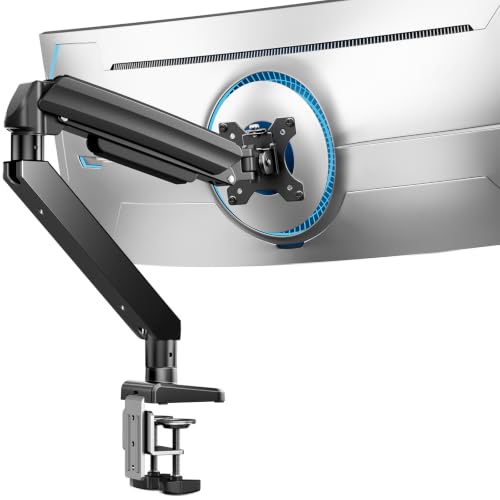
To reclaim usable desktop area, many users opt for heavy-duty articulated monitor arms. However, standard monitor mounts often fail under the weight and forward leverage of massive curved glass. Specialized solutions like the ErGear Heavy Duty Monitor Arm are engineered specifically for screens between thirteen and forty-nine inches, supporting up to 37.4 pounds. Utilizing dual C-clamps, heavy steel tubing, and standard VESA patterns ensures that substantial monitors remain steady without wobbling when you type or adjust your sitting height.
Proper ergonomic positioning also requires adjusting monitor height so the top third of the display aligns with your eye level. Because an ultrawide display is so wide, tilting and swiveling the screen slightly allows you to optimize viewing angles without straining your neck. Cable management channels built into heavy-duty mounting arms also keep video and power lines organized behind the desk. Always follow manufacturer guidelines when securing heavy displays to avoid desk surface damage.
Key Decision Factors: Determining If an Ultrawide Fits Your Setup
Deciding whether an ultrawide monitor represents the right upgrade depends on your hardware capabilities, favorite software, and physical workspace. If you spend significant time managing multiple spreadsheets, editing video tracks, or playing expansive single-player PC games, the immersive horizontal layout provides unmatched convenience. The absence of display bezels streamlines your visual workflow while reducing desktop cable clutter to a single power and display connection.
Conversely, if your primary gaming occurs on home consoles, or if your PC graphics hardware cannot sustain demanding 1440p resolutions, a conventional 16:9 monitor may serve you better. Evaluate your desk depth, confirm that your graphics card features modern DisplayPort or HDMI connections capable of high-refresh outputs, and verify that your favorite games support ultrawide aspect ratios. Balancing these technical realities ensures you choose a display setup that delivers genuine comfort and visual clarity every day.


Write Your Review
No reviews yet. Be the first to share your experience!