
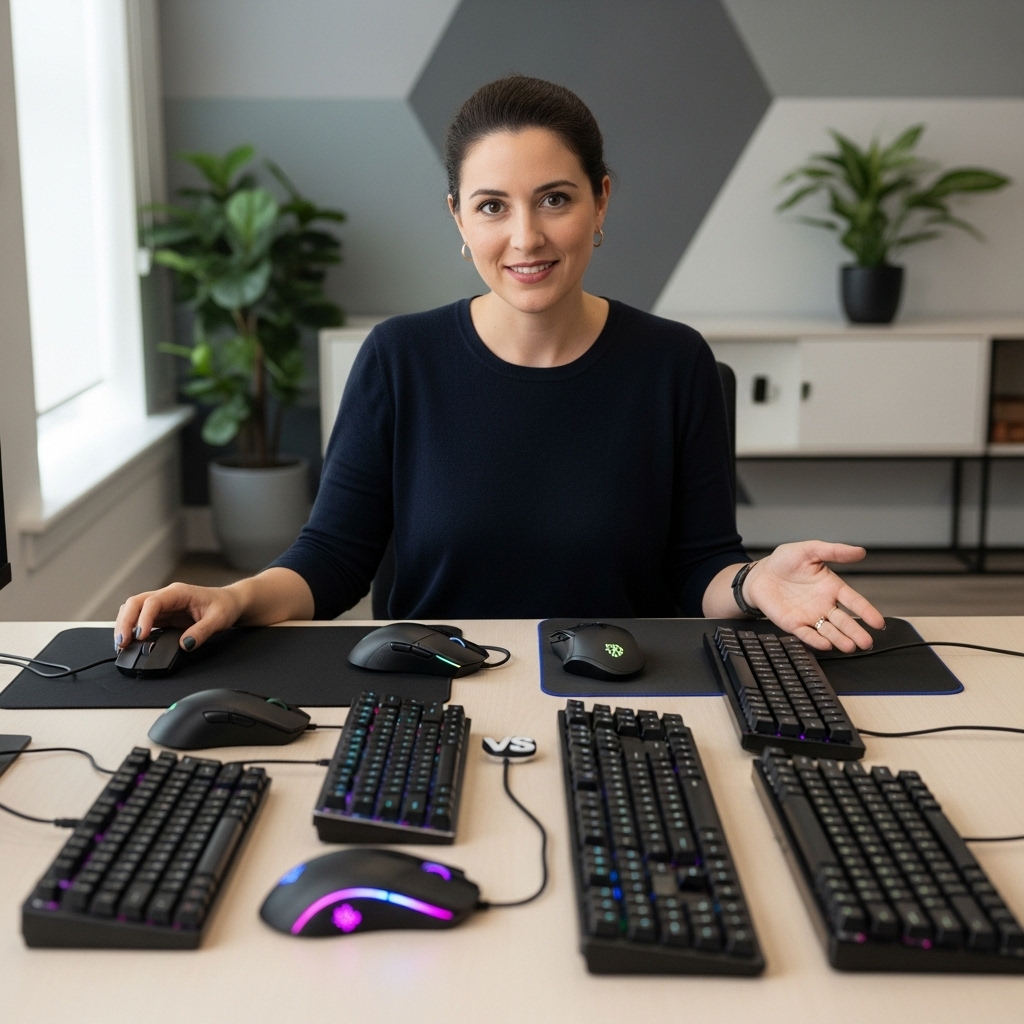

Using two computer monitors expands your visible workspace, allowing you to keep reference materials, communication tools, or game HUDs open simultaneously without constant window switching.
- This setup is particularly useful for productivity tasks like coding, video editing, or data analysis, where having context visible at all times reduces cognitive load.
- For gamers, a secondary display can hold chat, maps, or streaming software, keeping the primary screen dedicated to the game itself.
- The key to a successful dual-monitor setup lies in matching your hardware capabilities with the physical arrangement of the displays.
Before purchasing additional screens, verify that your graphics card has enough video outputs to support the resolution and refresh rate of both monitors. Many modern GPUs support three or more displays, but older integrated graphics may be limited to two. You should also consider the physical desk space and cable management required to arrange the monitors comfortably.
A well-planned setup can significantly improve efficiency, but a poorly configured one may lead to eye strain or input lag issues. Our guide on dual monitor configurations offers further insights into optimizing this arrangement for specific use cases.

Pros
- Affordable 15.6-inch FHD IPS screen with good color accuracy and HDR for gaming and media
- Easy plug-and-play setup via USB-C or HDMI; no drivers or apps needed
- Protective case stand offers adjustable viewing angles and durability for travel or desk use
- Ultra-slim and lightweight design fits easily in a backpack for on-the-go gaming or work
Cons
- Requires device with Thunderbolt 3.0/4.0 or USB-C DP ALT-MODE for single-cable operation; HDMI connection needs separate power (not included)
- Built-in speakers are basic; external headphones or speakers may enhance audio experience for gaming
- Limited to 60Hz refresh rate; not ideal for competitive esports players seeking high refresh rates
The InnoView Portable Monitor is a 15.6-inch FHD 1080P IPS external display designed for gamers, streamers, content creators, and professionals who need extra screen space without sacrificing portability. It connects via USB-C or HDMI, making it compatible with laptops, desktops, MacBooks, phones, tablets, and consoles like PS5, Xbox, and Switch. This monitor is especially suited for gaming setup builders who want a secondary display for monitoring streams, Discord chats, or system stats while gaming.
In terms of performance, the monitor delivers crisp 1080P visuals with HDR support and a 178-degree viewing angle, ensuring vibrant colors from almost any position. While it is limited to a standard 60Hz refresh rate, it works well for casual gaming, open-world titles, and console gaming where high refresh rates aren't critical. The IPS panel provides good color reproduction for content creation tasks like photo editing or video previews. The low blue light mode helps reduce eye strain during long sessions, which is a nice touch for both gamers and office workers.
Build quality is solid for its price range. The monitor features an ultra-slim 0.2-inch profile and weighs only 2.65 pounds, making it easy to slip into a backpack for travel or LAN parties. The included PU leather protective cover doubles as a stand with two grooves for adjusting the viewing angle. It also protects the screen from scratches and minor impacts. The monitor supports both landscape and portrait orientations, helping you save desk space or customize your setup for coding, reading, or vertical streaming layouts.
Setting up the InnoView monitor is straightforward. It is plug-and-play with no drivers required. For single-cable operation, your device must support Thunderbolt 3.0/4.0 or USB-C DP ALT-MODE with power pass-through. If not, you will need to connect via HDMI and a separate power source, which is not included in the package. The on-screen display buttons are simple to navigate, though they can feel a bit small. The built-in speakers are adequate for basic audio, but most gamers will prefer using a headset or external speakers for better immersion.
A realistic limitation is the 60Hz refresh rate, which may not satisfy competitive players used to 144Hz or higher monitors. Some users have reported occasional flickering when powered solely by certain devices, though connecting external power typically resolves this. The stand, while functional, is not as sturdy as a dedicated monitor arm, so it may wobble if bumped. Additionally, the lack of a VESA mount limits mounting options.
Overall, the InnoView Portable Monitor is a practical and affordable solution for PC gamers, streamers, college gamers, and work-from-home users who need a secondary display for multitasking or travel. It is best suited for casual gaming, console play, and productivity rather than competitive esports. For the price, it offers good value with its IPS panel, slim design, and versatile connectivity. If you are building a compact gaming desk or need a portable monitor for on-the-go use, this is worth considering.


Pros
- Smooth 100Hz refresh rate reduces motion blur in competitive games.
- Excellent color accuracy (99% sRGB) for the price point.
- Integrated speakers eliminate need for external audio in simple setups.
- Blue light filter is gentle on eyes during extended use.
- Great value for budget-conscious gamers and streamers.
Cons
- Limited viewing angles compared to IPS panels; colors shift off-center.
- Built-in speakers are basic and lack bass, not ideal for immersive audio.
- No height or tilt adjustments on the stand; need VESA mount for ergonomic changes.
The Sceptre 24-inch Prime Monitor (E248W-19203R) is a budget-friendly 1080p display designed for gamers, streamers, and home office users who want a smooth, color-accurate screen without spending a fortune. With a 100Hz refresh rate and 99% sRGB coverage, it hits the sweet spot for casual and competitive play, especially in fast-paced titles like shooters and strategy games.
Best suited for PC gamers on a budget, casual streamers, work-from-home users, and college gamers, this monitor offers a noticeable upgrade over standard 60Hz displays. The 100Hz refresh rate provides smoother motion, which can give you an edge in FPS and RTS games. Combined with the 99% sRGB color gamut, images look vibrant and lifelike, whether you are gaming or editing photos. The built-in speakers are a nice convenience, saving desk space and letting you hear audio straight away without extra gear.
In terms of build quality, the monitor features a durable plastic chassis and a simple stand with no ergonomic adjustments. It is lightweight at just 5.77 pounds and supports a 100mm x 100mm VESA mount, so you can easily wall-mount it or attach it to a monitor arm for a better viewing angle. The bezels are slim, giving it a modern look on any desk.
Setting up the monitor is straightforward: plug in the power, connect via HDMI or VGA, and you are ready to go. The on-screen menu includes pre-calibrated FPS and RTS modes that tweak brightness and contrast for competitive gaming. The Blue Light Shift feature is a nice addition for late-night sessions. There is no software suite to install, which keeps things simple.
However, the monitor does have some realistic limitations. The TN panel (likely) offers narrow viewing angles, so colors wash out if you are not sitting directly in front. The built-in speakers are adequate for voice calls or casual YouTube, but gamers will want a dedicated headset or external speakers for immersive audio. The stand lacks height adjustment, but a VESA mount can solve that.
Overall, the Sceptre 24-inch Prime Monitor is an excellent entry-level choice for budget-conscious gamers and streamers. It delivers smooth performance and great color at a price that undercuts many competitors. If you need an affordable secondary display or a primary monitor for esports and casual use, this is a strong recommendation for your gaming setup.
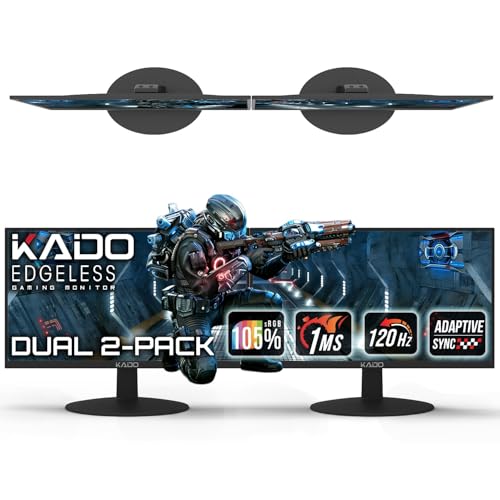


Understanding the Benefits and Requirements of Dual Monitor Setups
Expanding your desktop environment with a second screen fundamentally changes how you interact with digital content. The primary benefit is the increased real estate for multitasking. Instead of minimizing and maximizing windows, you can pin essential applications to one screen while working on the main task on the other.
This is especially effective for professionals who need to reference documents while writing or for gamers who want to keep Discord or a map open without obscuring the gameplay area. The psychological effect of reduced context switching can lead to faster task completion and lower mental fatigue during long sessions.
| Feature | Single Monitor | Dual Monitor Setup |
|---|---|---|
| Workspace Area | Limited to one screen | Approximately 2x screen area |
| Multitasking | Requires window switching | Simultaneous app visibility | Hardware Demand | Lower GPU load | Higher GPU load for high refresh rates | Desk Space | Compact | Requires wider desk or vertical stacking | Cost | Lower initial cost | Higher initial cost for second screen |
Hardware compatibility is the first technical hurdle to address. Your graphics card must have sufficient ports, such as HDMI, DisplayPort, or VGA, to connect both monitors. If your GPU lacks enough outputs, you may need a docking station or a multi-monitor adapter. It is crucial to check the maximum resolution and refresh rate supported by each port.
For example, an older HDMI port might cap out at 1080p 60Hz, while a DisplayPort can support higher resolutions and refresh rates. Mismatched capabilities can result in one monitor running at a lower refresh rate than the other, which can be distracting during gaming or video editing. Verify your specific GPU model’s specifications to ensure it can drive both displays at your desired settings.
Physical arrangement and ergonomics play a significant role in long-term comfort. Placing monitors side-by-side is the most common setup, but it requires a desk wide enough to accommodate both screens without forcing you to turn your head excessively. A general rule of thumb is to keep the center of the primary monitor directly in front of you.
If your desk is narrow, consider stacking monitors vertically or using a monitor arm to adjust height and angle. Poor ergonomics can lead to neck and eye strain, negating the productivity benefits of the dual setup. Ensure that the top of the primary monitor is at or slightly below eye level to maintain a neutral neck posture.
Choosing the Right Monitors for a Dual Setup
Selecting the right monitors depends on your primary use case. For office work, consistency in size and resolution helps maintain a seamless visual experience. Using two monitors of the same size and resolution makes it easier to drag windows between screens without distortion. For gaming, you might prioritize a high-refresh-rate primary monitor and a standard secondary monitor for chat or streaming. This hybrid approach balances performance and cost. Portable monitors are another option, offering flexibility for travel or small desks, though they may require additional power and cables.
- Match resolution and size for seamless window dragging in office tasks.
- Use a high-refresh-rate monitor for gaming and a standard one for chat.
- Consider portable monitors for travel or space-constrained desks.
- Verify VESA mounting compatibility if using monitor arms.
- Check cable lengths to ensure they reach from the GPU to each monitor.
Panel technology also influences the viewing experience. IPS panels offer wide viewing angles and accurate colors, making them ideal for creative work and general use. VA panels provide higher contrast ratios, which can be beneficial for dark-themed applications or media consumption.
OLED panels offer the best contrast and response times but are more expensive and may be prone to burn-in with static images. For a dual setup, mixing panel types is possible, but it can lead to inconsistent color reproduction. If color accuracy is critical, try to use monitors with similar panel technology and color profiles.
Configuring Display Settings for Optimal Performance
Once the monitors are physically connected, you need to configure them in your operating system. In Windows, you can access display settings by right-clicking the desktop and selecting “Display settings.” Here, you can arrange the monitors to match their physical layout, set the primary display, and adjust resolution and refresh rates.
It is essential to set the correct orientation and position to ensure that the mouse cursor moves naturally between screens. Incorrect arrangement can cause the cursor to jump to the wrong side when moving between monitors, which is frustrating and inefficient.
Refresh rate synchronization is another critical setting. If you are using a high-refresh-rate monitor for gaming, ensure that your GPU is set to the maximum refresh rate for that display. You may need to adjust settings in your GPU control panel, such as NVIDIA Control Panel or AMD Radeon Settings, to enable features like G-Sync or FreeSync.
These technologies help reduce screen tearing and improve motion smoothness. For the secondary monitor, you can often leave it at a standard 60Hz to save GPU resources. However, if you are using both monitors for gaming or high-motion content, ensure that both are set to their optimal refresh rates.
Cable management is often overlooked but is vital for a clean and functional setup. Long, unmanaged cables can create a cluttered workspace and pose a tripping hazard. Use cable clips, ties, or channels to keep cables organized and out of the way.
If you are using a monitor arm, take advantage of the built-in cable management features to route cables neatly. A tidy setup not only looks better but also makes it easier to troubleshoot connection issues. Ensure that cables are not bent sharply, as this can damage the internal wiring and cause signal loss.
Common Challenges and How to Solve Them
One common issue is flickering or signal loss on one of the monitors. This can be caused by a faulty cable, a loose connection, or a driver issue. Start by checking the cable connections at both the monitor and the GPU. Try using a different cable to rule out hardware failure.
If the issue persists, update your GPU drivers to the latest version. Outdated drivers can cause compatibility issues with newer monitors. If the problem continues, try connecting the monitor to a different port on the GPU to isolate the issue.
Another challenge is achieving the correct resolution on both monitors. If one monitor is not displaying at its native resolution, the image may appear blurry or stretched. Ensure that the correct resolution is selected in your display settings. If the native resolution is not available, you may need to create a custom resolution in your GPU control panel. This is particularly common with older monitors or non-standard aspect ratios. Using the native resolution ensures the sharpest image and prevents eye strain caused by sub-pixel rendering issues.
Input lag can also be a concern, especially for gamers. If you notice delays in mouse or keyboard response, it may be due to software conflicts or high system load. Close unnecessary background applications to free up system resources. Ensure that your GPU is not being overwhelmed by running both monitors at high refresh rates and resolutions.
If you are using a laptop, consider connecting an external GPU to improve performance. For desktop users, ensure that your power supply is sufficient to handle the load of two high-end monitors. If input lag persists, check your monitor’s input lag settings and disable any unnecessary features like OSD menus or power-saving modes.
Ergonomics and Health Considerations
Long hours in front of multiple screens can lead to digital eye strain, also known as computer vision syndrome. Symptoms include dry eyes, headaches, and blurred vision. To mitigate these effects, follow the 20-20-20 rule: every 20 minutes, look at something 20 feet away for at least 20 seconds.
Adjust the brightness and contrast of your monitors to match the ambient lighting in your room. Too much brightness can cause glare, while too little can strain your eyes. Use blue light filters or night mode settings to reduce blue light exposure, especially in the evening. This can help improve sleep quality and reduce eye fatigue.
Posture is equally important. Sit with your back straight and your feet flat on the floor. Your elbows should be at a 90-degree angle, and your wrists should be neutral. Adjust the height and angle of your monitors so that you are not looking up or down excessively. If you are using two monitors side-by-side, ensure that the primary monitor is centered in front of you.
If you are using a vertical stack, place the primary monitor at eye level. Poor posture can lead to back, neck, and shoulder pain, which can be just as debilitating as eye strain. Consider using an ergonomic chair and a standing desk to alternate between sitting and standing throughout the day.
Lighting in your workspace also plays a role in comfort. Avoid placing monitors in direct sunlight or near bright windows, as this can cause glare and reflections. Use blinds or curtains to control natural light. Position your desk lamp to illuminate your workspace without shining directly into your eyes or reflecting off the screens.
A well-lit environment reduces the contrast between the screen and the surroundings, making it easier for your eyes to adjust. If you work in a dark room, ensure that your monitors are not the only light source, as this can cause significant eye strain. A small desk lamp or ambient lighting can help create a more comfortable viewing environment.
Advanced Setup Tips for Power Users
For power users, a dual-monitor setup can be further optimized with software tools. Window management utilities can help you snap windows to specific areas of the screen, making it easier to organize your workspace. These tools can also create custom layouts that you can switch between quickly.
For example, you might have a layout for coding that splits the screen into editor and terminal, and another for gaming that maximizes the game window and minimizes chat. This level of customization can significantly improve workflow efficiency. Many of these tools are free or open-source, and they are available for both Windows and macOS.
Hardware acceleration is another area to consider. Ensure that your GPU drivers are configured to use hardware acceleration for video playback and graphics-intensive applications. This can improve performance and reduce CPU load. In your GPU control panel, you can specify which applications should use hardware acceleration.
For example, you might want to enable it for your web browser and video player, but disable it for older games that may not support it well. Proper configuration can lead to smoother performance and lower power consumption. Regularly check for driver updates to ensure that you are getting the latest performance improvements and bug fixes.
Finally, consider the long-term durability of your setup. Monitors are a significant investment, and you want them to last as long as possible. Avoid exposing them to extreme temperatures or humidity. Clean the screens regularly with a microfiber cloth to prevent dust buildup, which can affect image quality.
Use surge protectors to protect your monitors from power surges, which can damage the internal electronics. If you are using a monitor arm, ensure that it is securely mounted to your desk to prevent accidents. A well-maintained setup will provide reliable performance for years to come. Regular maintenance and proper handling are key to extending the life of your displays.
For those interested in optimizing their gaming setup further, our guide on gaming monitor selection provides detailed advice on choosing the right display for competitive and casual play. Combining this knowledge with a well-configured dual-monitor setup can elevate your gaming experience to new heights. Whether you are a professional or a hobbyist, the right setup can make a significant difference in your daily productivity and enjoyment.





Write Your Review
No reviews yet. Be the first to share your experience!