
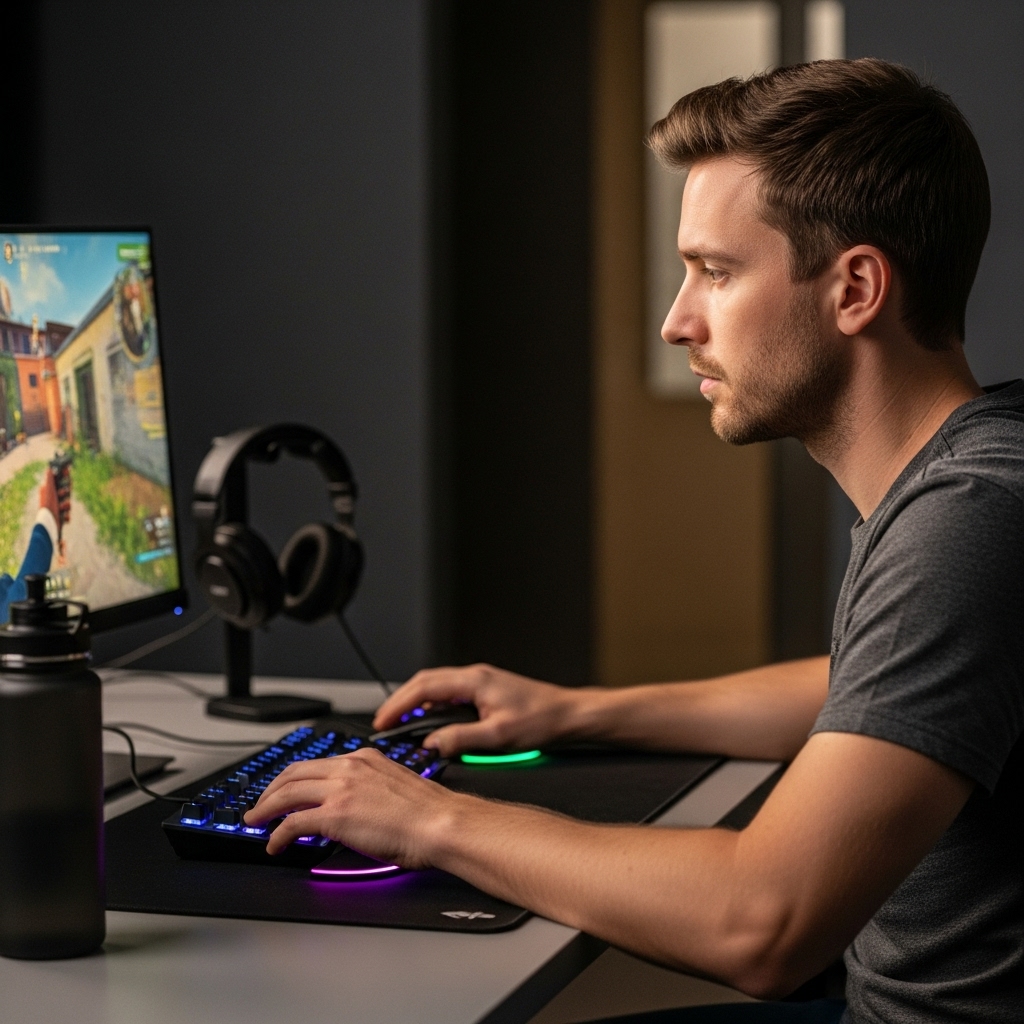

If you are wondering whether can a 144hz monitor run 240 fps, the direct answer is no. The monitor’s refresh rate is a hard physical limit on how many times per second the screen can update its image. A 144Hz panel simply cannot display 240 distinct frames in one second, regardless of how fast your graphics card generates them. This limitation is fundamental to the display hardware and cannot be bypassed with software settings or driver updates.
However, running 240 frames per second on a 144Hz screen is not entirely useless. Your PC can still generate those high frame rates, and the monitor will display the best possible subset of them. This setup can actually reduce input lag compared to running at a lower frame rate like 144fps, because the display is always showing the most recent available frame from the GPU buffer. For competitive gaming, this slight reduction in latency can be beneficial, even if you do not see the full smoothness of a native 240Hz experience. Understanding this distinction helps you decide if your current hardware is sufficient or if an upgrade is necessary for your specific goals.

Pros
- High refresh rate (144Hz O/C) and 1ms MBR for smooth, responsive gameplay.
- Vibrant IPS colors with HDR10 and wide sRGB coverage.
- Adaptive sync support works with both NVIDIA and AMD GPUs.
- Useful gaming features like Crosshair, Black Stabilizer, and Dynamic Action Sync.
- Affordable price point for a feature-rich 24-inch gaming monitor.
Cons
- 1ms MBR is motion blur reduction, not true 1ms GtG response time; some motion blur may still be noticeable.
- 24-inch size may feel small for gamers preferring larger immersive displays.
- Tilt-only stand lacks height and swivel adjustments, limiting ergonomic flexibility.
The LG 24G411A-B UltraGear gaming monitor is a 24-inch Full HD (1920x1080) IPS display designed for gamers who want a responsive, color-accurate screen without breaking the bank. It features a native 120Hz refresh rate that can be overclocked to 144Hz, along with 1ms Motion Blur Reduction (MBR) to keep fast-moving action sharp. This monitor is best suited for competitive and casual PC gamers, esports players, and streamers who need a reliable, low-latency display for FPS, MOBA, and racing titles. Its compact size also makes it a great fit for college gamers, work-from-home setups, or anyone with a smaller desk.
In real-world gaming, the 144Hz overclocked refresh rate and 1ms MBR work together to deliver smooth, fluid visuals that reduce motion blur and ghosting. Combined with NVIDIA G-Sync Compatibility and AMD FreeSync, screen tearing and stuttering are virtually eliminated, giving you a competitive edge in fast-paced matches. The Dynamic Action Sync feature further reduces input lag, helping you react quicker in-game. For FPS players, the built-in Crosshair overlay provides a handy accuracy boost without modifying game settings.
The IPS panel offers vibrant HDR10 color with up to 99% sRGB coverage, making games look rich and lifelike. Blacks are decent for an IPS display, and the Black Stabilizer helps brighten dark areas so you can spot enemies hiding in shadows. Color accuracy is solid out of the box, which is a bonus if you also do light photo editing or content creation.
Build quality is typical for LG's UltraGear line - a slim, plastic body with a minimal bezel that looks clean on any desk. The stand is simple and tilt-adjustable but lacks height, swivel, or pivot adjustments, so you may want to invest in a VESA-compatible arm (100x100mm) for better ergonomics. Connectivity includes HDMI and DisplayPort, which cover most modern GPUs and consoles, but there's no USB hub or built-in speakers.
Setup is straightforward: plug in the cables, attach the stand with a few screws, and you're ready to go. The on-screen display (OSD) is intuitive, and the LG Switch app makes it easy to split your screen into multiple sections for multitasking during streams or work. The slim footprint and lightweight design (7.3 pounds) make it easy to move or mount.
While the 24-inch size and tilt-only stand may limit some users, the LG 24G411A-B offers excellent value for budget-conscious gamers who prioritize high refresh rates and adaptive sync. It's a practical choice for competitive play, casual gaming, and even light productivity, making it a versatile addition to any gaming setup.

Pros
- High refresh rate at an affordable price
- Good color reproduction and contrast with VA panel
- Eye-care features reduce fatigue during extended use
- Easy to set up with included DP and HDMI cables
- Slim bezel design looks clean on any gaming desk
Cons
- Only 1080p resolution, not ideal for 4K content or high-end graphics work
- Limited ergonomic adjustments (tilt only, no height or swivel)
- Built-in speakers not mentioned, so external audio may be needed
The Gawfolk 27-inch curved gaming monitor is a performance-oriented display that targets PC gamers, esports players, and casual users who want a smooth, immersive experience without breaking the bank. With a 180Hz refresh rate (via DisplayPort) and 1ms GTG response time, this monitor is built for fast-paced titles like first-person shooters, racing games, and MOBAs where every frame matters. The 1800R curvature and VA panel further enhance the visual experience by providing deeper blacks and better contrast than typical IPS or TN panels.
In terms of real-world gaming performance, the combination of AMD FreeSync support and high refresh rate ensures minimal screen tearing and stuttering. The 1080p resolution is well-suited for mid-range gaming PCs, allowing them to push high frame rates in most modern games. The 3000:1 dynamic contrast ratio and 98% sRGB coverage deliver vibrant colors and decent detail, although serious photo or video editors may want a more color-accurate display. For streamers and content creators, this monitor works well as a secondary screen for chat, alerts, or editing timelines.
Build quality is practical for the price. The monitor features a slim, frameless bezel that looks modern on a desk, and the 1800R curve helps reduce reflections and adds immersion. The stand allows tilting from -5 to 10 degrees, but lacks height, swivel, or pivot adjustments. However, VESA 100x100mm mounting is available, so you can easily attach it to an arm or wall mount for better ergonomics. Connectivity includes DisplayPort (up to 180Hz) and HDMI (up to 144Hz), along with a standard audio jack for headphones. The included cables make setup straightforward out of the box.
For long gaming sessions, the flicker-free technology and blue light filter reduce eye strain and fatigue. These features are particularly valuable for college gamers, work-from-home users, and anyone spending hours in front of the screen. The monitor's 27-inch size and curved design also fit well in most desk setups without dominating the space, and the black color scheme blends into a dark gaming room aesthetic.
One realistic limitation is the resolution. 1080p on a 27-inch screen yields a lower pixel density than a 24-inch 1080p monitor, so text and fine details may appear slightly softer. Also, the stand only offers tilt, so you may need a third-party arm for full ergonomic control. The lack of built-in speakers means you will need external speakers or a headset for audio. While not a dealbreaker for most gamers, it is worth considering if you want a self-contained setup.
Overall, the Gawfolk 27-inch curved gaming monitor is a solid option for budget-conscious PC gamers, esports enthusiasts, and streamers who prioritize high refresh rate and smooth gameplay over resolution. It is also a great pick for RGB setup builders who want an affordable curved monitor that looks clean and performs well. With a 12-month warranty and easy connectivity, this monitor offers good value for the price without compromising on the features that matter most for competitive and casual gaming alike.

Pros
- High 240Hz refresh rate with fast response time for competitive edge
- Excellent 4000:1 contrast ratio for deep blacks and vivid colors
- Built-in speakers and headphone holder add practical desk convenience
- VESA mountable for flexible setup options
- Multiple game modes for quick optimization
Cons
- Only FHD (1080p) resolution, not ideal for 4K gaming or detailed content creation
- Built-in speakers are basic and may not satisfy audiophiles for immersive gaming
- Limited to one HDMI 2.0 and one DP 1.4 port, which may restrict multi-device setups
The Amzfast 27 Inch 240Hz Gaming Monitor is a fast VA panel display built for PC gamers who prioritize smooth, responsive gameplay. With a 240Hz refresh rate and 1ms MPRT response time, it handles fast-paced FPS, MOBA, and racing games well, reducing motion blur and ghosting. The 4000:1 contrast ratio and HDR 400 support provide deeper blacks and richer colors compared to typical IPS panels, making it a good choice for gamers who want visual pop without sacrificing speed.
This monitor is best suited for competitive gamers, esports players, and streamers who need a high refresh rate for smooth motion and low latency. The FHD 1080p resolution keeps performance high on mid-range GPUs, so you can hit those high frame rates easily. The built-in speakers are handy for quick gaming sessions or watching videos, but dedicated headphones or external speakers will give you better audio for immersive play. The included headphone holder is a nice touch for keeping your desk tidy and your headset accessible.
Build quality is solid with a metal base that saves space and feels sturdy. The VESA 100x100mm mount lets you attach an arm or wall mount, which is great for cable management and freeing up desk space. The OSD menu includes game modes like CrossHair, FPS, and RTS, so you can quickly adjust settings for different titles. The low blue light and anti-flicker features help reduce eye strain during long sessions, which is a plus for work-from-home gamers or college gamers who spend hours at their desk.
Connectivity is straightforward with one HDMI 2.0 and one DisplayPort 1.4, both supporting 240Hz at 1080p. The included DP cable is a nice bonus, saving you an extra purchase. The 125% sRGB and 91% DCI-P3 color gamut coverage means colors look accurate and vibrant out of the box, though it's not a wide gamut for professional color work. The 400cd/m² brightness handles well in most room lighting, but very bright rooms may require some adjustment.
A realistic limitation is the FHD resolution; if you want sharper text or more detail for open-world games, a 1440p or 4K monitor would be better. The built-in speakers are fine for casual use but lack bass and volume for competitive audio cues. The single HDMI port means you can't easily connect multiple consoles or a PC plus a console without swapping cables.
Overall, the Amzfast 27 Inch 240Hz Gaming Monitor is a practical choice for competitive PC gamers, streamers, and gaming setup builders who want a fast, responsive display with good contrast and desk-friendly features. It's a solid value for its price point, especially if you're building a budget-friendly esports or streaming rig.
Pros
- Blazing 240Hz refresh rate and 1ms response time for buttery-smooth gameplay.
- Excellent color accuracy with 90% DCI-P3 and 100% sRGB for vibrant visuals.
- Versatile connectivity with HDMI 2.0, DisplayPort 1.4, and audio out.
- Ergonomic tilt and VESA mount support for flexible desk setups.
- Affordable price point for a high-refresh-rate gaming monitor.
Cons
- Resolution limited to 1080p, which may not satisfy users seeking higher pixel density for productivity or 4K gaming.
- Stand only offers tilt adjustment; no height, swivel, or pivot adjustments.
- No built-in speakers, requiring external audio solution for console use.
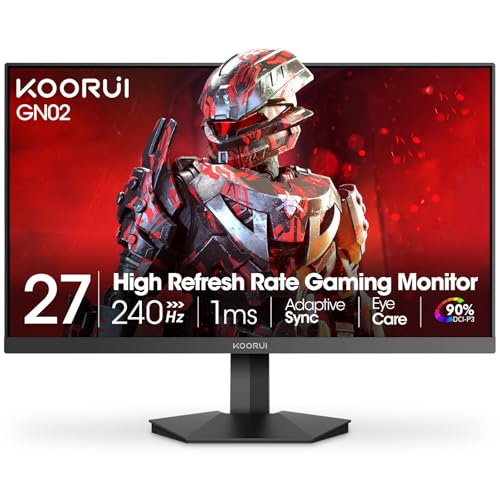
The KOORUI 27-inch gaming monitor is a high-refresh-rate display designed for PC gamers, esports competitors, and anyone who demands smooth, responsive visuals. With a 240Hz refresh rate and 1ms response time, this monitor minimizes motion blur and input lag, making it ideal for fast-paced shooters like Valorant or Call of Duty, as well as competitive racing and fighting games. The FHD 1080p resolution keeps the pixel count manageable for high frame rates, while Adaptive Sync ensures tear-free gameplay when paired with compatible GPUs.
Color performance is a standout feature here. The monitor covers 90% of the DCI-P3 color space and 100% sRGB, delivering vibrant, accurate colors that enhance both gaming and media consumption. The 178-degree viewing angles mean you can share the screen without color shifting. For content creators working on color-critical tasks, this level of accuracy at this price point is a pleasant surprise. The 27-inch size provides an immersive experience without overwhelming a typical desk setup.
Build quality is practical and gaming-focused. The monitor's design is inspired by an eagle's wings, with a sturdy stand that offers tilt adjustment from -5 to 20 degrees. While it lacks height, swivel, or pivot adjustments, the VESA 75x75mm compatibility allows you to mount it on an arm or wall for better ergonomics. The 5-way joystick on the back makes navigating the on-screen display easy, and you can quickly switch between preset gaming modes or enable the crosshair overlay and timer functions for an extra edge.
Connectivity covers the essentials: HDMI 2.0 and DisplayPort 1.4 both support 240Hz at FHD, so you can hook up a gaming PC, Xbox, PS5, or Switch. There's also a 3.5mm audio out for connecting headphones or external speakers. The monitor does not have built-in speakers, so you'll need to plan for audio. Setup is straightforward - just plug in the cables and adjust the settings to your liking. The included stand is easy to assemble without tools.
One realistic limitation is the 1080p resolution. While it's perfect for high frame rates, users who want sharper text for productivity or 4K gaming may need to look elsewhere. The stand's limited adjustability might also be a drawback for those who need precise height positioning. Additionally, the lack of USB ports means you'll have to rely on your PC for peripherals. However, for the price, these trade-offs are expected.
Overall, the KOORUI 27-inch 240Hz monitor offers exceptional value for competitive gamers and esports players who prioritize speed and fluidity. It also works well as a secondary monitor for streamers or as a primary display for college gamers on a budget. If you're building a gaming setup focused on high-refresh-rate performance without spending a fortune, this monitor is a strong contender.

Pros
- Ultra-high 240Hz refresh rate for its price range
- Curved 1500R panel provides immersion without breaking the bank
- 1ms response time and FreeSync for tear-free, responsive gameplay
- Good color accuracy with 124% sRGB and high contrast ratio
- Includes DP cable and supports tilt adjustment
Cons
- No built-in speakers, requiring external audio solution
- Only tilt adjustment (no height or swivel, but VESA compatible)
- Limited connectivity with one HDMI port and one DP port, no USB ports
The SANSUI ES-G24C1 Pro is a 24-inch curved gaming monitor that brings a 240Hz refresh rate and 1080P resolution to an affordable price point. It's designed for PC gamers who want smooth, competitive performance without spending a fortune, making it a strong option for esports players, casual gamers, and anyone building a budget-friendly gaming setup.
At the heart of this monitor is a 240Hz refresh rate paired with a 1ms MPRT response time. That combination keeps fast-moving action exceptionally smooth, which is crucial for FPS games like Valorant or Call of Duty. FreeSync support helps eliminate screen tearing when paired with compatible AMD GPUs, though it works with G-Sync compatible NVIDIA cards as well. The 1500R curve adds a subtle wrap-around effect that pulls you deeper into the game without being too aggressive.
Despite its low price, the monitor offers decent color performance with 124% sRGB and 93% DCI-P3 coverage. The 3000:1 contrast ratio produces deeper blacks than typical IPS panels, which helps in dark game scenes. The 300-nit brightness and HDR support add some extra pop to highlights, though don't expect true HDR performance at this price point. The anti-glare coating keeps reflections manageable in brightly lit rooms.
Physically, the monitor has a simple black bezel with a sturdy stand that offers tilt adjustment (-5 to 15 degrees). It lacks height adjustment or swivel, so you may want to consider a VESA mount (75x75mm compatible) for better ergonomics. Port selection includes one HDMI 2.0, one DP 1.4, and an audio jack. The included DP cable is a nice bonus, saving you an extra purchase. There are no built-in speakers, so plan for external speakers or a headset.
Setting up the ES-G24C1 Pro is straightforward. The stand snaps on without tools, and the cables are easy to manage thanks to the simple design. The on-screen display (OSD) is controlled via buttons and offers game presets, a crosshair overlay, and a shadow booster to brighten dark areas. Low Blue Light mode helps reduce eye strain during long sessions, which is a welcome feature for users who game for hours.
That said, the monitor does have some trade-offs. The 1080P resolution at 24 inches is fine for most, but those wanting sharper text or more screen real estate might prefer 1440P. The limited connectivity means you'll have to switch cables if using multiple sources. No USB ports are available. Overall, for the price, this is a fantastic option for competitive gamers on a budget. It delivers the high refresh rate and low latency that matter most in fast-paced games, all in an immersive curved package. College gamers, esports enthusiasts, and casual players will find great value here.
For competitive gaming, refresh rate and response time are king. The SANSUI ES-G24C1 Pro delivers a true 240Hz refresh rate via its DisplayPort connection, meaning you get up to 240 frames per second on screen with minimal input lag. This is a massive advantage in fast-twitch shooters and racing games where every millisecond counts. The 1ms MPRT response time also helps reduce motion blur, keeping images sharp during rapid camera movements. FreeSync support ensures the monitor's refresh rate matches your GPU's output, eliminating screen tearing without adding noticeable latency. While the monitor is best paired with an AMD graphics card for FreeSync, it also works with NVIDIA G-Sync compatible cards in many cases. The 1500R curvature further enhances the gaming experience by creating a more natural field of view, which can improve peripheral awareness in open-world titles.
The SANSUI ES-G24C1 Pro uses a VA panel that offers a high 3000:1 contrast ratio, resulting in deep blacks and good shadow detail - a notable advantage over typical IPS monitors. The 124% sRGB and 93% DCI-P3 color gamut coverage provides vibrant, saturated colors that make games and movies pop. With 300 nits of brightness, it's bright enough for most indoor environments, though HDR content will lack the peak luminance of higher-end models. The anti-glare coating effectively reduces reflections, making it usable in rooms with ambient light. At 1080P resolution on a 24-inch screen, pixel density is decent, offering sharp text and clear visuals without needing a powerful graphics card to push high frame rates. The 1500R curvature adds a subtle depth that enhances immersion without distorting the image, making it comfortable for both gaming and general use.
Pros
- Incredible 240Hz refresh rate and 0.3ms response for competitive edge
- Sharp QHD resolution with vibrant IPS colors and wide viewing angles
- G-Sync compatible and Adaptive-Sync for smooth, tear-free visuals
- Frameless design and VESA support great for multi-monitor and clean setups
- Easy-to-use OSD with practical gaming presets and Shadow Control
Cons
- Stand only offers tilt adjustment - no height, swivel, or pivot options
- HDMI 2.0 ports limit refresh rate to 144Hz over HDMI; use DisplayPort for full 240Hz
- Glossy screen surface may cause reflections in brightly lit rooms
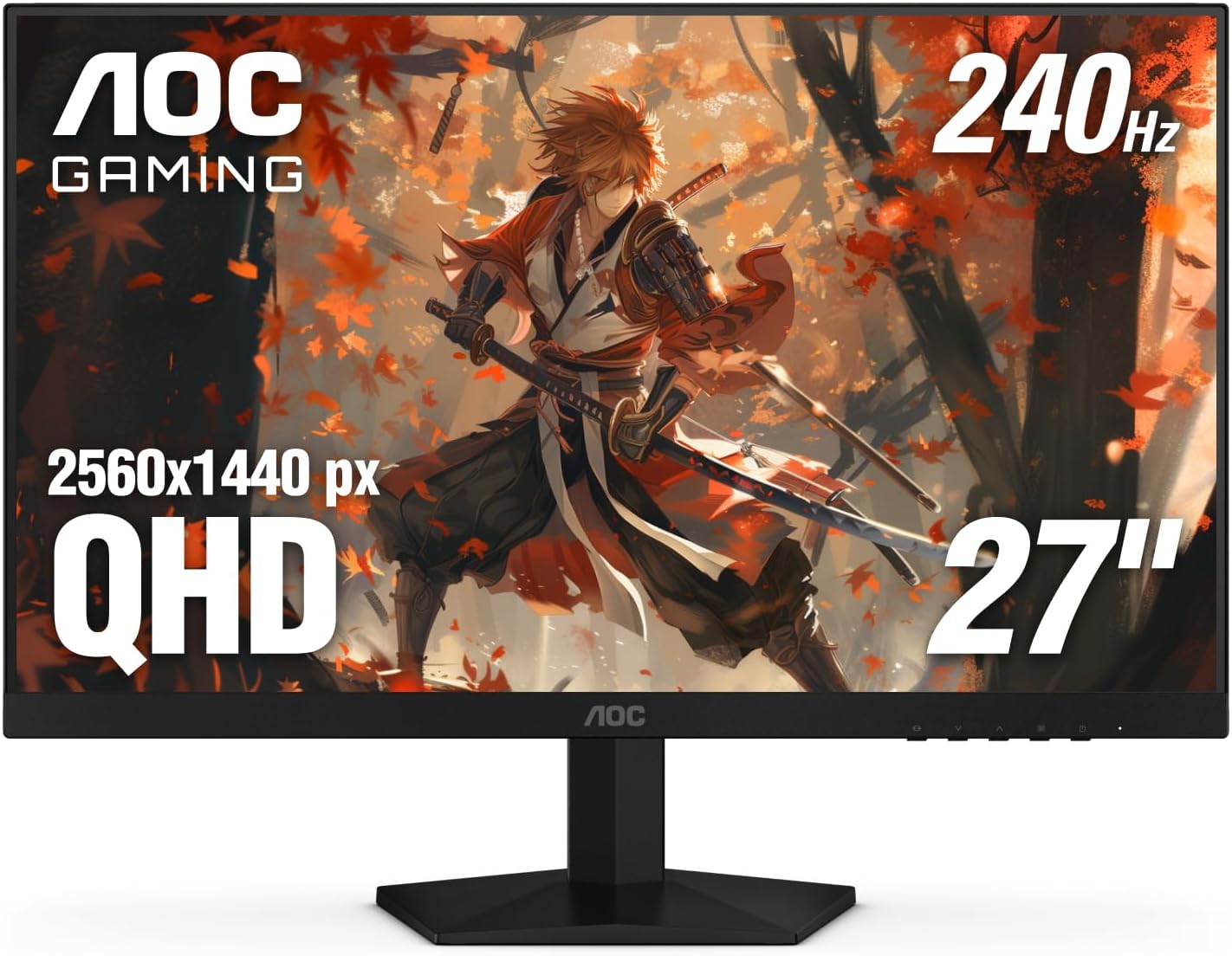
The AOC Gaming Q27G41ZE is a 27-inch QHD IPS monitor built for gamers who prioritize speed and clarity. With a native 240Hz refresh rate that can be overclocked to 260Hz and a 0.3ms MPRT response time, it targets competitive esports players, serious PC gamers, and streamers who need every frame to count. The QHD resolution (2560x1440) strikes a balance between sharpness and performance, making it a solid choice for both high-fidelity single-player games and fast multiplayer titles.
When it comes to real-world performance, this monitor delivers. The combination of high refresh rate and ultra-low response time minimizes motion blur and ghosting, which is crucial in fast-paced shooters like Valorant or Apex Legends. Adaptive-Sync technology (G-Sync compatible) keeps gameplay smooth and tear-free, working seamlessly with both NVIDIA and AMD GPUs. The IPS panel offers vibrant colors and solid viewing angles, so you won't lose image quality when leaning back or sharing your screen on stream.
Build quality is practical for a gaming setup. The three-sided frameless design reduces bezel distraction and makes multi-monitor arrays look clean. The stand only allows tilt adjustment (-3 to +21 degrees), which might be limiting for some users, but the 100x100mm VESA mount lets you swap in an arm or height-adjustable stand. The textured black and red finish gives it a sporty gaming look without being too over-the-top.
Setting up the monitor is straightforward: connect via DisplayPort 1.4 to unlock the full 240Hz refresh rate, since HDMI 2.0 caps at 144Hz. The on-screen display (OSD) is intuitive, with joystick navigation and quick shortcuts for gaming presets like FPS, RTS, and racing. Shadow Control brightens dark areas without washing out the whole image - a handy feature for spotting enemies in shadows. The monitor also includes a headphone jack for easy audio routing.
That said, there are some realistic limitations. The lack of height adjustment on the stock stand means you'll likely want an aftermarket monitor arm for ergonomic positioning, especially during long sessions. The glossy screen surface can also produce reflections if you have bright lights behind you. While the connectivity covers the basics (2x HDMI 2.0, 1x DisplayPort 1.4, audio out), it lacks USB ports or USB-C, which some users may miss for peripherals.
Overall, the AOC Gaming Q27G41ZE is a fantastic value for gamers who want high-refresh QHD performance without paying a premium. It's best suited for competitive gamers who use DisplayPort and either already have a monitor arm or don't mind the basic tilt stand. Streamers and content creators will appreciate the color accuracy and smooth motion for gameplay footage. If you're building a gaming PC on a budget or upgrading from 1080p, this monitor delivers where it matters most: speed, clarity, and responsiveness.

Pros
- Excellent value for money with 120Hz at a sub-$75 price point
- VA panel offers better contrast than typical TN or IPS monitors in this range
- Compact 22-inch size fits well in smaller desks or as a secondary display
- Easy to set up and mount thanks to included VESA support and simple tilt adjustment
- Eye-care features like LowBlue mode help reduce fatigue during extended use
Cons
- Only HDMI and VGA inputs - no DisplayPort, limiting compatibility with some modern GPUs
- 22-inch screen size may feel small for immersive single-monitor gaming setups
- No built-in speakers or USB hub, requiring external audio and additional connections
The ArcticPro 22-inch 120Hz monitor is a budget-friendly display that brings a smooth gaming experience to PC gamers, casual players, and those building an efficient dual-monitor setup. With a Full HD 1920x1080p resolution and a 120Hz refresh rate, this monitor aims to deliver fluid motion without breaking the bank. It's best suited for gamers who prioritize responsiveness in fast-paced titles like shooters (Valorant, Overwatch) or racing games, as well as for streamers or content creators needing a secondary screen for chat, OBS, or Discord.
In terms of performance, the 120Hz refresh rate offers a noticeable upgrade from standard 60Hz panels - smoother scrolling, less motion blur, and a more responsive feel in competitive gaming. The VA panel provides a 4000:1 contrast ratio, which means deeper blacks and more vibrant colors compared to typical TN monitors at this price point. While not as fast as a high-end IPS, the response time is adequate for casual and even moderately competitive play. The 99% sRGB coverage also makes this monitor capable for light photo editing or enjoying colorful game worlds.
Build quality is solid for a budget display: the ultra-slim design and 3-sided frameless bezel give it a modern, minimalist look on any desk. The tilt adjustment (-5 to 15 degrees) helps find a comfortable viewing angle, and the VESA 75x75mm mount pattern allows for easy wall or arm mounting to free up desk space. The monitor also features ArcticPro's Low Blue Mode and anti-blue light technology, which can reduce eye strain during long gaming sessions - a welcome addition for those who grind through extended play.
Setup is straightforward with HDMI and VGA inputs, though the lack of DisplayPort may be a limitation for some modern graphics cards. Both ports are included, and the monitor works out of the box with most PCs, laptops, and consoles. Cable management is simple thanks to the monitor's slim profile, but users should plan for external speakers or headphones as there are no built-in speakers. The monitor does not include a camera function, which is expected at this price.
A realistic limitation is the 22-inch screen size - while excellent for a secondary display or tight desk spaces, it may feel small as a primary gaming monitor, especially for those used to 24-27 inch panels. Additionally, the absence of height adjustment and rotation means you'll need a VESA arm for ergonomic fine-tuning. However, for the price, these compromises are understandable.
Overall, the ArcticPro 22-inch 120Hz monitor is a practical choice for budget-conscious PC gamers, college gamers setting up a dorm room station, or anyone needing an affordable second monitor for streaming, productivity, or gaming. It delivers a smooth 120Hz experience with good color and contrast, while the VESA compatibility and slim design make it a flexible addition to any gaming desk setup. If you're looking for a no-frills, high-value monitor for casual or entry-level competitive gaming, this is a strong contender.

Pros
- High 240Hz refresh rate and 1ms response time for responsive gaming.
- FreeSync Premium support for smooth, tear-free visuals with compatible GPUs.
- 100% sRGB coverage delivers good color accuracy out of the box.
- Incredibly affordable price for the features offered.
- Easy setup with multiple input options.
Cons
- Built-in speakers are basic and lack low-end sound quality.
- No ergonomic adjustments like height or pivot adjustments included.
- Limited user reviews available to gauge long-term reliability.
The Sceptre E255B-FWD240 Series 24.5-inch gaming monitor is a budget-friendly option built to deliver high-speed performance for PC gamers, esports players, and streamers. It combines a 240Hz refresh rate with a 1ms blur reduction response time, making it particularly suited for fast-paced shooters, racing games, and any scenario where every millisecond counts. FreeSync Premium support further enhances the experience by synchronizing the monitor's refresh rate with compatible AMD graphics cards, reducing screen tearing and stuttering for smoother overall gameplay.
For competitive gamers and esports enthusiasts, the high refresh rate and low latency are key selling points. The monitor's 100% sRGB color gamut ensures that colors appear vibrant and true to life, which benefits not only gaming but also content creation tasks like photo editing or video streaming. The 24.5-inch screen size strikes a nice balance between immersion and desk practicality, fitting comfortably on smaller desks or in dorm room setups without dominating the workspace.
Build quality is straightforward with a machine black finish and a simple stand that provides tilt adjustment but lacks height or swivel options. That said, the lightweight design (under 10 pounds) makes it easy to move or mount if you prefer a VESA arm. Connectivity is a highlight: two HDMI ports and two DisplayPorts allow you to connect multiple devices like a gaming PC, console, and streaming capture card simultaneously, and all ports support up to 240Hz over DisplayPort.
Setup is plug-and-play, with no software required to get the high refresh rate working. The built-in speakers are a practical convenience for casual use or quick desktop setup, though they deliver moderate volume and clarity - external speakers or a gaming headset will provide better audio for immersive gaming or streaming. Blue Light Shift mode is a nice addition for reducing eye strain during marathon sessions, and the on-screen display menu is simple to navigate.
One limitation to keep in mind is the lack of USB ports, which means you will need direct connections to your PC for peripherals. The monitor also does not include any cable management features, so you may want to plan your desk setup accordingly. Additionally, with zero reviews at launch, long-term reliability is unproven, but Sceptre has a history of delivering budget monitors that perform well for the price.
Overall, the Sceptre 24.5-inch gaming monitor is an excellent value pick for budget-conscious PC gamers, competitive players, and streamers who want high refresh rates and solid color performance without breaking the bank. It works well for FPS titles, MOBA games, and everyday computing, making it a versatile addition to any gaming or home office setup.
The 240Hz refresh rate and 1ms blur reduction on this Sceptre monitor provide exceptionally smooth motion clarity, especially in fast-paced games like Call of Duty, Valorant, or Apex Legends. FreeSync Premium ensures that frame rate fluctuations do not cause tearing or stuttering, creating a consistent visual experience even when your system's FPS dips slightly. Input lag is low enough for competitive play, and the 100% sRGB color gamut helps you spot enemies more easily with accurate color representation. For esports players and competitive gamers, this monitor delivers the responsiveness needed without requiring a premium investment.
Understanding the Relationship Between FPS and Refresh Rate
The core confusion often stems from mixing up two different metrics: frames per second (FPS) and hertz (Hz). FPS refers to the number of images your graphics processing unit (GPU) sends to the monitor in one second. Hz refers to the number of times the monitor refreshes its screen in one second.
These two numbers do not have to match, but for the best visual experience, they should be synchronized or closely aligned. If your GPU outputs 240 FPS and your monitor refreshes at 144Hz, the monitor will only show 144 of those frames. The remaining frames are discarded or queued, depending on the synchronization technology enabled.
This mismatch leads to a phenomenon known as frame pacing. Without synchronization, you may experience screen tearing, where parts of two different frames are visible on the screen at the same time. This happens because the monitor is in the middle of drawing one frame when the GPU sends a new one.
Modern displays and graphics cards offer solutions to this, such as AMD FreeSync and NVIDIA G-Sync. These technologies allow the monitor’s refresh rate to dynamically adjust to the GPU’s frame rate, eliminating tearing and providing a smoother visual flow. While a 144Hz monitor cannot reach 240Hz, it can still benefit from high FPS outputs by maintaining a consistent and responsive image.
| GPU Output (FPS) | Monitor Refresh (Hz) | Visual Result | Input Lag Impact |
|---|---|---|---|
| 144 | 144 | Synchronized, smooth | Standard baseline |
| 240 | 144 | Smoother input, potential tearing without VRR | Reduced latency |
| 240 | 240 | Maximum smoothness, synchronized | Minimal latency |
When your GPU pushes more frames than the monitor can display, the extra computational work is not wasted entirely. The GPU is still working to generate the latest possible image. This means that when the monitor requests the next frame for display, it is likely to be a very recent one.
In competitive titles where milliseconds matter, this lower input lag can make your character feel more responsive to mouse movements and keyboard inputs. It is a subtle but tangible difference that many competitive players notice, even if the visual smoothness does not improve beyond the 144Hz ceiling.
How Variable Refresh Rate Changes the Equation
Variable Refresh Rate (VRR) technologies like FreeSync and G-Sync are critical for understanding how high FPS interacts with lower refresh rates. When VRR is enabled, the monitor communicates with the GPU to adjust its refresh timing to match the frame delivery.
If you are running 240 FPS on a 144Hz monitor, VRR will typically cap the effective refresh rate at 144Hz to prevent tearing. However, it ensures that the frames displayed are evenly spaced, which prevents the jittery feeling that can occur when frame times are inconsistent. This synchronization is key to maintaining a stable and comfortable gaming experience.
Without VRR, running 240 FPS on a 144Hz screen can result in visible screen tearing. The tearing occurs because the monitor’s scan line is in a different position when the new frame arrives. While some players prefer tearing over the input lag of vertical sync (V-Sync), it is generally considered visually distracting.
Enabling VRR allows you to keep the low input lag benefits of high FPS while avoiding the visual artifacts of tearing. This makes the 240 FPS on 144Hz setup a viable option for players who want responsiveness without the cost of a 240Hz display.
Input Lag and Responsiveness Benefits
One of the most significant advantages of running higher FPS on a lower refresh rate monitor is the reduction in input lag. Input lag is the delay between when you make an input (like moving your mouse) and when that action is reflected on the screen. Higher frame rates mean the GPU is generating new images more frequently. This results in a shorter time between the last generated frame and the one currently being displayed. Consequently, the screen updates with more recent data, making your controls feel snappier.
This benefit is particularly noticeable in fast-paced competitive games like first-person shooters. In these titles, every millisecond of delay can impact your ability to land a shot or dodge an attack. By pushing your GPU to 240 FPS, you are effectively halving the time between frame generations compared to running at 120 FPS. Even though the monitor only shows 144 of these frames, the frame that is shown is closer to the current state of the game. This can provide a competitive edge without requiring a monitor upgrade.
Hardware Requirements for Sustained High Frame Rates
To actually achieve 240 FPS consistently, your hardware must be capable of generating that many frames per second. This places a significant load on your graphics card. For 1080p resolution, mid-range to high-end GPUs from recent generations can often handle this in many titles, especially esports games designed for high performance. However, in graphically intensive single-player games, even top-tier GPUs may struggle to maintain 240 FPS at higher settings. You may need to lower graphical settings to prioritize frame rate over visual fidelity to reach this target.
The CPU also plays a crucial role in frame generation. In many games, the CPU prepares the data that the GPU needs to render. If the CPU is a bottleneck, it will limit the frame rate regardless of how powerful the GPU is. Ensuring a balanced system with a modern CPU and a capable GPU is essential for sustaining high FPS.
Additionally, your power supply must be sufficient to handle the increased load on the components. Overclocking can help push higher frame rates, but it requires careful monitoring of temperatures and stability to prevent system crashes or hardware damage.
When to Consider Upgrading to a 240Hz Display
While running 240 FPS on a 144Hz monitor offers benefits, it is not a perfect substitute for a native 240Hz display. A 240Hz monitor will display every frame your GPU generates, resulting in significantly smoother motion. This is particularly noticeable in fast camera pans or high-speed movement. The transition between frames is less abrupt, providing a more fluid visual experience. If you are a competitive player who relies on tracking fast-moving targets, the smoothness of a 240Hz panel can make a tangible difference in your performance.
Deciding whether to upgrade depends on your budget and how much you value visual smoothness versus input responsiveness. If you are already satisfied with the look of your 144Hz monitor and primarily play competitive esports titles, you may find that the input lag reduction from 240 FPS is sufficient. However, if you play a variety of games, including cinematic single-player experiences, the smoother motion of a 240Hz display may be worth the investment. It is a personal preference that often comes down to how you perceive motion on screen.
Common Misconceptions About Frame Rate Limits
A common misconception is that a monitor can “stretch” its refresh rate to display more frames. This is not possible. The refresh rate is determined by the physical properties of the panel and the electronics driving it. You cannot make a 144Hz panel refresh 240 times per second. Any software or driver setting that claims to do this is either misleading or referring to overclocking the refresh rate, which is a different concept and usually limited to a small percentage increase, not a 66% jump.
Another misconception is that higher FPS always means a better experience. While higher FPS generally improves responsiveness, it also increases the workload on your hardware, leading to higher power consumption and heat generation.
In some cases, the difference in perceived smoothness between 144 FPS and 240 FPS on a 144Hz monitor is minimal, while the strain on your system is significant. It is important to find a balance that provides the best experience for your specific games and hardware setup. Monitoring your frame rate and system temperatures can help you determine the optimal settings.
Optimizing Settings for the Best Performance
To get the most out of a 240 FPS setup on a 144Hz monitor, you should optimize your in-game settings.
- Start by disabling V-Sync, as it introduces significant input lag.
- Enable your preferred Variable Refresh Rate technology, such as FreeSync or G-Sync, to prevent tearing.
- This combination allows you to maintain low input lag while avoiding visual artifacts.
- Enable motion blur reduction features if your monitor supports them, as these can help clarify fast-moving objects without sacrificing frame rate.
- Disable V-Sync to minimize input lag.
- Enable FreeSync or G-Sync to prevent screen tearing.
- Set your monitor to its maximum refresh rate (144Hz).
- Adjust in-game graphics settings to sustain 240 FPS.
- Monitor system temperatures to ensure stability.
Additionally, ensure that your drivers are up to date. Graphics card manufacturers frequently release updates that improve performance and fix bugs related to high frame rates. Keeping your drivers current ensures that you are getting the best possible performance from your hardware. You can also use in-game benchmarks to test your frame rate in different scenarios. This helps you identify which settings are causing bottlenecks and allows you to make informed adjustments. By fine-tuning your settings, you can maximize the benefits of running 240 FPS on a 144Hz monitor.
Visual Artifacts and How to Avoid Them
Even with VRR enabled, you may occasionally experience visual artifacts if your frame rate fluctuates wildly. This can happen if your system is struggling to maintain a stable frame rate. Fluctuations in frame rate can cause the VRR to engage and disengage rapidly, leading to a juddery or inconsistent visual experience. To avoid this, try to maintain a stable frame rate above the monitor’s refresh rate. If you find that your frame rate is dipping below 144 FPS frequently, you may need to lower your graphical settings to ensure consistency.
Screen tearing can still occur if VRR is not properly configured or if your GPU and monitor are not compatible. Ensure that both your graphics card and monitor support the same VRR technology and that it is enabled in both the driver settings and the monitor’s on-screen display.
If you continue to experience tearing, try disabling and re-enabling VRR, or resetting your driver settings. In some cases, a factory reset of the monitor may be necessary to clear any conflicting settings. Troubleshooting these issues can help you achieve a smooth and stable visual experience.
Long-Term Implications for Hardware and Experience
Running your hardware at high frame rates for extended periods can impact its longevity. Higher frame rates increase the load on your GPU and CPU, leading to higher temperatures and power consumption. While modern components are designed to handle these loads, sustained high performance can accelerate wear over time. It is important to ensure that your cooling system is adequate to dissipate the heat generated. Good airflow and clean dust filters can help maintain optimal operating temperatures, extending the life of your hardware.
From an experiential standpoint, running 240 FPS on a 144Hz monitor is a compromise. You gain responsiveness but lose the ultimate smoothness of a native 240Hz display. Whether this compromise is acceptable depends on your priorities. If you are a competitive player who values input lag above all else, this setup may be ideal.
If you are a casual player who enjoys visual fidelity, you may prefer to lower your frame rate and increase graphical settings. Ultimately, the best setup is the one that provides the most enjoyable experience for your specific gaming style and hardware configuration. Experimenting with different settings will help you find the perfect balance.
Resolving the question of whether a 144Hz monitor can run 240 FPS requires understanding that while the display cannot show 240 distinct frames per second, it can still benefit from the lower input lag associated with higher frame rates. By enabling variable refresh rate and optimizing your settings, you can achieve a responsive and stable gaming experience without needing to upgrade your display immediately.
This approach allows you to make the most of your current hardware while keeping future upgrades in mind if you decide that the visual smoothness of a 240Hz panel is worth the investment. For more on optimizing your setup, check out our guide on choosing the right gaming monitor to ensure your display matches your performance goals.





Write Your Review
No reviews yet. Be the first to share your experience!