

Choosing between 34-inch curved displays often comes down to balancing refresh rate, panel technology, and intended use. The 34 inch curved monitor comparison reveals that high refresh rates suit competitive gaming, while IPS panels offer better color accuracy for creative work. Buyers should prioritize the specs that match their primary workflow rather than chasing the highest numbers on a spec sheet.
Most models in this size class use a 21:9 aspect ratio, providing significantly more horizontal screen real estate than standard 16:9 displays. This extra space helps with multitasking, allowing users to run multiple applications side-by-side without constant window switching. Whether you are editing video, coding, or playing immersive single-player games, the wider field of view can improve productivity and engagement. Understanding the specific trade-offs between VA and IPS panels is crucial for making an informed decision.

Pros
- UltraWide 21:9 QHD display with 1800R curve delivers immersive gaming and productivity.
- Built-in webOS provides instant access to streaming apps without a separate device.
- 100Hz refresh rate and HDR10 enhance visual fluidity and color richness.
- Multiple connectivity options including HDMI and USB for versatile device pairing.
- Sleek, frameless white design fits well in modern gaming or office setups.
Cons
- 100Hz refresh rate may not satisfy competitive gamers seeking higher refresh rates like 144Hz or 240Hz.
- Built-in speakers may lack depth for immersive gaming; external speakers or headphones recommended.
- Limited to 99% sRGB color gamut; professional color-critical work may require wider gamut coverage.
The LG 34SR60QC-W is a 34-inch UltraWide QHD curved smart monitor that redefines versatility for PC gamers, streamers, and productivity users. With a 3440x1440 resolution and 21:9 aspect ratio, this monitor offers a 34% wider field of view compared to standard 16:9 displays, making it an excellent choice for immersive gaming, multitasking, and content creation. The 1800R curve wraps around your vision, pulling you into games and movies alike, while the 100Hz refresh rate ensures smoother motion in casual and fast-paced gaming scenarios.
This monitor is best suited for PC gamers who value a balance of work and play, especially those who stream or watch content on platforms like Netflix, Prime Video, or Disney+ via the built-in webOS23. The smart platform eliminates the need for a separate streaming device, letting you switch between gaming and entertainment seamlessly. For competitive esports players, the 100Hz refresh rate may feel less responsive than higher-end gaming monitors, but for casual gamers and those who enjoy open-world RPGs or strategy games, it provides a fluid, enjoyable experience without breaking the bank.
Build quality is solid with a virtually frameless 3-side bezel design that maximizes screen real estate and looks clean on any desk. The white finish adds a modern touch, fitting well in RGB setups or minimalist gaming rooms. Connectivity is robust with two HDMI ports and three USB ports, allowing you to hook up a gaming PC, console, and peripherals simultaneously. Apple AirPlay2 and HomeKit support let you mirror content from iOS or macOS devices wirelessly, adding convenience for content creators or work-from-home gamers who need to share screens quickly.
Setup is straightforward thanks to the included stand and intuitive webOS interface. The monitor supports cloud PC services like Microsoft 365 and Google apps, making it a capable tool for college gamers or remote workers who need a second screen for notes or spreadsheets. The 99% sRGB color gamut and HDR10 support deliver vibrant visuals, though professional editors may desire wider color accuracy. The built-in speakers are adequate for casual viewing but lack bass and volume for immersive gaming, so pairing with a quality headset or external speakers is recommended.
One realistic limitation is the 100Hz refresh rate, which may not satisfy competitive gamers who prioritize high frame rates in titles like Valorant or CS:GO. Additionally, the monitor's 34-inch size and curved design require a desk depth of at least 24 inches for comfortable viewing. Cable management is decent, but the white finish may show dust more easily. Overall, this monitor excels as a multi-purpose display for gaming, streaming, and productivity, offering excellent value for those who want a single screen that does it all.
For PC gamers who enjoy a mix of casual gaming, streaming, and work, the LG 34SR60QC-W is a practical choice that combines UltraWide immersion with smart features. It's also a great fit for streamers who want to monitor chat or browse the web without a second screen, thanks to the built-in webOS. If you're a competitive esports player, you might prefer a higher refresh rate monitor, but for most users, this LG delivers a compelling, all-in-one experience that enhances both gaming and daily computing.



Pros
- Ultrawide 3440x1440 resolution provides excellent multitasking space for gamers, streamers, and content creators.
- Decent 100Hz refresh rate and HDR10 support for smooth, vivid visuals in casual and fast-paced games.
- USB-C with 65W PD is a game-changer for clean desk setups, charging laptops and peripherals with one cable.
- Fully ergonomic stand with height and tilt adjustments promotes better posture during long sessions.
- Borderless design and slim profile look great on any gaming desk or home office setup.
Cons
- 100Hz refresh rate and 5ms response time may not satisfy competitive esports players who prefer higher refresh rates.
- HDR10 support is entry-level; peak brightness is limited for true HDR impact in well-lit rooms.
- No built-in speakers, so you'll need external audio solutions for immersive gaming or streaming.
The LG 34WR55QK-B is a 34-inch curved ultrawide monitor that targets a specific sweet spot for PC gamers who need more than just a high refresh rate. It's a WQHD (3440 x 1440) display with a 21:9 aspect ratio, making it a great companion for multitasking, content creation, and casual to moderate gaming. This monitor shines for streamers, work-from-home gamers, college gamers, and setup builders who want a single screen that handles both productivity and entertainment without forcing them to compromise on desk space.
For performance, the 100Hz refresh rate and 5ms response time are sufficient for most games outside of competitive esports. You'll get smooth motion in open-world titles, RPGs, and racing games, and the extra horizontal real estate gives you a wider field of view. The HDR10 support and 99% sRGB color gamut means colors look vibrant and accurate whether you're editing videos, tweaking stream overlays, or exploring detailed game environments. The ultrawide format also makes split-screen multitasking natural: you can keep Discord, Spotify, or browser guides open alongside your game without feeling cramped.
Build quality is solid with an adjustable stand that offers height and tilt adjustments, letting you dial in a comfortable viewing angle for those long gaming sessions or all-night productivity binges. The three-side virtually borderless design reduces visual distractions and gives the monitor a clean, modern look that fits well on any gaming desk. The USB Type-C port with 65W power delivery is a standout feature for laptop gamers or anyone who wants to charge their device and send video through a single cable, simplifying cable management.
Setting up the LG 34WR55QK-B is straightforward. The stand attaches with a few screws, and the OnScreen Control software lets you configure picture-by-picture, split-screen, and other settings with ease. The monitor includes two HDMI ports, a DisplayPort, two USB-A ports, and a headphone jack, giving you plenty of connectivity for consoles, PCs, and peripherals. Reader Mode is a nice touch for reducing eye strain when you're reading documents or browsing for long periods.
Realistic limitations include the modest 100Hz refresh rate and 5ms response time, which won't satisfy competitive gamers chasing 240Hz or 360Hz. Also, HDR10 performance is basic without local dimming or high peak brightness, so dark scenes won't look as impactful. And there are no built-in speakers, so you'll need a headset, soundbar, or external speakers for audio. Overall, this monitor is a strong value for PC gamers, streamers, and content creators who prioritize ultrawide productivity, color accuracy, and USB-C convenience over raw gaming speed. It's a practical choice for a versatile gaming and work setup.


Pros
- Exceptional value for a 34-inch ultrawide WQHD monitor with high refresh rate.
- Fast 180Hz refresh rate and 1ms response time enhance competitive gaming performance.
- Wide color gamut (99% sRGB) suitable for content creators and streamers.
- Built-in speakers save desk space and reduce cable clutter.
- Unique backcover LED lighting adds visual flair to gaming setups.
Cons
- Limited to 180Hz via DisplayPort; HDMI may cap at lower refresh rates.
- Built-in speakers are adequate for casual use but lack bass and volume for immersive audio.
- Backcover LED is not customizable via software; only a single color mode.
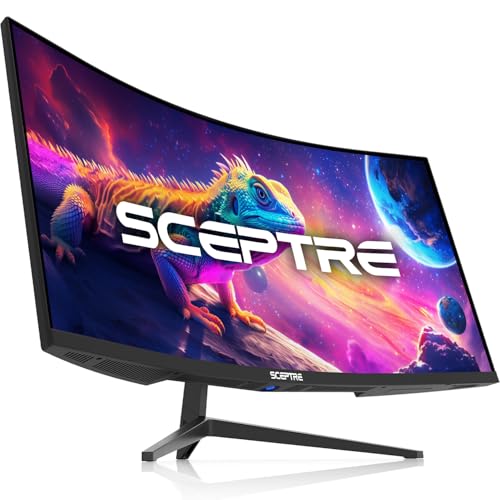
The Sceptre C345B-QUT168 is a 34-inch curved ultrawide WQHD monitor designed for PC gamers, esports players, streamers, and productivity enthusiasts who want an immersive display without breaking the bank. With a 3440x1440 resolution, 180Hz refresh rate, and 1ms MPRT response time, this monitor aims to deliver smooth, detailed visuals for both fast-paced gaming and everyday tasks.
For competitive gamers, the high refresh rate and quick response time help reduce motion blur and ghosting in shooters like Call of Duty or Valorant, giving you a clearer view of fast-moving targets. The ultrawide 21:9 aspect ratio also provides a wider field of view in open-world titles like Cyberpunk 2077, making exploration more engaging. Casual gamers and content creators will appreciate the 99% sRGB color coverage, which ensures vibrant, accurate colors for gaming, streaming, or photo editing.
Build quality is solid for the price point, with a sleek black design and a sturdy stand that offers tilt adjustment. The monitor includes dual DisplayPort inputs, which is a nice touch for multi-monitor setups or switching between a gaming PC and a work laptop. Built-in speakers are a practical addition for those with limited desk space, though they won't replace a dedicated headset or external speakers for immersive audio.
Setup is straightforward: the monitor comes with a power cable and a DisplayPort cable, so you can get started right away. The on-screen display (OSD) is easy to navigate for adjusting brightness, contrast, and gaming presets. The backcover LED lighting adds a subtle aesthetic glow to your setup, though it's not customizable beyond the default color.
A realistic limitation is that the 180Hz refresh rate is only achievable via DisplayPort; HDMI connections may be capped at lower rates, so ensure your GPU supports DisplayPort for full performance. The built-in speakers are adequate for system sounds or casual YouTube, but for gaming or streaming, you'll want a dedicated headset or external speakers. Also, the backcover LED isn't software-controllable, which might disappoint RGB enthusiasts looking for full customization.
Overall, the Sceptre C345B-QUT168 is a strong contender for budget-conscious PC gamers, esports players, and streamers who want an ultrawide monitor with high refresh rates and good color accuracy. It's especially well-suited for gaming setup builders who want to maximize desk space and visual immersion without spending a fortune. For those who prioritize audio quality or advanced RGB lighting, consider investing in external speakers and a separate RGB strip.

The primary distinction among 34-inch curved monitors lies in their refresh rates and panel types.
- High refresh rates, such as 120Hz, 165Hz, or 240Hz, are designed for smooth motion in fast-paced gaming scenarios.
- Lower refresh rates, like 100Hz or 120Hz, are often sufficient for office work and casual gaming, offering a balance between performance and cost.
- The panel technology, whether VA or IPS, dictates the visual experience, with VA panels typically offering higher contrast ratios.
- IPS panels provide wider viewing angles and better color consistency, completing the visual experience dictated by the panel technology.
| Feature | Typical Range | Best For |
|---|---|---|
| Refresh Rate | 100Hz – 240Hz | Gaming vs. Office |
| Panel Type | VA or IPS | Contrast vs. Color |
| Resolution | 3440×1440 (WQHD) | Detail and Multitasking |
| Curvature | 1500R – 3800R | Immersion vs. Flatness |
Resolution is consistently 3440×1440 across most ultrawide models of this width, known as WQHD or QHD. This resolution provides a good balance between pixel density and GPU requirements. It offers significantly more detail than 1080p but is less demanding than 4K, making it accessible for a wider range of graphics cards. The 21:9 aspect ratio is the standard for this size, creating a panoramic view that mimics the shape of a movie screen.
Curvature radius, measured in R, determines how much the screen bends. A lower number, such as 1500R, indicates a tighter curve, which can increase immersion for gamers sitting close to the screen. A higher number, like 3800R, is a more subtle curve that may be more comfortable for office work or users who prefer a flatter viewing experience. The choice between these curvatures is subjective and depends on personal preference and desk setup.
Connectivity options vary by model, with most offering HDMI and DisplayPort inputs. Some models include USB-C with power delivery, which is convenient for charging laptops and reducing cable clutter. Built-in speakers are common in this category, providing basic audio for video calls and media playback, though dedicated speakers or headphones are still recommended for high-quality sound. VESA mount compatibility is also a common feature, allowing users to attach the monitor to an arm or wall mount for better ergonomics.
When evaluating these displays, it is helpful to consider the specific tasks you will perform. Competitive gamers often prioritize high refresh rates and low response times to minimize input lag and motion blur. Creative professionals may value color accuracy and wide viewing angles, making IPS panels a better choice. Office workers might focus on eye comfort features, such as blue light filters and flicker-free technology, to reduce strain during long work sessions.
Panel Technology: VA vs. IPS
VA (Vertical Alignment) panels are known for their high contrast ratios, which result in deeper blacks and more vibrant colors. This makes them ideal for watching movies and playing games with dark scenes. However, VA panels can have slower response times and narrower viewing angles compared to IPS panels. Some users may notice color shifting when viewing the screen from an angle, which can be a drawback for collaborative work or wide-angle viewing.
IPS (In-Plane Switching) panels offer superior color accuracy and wider viewing angles, making them a popular choice for creative work and professional use. They typically have faster response times than VA panels, although they may not match the speed of TN panels. IPS panels often have lower contrast ratios, which can make blacks appear grayish in dark rooms. The choice between VA and IPS depends on whether you prioritize contrast and immersion or color accuracy and viewing angles.
Many curved monitors of this width use VA panels due to their cost-effectiveness and high contrast. However, some premium models offer IPS panels for users who need better color consistency. It is important to check the specific panel type listed in the product specifications, as this can significantly impact the visual experience. Some users find that VA panels are sufficient for gaming and general use, while others prefer the color fidelity of IPS for creative tasks.
Refresh Rate and Response Time
Refresh rate, measured in Hertz (Hz), indicates how many times per second the screen updates its image.
- Higher refresh rates, such as 144Hz, 165Hz, or 240Hz, provide smoother motion and can reduce eye strain during fast-paced gaming.
- A 100Hz or 120Hz refresh rate is often sufficient for office work and casual gaming, offering a noticeable improvement over the standard 60Hz.
- The difference between 120Hz and 240Hz is most apparent in competitive shooters and fast-action games, where every millisecond counts.
Response time, measured in milliseconds (ms), refers to how quickly a pixel can change from one color to another. Lower response times, such as 1ms, help reduce motion blur and ghosting, which can be distracting during fast movement.
However, response time claims can vary depending on the measurement method, such as MPRT (Moving Picture Response Time) or GtG (Gray to Gray). It is important to understand that a 1ms MPRT rating does not necessarily mean the panel has a 1ms GtG response time. Some users may not notice significant differences between 1ms and 5ms response times in everyday use.
Variable Refresh Rate (VRR) technologies, such as AMD FreeSync or NVIDIA G-Sync, help synchronize the monitor’s refresh rate with the GPU’s frame rate. This reduces screen tearing and stuttering, providing a smoother gaming experience. Many modern monitors support FreeSync, which is compatible with both AMD and NVIDIA graphics cards. VRR is particularly useful for games with variable frame rates, such as open-world titles or strategy games. It is a valuable feature for gamers who want to avoid visual artifacts during gameplay.
Connectivity and Ergonomics
Connectivity options are crucial for ensuring compatibility with your devices. Most curved monitors of this width include HDMI and DisplayPort inputs, with some models offering multiple ports for each. DisplayPort is generally preferred for high refresh rates and higher resolutions, as it supports higher bandwidth than HDMI. USB-C ports with power delivery are becoming more common, allowing users to charge their laptops and connect to the monitor with a single cable. This can simplify setup and reduce cable clutter on the desk.
Ergonomic features, such as height, tilt, and swivel adjustments, help users find a comfortable viewing position. A monitor with an adjustable stand can reduce neck and eye strain by allowing users to align the screen with their eyes.
Some models also offer VESA mount compatibility, which allows users to attach the monitor to an arm or wall mount. This can free up desk space and provide more flexibility in positioning the screen. Built-in speakers are a convenient feature for basic audio, but they may not provide high-quality sound for music or movies.
Eye care features, such as blue light filters and flicker-free technology, can help reduce eye strain during long periods of use. Blue light filters reduce the amount of blue light emitted by the screen, which can help improve sleep quality and reduce eye fatigue.
Flicker-free technology ensures that the screen does not flicker at low frequencies, which can cause headaches and eye strain. These features are particularly useful for users who spend many hours in front of a computer for work or study. They can contribute to a more comfortable and healthy viewing experience.
Choosing the Right Curvature and Size
The curvature of a monitor is a matter of personal preference, but it can impact the viewing experience. A tighter curve, such as 1500R, can increase immersion by wrapping the screen around the user’s field of view. This can be beneficial for gamers who want to feel more engaged in the game. A more subtle curve, such as 3800R, may be more comfortable for office work or users who prefer a flatter viewing experience. The choice of curvature depends on the distance from the screen and personal preference.
Screen size is another important factor to consider. A monitor of this width is larger than a standard 27-inch display, providing more screen real estate for multitasking. However, it may require a larger desk and more distance to view comfortably. Users should ensure that their desk setup can accommodate the size of the monitor and that they can sit at a comfortable distance. The 21:9 aspect ratio means that the monitor is wider than it is tall, which can be beneficial for certain tasks but may require adjustments in software settings.
It is also important to consider the resolution and pixel density. A monitor of this width with a 3440×1440 resolution has a higher pixel density than a 27-inch 1440p monitor, resulting in sharper text and images. This can be beneficial for users who work with text or graphics. However, higher resolutions require more powerful graphics cards to drive high frame rates. Users should ensure that their GPU is capable of handling the resolution and refresh rate of the monitor to avoid performance issues.
Key Considerations for Buyers
When comparing curved monitors of this width, it is essential to consider the specific needs of the user. Competitive gamers should prioritize high refresh rates and low response times, while creative professionals may value color accuracy and wide viewing angles. Office workers might focus on ergonomic features and eye comfort. It is important to read the product specifications carefully and understand the differences between panel types, refresh rates, and connectivity options. User reviews can also provide valuable insights into the real-world performance of the monitor.
Price is another important factor to consider. Curved monitors of this width vary in price depending on their features and brand. Higher-end models with IPS panels, high refresh rates, and additional features tend to be more expensive.
Budget-friendly models may use VA panels and offer lower refresh rates, but they can still provide a good experience for casual users. It is important to find a balance between features and budget to get the best value for money. Some models may offer better value for money than others, depending on the specific features included.
Warranty and customer support are also worth considering. Most monitors come with a standard warranty, but the length and coverage can vary by brand. It is important to check the warranty terms and conditions before making a purchase. Good customer support can be helpful if you encounter any issues with the monitor. Reading reviews and checking the reputation of the brand can provide insights into the quality of their customer service. A reliable brand with good support can provide peace of mind and ensure a positive ownership experience.
Ultimately, the best curved monitor of this width for you depends on your specific needs and preferences. By understanding the key specifications and use cases, you can make an informed decision and find a display that suits your workflow. Whether you are a gamer, creative professional, or office worker, there is a curved monitor of this width that can enhance your productivity and enjoyment. Take the time to compare the options and choose the one that offers the best balance of features, performance, and value.
If you are looking for more information on display setups, our guide on single versus multiple monitors can help you decide which configuration works best for your space. This resource provides insights into the advantages and disadvantages of each setup, helping you optimize your workspace for efficiency and comfort.
For those interested in gaming peripherals, our console gaming monitor guide offers recommendations for displays that work well with PS5 and Xbox. This can be helpful if you are considering using your monitor for both PC and console gaming, ensuring compatibility and optimal performance across different platforms.
By carefully evaluating the specifications and features of each model, you can select a curved monitor of this width that meets your needs and enhances your daily tasks. The right display can improve your productivity, gaming experience, and overall comfort. Take the time to research and compare the options available, and you will be well on your way to finding the perfect monitor for your setup.





Write Your Review
No reviews yet. Be the first to share your experience!