

Choosing the right display often comes down to balancing smooth motion with clear text, a decision central to any 22 inch monitor comparison. For most users, the sweet spot lies in Full HD resolution paired with a refresh rate that matches their specific workload, whether that is competitive gaming or long hours of office productivity.
The monitors covered here range from budget-friendly options with basic connectivity to higher-end models featuring advanced eye-care features and variable refresh rate support. Understanding the differences in panel technology, such as IPS versus VA, helps you avoid paying for specs you might not use. For a broader look at how screen size impacts your workspace, check out our guide on monitor size and desk space.

Pros
- 144Hz refresh rate for smooth gaming performance at a very competitive price.
- Built-in speakers eliminate need for external audio for basic use.
- Minimal bezels make for an immersive multi-monitor experience.
- Blue-Light Shift helps reduce eye fatigue during long sessions.
Cons
- Only 22-inch screen may feel small for immersive single-monitor gaming.
- Built-in speakers typically lack depth and volume for serious gaming audio needs.
- No VESA mount support mentioned, limiting desk mounting options.
The Sceptre E225W-FW144 Series is a 22-inch Full HD gaming monitor built for gamers who prioritize smooth performance on a tight budget. With a 144Hz refresh rate and 1080p resolution, this display offers a noticeable upgrade over standard 60Hz office monitors, especially in fast-paced games like Call of Duty, Valorant, or Apex Legends. The combination of HDMI and DisplayPort inputs makes it easy to connect to most modern gaming PCs or laptops, and the integrated speakers provide basic audio without needing extra gear on your desk.
This monitor is best suited for casual gamers, competitive players looking for a low-cost secondary screen, and college gamers setting up a dorm room battle station. The 22-inch size keeps the desk footprint small, and the nearly bezel-free design means it pairs well in a dual-monitor arrangement for streaming or productivity. Gamers who play mostly esports titles will appreciate the 144Hz responsiveness, which helps reduce motion blur and gives a slight edge in competitive play.
Build quality is typical for this price range a lightweight plastic frame that feels sturdy enough for desk use but not rugged for frequent moves. The Blue-Light Shift feature is a practical addition for those who game or work late, as it filters some harmful blue light and may reduce eye fatigue over time. The stand offers basic tilt adjustment, but you won't find height, swivel, or pivot options, which is expected at this price point.
Setup is straightforward: attach the stand, plug in power and video cable, and the monitor is ready to go. The on-screen display (OSD) menus are simple to navigate for adjusting brightness, contrast, and gaming presets. Cable management is minimal since there are no integrated routing channels, but the compact size keeps wires from getting too messy.
One realistic limitation is the lack of VESA mounting support, so you cannot easily attach this monitor to an arm or wall mount. Also, the built-in speakers are functional but won't satisfy gamers who want rich sound for immersion or crisp audio for competitive footstep detection. Most users will want to pair this monitor with a dedicated gaming headset or external speakers.
Overall, the Sceptre 22-Inch 144Hz Monitor is a solid choice for budget-minded PC gamers, streamers needing a secondary display, or anyone building a cost-effective gaming setup. It delivers the essential performance needed for smooth 1080p gaming without the premium price. If you're focused on high-refresh-rate gameplay and keeping your budget in check, this monitor is worth considering for your desk.


Pros
- 120Hz refresh rate with Adaptive Sync provides smooth, tear-free gaming at an affordable price.
- High 4000:1 contrast ratio delivers deep blacks and better image depth than typical IPS monitors.
- Eye care features (anti-flicker, low blue light, anti-glare) support comfortable long gaming sessions.
- Dual HDMI inputs and VESA mount offer flexible connectivity and desk organization options.
Cons
- 22-inch size may feel small for users accustomed to larger gaming monitors, especially for immersive single-player titles.
- No built-in speakers require external audio solutions for console or PC use out of the box.
- Limited to HDMI 1.4, which may cap refresh rate at 120Hz for some devices; no DisplayPort or USB-C connectivity.
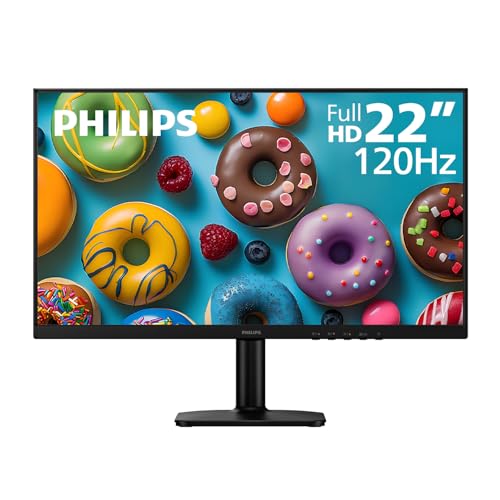
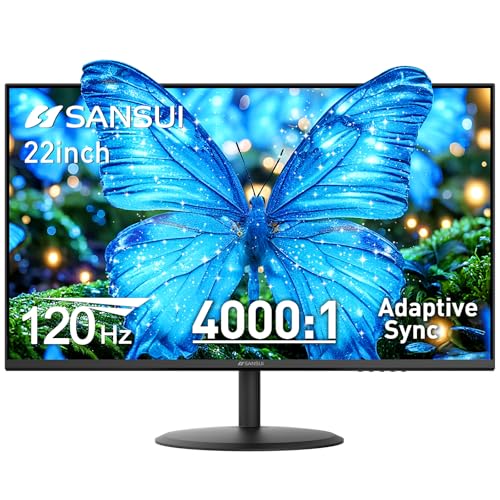
The SANSUI ES-22X3AH is a 22-inch 120Hz gaming monitor designed to deliver smooth visuals and solid image quality without breaking the bank. With a Full HD 1080p resolution, Adaptive Sync support, and a 4000:1 contrast ratio, this monitor targets PC gamers, esports players, and casual users who prioritize responsive gameplay and eye comfort during extended sessions.
For competitive gamers and esports enthusiasts, the 120Hz refresh rate is a key advantage. It provides noticeably smoother motion compared to standard 60Hz monitors, which helps in fast-paced games like Valorant, Apex Legends, or Call of Duty. Adaptive Sync further reduces screen tearing and stuttering, creating a more fluid experience during intense firefights. While the 22-inch screen is compact, it keeps all gameplay in your direct field of view, which some competitive players actually prefer for faster reaction times.
Streamers and content creators will appreciate the 100% sRGB color coverage and HDR mode, which deliver accurate and vibrant colors for video editing, graphic design, or watching streams. The 4000:1 contrast ratio also enhances depth in darker scenes, making open-world or horror games more immersive. The anti-glare coating and low blue light mode reduce reflections and eye fatigue, which is a huge plus for anyone spending long hours in front of a screen whether gaming, streaming, or working from home.
Build quality is practical for a budget monitor. The plastic chassis feels sturdy enough for daily use, and the tilt adjustable stand allows for some ergonomic tweaking. The monitor also supports VESA 75x75mm mounting, so you can easily attach it to an arm or wall for a cleaner desk setup. Cable management is straightforward with dual HDMI 1.4 ports, letting you hook up both a gaming PC and a console without constantly swapping cables.
A couple of realistic limitations to consider: the 22-inch size may feel small if you are used to 24-inch or larger displays for immersive single-player games or productivity multitasking. Also, there are no built-in speakers, so you will need external speakers, a headset, or a soundbar for audio. Additionally, the HDMI 1.4 ports could limit some devices from accessing higher refresh rates, though at 1080p, 120Hz is well within reach. Overall, the SANSUI 22-inch monitor is a solid entry-level choice for PC gamers, esports players, and gamers on a budget who want smoother gameplay and comfort without spending a lot.
The 120Hz refresh rate on the SANSUI ES-22X3AH provides a noticeable upgrade over standard 60Hz monitors, delivering smoother motion in fast-paced games. Combined with Adaptive Sync, it reduces screen tearing and stuttering, which helps maintain immersion during competitive matches. The 4000:1 contrast ratio adds depth to dark scenes, making it easier to spot enemies in shadows. While the 22-inch size is compact, it keeps all visual information within your direct line of sight, potentially aiding reaction times in esports titles.
The monitor features a sturdy black plastic construction that feels durable for its price range. The stand offers -5 to 22 degrees tilt adjustment, allowing some ergonomic flexibility. It also supports VESA 75x75mm mounting, so you can easily switch to an arm or wall mount for a cleaner desk setup. At 6.6 pounds, it is lightweight enough to move between rooms or adjust without hassle.
Connectivity is handled by two HDMI 1.4 ports, which can support up to 120Hz at 1080p. This setup lets you connect both a gaming PC and a console simultaneously, making it easy to switch between devices. There is no DisplayPort or USB-C, so users with older GPUs or laptops may need an adapter. The monitor also lacks built-in speakers, so plan for external audio solutions.


Pros
- High 100Hz refresh rate delivers smooth motion for casual and competitive gaming.
- VA panel offers excellent contrast ratio for richer colors and deeper blacks compared to typical IPS monitors.
- Adaptive Sync support reduces screen tearing without requiring a high-end GPU.
- LowBlue Mode and flicker-free technology reduce eye fatigue during long sessions.
- Affordable price point makes it accessible for budget-conscious gamers and students.
Cons
- Limited to 22-inch size, which may feel small for immersive gaming or multi-window productivity.
- Only one HDMI port and one VGA port, lacking DisplayPort or USB-C connectivity for modern setups.
- No built-in speakers, requiring external speakers or headphones for audio.
The Philips 221V8LB is a 22-inch Full HD monitor that targets budget-minded PC gamers, casual gamers, and home office users who want a reliable display without spending a lot. With a 100Hz refresh rate and Adaptive Sync, it offers smoother motion than standard 60Hz monitors, which can make a noticeable difference in fast-paced games like shooters or racing titles. The VA panel provides deeper blacks and better contrast than many entry-level IPS monitors, giving you more vibrant visuals for gaming and media.
This monitor is best suited for casual gamers, college gamers, and work-from-home users who need a secondary display or a compact primary monitor for a small desk. Its 22-inch size fits easily into tight spaces, and the VESA mount compatibility allows for flexible desk setups or wall mounting to improve cable management. The 100Hz refresh rate and Adaptive Sync help reduce screen tearing and stuttering, making gameplay feel more fluid without needing a high-end graphics card.
In terms of performance, the 100Hz refresh rate provides a noticeable upgrade over standard 60Hz displays, especially in games where quick reactions matter. The Adaptive Sync technology works with compatible GPUs to keep frames smooth, which is a nice bonus at this price point. The VA panel also offers 178-degree viewing angles, so colors stay consistent even when you're not sitting directly in front of the screen. This can be useful for co-op gaming or when sharing your screen with others.
Build quality is solid for a budget monitor, with a simple black design that won't distract from your gaming setup. The stand is basic but functional, and the VESA mount option gives you the freedom to use an aftermarket arm or mount for a cleaner desk. The inclusion of both HDMI and VGA ports ensures compatibility with older PCs or laptops, though you won't find DisplayPort or USB-C here. This might limit connectivity for some modern devices, but for most casual setups, it's sufficient.
Setting up the Philips 221V8LB is straightforward. It comes with an HDMI cable and a power cord, so you can plug it in and start using it right away. The on-screen menu is easy to navigate, and the LowBlue Mode is a nice touch for reducing eye strain during long gaming sessions or late-night work. However, there are no built-in speakers, so you'll need to rely on external speakers or a gaming headset for audio. This is common for budget monitors, but it's worth noting if you prefer an all-in-one solution.
One realistic limitation is the 22-inch screen size, which may feel cramped for immersive gaming or for users who multitask with multiple windows open. Also, the lack of a DisplayPort or higher refresh rate (like 144Hz) means it's not ideal for competitive esports players who demand the fastest response times. But for its price, the Philips 221V8LB delivers good value for casual gamers, students, or anyone needing a reliable secondary monitor. If you're building a budget gaming PC or setting up a dorm room gaming station, this monitor is a practical choice that won't disappoint.
This section breaks down the technical distinctions between the available 22-inch displays, focusing on the metrics that actually affect daily use. By looking at refresh rates, response times, and connectivity, you can identify which model aligns with your hardware and usage habits without unnecessary guesswork.
| Feature | Typical Range in 22-inch Class | Impact on User Experience |
|---|---|---|
| Resolution | 1920 x 1080 (Full HD) | Sharp text and standard gaming detail |
| Refresh Rate | 75Hz to 144Hz | Smoothness in motion and scrolling |
| Panel Type | IPS, VA, TN | Color accuracy and viewing angles |
| Response Time | 1ms to 5ms | Reduction of motion blur and ghosting |
| Connectivity | HDMI, DisplayPort, VGA | Compatibility with PC, console, and legacy devices |
Refresh rate is the most visible difference between these models. A 75Hz panel is standard for office work, while 120Hz and 144Hz options provide a noticeably smoother experience for gamers. The jump from 60Hz to 144Hz is often described as a significant upgrade in fluidity, especially in fast-paced titles.
Panel technology dictates how colors and angles are handled. IPS panels are widely preferred for their consistent color reproduction and wide viewing angles, making them suitable for both creative work and gaming. VA panels offer higher contrast ratios, which can be beneficial for darker scenes in games, though they may have slightly slower response times.
Connectivity ports determine how easily you can integrate the monitor into your existing setup. Modern displays typically include HDMI and DisplayPort, with some models adding VGA for compatibility with older computers. Having multiple HDMI ports allows you to switch between a PC and a console without constantly swapping cables.
Refresh Rate and Response Time Dynamics
High refresh rates reduce motion blur, making fast-moving objects appear sharper. In competitive gaming, this clarity can help with tracking targets and reacting to sudden movements. For office work, a higher refresh rate makes scrolling through documents and web pages feel less jarring.
Response time measures how quickly pixels change color. A lower number, such as 1ms, indicates faster pixel transitions, which helps minimize ghosting trails behind moving objects. However, real-world performance can vary based on the panel type and the specific content being displayed.
Variable Refresh Rate (VRR) technologies like Adaptive-Sync and FreeSync help synchronize the monitor’s refresh rate with the graphics card’s frame rate. This synchronization prevents screen tearing and stuttering, providing a smoother visual experience even when frame rates fluctuate during gameplay.
Panel Technology and Viewing Angles
IPS panels are known for their accurate colors and wide viewing angles, allowing the image to remain clear even when viewed from the side. This makes them a popular choice for users who share their screen with others or sit at an angle to their desk. The consistent color performance also benefits photo editing and video viewing.
VA panels excel in contrast, producing deeper blacks and brighter whites. This high contrast ratio can make dark scenes in games more immersive and improve the overall depth of the image. However, VA panels may exhibit slower response times compared to IPS, which can result in slight ghosting in very fast motion.
TN panels are generally the most affordable and offer the fastest response times. They are often found in budget gaming monitors where speed is prioritized over color accuracy. While they have narrow viewing angles and less vibrant colors, they remain a viable option for competitive gamers on a tight budget.
Connectivity and Compatibility Considerations
Most monitors of this size include HDMI and DisplayPort, which are the standard inputs for modern PCs and consoles. DisplayPort is often required for higher refresh rates on PC gaming, while HDMI is essential for connecting to gaming consoles like the PS5 or Xbox. Having both ensures maximum flexibility for different devices.
Some budget models still include VGA ports, which can be useful if you are using an older computer that lacks digital outputs. However, VGA is an analog signal and does not support the same level of sharpness or refresh rates as digital connections. If you are building a new setup, prioritize monitors with digital-only inputs.
Built-in speakers are a convenient feature for casual use, allowing you to listen to videos or audio without external speakers. While the sound quality is generally basic, it is sufficient for voice calls, background music, and casual gaming. For a dedicated gaming or music setup, external speakers or headphones are still recommended for better audio performance.
Ergonomics and Eye Comfort Features
Ergonomic stands allow you to adjust the height, tilt, and swivel of the monitor, helping to maintain a healthy posture during long work sessions. A height-adjustable stand can align the top of the screen with your eye level, reducing neck strain. Tilt and swivel adjustments help you find the most comfortable viewing angle for your desk setup.
Eye comfort features such as Blue Light Filter and Flicker-Free technology are designed to reduce eye strain during extended use. Blue light emission can contribute to digital eye strain, and reducing it may help improve comfort during late-night work or gaming sessions. Flicker-Free technology ensures a stable image without visible flickering, which can also contribute to a more comfortable viewing experience.
Anti-glare coatings on the screen surface help reduce reflections from overhead lights or windows. This is particularly useful in bright environments where glare can make the screen difficult to read. A matte finish is common in office monitors, while some gaming monitors use a semi-gloss finish to balance clarity and glare reduction.
Choosing the Right Model for Your Needs
Selecting the right monitor depends on your primary use case, as different activities require specific features to optimize performance and comfort.
- For competitive gaming, you should prioritize high refresh rates and low response times to ensure the best possible performance.
- For office work, focus on eye comfort features, ergonomic adjustments, and accurate color reproduction to maintain productivity and health.
- A balanced model with 100Hz or 120Hz refresh rate and IPS panel technology often serves both purposes well for versatile users.
Budget is another important factor. Entry-level monitors offer basic features at a lower price point, while premium models include additional features like VRR, built-in speakers, and advanced eye-care technologies. Determine which features are essential for your workflow and which are nice-to-haves to avoid overspending on unused capabilities.
Consider your desk space and viewing distance. A monitor of this dimension is compact enough for most desks and provides a comfortable viewing distance for Full HD resolution. If you plan to use multiple monitors, look for models with thin bezels to create a seamless multi-screen setup. VESA mount compatibility allows you to use a monitor arm for added flexibility.
Check the warranty and customer support offered by the manufacturer. A longer warranty period provides peace of mind and indicates the manufacturer’s confidence in the product’s durability. US-based customer support can be helpful for resolving any issues that may arise during setup or use. Reading user reviews can also provide insights into real-world performance and reliability.
For users interested in expanding their setup, our guide on dual monitor configurations offers practical advice on arranging screens for maximum productivity. Understanding how different monitors interact in a multi-display setup can help you make a more informed decision about your primary display.
Ultimately, the best monitor of this size is the one that fits your specific needs and budget. By comparing refresh rates, panel types, and connectivity options, you can find a display that enhances your gaming or work experience without unnecessary complexity. Take the time to review the specifications and consider your daily usage patterns to make a confident choice.





Write Your Review
No reviews yet. Be the first to share your experience!