
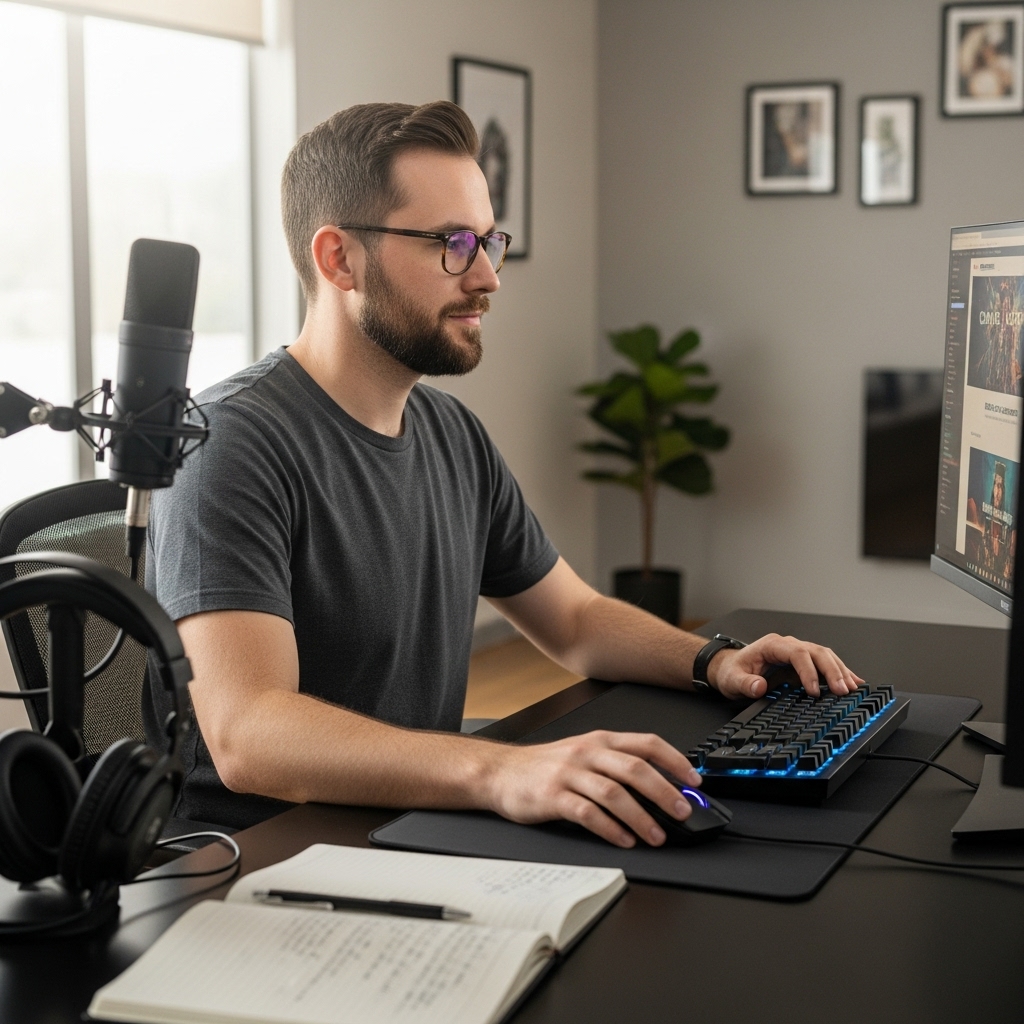

Many professionals and gamers seek a dual monitor alternative to simplify their desk setup while maintaining high productivity. Instead of managing two separate screens, cables, and stands, a single large display or a specialized dual-screen unit can offer a cleaner workspace.
This approach reduces visual clutter and often lowers the total cost of ownership by eliminating the need for a second monitor arm or extra power outlets. For users who find traditional dual setups bulky or expensive, these alternatives provide a practical path to expanded screen real estate without the complexity.
The core benefit of switching to a dual monitor alternative is the balance between screen size and ergonomic simplicity.
- Ultrawide monitors provide a continuous field of view that eliminates the bezel gap found in side-by-side setups.
- Portable dual monitors offer the flexibility of a multi-screen experience that folds into a compact package for travel.
- Understanding specific display technologies, connectivity requirements, and ergonomic implications is key to selecting the right solution.
- The right display configuration can significantly enhance workflow efficiency and comfort for coders, traders, and creative professionals.


Pros
- Portable dual-screen design with full-metal build feels premium and travel-ready
- High color accuracy (107% sRGB) benefits content creators and designers
- Includes all cables and a protective case - no extra purchases needed
- Compact stacked footprint helps keep a clean, organized gaming desk
Cons
- 60Hz refresh rate limits its use as a primary gaming monitor for fast-paced competitive titles
- Requires DisplayLink driver installation on macOS for full functionality
- 15.6-inch screens may feel small for extended multitasking compared to larger desktop monitors
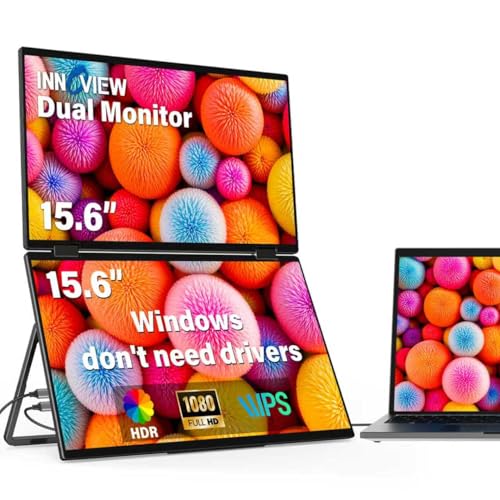
The VisionOwl Portable Monitor is a dual 15.6-inch foldable display designed to boost productivity and multitasking for a variety of users, including PC gamers, streamers, and content creators. Rather than a single large screen, this monitor uses a vertically stacked pair of 1080P IPS panels, each with a 107% sRGB color gamut, offering vibrant colors and solid clarity for secondary tasks like monitoring chat, managing OBS, or referencing guides while gaming.
For gamers and streamers, this setup can be a real asset. You can keep Discord, Spotify, or streaming dashboards visible on one screen while your main monitor handles the action. The 60Hz refresh rate is fine for these auxiliary uses, though it is not suited for competitive gaming where high refresh rates matter. The matte finish helps reduce reflections, making it easier to use in brightly lit rooms or near windows.
Build quality is a standout feature. The monitor has a full-metal body that feels sturdy and premium. It includes a built-in kickstand that adjusts up to 120 degrees, and it supports VESA mounts for more permanent desk integration. At just 3.5 pounds and folding 360 degrees, it is easy to pack in the included padded bag and take to a dorm, coffee shop, or LAN party.
Setup is straightforward for Windows users thanks to the Microsoft-certified DisplayLink driver that installs automatically. Mac users will need to download the driver, but the process is simple and does not affect system security. The box contains all necessary cables: USB-C to USB-C, USB-A to USB-C, two HDMI to Mini-HDMI cables, and a power adapter, so you can start using it right away without hunting for extras.
That said, the 60Hz refresh rate and 15.6-inch size mean this is not a replacement for a high-refresh primary gaming monitor. It is best used as a companion screen. Also, for macOS you must install the DisplayLink driver, which might be a minor inconvenience for some. The price point is higher than many single portable monitors, but the dual-screen design and included accessories justify the investment for users who truly need extra screen space on the go.
Overall, the VisionOwl dual portable monitor is a practical choice for gamers, streamers, and mobile professionals who want a versatile secondary display. It enhances a gaming setup by providing room for essential tools without cluttering your main screen. If you travel frequently, work in tight spaces, or need to monitor streams and apps while gaming, this stacked monitor is worth considering.


Pros
- Cost-effective dual-monitor solution right out of the box
- 1500R curved design reduces eye strain during long sessions
- Built-in speakers eliminate the need for external desktop speakers
- Custom gaming presets help tailor visuals for FPS and RTS games
Cons
- 75Hz refresh rate limits competitive advantage in fast-paced esports titles
- 1080p resolution may not satisfy users seeking higher pixel density for detailed work
- Built-in speakers likely lack bass and volume compared to dedicated speakers or headsets
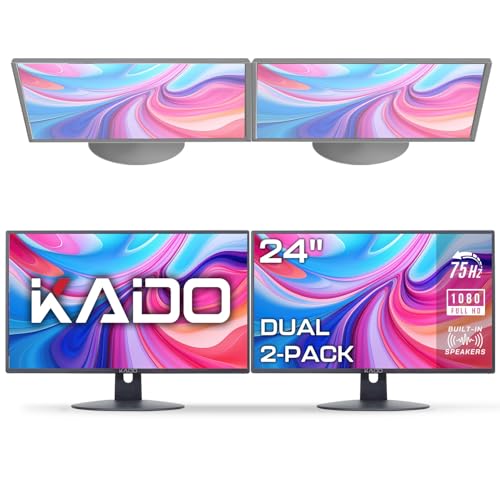
The Kado Dual Monitor Setup delivers a practical and affordable entry into multi-monitor gaming and productivity. This bundle includes two 27-inch curved monitors with a 1500R radius, 1920x1080 resolution, and a 75Hz refresh rate. Designed for casual gamers, streamers, content creators, and work-from-home professionals, this setup aims to boost immersion and efficiency without a premium price tag.
For gaming, the 75Hz refresh rate and advertised fast response time help reduce motion blur and ghosting compared to a standard 60Hz panel. While it won't satisfy competitive esports players chasing 144Hz or higher, it works well for slower-paced genres like strategy games, RPGs, and open-world adventures. The built-in custom gaming modes (FPS and RTS) allow quick profile switching to adjust brightness and contrast for different game types. The 100% sRGB color coverage ensures colors look vibrant and accurate, making it suitable for light photo editing or content consumption.
The curved design is a highlight for multi-tasking. The slight curve wraps around your field of view, reducing eye strain and making it easier to glance between screens. The monitors also include built-in speakers, which are convenient for casual use or background audio, though you may still want a dedicated headset or speakers for immersive gaming or critical audio work. VESA 100x100mm mounting holes give you flexibility to use monitor arms to free up desk space.
Set up is straightforward. The package includes dual monitors with stands, and they connect via HDMI (though only one HDMI port per monitor appears typical at this price point). The stands offer tilt adjustment but lack height or swivel, so pairing them with VESA arms is recommended for ergonomic optimization. Cable management is basic, but the thin bezels (likely around 10-15mm) help create a near-seamless look when positioned side by side.
Potential limitations include the 1080p resolution, which may feel a bit soft for detailed productivity work on a 27-inch screen, and the absence of adaptive sync technologies like FreeSync. Also, the built-in speakers are a convenience feature rather than a high-fidelity audio solution. However, for the price of a single mid-range monitor, you get two decent screens that cover many gaming and work needs.
Overall, the Kado Dual Monitor Setup is a strong value for college gamers, casual players, budget-conscious streamers, and anyone setting up a home office or multi-tasking gaming station. If you're building a dual-screen rig without breaking the bank, this bundle simplifies the process and delivers a functional, immersive experience right away.
The Kado dual monitors feature a 27-inch 1080p VA or IPS-type panel (likely VA based on curvature and price) with 100% sRGB coverage. Colors appear vivid and accurate out of the box, though contrast may be decent for the price. The 1500R curve increases immersion, especially when the screens are arranged side by side. Viewing angles are adequate for a dual setup, though color shift may occur at extreme angles. The 75Hz refresh rate and fast response time reduce visible tearing and blur in most titles, but competitive gamers will still notice a lack of smoothness compared to higher refresh rates.
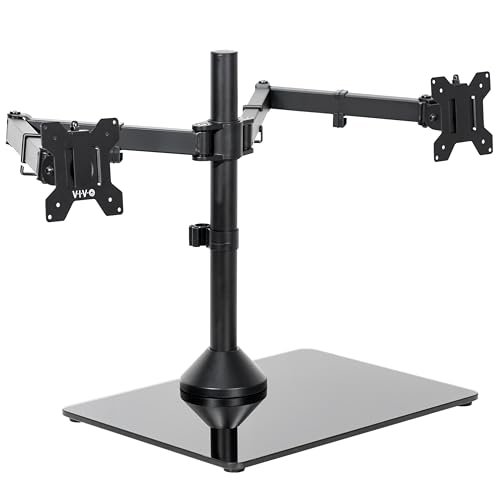
Each monitor ships with a stand that provides tilt adjustment but no height or swivel options. This means achieving an ideal eye level may require stacking or aftermarket monitor arms. Both monitors support VESA 100x100mm mounting, which is a huge plus for customizing your desk layout. The dual setup is simple to install: attach stands, connect power and HDMI cables, and you're ready. Cable management options are limited with the stock stands, but with VESA arms you can route cables more cleanly. The built-in speakers save space but won't replace a good headset for immersive gaming.

Pros
- Cost-effective dual-screen solution with curved panels for an immersive field of view.
- 75Hz refresh rate and fast response time deliver smooth visuals for casual and moderate gaming.
- Built-in speakers save desk space and reduce cable clutter.
- VESA mounting flexibility allows for a clean, ergonomic setup with monitor arms.
- Custom gaming modes (FPS, RTS) offer quick optimization for different game types.
Cons
- Limited to 1080p resolution and 75Hz, which may not satisfy competitive gamers seeking higher refresh rates.
- Built-in speakers are adequate for basic use but lack the depth and clarity of dedicated external speakers.
- Some users may find the stand less adjustable than premium monitors, requiring an aftermarket VESA mount for full ergonomic control.
The Kado Dual Monitor Setup is a two-pack of 27-inch curved 1080p monitors designed for gamers, streamers, and productivity users who want an immersive multi-screen experience without a heavy investment. Each monitor features a 1500R curvature that wraps around your field of view, reducing peripheral distortion and eye strain during long sessions. With a 75Hz refresh rate and fast response time, this setup handles casual gaming, office work, and media consumption smoothly, though it won't satisfy esports players chasing 144Hz or higher.
Build quality is solid for the price point, with a sleek black bezel design that looks clean on any desk. The built-in speakers are a convenient addition for quick audio feedback during casual use, but audiophiles will likely connect external speakers or a headset. VESA mount compatibility (100x100mm) gives you the flexibility to mount these monitors on arms or wall brackets, freeing up valuable desk space for gaming peripherals and cable management.
For target users like PC gamers, casual gamers, college students, and home office workers, the Kado dual monitors offer a practical solution. The 1080p resolution is ideal for everyday tasks and less demanding games, while the 1500R curve enhances immersion in open-world titles or racing sims. Custom gaming modes (FPS and RTS) let you quickly adjust display settings for different game genres, though the 75Hz cap means you won't gain a competitive edge in fast-paced shooters.
Setting up the dual monitors is straightforward: each unit includes HDMI and VGA inputs, plus a headphone jack. The included stands are basic but functional, with tilt adjustment. For a more ergonomic setup, you'll likely want to invest in a dual monitor arm. Cable management is decent, with a small cover on the stand to route cables, but aftermarket arms can improve aesthetics and airflow on your desk.
One realistic limitation is the 75Hz refresh rate. While it's fine for casual gaming and productivity, competitive gamers or those who play twitch shooters often will notice the difference compared to 144Hz or higher panels. Additionally, the built-in speakers lack bass and volume, making them better suited for system sounds or background video rather than immersive gameplay. If you prioritize high-fidelity audio, plan to use a gaming headset or external speakers.
Overall, the Kado Dual Monitor Setup is a solid choice for budget-conscious shoppers who need a large, curved dual-screen workspace for gaming, streaming, and daily tasks. It excels in providing an immersive viewing experience at an accessible price point, especially for university students setting up a dorm room or casual gamers building their first multi-monitor rig. If you can accept the 1080p resolution and 75Hz cap, this kit delivers excellent value and a clean, functional desk setup.
Choosing the right display setup depends heavily on your primary use case and desk space constraints. A traditional dual monitor setup offers distinct windows for different tasks, but it requires more desk depth and cable management.
Alternatives like ultrawide monitors or stacked portable screens aim to replicate this multitasking capability in a more compact form factor. The decision often comes down to whether you prioritize a seamless visual field or the ability to move your setup with you. Each option has specific technical requirements that affect compatibility with your existing hardware.
| Feature | Ultrawide Monitor | Portable Dual Monitor | Standard Dual Pack |
|---|---|---|---|
| Screen Continuity | Single seamless screen | Two distinct screens | Two distinct screens |
| Portability | Low (fixed desk) | High (foldable) | Low (fixed desk) |
| Desk Space | Wide footprint | Compact footprint | Wide footprint |
| Connectivity | Single cable usually | USB-C/HDMI | Two cables usually |
| Best For | Immersive work/gaming | Travel/Remote work | Fixed office setups |
Before selecting a display, it is helpful to audit your current workspace and hardware capabilities. This ensures that the new setup integrates smoothly with your existing computer and fits comfortably within your physical environment. The following checklist highlights the key factors to verify before making a purchase decision.
- Measure the available desk width and depth to ensure the monitor fits without blocking other essentials.
- Check your computer’s video output ports to confirm compatibility with HDMI, DisplayPort, or USB-C.
- Determine if you need a single seamless screen or distinct windows for separate applications.
- Verify the power requirements, especially for portable units that may need external adapters.
- Assess your viewing distance to ensure the screen size does not cause eye strain or neck fatigue.
Ultrawide Monitors and Seamless Workflow
Ultrawide monitors are a popular choice for those who want the screen real estate of two monitors without the physical gap. These displays typically use a 21:9 or 32:9 aspect ratio, providing a continuous canvas for multitasking. This design is particularly effective for video editing, coding, and trading, where a wide field of view allows for more data to be visible at once. The lack of a central bezel helps maintain visual flow, reducing the cognitive load associated with switching between separate screens.
However, ultrawide monitors require a compatible graphics card and operating system support for the specific resolution. Most modern GPUs handle these resolutions well, but older systems may struggle with the pixel count. Additionally, the curved design of many ultrawide panels is intended to match the human field of view, which can reduce eye movement.
If you are coming from a flat dual setup, the curvature may take some time to get used to, but many users find it more comfortable for long periods. It is important to check the curvature radius to ensure it suits your viewing distance.
Portable Dual Screens for Mobile Professionals
Portable dual monitors offer a unique solution for users who need a multi-screen experience on the go. These devices typically consist of two smaller screens, often 15.6 inches each, that stack vertically or fold together. They connect via USB-C or HDMI, extending your laptop’s display into a compact workstation. This setup is ideal for remote workers, travelers, or anyone who needs to boost productivity in a small space like a hotel room or a cafe.
Connectivity is a critical factor for portable dual monitors. Many require a USB-C port with DisplayPort Alt Mode to function correctly, while others may need specific drivers for macOS or Windows. It is essential to check the compatibility list provided by the manufacturer to ensure your laptop supports the required signal. Power delivery is another consideration, as some units draw power from the laptop, while others require a separate power adapter. Understanding these technical details prevents frustration during setup and ensures a stable connection.
Standard Dual Packs and Ergonomic Setup
For those who prefer the traditional side-by-side layout, dual monitor packs offer a cost-effective way to expand your workspace. These sets usually include two identical monitors, ensuring consistent color and brightness across both screens. The primary advantage is the ability to keep different applications on separate screens, which can reduce context switching. This setup is widely used in office environments, where multitasking between documents, emails, and web browsers is a daily requirement.
Ergonomics play a significant role in the comfort of a dual monitor setup. The monitors should be positioned at eye level, with the top of the screens aligned with your eyes. The distance between the screens should be minimal to avoid excessive head movement, but not so close that they feel cramped. Adjustable stands or monitor arms can help achieve the ideal position, allowing you to tilt, swivel, and rotate the screens as needed. Proper alignment helps prevent neck strain and eye fatigue, making the setup sustainable for long workdays.
Connectivity and Hardware Compatibility
Ensuring your computer can drive the chosen display is a fundamental step in the selection process. Different monitors require different input signals, and not all ports are created equal. For example, a USB-C connection can transmit both video and power, simplifying cable management, while HDMI and DisplayPort are dedicated video outputs. If your laptop lacks the necessary ports, you may need adapters or docking stations, which can add to the overall cost and complexity of the setup.
Graphics card capability is also important, especially for high-resolution or high-refresh-rate displays. While most modern integrated graphics can handle standard 1080p or 1440p resolutions, 4K or ultrawide displays may require a dedicated GPU for smooth performance. Check the maximum resolution and refresh rate supported by your graphics card to avoid compatibility issues. Additionally, consider the number of outputs available; if you are using a dual monitor setup, you need two active video outputs or a docking station that provides them.
Ergonomics and Health Considerations
The physical arrangement of your monitors directly impacts your posture and eye health. Poorly positioned screens can lead to neck pain, shoulder tension, and digital eye strain. To mitigate these issues, ensure that the primary screen is centered in front of you, with the secondary screen angled slightly inward. The top of the screens should be at or slightly below eye level to encourage a natural downward gaze. This position reduces the strain on the neck muscles and helps maintain a neutral spine alignment.
Lighting and glare are also critical factors in a comfortable setup. Position your monitors so that windows and bright light sources are not directly behind or in front of the screens, as this can cause reflections and reduce visibility. Using anti-glare filters or adjusting the monitor’s brightness and contrast settings can help manage ambient light.
Taking regular breaks, such as following the 20-20-20 rule, is also essential for maintaining eye health during long periods of screen time. These simple adjustments can make a significant difference in your overall comfort and productivity.
Ultimately, the best dual monitor alternative is the one that fits your specific workflow, space, and hardware constraints. Ultrawide monitors offer a seamless experience for immersive tasks, while portable dual screens provide flexibility for mobile professionals. Standard dual packs remain a reliable choice for those who prefer distinct windows and have the desk space to accommodate them.
By carefully evaluating your needs and checking compatibility, you can create a display setup that enhances your productivity and comfort. Take the time to measure your space and test your connections before committing to a purchase, ensuring a smooth transition to your new workspace.
If you are exploring further display options, our guide on comparing single large monitors to multiple screens provides additional insights into the trade-offs of each approach. Understanding these differences can help you make a more informed decision based on your specific priorities and usage patterns.
For those interested in optimizing their desk setup, checking out resources on ergonomic monitor placement for office work can offer practical tips on arranging your screens for maximum comfort. Proper setup is key to avoiding strain and maintaining focus throughout the day.





Write Your Review
No reviews yet. Be the first to share your experience!