

Whether a dual monitor setup is worth it depends largely on your specific workflow, desk dimensions, and how you handle multitasking. For many users, the answer is yes, because the extra screen real estate significantly reduces the need to switch between windows and improves overall productivity.
However, it is not a universal solution; if your tasks are strictly single-window focused or your desk space is extremely limited, a single high-resolution display might be a better investment. This guide examines the practical factors that determine if expanding to two screens aligns with your daily needs.
The decision often comes down to balancing the benefits of expanded workspace against the potential downsides of increased visual clutter and setup complexity. Users who frequently reference documents, code, or communication tools alongside their primary task often find that a dual configuration streamlines their process.
On the other hand, gamers or creative professionals who rely heavily on immersive, full-screen experiences may not see the same immediate benefit. Understanding these distinctions helps you avoid spending money on a setup that does not fit your actual usage patterns. We will look at the key considerations, from ergonomic adjustments to compatibility, to help you make an informed choice.


Pros
- Sturdy dual C-clamp base eliminates monitor wobble for stable dual-screen gaming.
- Full range of motion (tilt, swivel, rotation) allows customizable ergonomic positioning.
- Frees up desk space and includes cable management for a clean, organized setup.
- Wide compatibility with 13-32 inch monitors and VESA mounts (75x75, 100x100mm).
- Easy to install with two mounting options (C-clamp or grommet) on wooden desks.
Cons
- Only recommended for wooden desks; not compatible with glass or plastic surfaces.
- Each arm supports up to 19.8 lbs, which may not be sufficient for heavier or larger monitors.
- Requires desk clearance underneath (no cross beams or panels) for proper installation.
The HUANUO FlowLift Dual Monitor Stand is a practical desktop accessory designed for PC gamers, streamers, content creators, and anyone running a dual-screen gaming setup. It is a fully adjustable monitor arm that lifts both screens off the desk, freeing up valuable real estate for your keyboard, mouse, and other gear. Based on product specifications, this mount targets users who want a clean, ergonomic workstation without sacrificing stability during intense gameplay or long work sessions.
This monitor arm is best suited for competitive gamers, casual gamers, esports players, and streamers who need quick, one-handed adjustments to their monitor positioning. Whether you are deep in a FPS match, switching between Discord and Twitch, or coding in portrait mode, the full-motion adjustments (tilt, swivel, rotation) let you find the perfect angle to reduce neck and eye strain. The dual C-clamp base is a standout feature, locking the mount firmly to your desk to prevent any wobble or slipping during fast-paced mouse movements or keyboard clicks.
In terms of gaming performance, the HUANUO FlowLift excels at providing a stable and responsive dual-screen experience. The product description highlights that each arm holds 4.4 to 19.8 lbs, which covers most standard gaming monitors in the 13-32 inch range. The built-in cable management keeps wires organized along the arms, which is a huge plus for RGB setup enthusiasts and anyone aiming for a minimalist desk aesthetic. You can raise your monitors up to 16.2 inches, which promotes a healthy posture and helps you stay focused during marathon gaming sessions.
Build quality appears solid, with a reinforced metal construction and a large platform base that distributes weight evenly. The mount offers two installation options: a C-clamp or grommet mount, both designed for wooden desks between 0.59 and 3.54 inches thick. According to user feedback (though limited), the mount feels premium and does not introduce any noticeable sag or wobble when properly installed. The VESA compatibility (75x75mm and 100x100mm) ensures it works with the vast majority of monitors on the market.
Setting up the HUANUO FlowLift is straightforward, but there are some realistic limitations to consider. The product notes that it is only recommended for wooden desks, so glass or plastic surfaces are out. You also need clearance underneath the desk without cross beams, which could be an issue for some gaming desks with built-in cable trays. Each arm supports up to 19.8 lbs, meaning heavier 32-inch monitors or super-ultrawides may not be compatible. Additionally, the mount does not include any RGB lighting, which may disappoint users looking for flashy aesthetics.
Overall, the HUANUO FlowLift Dual Monitor Stand is a practical and ergonomic solution for PC gamers, streamers, and work-from-home users who want a stable, space-saving dual-monitor setup. It is especially well-suited for college gamers or anyone with a compact desk who needs to maximize surface area. While it has specific desk and monitor weight requirements, it delivers on its core promise of reducing clutter and improving viewing comfort. For gamers invested in a clean, performance-focused gaming station, this mount is a solid choice at its price point.

Pros
- Affordable price point for a 100Hz VA monitor with good contrast
- Frameless design looks modern and works great in multi-monitor arrays
- Eye care features are genuinely helpful for long sessions
- VESA compatibility adds flexibility for desk organization
- 4-year advance replacement warranty provides peace of mind
Cons
- Only 100Hz, not ideal for competitive esports gamers seeking higher refresh rates
- Limited connectivity (1x HDMI, 1x VGA) – no DisplayPort or USB-C
- VA panel may have slight ghosting in fast-paced scenes compared to IPS
The Philips 241V8LB is a 23.8-inch Full HD monitor that bridges the gap between budget-friendly pricing and practical performance for PC gamers and everyday users. It features a VA panel with a 100Hz refresh rate, making it a solid entry-level choice for casual gamers, college students, and work-from-home gamers who want smoother visuals without breaking the bank.
This monitor is best suited for casual PC gamers who play titles like Minecraft, Fortnite, or indie games, as well as for productivity users who need a reliable second screen. The 100Hz refresh rate offers a noticeable upgrade over standard 60Hz displays, reducing motion blur and providing a more fluid experience in games and desktop navigation. However, competitive esports players may want to look for higher refresh rates like 144Hz or 240Hz for peak responsiveness.
In terms of performance, the VA panel delivers excellent contrast – deeper blacks and brighter whites compared to typical IPS panels – which enhances visual clarity in darker game scenes and movies. The 178/178 degree viewing angles ensure consistent colors from most positions, though VA panels can exhibit slight color shift at extreme angles. The monitor also includes Philips' Eye Care technology (flicker-free and low blue light mode) to reduce eye strain during long gaming or work sessions, and an EasyRead mode that mimics paper for reading documents.
Build quality is practical: the monitor has a slim, frameless design on three sides, which not only looks modern but also makes multi-monitor setups seamless. It weighs just over 6 pounds and has a compact footprint, so it won't dominate your desk. The stand is basic but functional, with tilt adjustment. VESA 100x100mm compatibility means you can easily mount it on an arm for better ergonomics and cable management.
Setup is straightforward – plug in the HDMI or VGA cable, and you're good to go. There's no USB hub or built-in speakers, but for the price, that's expected. The on-screen menu is simple to navigate for adjusting brightness, contrast, and eye care settings. Maintenance is minimal; just occasional dusting of the screen.
Realistically, the main limitation is the lack of DisplayPort or USB-C connectivity, which might be a dealbreaker for some modern laptops. Also, while 100Hz is smooth, it's not optimized for high-speed competitive gaming. However, for its price point, the Philips 241V8LB offers excellent value for casual gamers, college gamers, and anyone building a budget-friendly gaming or productivity setup. If you're looking for an affordable monitor that does the job without fuss, this is a strong recommendation.
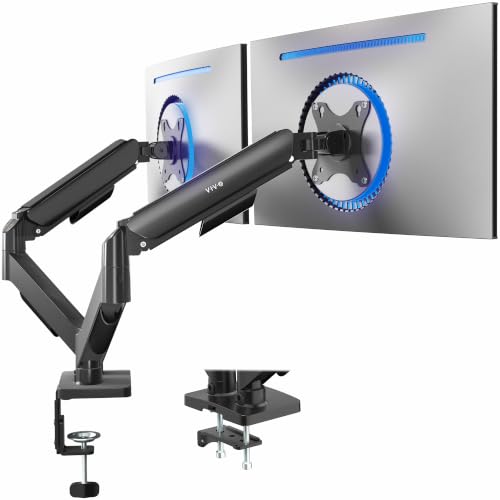


Expanding to two displays changes how you interact with your computer by splitting your visual field. Instead of constantly minimizing and maximizing windows on a single screen, you can keep your primary task in focus while keeping secondary information visible. This separation of duties is the core value proposition of a dual setup. It allows for a more organized digital workspace, which can lead to fewer interruptions and a smoother workflow for many users.
| Factor | Single Monitor | Dual Monitor |
|---|---|---|
| Window Management | Requires switching/minimizing | Simultaneous display of multiple apps |
| Desk Space | Less footprint | Requires wider or deeper desk | Visual Distraction | Focused on one area | Requires eye movement across screens |
| Setup Complexity | Simple cable management | Requires stand/arm and more cables |
| Best For | Single-task focus, limited space | Productivity, multitasking, reference-heavy work |
Before deciding, it is crucial to assess your current environment. A dual setup is not just about buying two screens; it involves the physical infrastructure to support them. You need to ensure your desk can accommodate the width of two monitors without becoming cluttered. Additionally, you must consider the type of stand or mount you will use to position the screens at a comfortable height and angle. If your desk is narrow or has limited depth, a dual setup might feel cramped rather than spacious.
- Measure your desk width and depth to ensure two monitors fit comfortably
- Check if your desk material supports the weight of a dual monitor arm
- Verify that your graphics card has enough video outputs for two displays
- Assess your primary tasks to see if multitasking is a frequent need
- Consider the cost of a monitor arm or stand for proper positioning
- Evaluate your lighting setup to reduce glare on two screens
Productivity and Workflow Benefits
For many office workers and developers, the most significant benefit of a dual monitor setup is the reduction in context switching. When you can keep your code editor on one screen and your documentation or browser on the other, you eliminate the time lost to window management. This is particularly useful for tasks that require constant reference to external information. The ability to view multiple applications simultaneously can lead to a more efficient workflow and potentially higher output during the workday.
However, the productivity gain is not uniform for everyone. If your work involves deep focus on a single task, such as writing a long-form article or editing a video, the extra screen might become a source of distraction rather than a tool. In these cases, a single high-resolution monitor might be more effective because it keeps all relevant information within your primary field of view. The key is to align the setup with your specific work style rather than assuming more screens always mean better performance.
Ergonomics and Physical Setup
Proper ergonomics are critical when using multiple displays. Positioning two monitors side-by-side can lead to excessive neck strain if you are constantly turning your head to switch between them. To mitigate this, many users position one monitor directly in front of them and the other at an angle. This arrangement keeps the primary screen within your natural line of sight while the secondary screen is easily accessible with a slight turn of the head. This setup helps reduce fatigue during long periods of use.
Using a monitor arm or stand is highly recommended for dual setups. These accessories allow you to adjust the height, tilt, and swivel of each screen independently. This flexibility is essential for finding a comfortable position that supports your posture. Without proper support, monitors may sit too low or too far away, leading to eye strain and back pain. Investing in a quality dual monitor arm can make a significant difference in the long-term comfort of your workspace.
Compatibility and Technical Requirements
Before purchasing a second monitor, you must ensure your computer can support it by checking hardware and software compatibility.
- Most modern graphics cards have multiple video outputs, such as HDMI, DisplayPort, or USB-C.
- You need to check that your GPU has enough free ports to connect two displays simultaneously.
- If your current setup only has one output, you may need to consider a USB-C dock or a new graphics card.
- Additionally, you should verify that your operating system supports multi-monitor configurations, which is standard on Windows and macOS.
Resolution and refresh rate matching is another consideration. While it is possible to use monitors with different specs, doing so can sometimes lead to display scaling issues or inconsistent performance. For the best experience, try to use two monitors with the same resolution and refresh rate. This ensures that windows move smoothly between screens and that the visual quality is consistent across your entire setup. If you are using a laptop, ensure that its port supports the resolution and refresh rate of the external monitors you plan to use.
Cost and Value Considerations
The cost of a dual monitor setup includes not just the price of the second screen, but also the necessary accessories. A monitor arm, extra cables, and potentially a new power strip can add to the total expense. When evaluating the value, consider how much time you save from reduced window switching. For many users, the productivity gains justify the additional investment. However, if your workflow does not benefit significantly from multitasking, the cost may not be worth the added complexity.
It is also worth considering the long-term durability of the components. Monitor arms and stands are subject to wear and tear, especially if they are frequently adjusted. Choosing a quality stand with a good warranty can save you money in the long run. Additionally, ensure that the monitors you choose have reliable build quality and energy efficiency. A well-chosen dual setup can last for many years, providing a consistent and reliable workspace for your daily tasks.
When a Single Monitor is Better
There are specific scenarios where a single monitor is the superior choice. If your desk space is limited, a single large monitor may be the only practical option. In these cases, a high-resolution display, such as 4K, can provide enough screen real estate to handle multiple tasks without the need for a second screen. Additionally, if your primary use case is gaming or creative work that requires full-screen immersion, a single monitor offers a more focused and distraction-free environment.
For users who prioritize portability, a single monitor is easier to transport and set up in different locations. Dual setups are generally fixed to a desk and require more time to assemble and disassemble. If you frequently move your workspace, the convenience of a single display may outweigh the benefits of a dual configuration. Ultimately, the best setup is the one that fits your specific needs and environment, not necessarily the one with the most screens.
Deciding if a dual monitor setup is worth it comes down to a careful assessment of your workflow, desk space, and technical capabilities. If you find yourself constantly switching between windows and have the space to support two screens, the productivity gains are likely to justify the investment. However, if your tasks are focused and your space is limited, a single high-resolution monitor may be a more practical and cost-effective choice. By considering these factors, you can make a decision that enhances your daily experience without unnecessary expense.
If you are still unsure about the best display configuration for your specific needs, our guide on monitor options for dual setups provides a detailed look at compatible models. Additionally, understanding the difference between panel types can help you choose the right screen for your primary and secondary displays, as discussed in our office monitor guide.


Write Your Review
No reviews yet. Be the first to share your experience!