
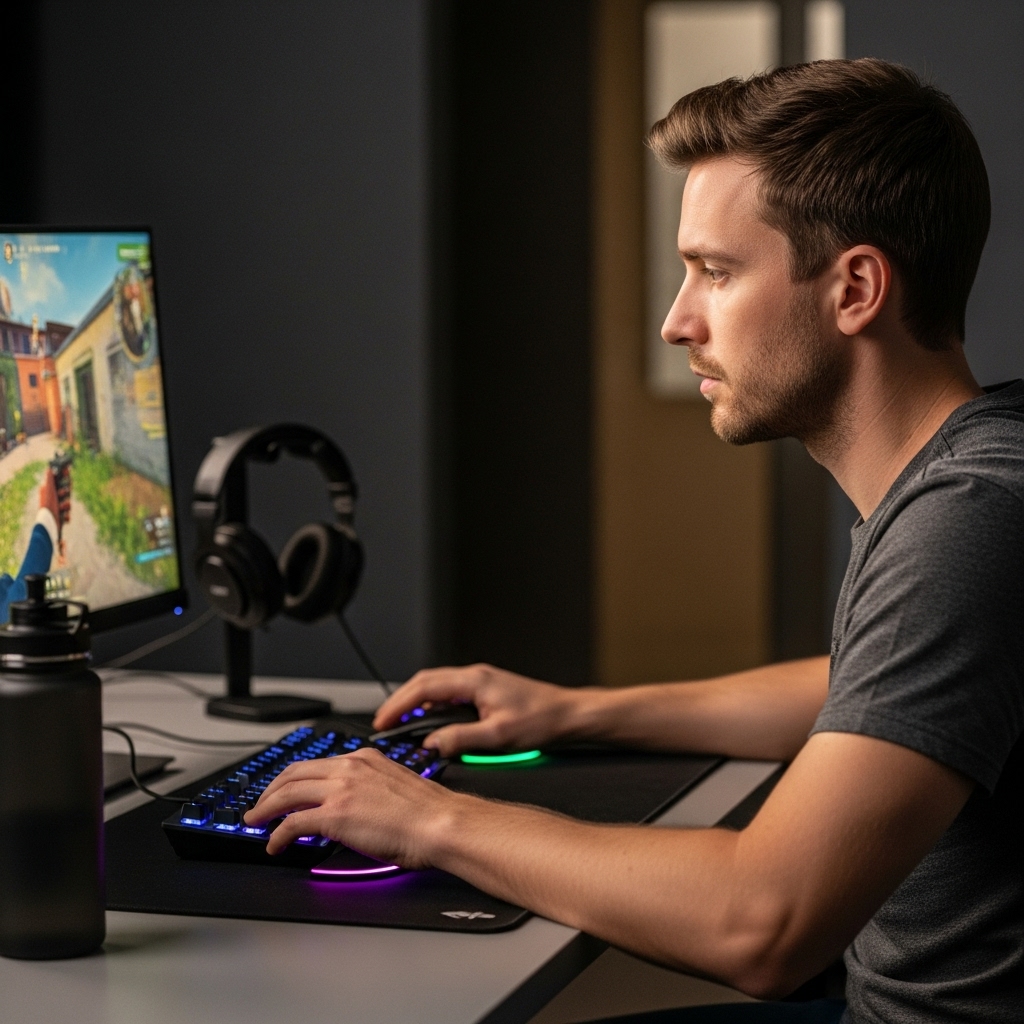

Replacing the original stand on an LG UltraGear monitor usually means switching to a freestanding VESA mount or a different arm base.
- This change allows you to adjust height, tilt, and swivel without drilling into your desk.
- This is helpful if the original stand is broken, too low, or simply not ergonomic for your setup.
- Most LG UltraGear models support standard VESA patterns, so compatibility is generally straightforward if you check the specific pattern on the back of your screen.
The main goal is to find a stand that matches your monitor’s weight and VESA size while providing the adjustments you need. You do not need to buy a new monitor to improve your viewing position; a compatible replacement stand can make a significant difference in comfort and desk organization. This guide covers the key specifications to check, the types of stands available, and practical steps to ensure a secure and stable installation for your display.
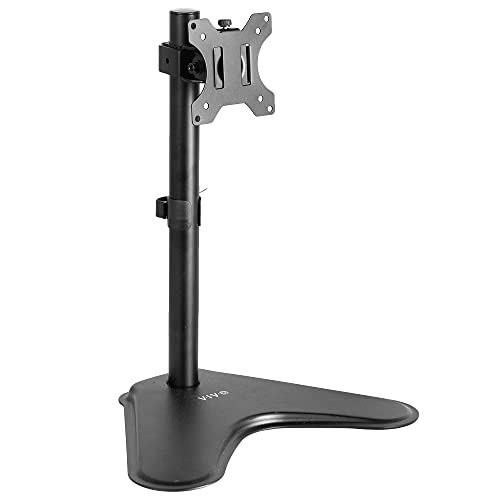


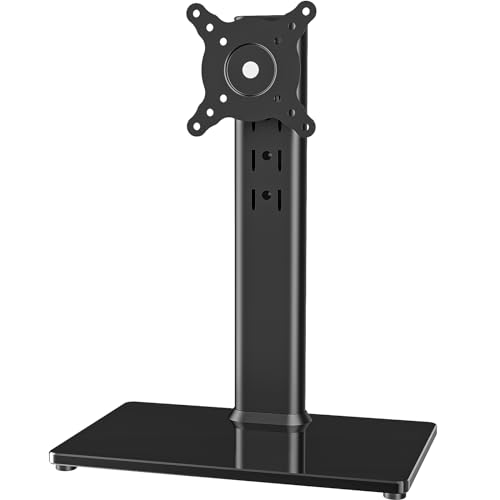
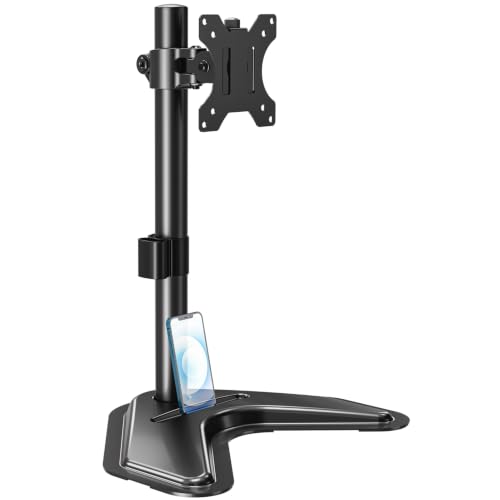
Before purchasing a replacement, you must verify three critical specifications: the VESA pattern, the maximum weight capacity, and the screen size range. LG UltraGear monitors typically use either a 75x75mm or 100x100mm VESA pattern, but you should confirm this by looking at the four screw holes on the back of your monitor. The weight of the monitor is equally important; many UltraGear models are lightweight, but you should still ensure the stand’s rated capacity exceeds the actual weight of your display for safety and stability.
| Specification | Why It Matters | Typical LG UltraGear Values |
|---|---|---|
| VESA Pattern | Determines if the mount fits the screw holes | 75x75mm or 100x100mm |
| Max Weight | Ensures the stand can support the monitor safely | Varies by model, often 10-20 lbs |
| Screen Size | Ensures the stand base is wide enough for stability | 24″ to 32″ common |
Here is a quick checklist to complete before you buy a new stand:
- Measure the distance between the VESA screw holes on your monitor.
- Weigh your monitor or check the manufacturer’s specifications for its exact weight.
- Confirm the stand supports your specific VESA pattern (75×75 or 100×100).
- Ensure the stand’s weight capacity is higher than your monitor’s weight.
- Check if the stand supports the screen size of your LG UltraGear model.
Choosing Between Freestanding and Clamp Stands
Freestanding stands are the most common replacement for broken original stands because they do not require drilling or clamping to the desk. They sit on the desktop and use a weighted base to keep the monitor stable. This type of stand is ideal if you rent your home or have a glass desk that cannot be drilled. However, they take up more desk space than clamp arms. If you have limited desk depth, a freestanding stand might push your monitor too far back, so measure your available space carefully.
Clamp stands attach to the edge of the desk and free up surface area, but they require a solid desk edge that can support the weight. For an LG UltraGear monitor, a freestanding stand is often the safer and easier choice for most users. The products listed in this guide are primarily freestanding options, which simplifies the installation process significantly. You do not need to worry about desk thickness or material compatibility when choosing a freestanding base.
Understanding VESA Patterns and Adapters
Most LG UltraGear monitors come with a 100x100mm VESA pattern, but some smaller models may use 75x75mm. If your monitor has a 75x75mm pattern and you want to use a stand designed for 100x100mm, you may need an adapter plate. These adapters are inexpensive and easy to install, but they add a small amount of depth to the back of the monitor. Always check the stand’s compatibility list to see if it supports both patterns natively or if an adapter is required.
It is important to use the correct screws for your VESA pattern. Most stands come with a kit of screws in different lengths, so you can choose the ones that fit your monitor’s depth. Using screws that are too long can damage the internal components of the monitor, while screws that are too short may not hold the monitor securely. Take your time to select the correct screw length and tighten them evenly to ensure the monitor is balanced on the stand.
Weight Capacity and Stability Considerations
While many LG UltraGear monitors are relatively lightweight, you should still choose a stand with a weight capacity that exceeds the monitor’s weight. This provides a safety margin and ensures the stand does not wobble under load. A stand that is rated for just the weight of the monitor may feel less stable, especially if you adjust the tilt or swivel frequently. Look for stands with a tempered glass or heavy steel base to maximize stability and prevent tipping.
The base of the stand plays a crucial role in overall stability. A wider base provides better balance, especially if you plan to use the stand for a larger monitor. If you have a 27-inch or 32-inch LG UltraGear, ensure the stand’s base is wide enough to support the screen without tipping over. You can test the stability by gently pushing the monitor after installation; if it wobbles or feels unstable, you may need a heavier base or a different stand design.
Adjustment Range and Ergonomics
One of the main benefits of replacing your monitor stand is the ability to adjust the height, tilt, and swivel to suit your ergonomic needs. Look for stands that offer a wide range of height adjustment, allowing you to position the top of the screen at eye level. This helps reduce neck strain during long gaming or work sessions. Tilt and swivel adjustments are also important for finding the best viewing angle and reducing glare from windows or lights.
Some stands offer 360-degree rotation, which allows you to switch between landscape and portrait modes. This is useful if you use your monitor for tasks that benefit from a vertical orientation, such as coding or reading documents. However, not all monitors support portrait mode well, so check your LG UltraGear’s specifications before relying on this feature. The ability to adjust the monitor’s position can significantly improve your comfort and productivity, making it a worthwhile upgrade over a fixed stand.
Installation Steps and Safety Tips
Installing a replacement stand is a straightforward process if you follow the manufacturer’s instructions. Start by removing the original stand from your monitor, if it is still attached. You may need to remove some screws or clips to detach the old stand. Once the original stand is removed, you will see the VESA holes on the back of the monitor. Attach the new stand’s VESA plate to these holes using the provided screws, tightening them evenly to ensure a secure fit.
After attaching the VESA plate, place the stand’s base on your desk and insert the pole into the base. Secure the pole with the provided clamp or screw to ensure it does not slip. Finally, attach the monitor to the pole or arm, adjusting the height and angle to your preference. Always handle the monitor with care to avoid damaging the screen or internal components. If you are unsure about any step, consult the user manual or seek assistance from someone experienced with monitor installation.
By following these steps and checking the compatibility factors, you can successfully replace your LG UltraGear monitor stand with a more ergonomic and stable option. This upgrade can enhance your gaming and work experience by providing better viewing angles and reducing physical strain. Take the time to verify the specifications and choose a stand that fits your needs and budget.
If you are looking for more information on optimizing your setup, our guide on monitor configuration options can help you decide if a single large display is the right choice for your space. Additionally, checking our office monitor recommendations might provide insights into displays that balance gaming performance with productivity features.





Write Your Review
No reviews yet. Be the first to share your experience!