
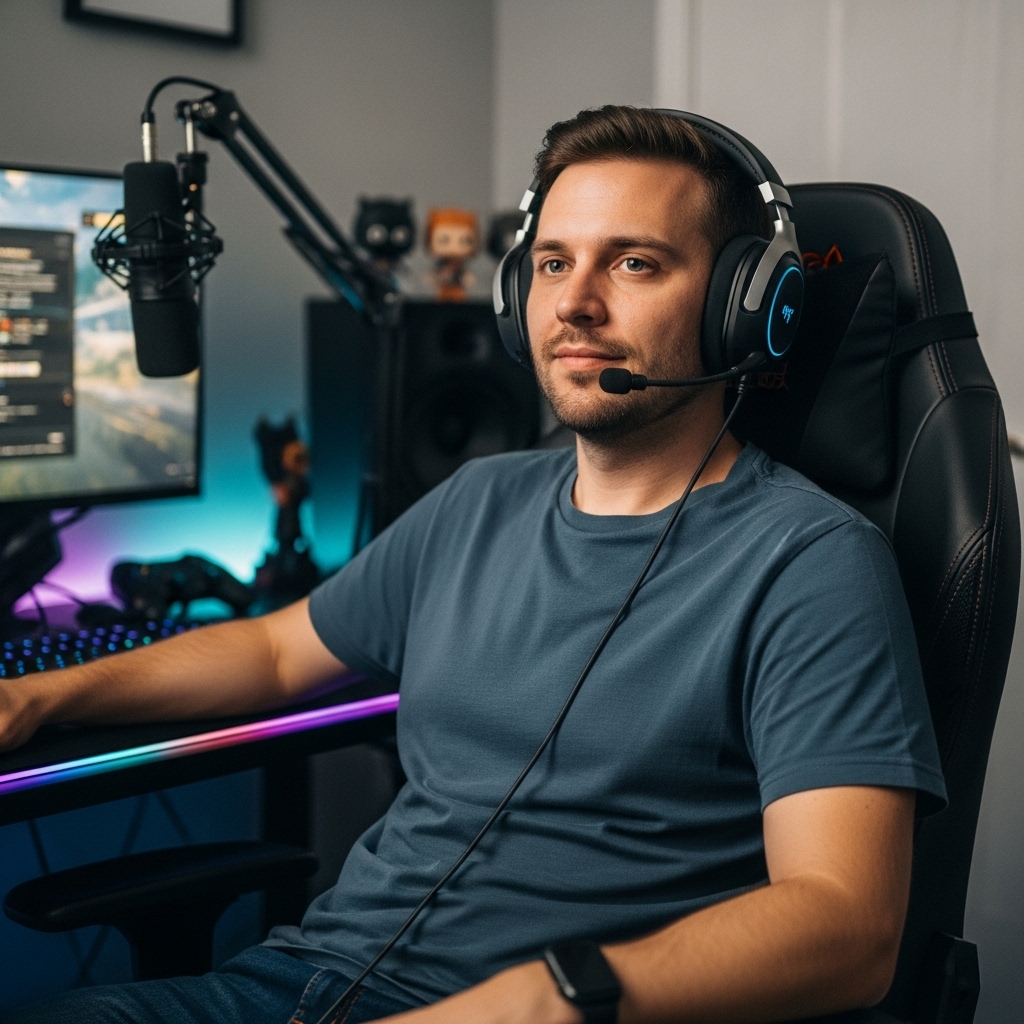

Deciding on a new display often starts with the question: what am i looking for in a gaming monitor? The direct answer lies in balancing your graphics hardware capabilities with your specific playstyle, focusing on three core metrics: resolution, refresh rate, and panel technology.
Your current graphics card dictates the maximum resolution and frame rate you can actually achieve. A high-end GPU can drive 4K at high refresh rates, while mid-range hardware may perform better at 1080p or 1440p. Understanding these limits prevents spending on specs your system cannot utilize. The following options represent popular choices in the current market.

The core of a gaming monitor decision involves matching display output to your hardware and game genre.
- Competitive players often prioritize high refresh rates for smoother motion, while single-player enthusiasts may value higher resolution for image clarity.
- Panel technology also plays a significant role, affecting color accuracy, contrast ratios, and viewing angles in your setup.
- You need to identify which of these factors impacts your experience the most before comparing specific models.
| Spec | Competitive Focus | Single-Player Focus |
|---|---|---|
| Refresh Rate | 144Hz to 360Hz+ | 60Hz to 144Hz |
| Resolution | 1080p to 1440p | 1440p to 4K |
| Panel Type | IPS or TN | IPS, VA, or OLED |
| Response Time | 1ms to 5ms | 1ms to 5ms |
Start by checking your graphics card specifications to see what resolutions and frame rates it supports at high settings. This ensures you do not buy a display that your system cannot drive effectively. Here are the primary technical specs to verify during your search:
- Native resolution matching your GPU’s output capability for stable frame rates.
- Refresh rate that exceeds your average gaming FPS for smoother motion.
- Panel type that suits your preference for color accuracy or contrast.
- Response time specifications listed by the manufacturer for motion clarity.
- Available ports such as HDMI or DisplayPort for your current cables.
- Variable refresh rate support like G-Sync or FreeSync for tear-free play.
Resolution and Frame Rate Balance
Resolution determines the sharpness of the image, while frame rate determines how smooth the motion appears. These two factors often compete for graphics card resources. Higher resolutions require more processing power, which can lower the frame rate. Many PC gamers prioritize a balance where they can maintain high frame rates at a resolution that looks clear on their specific screen size.
For competitive shooters, a 1080p or 1440p display often allows for higher frame rates than a 4K screen. This is because the graphics card does not have to render as many pixels. However, single-player games with rich visual details may benefit from the extra pixels of a 4K monitor. You should test your hardware at different resolutions to see where the frame rate drops below a comfortable level.
If you are using a console, the supported resolutions are fixed by the hardware. Checking the specific game’s performance on your console is crucial. Some games run at 4K but with a lower frame rate, while others run at 1080p or 1440p with a higher frame rate. The monitor you choose should support the specific mode the game uses to avoid upscaling artifacts or input lag.
Panel Technology and Image Quality
Panel technology refers to the type of display technology used, such as IPS, VA, or OLED. Each type has distinct characteristics that affect image quality. IPS panels are known for accurate colors and wide viewing angles. VA panels offer higher contrast ratios, which is beneficial for dark scenes in games. OLED panels provide perfect blacks and infinite contrast ratios.
Based on the listed specifications, you can determine which panel type suits your needs. If you play in a bright room, IPS or OLED panels may perform better due to their brightness and color vibrancy. If you play in a dark room and value deep blacks, a VA or OLED panel might be a better choice. Some users prefer the responsiveness of certain panel types for fast-paced action, while others prioritize the visual fidelity for story-driven games.
Response time is another critical spec, usually measured in milliseconds. A lower response time means the pixels change color faster, reducing motion blur. However, the measurement method can vary between manufacturers. Always check if the response time is measured gray-to-gray or black-to-white. This distinction matters because gray-to-gray is a more realistic representation of in-game motion.
Refresh Rate and Variable Refresh Rate
Refresh rate, measured in Hertz (Hz), indicates how many times per second the screen updates. A 60Hz monitor updates 60 times per second, while a 144Hz monitor updates 144 times. The difference is noticeable, especially in fast-paced games where quick reaction times are essential. A higher refresh rate can make motion appear smoother and more fluid.
Variable Refresh Rate (VRR) technologies like AMD FreeSync and NVIDIA G-Sync help synchronize the monitor’s refresh rate with the GPU’s frame rate. This prevents screen tearing, which occurs when the frame rate and refresh rate are out of sync. It also reduces stuttering when the frame rate drops below the monitor’s maximum refresh rate. Checking if your graphics card and the monitor support the same VRR standard is important for this feature to work.
Many PC gamers prioritize a refresh rate that is higher than their average frame rate. If your GPU consistently outputs 100 frames per second, a 144Hz monitor will provide a smoother experience than a 60Hz one. However, if your frame rate fluctuates significantly, VRR can help maintain a consistent visual experience. This technology is particularly useful in single-player games where frame rates can vary due to complex scenes.
Connectivity and Compatibility Checks
Ensuring your monitor has the right ports for your setup is a basic but often overlooked step. Most modern monitors include HDMI and DisplayPort connections. The version of these ports matters, as higher bandwidth ports are required for high resolutions and refresh rates. For example, DisplayPort 1.4 or HDMI 2.1 is often needed for 4K at high refresh rates or 1440p at very high refresh rates.
Check the specifications of your graphics card or console to see which ports it offers. If you are using an older system, you might need an adapter to connect to a modern monitor. Adapters can sometimes limit the maximum resolution or refresh rate, so it is best to use a direct connection if possible. Manufacturer information lists the supported input standards for each port, which helps in verifying compatibility.
For console users, checking the specific mode support is crucial. Some monitors are listed as compatible with PS5 or Xbox Series X|S, indicating they support 4K at 120Hz and other advanced features. This compatibility ensures that you can take full advantage of the console’s capabilities. If you are unsure, checking the manufacturer’s website for a compatibility list can provide clarity.
Screen Size and Viewing Distance
Screen size affects immersion and eye strain. A monitor that is too large for your viewing distance can cause eye fatigue and make it difficult to see the entire screen. Conversely, a monitor that is too small may not provide enough immersion. A general rule of thumb is to sit at a distance that is roughly equal to the diagonal size of the screen in inches.
For desk setups, space is a limiting factor. A 27-inch monitor is a popular choice for 1440p resolution, offering a good balance of size and pixel density. A 32-inch monitor may be better suited for 4K resolution to maintain the same pixel density. If you have limited desk space, a 24-inch monitor might be the best option for 1080p. Measuring your available space before purchasing is a practical step to avoid fitting issues.
Curved monitors can also affect viewing distance. The curvature radius should match your viewing distance for the best ergonomic experience. If the curve is too aggressive for your distance, it can cause distortion at the edges. Most manufacturers recommend a specific viewing distance for their curved monitors. Checking these recommendations can help you choose a curvature that suits your setup.
Ultimately, the best gaming monitor is the one that matches your hardware, playstyle, and physical setup. By focusing on resolution, refresh rate, panel type, and connectivity, you can narrow down your choices effectively. Consider your primary games and how you plan to use the monitor. Whether for competitive play or immersive single-player experiences, aligning these specs with your needs ensures a satisfying gaming experience. If you are still deciding between different sizes, our monitor size guide offers further insights on fitting displays to your workspace.





Write Your Review
No reviews yet. Be the first to share your experience!