
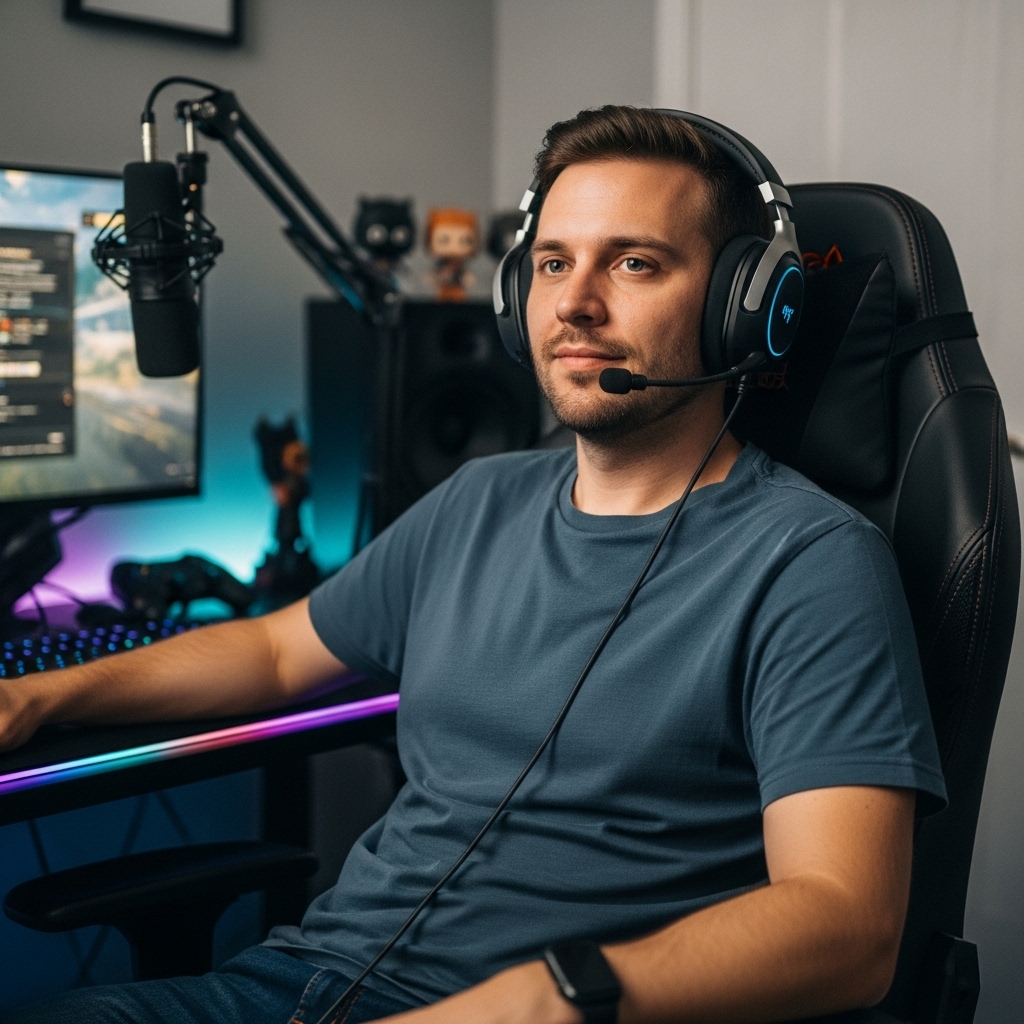

Choosing the right display often comes down to matching your primary use case with specific technical capabilities rather than just picking the largest screen available. The core factors to evaluate are resolution, refresh rate, and panel technology, as these three elements determine how smooth motion appears and how much detail you can see.
For most users, a 1080p or 1440p display with a standard IPS panel offers the best balance of cost and performance for daily tasks and casual gaming. If you are a competitive gamer or a creative professional, you might prioritize higher refresh rates or color accuracy over raw screen size.
It is easy to feel overwhelmed by marketing terms like HDR, OLED, or QLED, but each serves a distinct purpose. A 4K monitor provides sharper text and images, which is ideal for office work or single-player games, but it demands more from your graphics card. Conversely, a high refresh rate monitor, such as one running at 144 Hz or higher, makes fast-paced action feel significantly smoother. You should also consider connectivity options, such as USB-C, which can simplify cable management by providing power and data over a single connection. Understanding these distinctions helps you avoid paying for features you will never use, ensuring your investment delivers real value for your specific setup. For more context on display configurations, see our guide on monitor setups.
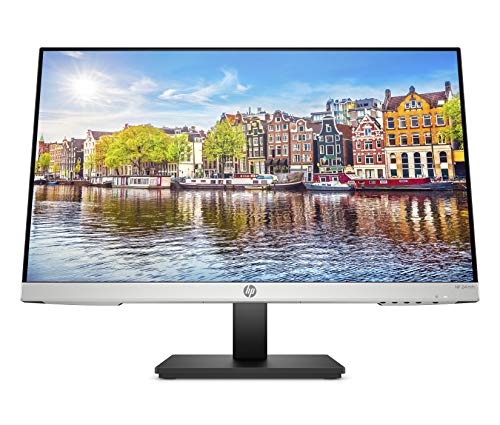

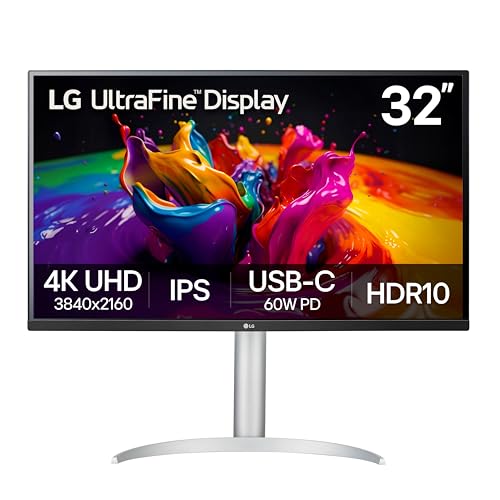
Key Factors for Selecting a Monitor
Selecting the right computer monitor requires balancing technical specifications with your physical workspace and usage habits. The most critical decision involves choosing between resolution and refresh rate, as these two specs often compete for budget and GPU performance.
A higher resolution like 4K offers more pixels for sharper images, while a higher refresh rate like 144 Hz provides smoother motion. You must decide which aspect matters more for your primary activities, whether that is office productivity, competitive gaming, or media consumption. This section breaks down the essential technical and ergonomic factors to help you make an informed choice.
| Factor | Impact on Usage | Typical Range |
|---|---|---|
| Resolution | Image sharpness, workspace size | 1080p, 1440p, 4K |
| Refresh Rate | Motion smoothness, input lag | 60 Hz, 144 Hz, 240 Hz |
| Panel Type | Color accuracy, contrast, speed | IPS, VA, TN |
| Screen Size | Viewing distance, immersion | 24-inch, 27-inch, 32-inch |
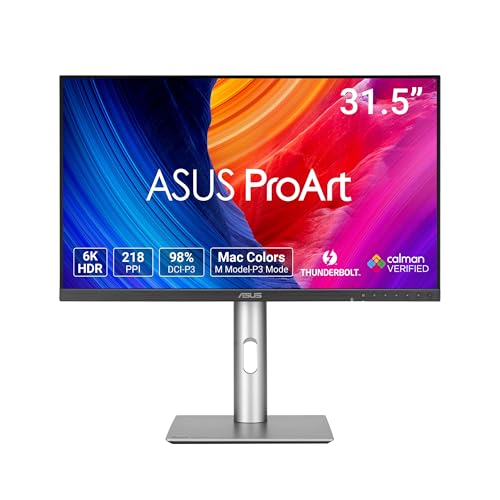
Start by defining your primary use case, as this dictates which specifications are non-negotiable. Competitive gamers often prioritize high refresh rates and low response times to minimize input lag and motion blur. Creative professionals, on the other hand, focus on color accuracy and wide color gamuts to ensure their work looks correct on other devices.
Office workers benefit most from high resolution and ergonomic stand adjustments to reduce eye strain during long sessions. Identifying your main priority helps you filter out irrelevant features and focus on the specs that actually improve your daily experience.
Here are the core technical specifications to verify before making a purchase decision:
- Check the native resolution to ensure it matches your GPU capabilities and desk space.
- Verify the refresh rate supports your preferred gaming or video playback smoothness.
- Identify the panel type, as IPS offers wide viewing angles while VA offers better contrast.
- Confirm the presence of necessary ports like HDMI, DisplayPort, or USB-C for your devices.
Resolution and Screen Size Balance
Resolution determines the number of pixels on the screen, directly affecting image sharpness and the amount of workspace available. A 1080p display is sufficient for most 24-inch monitors, providing a good balance of clarity and performance requirements. Moving to a 27-inch screen often makes 1440p the ideal choice, as it offers sharper text without being too demanding on the GPU.
For 32-inch displays and larger, 4K resolution is generally recommended to maintain pixel density and avoid visible pixelation. However, higher resolutions require more powerful graphics cards, especially for gaming, so ensure your system can handle the load.
Screen size interacts with resolution to determine pixel density, which affects how sharp the image appears from your typical viewing distance. Sitting too close to a large 4K screen can make text feel tiny, while sitting too far from a small 1080p screen can reveal individual pixels.
A general rule of thumb is to match the size to your desk depth; a 27-inch monitor fits well in most standard office setups. If you plan to use the monitor for detailed work like photo editing or coding, a higher resolution on a larger screen provides more real estate for windows and tools. Consider how you will position the monitor relative to your eyes to avoid neck strain.
Panel Technology and Visual Quality
Panel technology refers to the type of liquid crystal display used, which significantly impacts color reproduction, contrast ratios, and viewing angles. IPS panels are widely favored for their accurate colors and wide viewing angles, making them suitable for both gaming and creative work.
VA panels offer deeper blacks and higher contrast ratios, which is beneficial for watching movies in dimly lit rooms, but they can suffer from slower response times. TN panels are the oldest technology, offering the fastest response times but with the poorest color accuracy and viewing angles. Choosing the right panel depends on whether you value color fidelity, contrast, or raw speed more.
Response time measures how quickly a pixel can change from one color to another, usually from black to white. Lower response times, such as 1 ms or 5 ms, reduce motion blur in fast-paced games, which is crucial for competitive players. However, marketing claims of 1 ms often refer to gray-to-gray transitions, which may not reflect real-world performance in all scenarios.
For casual gamers and office users, a response time of 5 ms to 10 ms is perfectly acceptable and often comes with better color accuracy. Do not sacrifice color quality for a marginal improvement in response time unless you are playing fast-action competitive titles regularly.
Refresh Rate and Motion Smoothness
Refresh rate indicates how many times per second the monitor updates the image, measured in Hertz (Hz). A standard 60 Hz monitor is sufficient for office work and casual gaming, but it can feel choppy in fast-paced action games. A 144 Hz or higher monitor provides significantly smoother motion, making it easier to track fast-moving objects and reducing eye fatigue during long sessions.
To benefit from a high refresh rate, your graphics card and game must support it; otherwise, the monitor will simply run at a lower rate. Variable refresh rate technologies like AMD FreeSync or NVIDIA G-Sync help eliminate screen tearing and stuttering by synchronizing the monitor’s refresh rate with the GPU’s frame rate.
Input lag is the delay between your action on the mouse or keyboard and the corresponding movement on the screen. While often confused with response time, input lag is a separate factor that affects how responsive the system feels. High refresh rate monitors typically have lower input lag, which is a major advantage for competitive gaming.
However, some monitors add processing delays for features like motion reduction or image enhancement, which can increase input lag. If you are a competitive gamer, look for monitors with dedicated game modes that disable unnecessary processing to minimize lag. For casual users, this factor is less critical, but it still contributes to the overall feel of the system.
Connectivity and Ergonomics
Connectivity options determine how easily you can connect your devices to the monitor. HDMI is the most common port, supporting both audio and video, while DisplayPort is often preferred for higher refresh rates and resolutions in PC setups. USB-C is increasingly popular because it can handle video, data, and power delivery over a single cable, which is ideal for laptop users.
Ensure the monitor has the ports you need for your current and future devices, including consoles, multiple PCs, or peripherals. A monitor with USB hubs can also help manage cables and provide additional connectivity for keyboards, mice, or storage drives.
Ergonomics play a crucial role in preventing eye strain and neck pain during long usage sessions. Look for monitors with adjustable stands that allow you to change the height, tilt, and swivel of the screen. A height-adjustable stand helps position the top of the screen at or slightly below eye level, which is the recommended posture for extended viewing.
VESA mounting compatibility allows you to use third-party arms or mounts, which can free up desk space and provide more flexible positioning. If you plan to use the monitor for both work and gaming, an ergonomic setup is essential for maintaining comfort throughout the day. Consider the weight and stability of the stand, especially if you are using a larger screen.
Here are practical ergonomic and connectivity checks to perform before finalizing your choice:
- Ensure the stand allows height adjustment to align the screen with your eye level.
- Check for VESA mounting compatibility if you plan to use a monitor arm.
- Verify that the monitor includes the necessary ports for your PC, laptop, or console.
- Look for USB-C support if you want to simplify cable management with a single cable.
Budget and Value Considerations
Setting a realistic budget helps you narrow down the options and avoid overspending on unused features. Entry-level monitors offer basic functionality at a lower cost, which is suitable for office work and casual gaming. Mid-range monitors provide a better balance of features, such as higher refresh rates and better panel technologies, for a moderate price increase.
Premium monitors include advanced features like OLED panels, high dynamic range, and extensive connectivity options, but they come with a significantly higher price tag. Determine which features are essential for your needs and which are nice-to-have extras to maximize your value.
Consider the long-term value of the monitor, including its durability, warranty, and potential for future upgrades. A higher-quality monitor may last longer and maintain its performance better over time, which can justify a higher initial investment. Check the warranty terms to understand what is covered and for how long, as this can provide peace of mind against manufacturing defects.
Also, consider the energy efficiency of the monitor, especially if you plan to use it for many hours each day. A more efficient monitor can reduce your electricity costs over time, contributing to its overall value. By weighing these factors, you can make a purchase that satisfies your current needs while remaining relevant for future use.
For those interested in how display choices affect specific workflows, our guide on office monitor selection offers additional insights into productivity-focused setups.
Ultimately, the best monitor for you is the one that aligns with your specific usage patterns, workspace constraints, and budget. By carefully evaluating resolution, refresh rate, panel technology, and ergonomics, you can select a display that enhances your daily experience without unnecessary expense. Take the time to compare specifications and read user reviews to ensure the monitor meets your expectations. A well-chosen monitor can significantly improve your productivity, gaming experience, and overall satisfaction with your computer setup.





Write Your Review
No reviews yet. Be the first to share your experience!